
LONGRUF XT892SC
LONGRUF Car Stereo Radio User Manual
Model: XT892SC
1. Introduction
This manual provides detailed instructions for the installation, operation, and maintenance of your LONGRUF Android 13 Car Stereo Radio. This head unit is specifically designed for Dodge RAM 1500, 2500, and 3500 models from 2013 to 2018, equipped with manual air conditioning controls. Featuring a 9-inch IPS touch screen, 2GB RAM, and 64GB ROM, it offers wireless CarPlay, Android Auto, Bluetooth, WiFi, and GPS navigation capabilities.

Figure 1.1: LONGRUF Car Stereo Radio for Dodge RAM 2013-2018 (Manual AC)
Please read this manual thoroughly before installation and operation to ensure proper use and to maximize the performance of your new car stereo.
2. Product Compatibility
This car stereo is compatible with the following vehicle models:
- Dodge RAM 1500 (2013-2018)
- Dodge RAM 2500 (2013-2018)
- Dodge RAM 3500 (2013-2018)
Important Note:
This unit is only compatible with vehicles equipped with Manual AC controls. It is not compatible with models that have automatic climate controls. Please verify your vehicle's AC type before proceeding with installation.

Figure 2.1: Manual AC Compatibility Check
This image illustrates the difference between compatible manual AC controls (top, checked) and incompatible automatic AC controls (bottom, crossed out) for the Dodge RAM models.
3. What's in the Box
Before beginning installation, please ensure all components are present:
- 1 x 9 inch Screen Car Radio
- 1 x GPS Antenna
- 1 x Microphone & Speaker
- 1 x Power Cable & CAN Bus
- 1 x Radio Antenna Adapter
- 2 x USB Cables
- Installation Accessories (screws, screwdriver)
- Reversing Line
- RCA Cable
- Connecting Line

Figure 3.1: Included Components
This image displays all the parts and cables included in the package, essential for installation and operation.
4. Setup and Installation
Installation of the LONGRUF Car Stereo Radio is designed to be plug-and-play for compatible Dodge RAM models. However, professional installation is recommended if you are unfamiliar with car audio systems.
4.1 Pre-Installation Checklist
- Ensure your vehicle is turned off and the battery is disconnected before starting.
- Confirm all components listed in Section 3 are present.
- Gather necessary tools (e.g., trim removal tools, screwdriver).
4.2 Installation Steps
- Carefully remove the existing factory radio and trim panel from your Dodge RAM dashboard. Use appropriate trim removal tools to avoid damage.
- Disconnect all cables from the factory radio.
- Connect the provided Power Cable & CAN Bus to the vehicle's wiring harness. Ensure all connections are secure.
- Connect the GPS Antenna and Radio Antenna Adapter to the new head unit. Position the GPS antenna in a location with a clear view of the sky (e.g., dashboard, under windshield).
- If installing a reversing camera, connect the Reversing Line to the appropriate input on the head unit and route it to the camera.
- Connect the Microphone & Speaker. Position the microphone near the driver for optimal call quality.
- Connect any additional accessories using the RCA Cable and Connecting Line as needed (e.g., external amplifier, subwoofer).
- Carefully slide the new LONGRUF Car Stereo Radio into the dashboard opening. Ensure all cables are tucked away and not pinched.
- Secure the head unit using the provided installation accessories (screws).
- Reattach the trim panel, ensuring it snaps securely into place.
- Reconnect the vehicle's battery.
- Turn on the vehicle and test the new car stereo's functions.

Figure 4.1: Before and After Installation
This image visually demonstrates the transformation of the dashboard from the factory unit to the new LONGRUF car stereo.
5. Operating Instructions
The LONGRUF Car Stereo features an intuitive Android 13 interface. Navigate using the 9-inch IPS touch screen.
5.1 Wireless CarPlay & Android Auto
Connect your iPhone or Android phone wirelessly via Bluetooth to access CarPlay or Android Auto. This allows for seamless integration of your phone's apps, including navigation, music, calls, and messages, directly on the car stereo screen.
- Connection: Enable Bluetooth on your phone and the car stereo. Pair your device. Once paired, CarPlay or Android Auto should launch automatically.
- Voice Control: Use Siri (for CarPlay) or Google Assistant (for Android Auto) for hands-free operation.
- Media Sharing: Share 1080P videos and high-definition pictures from your phone to the stereo.
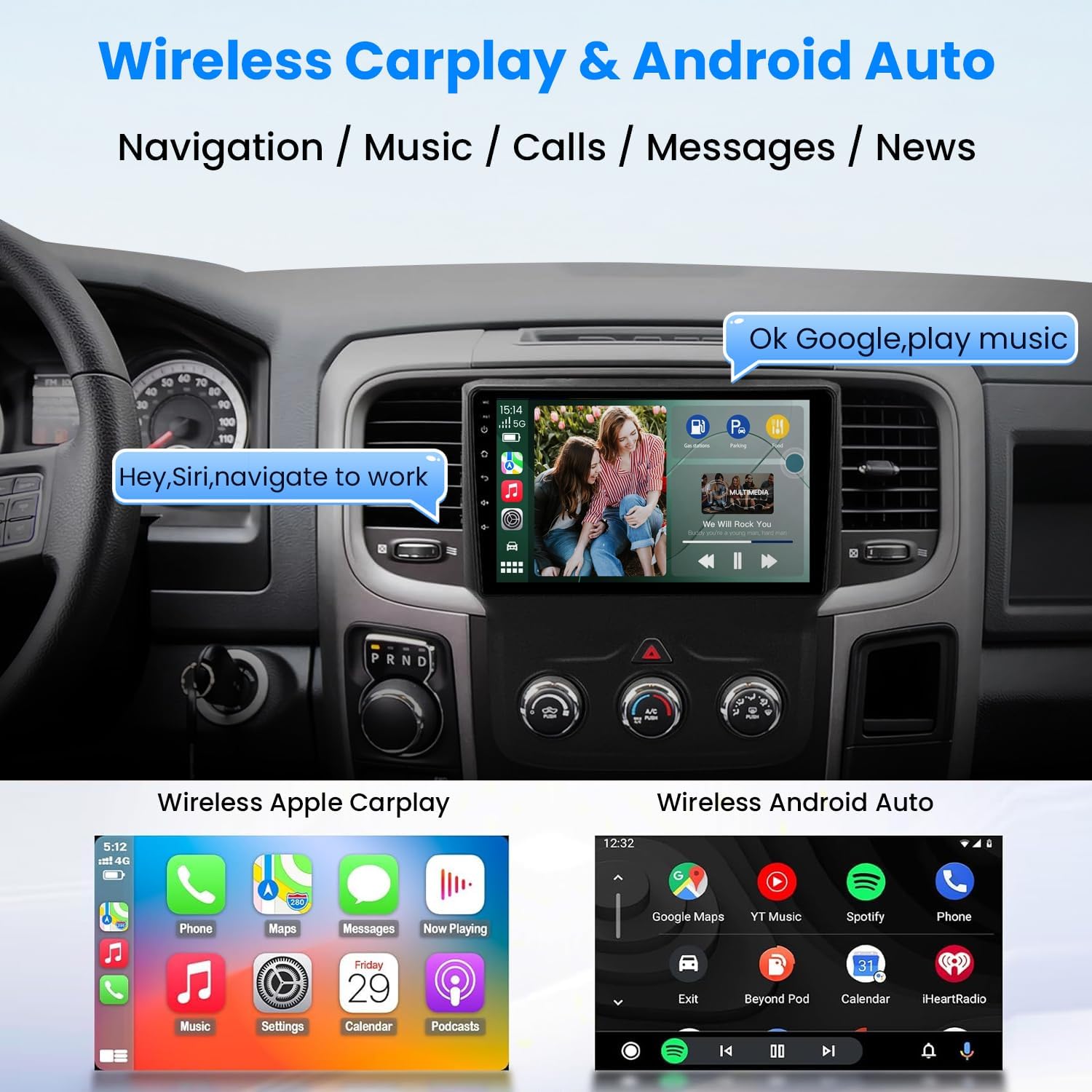
Figure 5.1: Wireless CarPlay & Android Auto Interface
This image displays the user interface for both Wireless Apple CarPlay and Wireless Android Auto, highlighting their core functionalities like navigation, music, and calls.
5.2 GPS Navigation & WiFi Connection
The unit has built-in GPS navigation and supports both online and offline navigation apps from the Google Play Store. Connect to WiFi to use online navigation and download other applications.
- Online Navigation: Connect to a WiFi hotspot (e.g., from your phone) to use real-time navigation apps like Google Maps.
- Offline Navigation: Download map data for offline use, allowing navigation without an internet connection.
- App Downloads: Access the Google Play Store via WiFi to download various apps like YouTube, Spotify, etc.
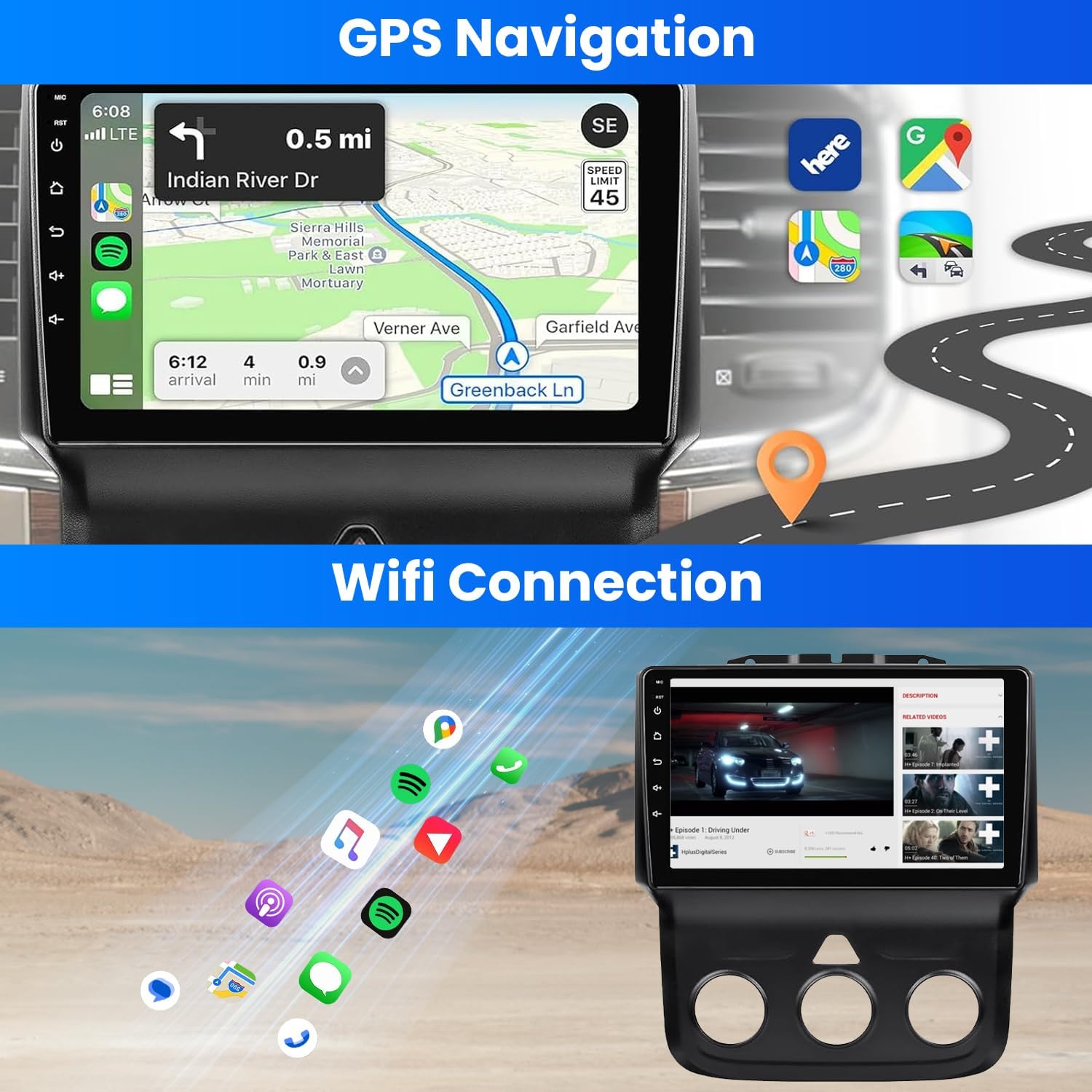
Figure 5.2: GPS Navigation and WiFi Connectivity
This image shows the GPS navigation interface and illustrates the various applications accessible via WiFi connection.
5.3 Split-Screen Display
Utilize the split-screen feature to run two applications simultaneously, such as navigation and music playback, enhancing multitasking efficiency while driving.
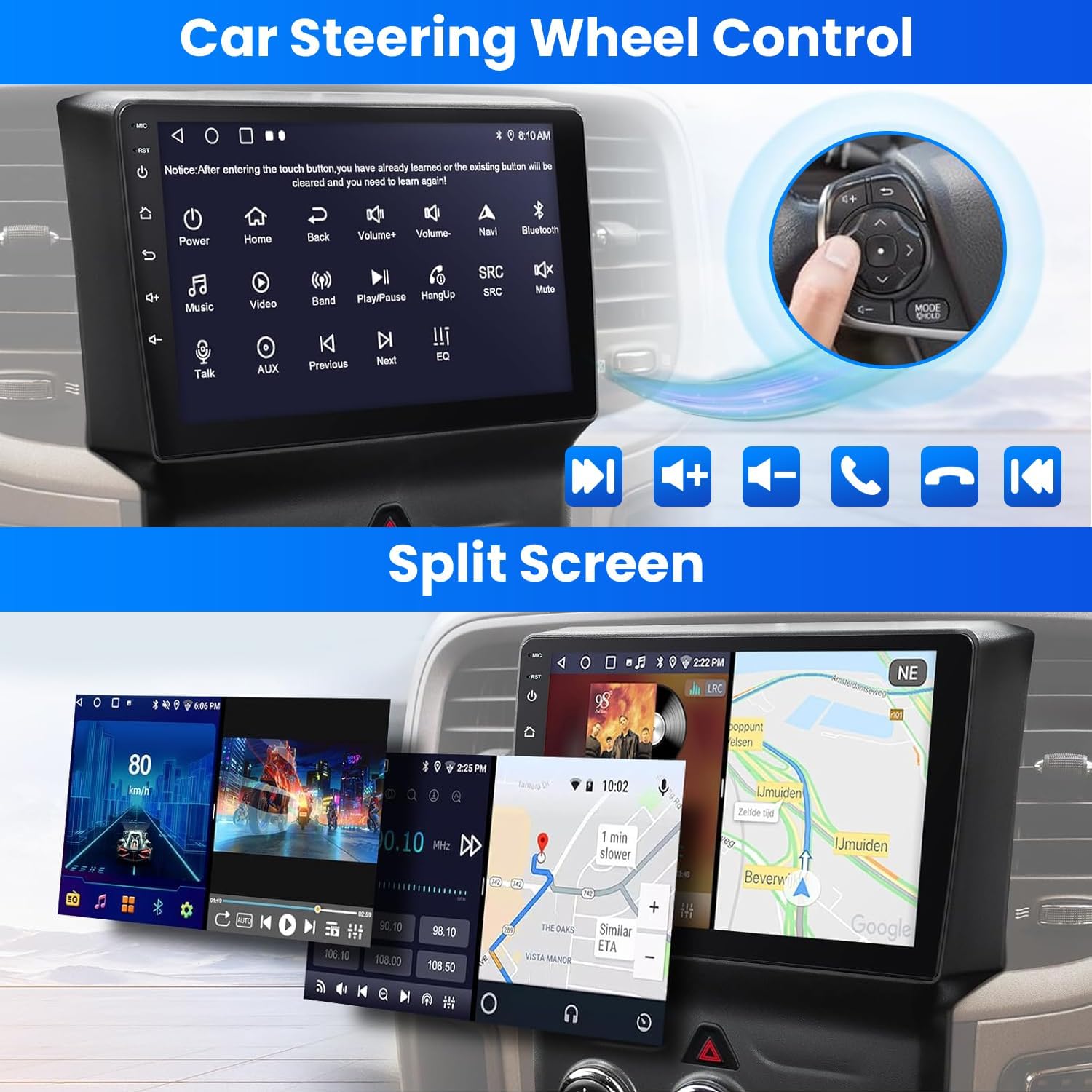
Figure 5.3: Split-Screen Functionality
This image demonstrates the split-screen feature, allowing two applications to be viewed concurrently on the display.
5.4 Steering Wheel Controls (SWC)
The unit supports steering wheel controls, allowing you to manage calls, adjust volume, and change songs safely without taking your hands off the wheel. After entering the touch button, you may need to learn or program the existing buttons.

Figure 5.4: Steering Wheel Control Integration
This image illustrates the steering wheel control feature, showing how it integrates with the car stereo for convenient operation.
5.5 FM/RDS Radio & Bluetooth
Enjoy stable FM radio with 18 preset stations and fine-tune your audio with the 16-band equalizer. Bluetooth connectivity enables hands-free calling and audio streaming from your mobile device.
- FM/RDS Radio: Scan and save your favorite radio stations. RDS (Radio Data System) provides station information where available.
- Bluetooth Hands-Free: Make and receive calls directly through the car stereo. The included external microphone can be connected for improved voice clarity.
- Bluetooth Audio Streaming: Play music from your phone or other Bluetooth-enabled devices.

Figure 5.5: FM Radio and Bluetooth Functions
This image shows the FM radio interface with various frequency options and the Bluetooth call and music streaming features.
6. Specifications
| Feature | Specification |
|---|---|
| Model Name | 9 inch Car Stereo Radio (XT892SC) |
| Display Size | 9 Inches |
| Operating System | Android 13 |
| RAM | 2GB |
| ROM | 64GB |
| Connectivity Technology | Bluetooth, USB, Wi-Fi |
| Special Features | Bluetooth, Hands-Free Calling, Screen Mirroring, Touchscreen, GPS Navigation, Wireless CarPlay/Android Auto, Split-screen Display, Steering Wheel Controls, FM/RDS Radio, 16-band Equalizer |
| Audio Output Mode | Stereo |
| Item Weight | 3.61 pounds |
| Product Dimensions | 4.88 x 10.89 x 11.89 inches |
7. Maintenance
To ensure the longevity and optimal performance of your car stereo, follow these maintenance guidelines:
- Cleaning: Use a soft, dry cloth to clean the screen and exterior. For stubborn smudges, slightly dampen the cloth with water or a screen-safe cleaner. Avoid abrasive materials or harsh chemicals.
- Temperature: Avoid exposing the unit to extreme temperatures, both hot and cold, for extended periods.
- Power Management: Do not use the infotainment system for extended periods without the engine running, as this may drain your vehicle's battery.
- Software Updates: Periodically check for and install any available software updates to ensure the system runs smoothly and has the latest features and bug fixes.
8. Troubleshooting
If you encounter issues with your LONGRUF Car Stereo, refer to the following common problems and solutions:
| Problem | Possible Cause / Solution |
|---|---|
| Unit does not power on. |
|
| No sound or poor sound quality. |
|
| Bluetooth connection issues. |
|
| GPS signal is weak or inaccurate. |
|
| CarPlay/Android Auto not connecting or glitching. |
|
| Steering wheel controls not working. |
|
9. Warranty and Support
9.1 Warranty Information
Your LONGRUF Car Stereo Radio comes with a 60-day hassle-free money-back policy and a 1-year warranty from the date of purchase. This warranty covers manufacturing defects and malfunctions under normal use.
Please retain your proof of purchase for warranty claims.
9.2 Customer Support
For any installation or operation questions, LONGRUF provides 7*24 hours of after-sales technical support. You can reach our support team through the following steps:
- Go to the product page on Amazon.
- Click on the seller's name (e.g., "LanRu").
- Click "Ask a question" to send a message to the seller.
- Provide detailed information, including pictures or videos if applicable, to describe your issue.
Our technical support team will respond promptly to assist you.

Figure 9.1: How to Contact Technical Support
This image illustrates the process of contacting customer support via the Amazon platform for technical assistance.
Ask a question about this manual
Ask about setup, troubleshooting, compatibility, parts, safety, or missing instructions. Manuals+ will review the question and use this page’s manual context to help answer it.