Introduction
Welcome to the user manual for your Thunderobot Storm 17 Gaming Laptop. This manual provides essential information on setting up, operating, maintaining, and troubleshooting your device. The Thunderobot Storm 17 is a high-performance gaming laptop featuring a 17.3-inch QHD 165Hz display, an Intel i7-13620H processor, NVIDIA GeForce RTX 4060 graphics, 64GB DDR5 RAM, and a 2TB PCIe SSD, designed to deliver an immersive gaming and computing experience.
Getting Started
Unboxing and Initial Setup
Carefully remove your Thunderobot Storm 17 laptop and all accessories from the packaging. Ensure all components listed in the "What's in the Box" section are present.
- Laptop Unit: Thunderobot Storm 17 Gaming Laptop
- Power Adapter: For charging and powering the laptop.
- Documentation: Including this user manual.
Important: Before first use, connect the power adapter to the laptop and a power outlet. It is recommended to fully charge the battery before initial operation.
First Boot and Windows Setup
Press the power button located on the laptop. The system will boot up and guide you through the Windows 11 Home initial setup process. Follow the on-screen instructions to configure your region, language, network connection, and user account.

Figure 1: Thunderobot Storm 17 Gaming Laptop, showcasing its sleek design and vibrant display.
Operating Your Laptop
Display Features
Your laptop is equipped with a 17.3-inch QHD (2560x1440) IPS display with a 165Hz refresh rate, micro-edge design, and anti-glare coating, offering 100% sRGB color accuracy. This provides crisp visuals and smooth motion for gaming and multimedia.

Figure 2: Detailed view of the 17.3-inch QHD 165Hz display specifications, highlighting resolution, refresh rate, and color gamut.
Processor and Graphics
The laptop is powered by an Intel Core i7-13620H processor (10 Cores, 16 Threads, up to 4.90GHz) and an NVIDIA GeForce RTX 4060 graphics card with 8GB GDDR6 VRAM. This combination ensures high performance for demanding applications and modern games.

Figure 3: Illustration of the Intel Core i7-13620H processor and NVIDIA GeForce RTX 4060 GPU, detailing core count, threads, clock speed, and VRAM.
Memory and Storage
With 64GB of DDR5 RAM and a 2TB PCIe M.2 Solid State Drive, the Storm 17 provides ample memory for multitasking and fast storage for quick boot-ups and application loading.
Keyboard and Input
The laptop features an RGB backlit keyboard with a separate numeric keypad. You can customize the backlight colors and effects using the pre-installed Control Center software.
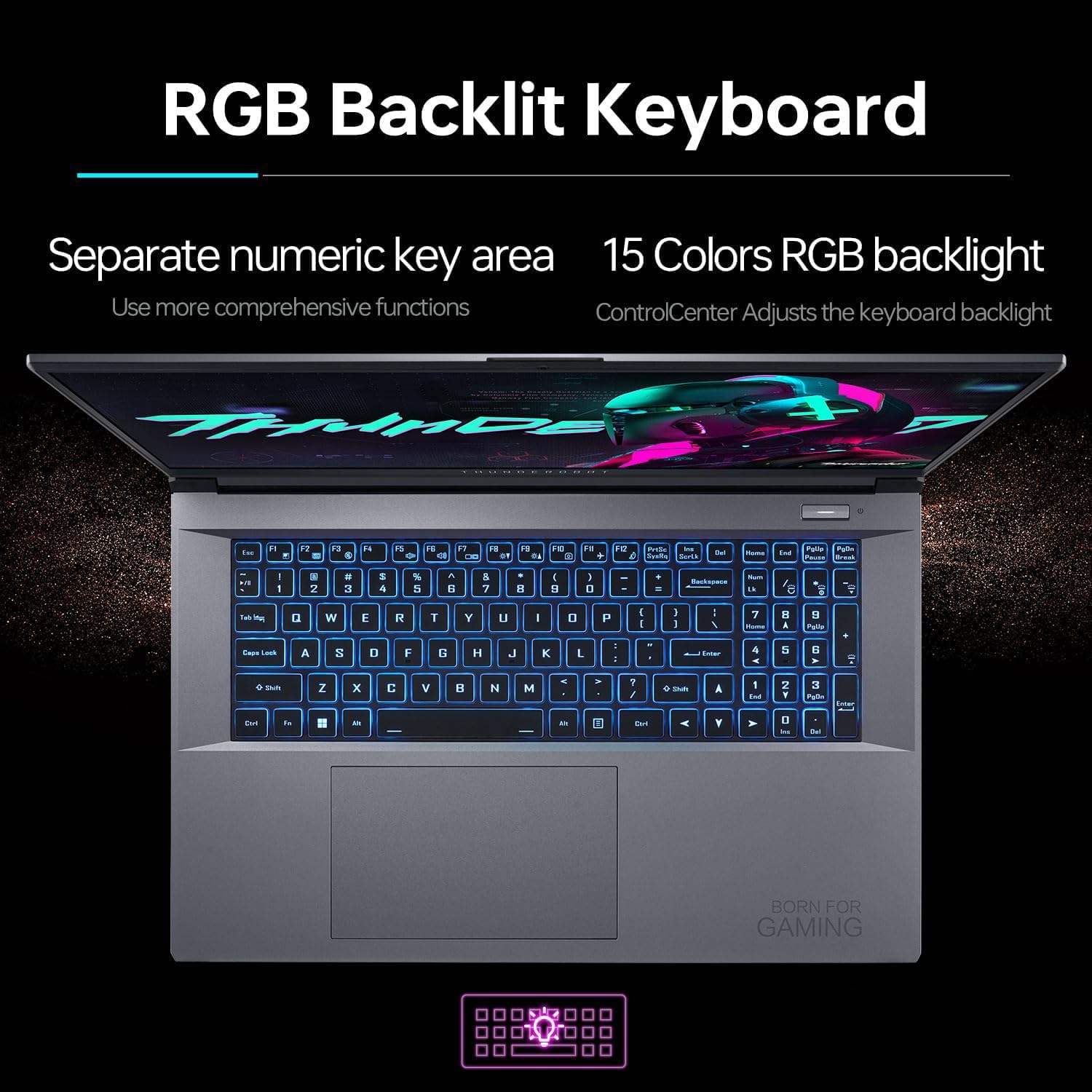
Figure 4: Close-up of the RGB backlit keyboard, showing the separate numeric key area and customizable lighting.
Audio System
Experience immersive sound with Sound Blaster 6 professional audio certification. The high-specification speaker design enhances your audio experience for gaming, movies, and music.
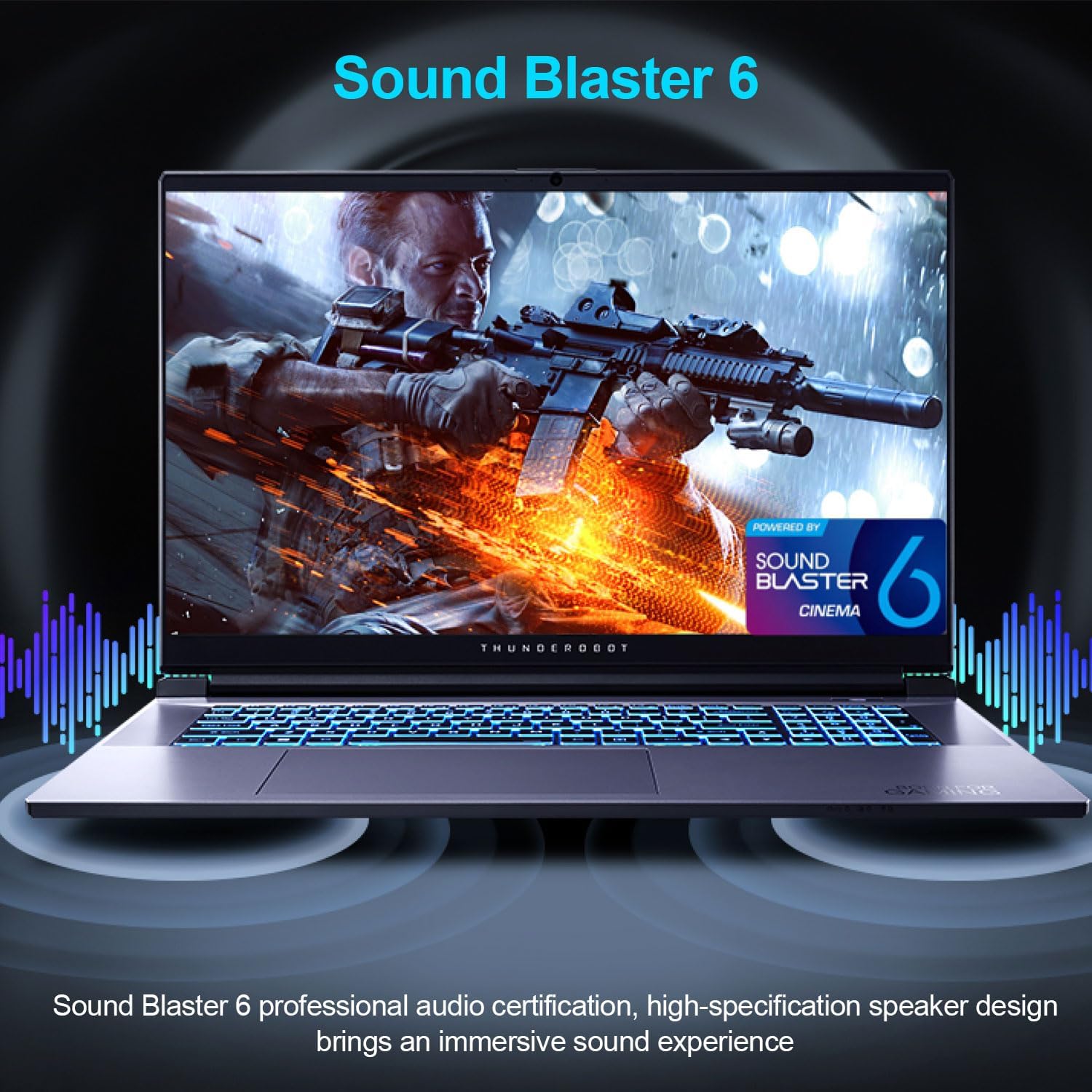
Figure 5: Visual representation of the Sound Blaster 6 audio system, emphasizing its immersive sound capabilities.
Connectivity and Ports
The Storm 17 offers a comprehensive range of ports for all your peripherals and external displays.
- 2 x Superspeed USB Type-A (USB 3.2)
- 1 x Superspeed USB Type-C (USB 3.2, supports DP1.4)
- 1 x USB Type-A 2.0
- 1 x HDMI output
- 1 x RJ-45 Ethernet port
- 1 x Mini DisplayPort
- 2 x Audio Ports (Headphone and Microphone 2-in-1 interface, Separate microphone interface)
Wireless connectivity includes Wi-Fi 5 (802.11ac) and Bluetooth.

Figure 6: Diagram illustrating the various input/output ports available on the Thunderobot Storm 17 laptop.
Maintenance
Cleaning Your Laptop
- Screen: Use a soft, lint-free cloth specifically designed for electronics. Dampen it slightly with water or a screen cleaner solution. Do not spray liquid directly onto the screen.
- Keyboard and Chassis: Use a soft, dry cloth. For stubborn dirt, a slightly damp cloth with mild soap solution can be used, ensuring no liquid enters the device. Use compressed air to clear dust from between keys.
- Vents: Regularly check and clean the cooling vents to prevent dust buildup, which can impede airflow and lead to overheating. Use compressed air for this purpose.
Battery Care
- Avoid completely discharging the battery frequently.
- If storing the laptop for an extended period, ensure the battery is charged to about 50-60%.
- Use only the original power adapter provided with your laptop.
Software Updates
Regularly update your Windows operating system, device drivers (especially graphics drivers), and any pre-installed Thunderobot software (like Control Center) to ensure optimal performance, security, and compatibility.
Troubleshooting
This section addresses common issues you might encounter.
| Problem | Possible Cause | Solution |
|---|---|---|
| Laptop does not power on. | No power, discharged battery, or hardware issue. | Ensure power adapter is securely connected and outlet is working. Try a different outlet. If battery is fully discharged, allow it to charge for a few minutes before attempting to power on. |
| Display is blank or flickering. | Incorrect display settings, driver issue, or hardware fault. | Try connecting an external monitor to check if the issue is with the laptop's display. Update graphics drivers. Restart the laptop. |
| Poor performance or overheating. | Dust in vents, too many background applications, outdated drivers. | Clean cooling vents. Close unnecessary applications. Update drivers. Ensure laptop is on a hard, flat surface for proper airflow. |
| Wi-Fi connection issues. | Driver issue, router problem, or incorrect settings. | Restart your router and laptop. Check Wi-Fi settings in Windows. Update Wi-Fi drivers. |
For more complex issues, refer to the official Thunderobot support website or contact customer service.
Technical Specifications
| Feature | Specification |
|---|---|
| Model Name | Storm 17 |
| Display | 17.3 Inches, QHD (2560 x 1440 pixels), 165Hz, IPS, Anti-glare, 100% sRGB |
| Processor | Intel Core i7-13620H (10 Cores, 16 Threads, up to 4.90GHz) |
| Graphics | NVIDIA GeForce RTX 4060 (8GB GDDR6 Dedicated) |
| RAM | 64 GB DDR5 (4800 MHz) |
| Storage | 2 TB PCIe M.2 SSD |
| Operating System | Windows 11 Home |
| Wireless Connectivity | Wi-Fi 5 (802.11ac), Bluetooth |
| Ports | 2x USB 3.2 Type-A, 1x USB 3.2 Type-C (DP1.4), 1x USB 2.0 Type-A, 1x HDMI, 1x RJ-45, 1x Mini DisplayPort, 2x Audio Jacks |
| Keyboard | RGB Backlit Keyboard with Numeric Keypad |
| Dimensions (LxWxH) | 21 x 13.5 x 3 inches |
| Item Weight | 11 pounds |
Warranty and Support
Your Thunderobot Storm 17 Gaming Laptop comes with a standard manufacturer's warranty. Please refer to the warranty card included in your product packaging for specific terms, conditions, and duration.
For technical support, driver downloads, and further assistance, please visit the official Thunderobot support website or contact their customer service. Keep your purchase receipt and product serial number handy when seeking support.
Online Resources: Thunderobot Official Store on Amazon


