
Wahoo Fitness Wahoo ELEMNT ACE
Contents
Wahoo ELEMNT ACE Cycling Computer User Manual
Model: Wahoo ELEMNT ACE | Brand: Wahoo Fitness
1. Introduction
The Wahoo ELEMNT ACE Cycling Computer is designed to be the command center for your ride. This flagship, 3rd generation bike computer provides comprehensive control, connectivity, and navigation to enhance your cycling experience.

Figure 1.1: Front view of the Wahoo ELEMNT ACE Cycling Computer, showing its large display with map and various ride metrics.
2. What's in the Box
Verify that all components are present before proceeding with setup:
- Wahoo ELEMNT ACE Bike Computer
- Out-front Mount (aluminum)
- Charging cable (24in USB-C to USB-C)
- Tether
- Quick Start Guide

Figure 2.1: Rear view of the ELEMNT ACE, highlighting the mounting interface.
3. Setup Guide
Follow these steps for initial setup of your ELEMNT ACE:
- Charge the Device: Connect the provided USB-C cable to the ELEMNT ACE and a power source. A full charge can provide up to 30 hours of battery life.

Figure 3.1: Side view of the ELEMNT ACE, indicating the location of the charging port.
- Install the Mount: Secure the aluminum out-front mount to your bicycle handlebars. Ensure it is firmly tightened to prevent movement during rides.

Figure 3.2: The out-front mount securely installed on bicycle handlebars, ready for the ELEMNT ACE.
- Attach the ELEMNT ACE: Twist the ELEMNT ACE onto the mount until it clicks securely into place. Use the tether for added security.
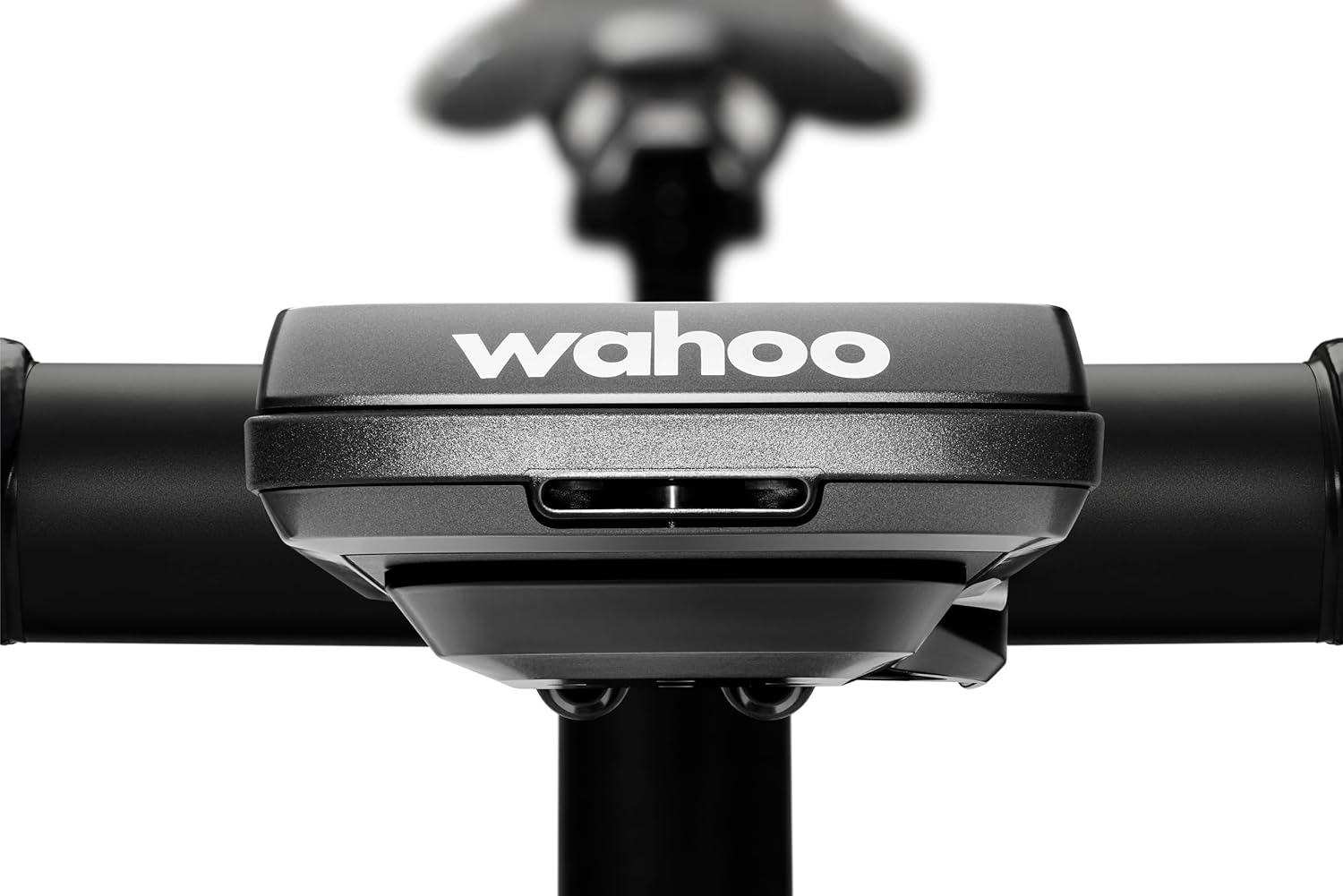
Figure 3.3: The ELEMNT ACE securely attached to the out-front mount on bicycle handlebars.
- Download the Wahoo App: For full functionality and customization, download the Wahoo App on your smartphone.
Download for iOS | Download for Android

Figure 3.4: The ELEMNT ACE paired with a smartphone running the Wahoo app, demonstrating seamless integration.
- Pair with App: Open the Wahoo App and follow the on-screen instructions to pair your ELEMNT ACE. This allows for personalized settings, workout profiles, and sensor management.
4. Operating Your ELEMNT ACE
The ELEMNT ACE is designed for intuitive interaction, offering various features to enhance your ride.
4.1. Control At Your Fingertips
The ELEMNT ACE features a responsive touchscreen for effortless interaction. You can easily control the device, display detailed maps, and view metrics with a press, pinch, or swipe.
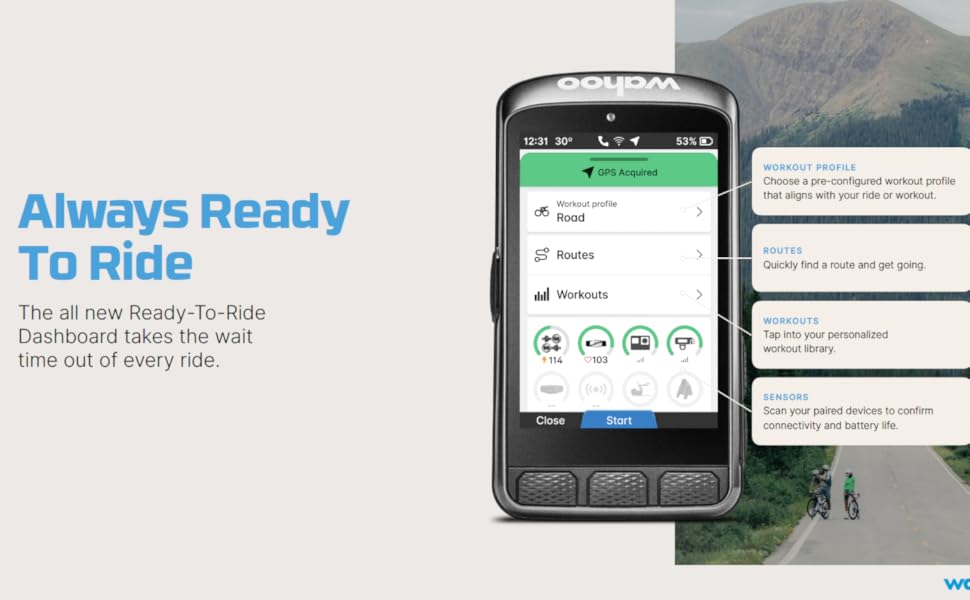
Figure 4.1: User interacting with the ELEMNT ACE touchscreen, demonstrating its ease of use during a ride.
4.2. Ready To Ride Dashboard
The new Ready-To-Ride Dashboard minimizes wait time before your rides. It provides quick access to workout profiles, routes, and sensor status.
- Workout Profile: Choose a pre-configured workout profile that aligns with your ride or workout.
- Routes: Quickly find and load a route for navigation.
- Workouts: Tap into your personalized workout library.
- Sensors: Scan your paired devices to confirm connectivity and battery life.

Figure 4.2: The ELEMNT ACE screen showing the Ready-To-Ride Dashboard with options for workout profiles, routes, and sensors.
4.3. Aero Awareness
The integrated pressure sensor tracks air resistance in real-time, providing live AirBoost and AirDrag metrics to help optimize your performance. Post-ride, the Wahoo App delivers detailed wind insights through Wahoo Wind Dynamics.

Figure 4.3: A close-up view of the ELEMNT ACE, highlighting the area of the pressure sensor for aero awareness.
4.4. Navigation and Data Management
The ELEMNT ACE offers a superior navigation experience and powerful features to manage your ride data:
- Detailed Mapping: Navigate confidently with precise, real-time map data that highlights points-of-interest, landmarks, elevation changes, and different types of road surfaces.
- Voice Turn x Turn: Never miss a turn with voice-enabled navigation, allowing you to navigate without ever taking your eyes off the road.
- SUMMIT™: Provides in-depth information about upcoming, in-progress, and completed climbs on preloaded routes. It also detects climbs ahead with no loaded route through SUMMIT Freeride.

Figure 4.4: Multiple ELEMNT ACE screens illustrating detailed mapping, turn-by-turn navigation, and the SUMMIT feature for climb information.
5. Maintenance
To ensure the longevity and optimal performance of your Wahoo ELEMNT ACE, follow these maintenance guidelines:
- Cleaning: Wipe the device with a soft, damp cloth. Avoid using harsh chemicals or abrasive cleaners, as they may damage the screen or casing.
- Storage: Store the ELEMNT ACE in a cool, dry place when not in use. Avoid extreme temperatures.
- Charging: Use only the provided USB-C cable for charging. Do not expose the charging port to moisture.
- Water Resistance: The device has an IPX7 rating, meaning it is protected against temporary immersion in water (up to 1 meter for 30 minutes). However, it is not designed for prolonged underwater use. Ensure the charging port cover is properly sealed.
6. Troubleshooting
If you encounter issues with your ELEMNT ACE, refer to the following common solutions:
| Problem | Possible Cause | Solution |
|---|---|---|
| Device not turning on | Low battery; software glitch | Charge the device for at least 30 minutes. Perform a soft reset by holding the power button for 10-15 seconds. |
| Cannot connect to Wahoo App | Bluetooth off; device not in pairing mode; app issue | Ensure Bluetooth is enabled on your phone. Restart both the ELEMNT ACE and the Wahoo App. Forget the device in your phone's Bluetooth settings and re-pair. |
| GPS signal lost or inaccurate | Obstructed view of sky; device interference | Move to an open area with a clear view of the sky. Ensure no other electronic devices are causing interference. Allow a few minutes for GPS acquisition. |
| Screen unresponsive | Software freeze; dirt/moisture on screen | Perform a soft reset. Clean the screen with a soft, dry cloth. |
If these steps do not resolve your issue, please contact Wahoo Fitness customer support.
7. Technical Specifications
| Feature | Detail |
|---|---|
| Brand | Wahoo Fitness |
| Model Name | Wahoo ELEMNT ACE |
| Color | Black |
| Product Dimensions | 2.75"L x 0.78"W x 4.9"H |
| Item Weight | 208 Grams |
| Screen Size | 3.8 Inches |
| Display Type | LCD |
| Battery Life | 30 Hours |
| Sensor Type | Pressure Sensor, Speed Sensor, Cadence Sensor |
| Battery Cell Composition | Lithium Ion |
| Connectivity Technology | Bluetooth, Wi-Fi, USB, ANT |
| International Protection Rating | IPX7 |
| Display Resolution | 480x800 |
| Mounting Type | Handlebar Mount |
| Human Interface Input | Touchscreen, Microphone, Buttons |
| Material | Plastic, Aluminium |
| UPC | 850048106284 |
8. Warranty and Support
8.1. Warranty Information
The Wahoo ELEMNT ACE Cycling Computer comes with a 2-year manufacturer warranty. This warranty covers defects in materials and workmanship under normal use. Please retain your proof of purchase for warranty claims.
8.2. Customer Support
For technical assistance, warranty claims, or additional information, please visit the official Wahoo Fitness support website or contact their customer service:
- Wahoo Fitness Support: www.wahoofitness.com/support
- Wahoo Fitness Store: Wahoo Fitness Amazon Store
Ask a question about this manual
Ask about setup, troubleshooting, compatibility, parts, safety, or missing instructions. Manuals+ will review the question and use this page’s manual context to help answer it.