
1. Introduction
The Ymiko G5 PRO Intelligent Voice Translator is a compact and efficient device designed to facilitate seamless communication across language barriers. It supports two-way translation for 144 languages, offering high accuracy and real-time performance. This manual provides detailed instructions for setting up, operating, and maintaining your G5 PRO translator.
2. Package Contents
Please verify that all items are present in the package:
- 1 x Intelligent AI Voice Translator (G5 PRO)
- 1 x Data Cable (USB to Micro USB)
- 1 x Instruction Manual (this document)

Figure 2.1: Ymiko G5 PRO Translator device and its USB charging cable.
3. Product Features
- Compact and Portable: Small, lightweight, and energy-efficient design for easy carrying.
- Broad Language Support: Supports 2-way translation for 144 languages.
- High Accuracy: Achieves a 99% translation accuracy rate.
- Real-time Translation: Delivers translations in real-time when connected to a smartphone.
- Extended Battery Life: Built-in 800mAh Lithium-ion battery provides up to 48 hours of continuous translation or 30 days of standby time.
- Quick Charging: Fully charges in approximately 2 hours.
- Voice Recognition Distance: Effective voice recognition up to 1 meter.
- Connectivity: Connects to smartphones via Bluetooth 5.0 within a 5-meter range.
4. Specifications
| Feature | Detail |
|---|---|
| Item Type | Intelligent Voice Translator |
| Model | G5 PRO |
| Material | ABS |
| Battery Type | Built-in 800mAh Lithium-ion Battery |
| Bluetooth Version | 5.0 |
| Bluetooth Distance | Approx. 5m / 16.5ft |
| Voice Recognition Distance | Approx. 1m / 3.3ft |
| Supported Languages | 144 |
| Dimensions | 6.3 x 2.76 x 1.18 inches (Package) |
| Item Weight | 4.7 ounces |
5. Device Layout
Familiarize yourself with the buttons and ports on your G5 PRO translator.

Figure 5.1: Top view of the G5 PRO translator with two primary translation buttons.
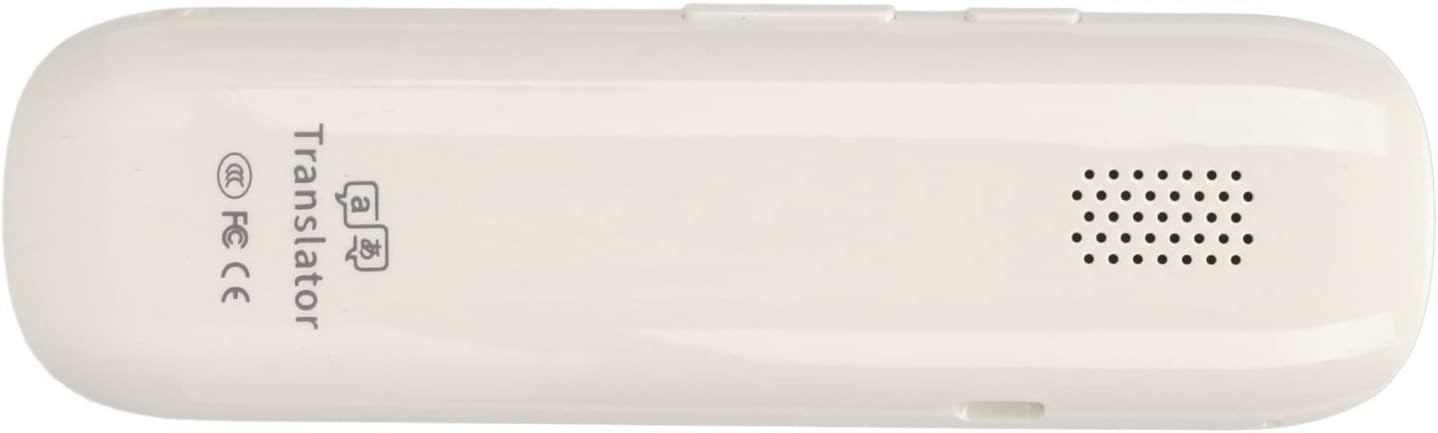
Figure 5.2: Bottom view of the G5 PRO translator, highlighting the speaker grille and Micro USB charging port.

Figure 5.3: Side view of the G5 PRO translator, indicating the power button and volume controls.
6. Setup Guide
6.1. Charging the Device
Before first use, fully charge your G5 PRO translator. Use the provided USB data cable.
- Connect the Micro USB end of the data cable to the charging port on the translator (refer to Figure 5.2).
- Connect the USB-A end of the data cable to a standard USB power adapter (e.g., phone charger, computer USB port, power bank).
- The device will indicate charging status (e.g., an indicator light). A full charge takes approximately 2 hours.

Figure 6.1: The included USB to Micro USB charging cable.
6.2. Power On/Off
- To Power On: Press and hold the Power button (refer to Figure 5.3) for a few seconds until the device powers on.
- To Power Off: Press and hold the Power button for a few seconds until the device powers off.
6.3. Pairing with a Smartphone
The G5 PRO translator requires connection to a smartphone via Bluetooth for full functionality and access to language translation services.
- Ensure your G5 PRO translator is powered on.
- Enable Bluetooth on your smartphone.
- Search for available Bluetooth devices on your smartphone. The translator should appear as "G5 PRO" or similar.
- Select the translator from the list to pair. Follow any on-screen prompts to complete the pairing process.
- Once paired, the translator is ready for use with its companion application.
Note: While the manual does not specify a dedicated app, most intelligent translators require one. Please check the product packaging or manufacturer's website for app download instructions if needed.
7. Operating Instructions
7.1. Two-Way Translation
The G5 PRO supports two-way translation, allowing two individuals speaking different languages to communicate seamlessly.
- Language Selection: Before starting, ensure the correct source and target languages are selected within the companion app on your smartphone. The two main buttons on the translator (refer to Figure 5.1) are typically assigned to these two languages.
- Speaking (Language A to B): Press and hold the corresponding button (e.g., Button 1 for Language A). Speak clearly into the translator's microphone. Release the button once you have finished speaking. The translator will process and output the translation in Language B.
- Listening and Responding (Language B to A): Press and hold the other button (e.g., Button 2 for Language B). Speak clearly. Release the button. The translator will process and output the translation in Language A.
- Continue this process for fluid conversation.
Tip: Speak at a moderate pace and clearly articulate your words for optimal voice recognition and translation accuracy.
7.2. Voice Recognition
The device has a voice recognition distance of approximately 1 meter (3.3 feet). For best results, speak within this range and minimize background noise.
8. Maintenance
8.1. Cleaning
- Wipe the device with a soft, dry, lint-free cloth.
- Do not use abrasive cleaners, solvents, or strong chemicals.
- Avoid getting moisture into any openings.
8.2. Storage
- Store the translator in a cool, dry place away from direct sunlight and extreme temperatures.
- If storing for an extended period, charge the battery to about 50% before storage and recharge every few months to prevent deep discharge.
9. Troubleshooting
| Problem | Possible Cause | Solution |
|---|---|---|
| Device does not power on. | Low battery. | Charge the device for at least 30 minutes. |
| Cannot pair with smartphone. | Bluetooth is off on phone; device is out of range; device not in pairing mode. | Ensure Bluetooth is enabled on your phone. Bring device closer. Restart both translator and phone. |
| Translation is inaccurate or slow. | Poor internet connection on smartphone; background noise; speaking too fast/unclearly; incorrect language selection. | Ensure stable internet connection. Speak clearly and at a moderate pace. Reduce background noise. Verify language settings in the app. |
| No sound from translator. | Volume too low; speaker blocked; device malfunction. | Increase volume using side buttons. Check if speaker grille is clear. Restart device. |
10. Warranty and Support
10.1. Warranty Information
This product comes with a standard manufacturer's warranty. Please refer to the warranty card included in your package or contact the seller/manufacturer for specific warranty terms and conditions. Keep your purchase receipt as proof of purchase.
10.2. Customer Support
For technical assistance, troubleshooting not covered in this manual, or warranty claims, please contact Ymiko customer support through the following channels:
- Manufacturer Website: Visit the official Ymiko website for support resources.
- Seller Contact: If purchased via Amazon, you may contact the seller (WYANG188) directly through your Amazon order history.
- Email/Phone: Refer to the product packaging or manufacturer's website for specific contact details.
When contacting support, please have your product model (G5 PRO) and purchase details ready.