
1. Introduction
Thank you for purchasing the CHROX H96 MAX M9 Android 14.0 TV Box. This device transforms your television into a smart entertainment hub, offering access to a wide range of applications, streaming services, and media content. Featuring the latest Android 14.0 operating system, an RK3576 Quad-Core processor, 8GB RAM, and 128GB ROM, it supports 8K video decoding, WiFi 6, and Bluetooth 5.0 for a smooth and immersive viewing experience. This manual provides detailed instructions for setup, operation, and maintenance to ensure optimal performance.

Image 1.1: Front view of the CHROX H96 MAX M9 Android TV Box, showcasing its sleek design and compact form factor.
2. Safety Information
- Do not expose the device to water, moisture, or extreme temperatures.
- Use only the provided power adapter to prevent damage.
- Avoid blocking ventilation openings to prevent overheating.
- Do not attempt to disassemble or repair the device yourself. Contact qualified service personnel for assistance.
- Keep the device away from direct sunlight and heat sources.
3. Package Contents
Please check the box for the following items:
- CHROX H96 MAX M9 Android 14.0 TV Box
- Remote Control
- HD Cable
- Power Adapter (DC 5V/2.5A)
- User Manual
4. Product Overview
4.1 Device Layout and Ports

Image 4.1: Diagram illustrating the various ports and dimensions of the CHROX H96 MAX M9 TV Box.
- DC (Power Input): Connect the provided power adapter.
- SPDIF (Digital Audio Output): For connecting to external audio systems.
- NET (Ethernet Port): RJ-45 port for wired network connection (10/1000M).
- HD 2.1 (HDMI Output): Connect to your TV or display for video and audio output (supports 4K@60Hz).
- USB 3.0 Port: For connecting high-speed USB devices like external hard drives.
- USB 2.0 Port: For connecting USB devices like keyboards, mice, or USB flash drives.
- AV Port: For connecting to older TVs using an AV cable (not included).
- Micro SD Card Reader: For expanding storage with a Micro SD card.
4.2 Key Features
- Operating System: Android 14.0
- Processor: RK3576 Quad-Core 64bit Cortex-A53
- GPU: Mali-G31
- RAM: 8GB SDRAM
- Storage: 128GB ROM FLASH (expandable via Micro SD card)
- Wireless Connectivity: Dual-band 2.4G/5G WiFi 6 (802.11 a/b/g/n/ax), Bluetooth 5.0
- Video Output: HDMI 2.1 for 4K@60Hz, supports 8K video decoding and HDR10
- Efficient Playback: H.265 video decoder for optimized bandwidth and storage usage
- LAN: 10/1000M Standard RJ-45 Ethernet
- USB Ports: 1x USB 3.0, 1x USB 2.0
- Audio Support: MP3/WMA/AAC/WAV/OGG/DDP/HD/FLAC/APE
- Image Support: HD JPEG/BMP/GIF/PNG/TIFF

Image 4.2: Overview of the CHROX H96 MAX M9 highlighting key features like Android 14.0, 8K support, RK3576 processor, WiFi 6, Bluetooth 5.4, NPU, and AV output.
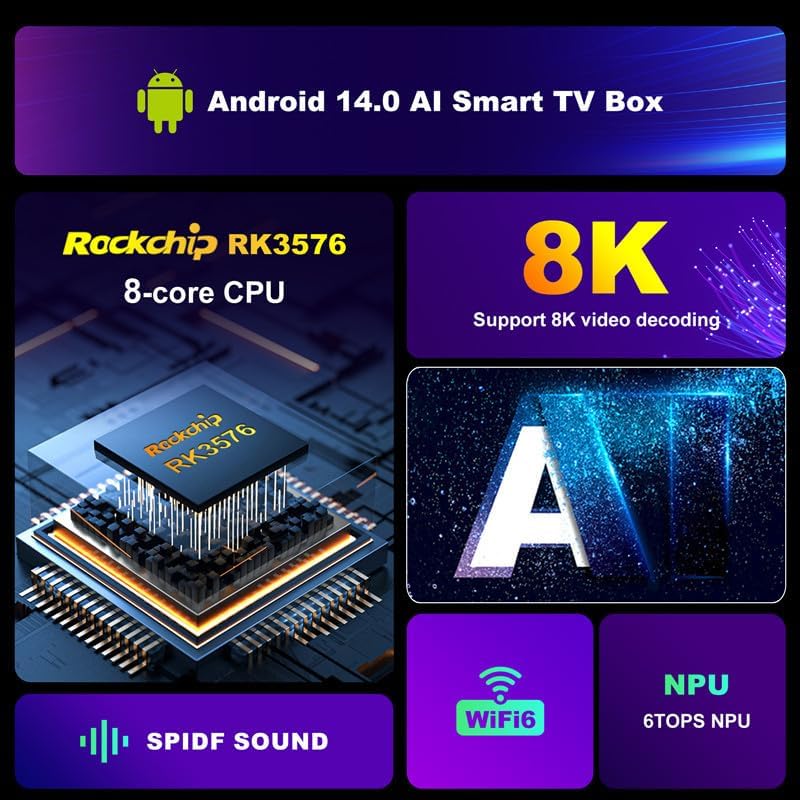
Image 4.3: Detailed breakdown of the CHROX H96 MAX M9's core components and capabilities, including the RK3576 8-core CPU, 8K video support, SPDIF audio, WiFi 6, and NPU.
5. Setup Guide
5.1 Connecting to Your TV
- Connect one end of the HD cable to the HDMI port on the TV Box.
- Connect the other end of the HD cable to an available HDMI input port on your television.
- If using an older TV, connect an AV cable (not included) from the AV port on the TV Box to the corresponding AV input on your TV.
5.2 Powering On
- Connect the power adapter to the DC port on the TV Box.
- Plug the power adapter into a wall outlet.
- The TV Box will automatically power on, and an indicator light will illuminate.
- Turn on your TV and select the correct HDMI/AV input source using your TV remote.
5.3 Initial Setup
Upon first boot, you may be guided through an initial setup wizard. Follow the on-screen prompts to configure language, time zone, and network settings.

Image 5.1: Visual representation of Android 14.0 as the latest system, offering smoother and safer operation compared to previous versions.
6. Operating Instructions
6.1 Navigating the Interface
Use the provided remote control to navigate the Android interface. The directional buttons allow you to move between icons, the OK button selects items, and the Back button returns to the previous screen. A USB mouse or keyboard can also be connected for easier navigation.
6.2 Installing Applications
Access the pre-installed app store or Google Play Store (if available) to download and install your favorite applications. Ensure you have a stable internet connection.
6.3 Media Playback
The TV Box supports various media formats. You can play local media files from USB drives or Micro SD cards, or stream content from online services. The device supports 8K and HDR10 for a high-quality visual experience.

Image 6.1: The CHROX H96 MAX M9 connected to a TV, demonstrating screen casting from a mobile device and highlighting rich connectivity options including 1000M Ethernet, HD 2.1, and USB 3.0.
6.4 Network Settings
- Wi-Fi: Go to Settings > Network & Internet > Wi-Fi. Select your network and enter the password. The device supports dual-band 2.4G/5G WiFi 6 for faster and more reliable connections.
- Ethernet: Connect an Ethernet cable to the NET port on the TV Box and to your router. The device will automatically detect the wired connection.
6.5 Bluetooth Pairing
To pair Bluetooth devices (e.g., headphones, game controllers):
- Go to Settings > Connected devices > Pair new device.
- Put your Bluetooth device into pairing mode.
- Select your device from the list and follow the on-screen instructions to complete pairing.

Image 6.2: The CHROX H96 MAX M9 connected to an audio system, illustrating its capability for Hi-Fi lossless playback sound quality.
7. Maintenance
7.1 Cleaning
Wipe the device with a soft, dry cloth. Do not use liquid cleaners or abrasive materials.
7.2 Software Updates
Periodically check for software updates in the device settings to ensure optimal performance and access to the latest features. Go to Settings > About > System update.
8. Troubleshooting
- No Power: Ensure the power adapter is securely connected to the device and a working power outlet.
- No Picture: Verify the HD cable connection to both the TV Box and the TV. Ensure your TV is set to the correct HDMI/AV input source.
- No Sound: Check the audio settings on both the TV Box and your TV. Ensure volume is not muted. If using an external audio system, check its connections and input.
- Wi-Fi Connection Issues: Ensure your Wi-Fi router is on and within range. Re-enter the Wi-Fi password. Try restarting both the TV Box and your router.
- Remote Control Not Working: Check the batteries in the remote control. Ensure there are no obstructions between the remote and the TV Box.
- Applications Crashing/Freezing: Try clearing the cache of the problematic application (Settings > Apps > [App Name] > Storage > Clear cache). If the issue persists, try uninstalling and reinstalling the app.
9. Specifications
| Feature | Specification |
|---|---|
| Operating System | Android 14.0 |
| CPU | RK3576 Quad-Core 64bit Cortex-A53 |
| GPU | Mali-G31 |
| RAM | 8GB SDRAM |
| ROM | 128GB FLASH |
| Wi-Fi | Dual-band 2.4G/5G WiFi 6 (802.11 a/b/g/n/ax) |
| Bluetooth | 5.0 |
| Ethernet | 10/1000M Standard RJ-45 |
| HDMI Output | HDMI 2.1 for 4K@60Hz |
| Video Decoding | 8K VP9, H.265/H.264, 1080P (VC-1, MPEG-1/2/4, VP6/8) |
| HDR Support | HDR10 |
| USB Ports | 1x USB 3.0, 1x USB 2.0 |
| Card Reader | Micro SD Card |
| Power Supply | DC 5V/2.5A |
| Dimensions | 138mm x 96mm x 24.7mm (approximate) |
10. Warranty and Support
This product comes with a standard manufacturer's warranty. For detailed warranty information, please refer to the warranty card included in your package or contact CHROX customer support. If you encounter any issues or have questions not covered in this manual, please reach out to our customer service team for assistance.
Please retain your proof of purchase for warranty claims.