
1. Product Overview
The Lemorele Wireless USB-C Transmitter and HDMI Receiver Kit provides a convenient, plug-and-play solution for wirelessly transmitting audio and video from your USB-C enabled devices to an HDMI display. This kit is designed for various applications, including business presentations, interactive teaching, home entertainment, and live streaming, offering a stable and high-quality visual experience without the need for complex wiring or driver installations.
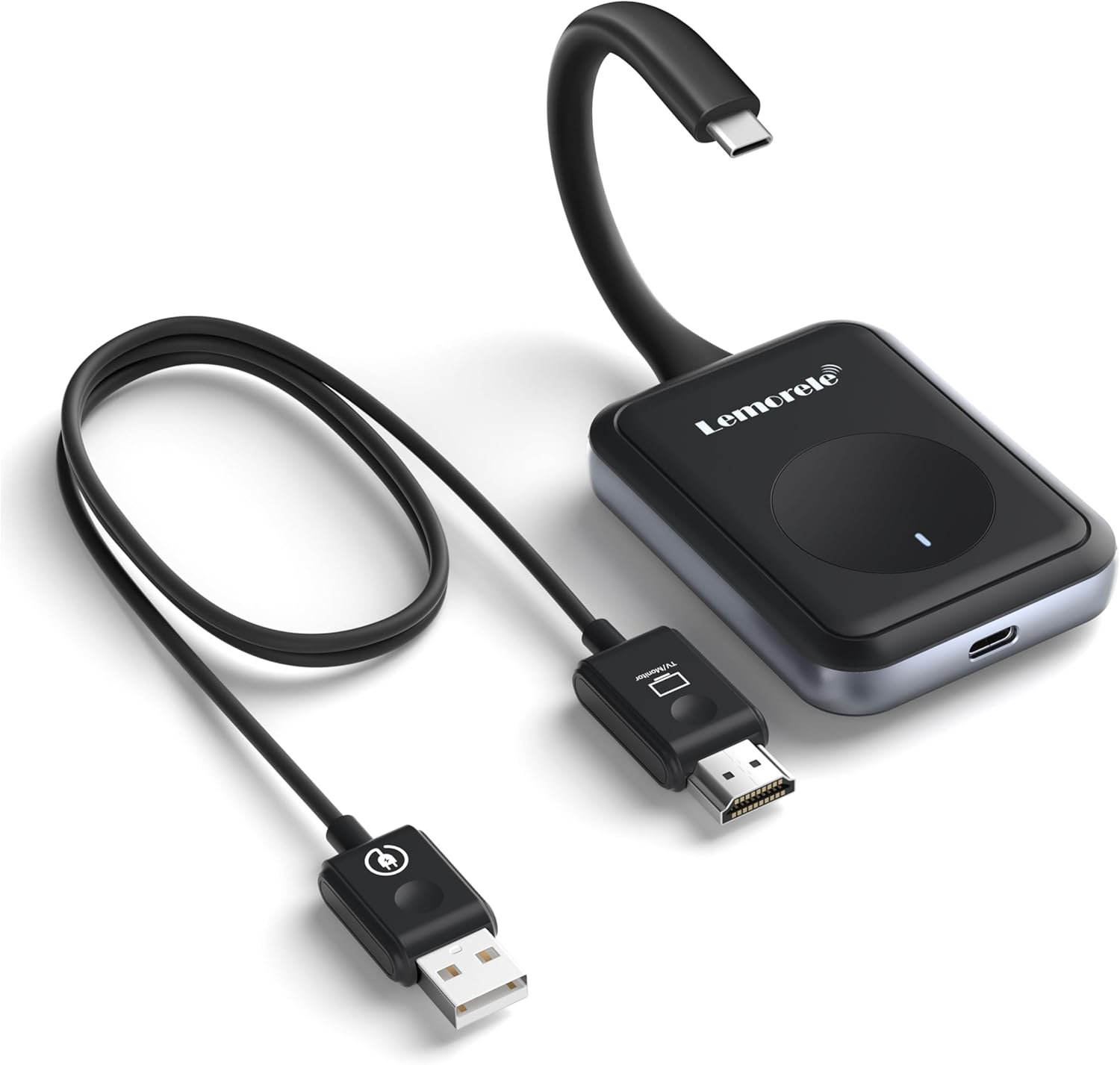
Image: The Lemorele Wireless USB-C Transmitter and HDMI Receiver Kit, showing the USB-C transmitter unit connected to a USB-A power cable and an HDMI receiver unit.
2. Key Features
- Portable & Plug-and-Play: Eliminates the need for cumbersome driver installations, offering immediate use.
- 2.4/5G Dual Band Transmission: Utilizes advanced dual-band technology for stable, fast, and long-distance transmission up to 164 feet (50 meters), even through walls and floors (distance may vary with obstacles).
- 1080P Full HD Quality: Supports 1080P@60Hz HD resolution for clear, stable, and smooth picture performance.
- PD 45W Max Power Delivery: The USB-C transmitter supports up to 45W power delivery (power adapter not included) for charging connected devices like laptops, phones, and tablets. Ensure the connected port supports video/audio output.
- Multi-Player Collaboration: Supports up to 8 transmitters working with 1 receiver, allowing for easy switching between presenters with a simple button press. Additional TX units (USB-C or HDMI) can be purchased separately.
3. Package Contents
Upon opening your Lemorele Wireless USB-C Transmitter and HDMI Receiver Kit, please verify that all the following components are included:
- 1 x Lemorele Wireless USB-C Transmitter
- 1 x Lemorele Wireless HDMI Receiver
- 1 x User Manual

Image: The product packaging, showing the USB-C transmitter, HDMI receiver, and user manual laid out.
4. Setup Instructions
Follow these steps to set up your Lemorele Wireless USB-C Transmitter and HDMI Receiver Kit:
- Connect the Receiver: Connect the HDMI port of the receiver to the video input port (e.g., HDMI 1, HDMI 2) of your display device, such as a monitor, HDTV, or projector.
- Power the Receiver: Connect the USB-A cable from the receiver to a USB power source (e.g., a USB port on your TV or a 5V/2A USB power adapter, not included).
- Select Input Source: On your display device, adjust the HDMI signal source to the corresponding HD port where the receiver is connected. The receiver's boot screen should appear.

Image: Visual guide for connecting the HDMI receiver to a television and selecting the correct input source.
- Connect the Transmitter: Plug the USB-C transmitter into a laptop, mobile phone, tablet, or other device with a USB-C port that supports video output (DisplayPort Alternate Mode).
- Initiate Projection: Wait approximately 10-15 seconds after the indicator light on the transmitter enters a fast flashing state. The projection should automatically begin.

Image: Visual guide for connecting the USB-C transmitter to a laptop and the indicator light status during pairing.
5. Operating Instructions
5.1. Mirror and Extend Modes
The kit supports both mirror and extend modes, depending on your operating system settings. You can configure this directly from your computer's display settings.
- Mirror Mode: Duplicates your device's screen onto the external display.
- Extend Mode: Extends your desktop across both your device's screen and the external display, providing more workspace.
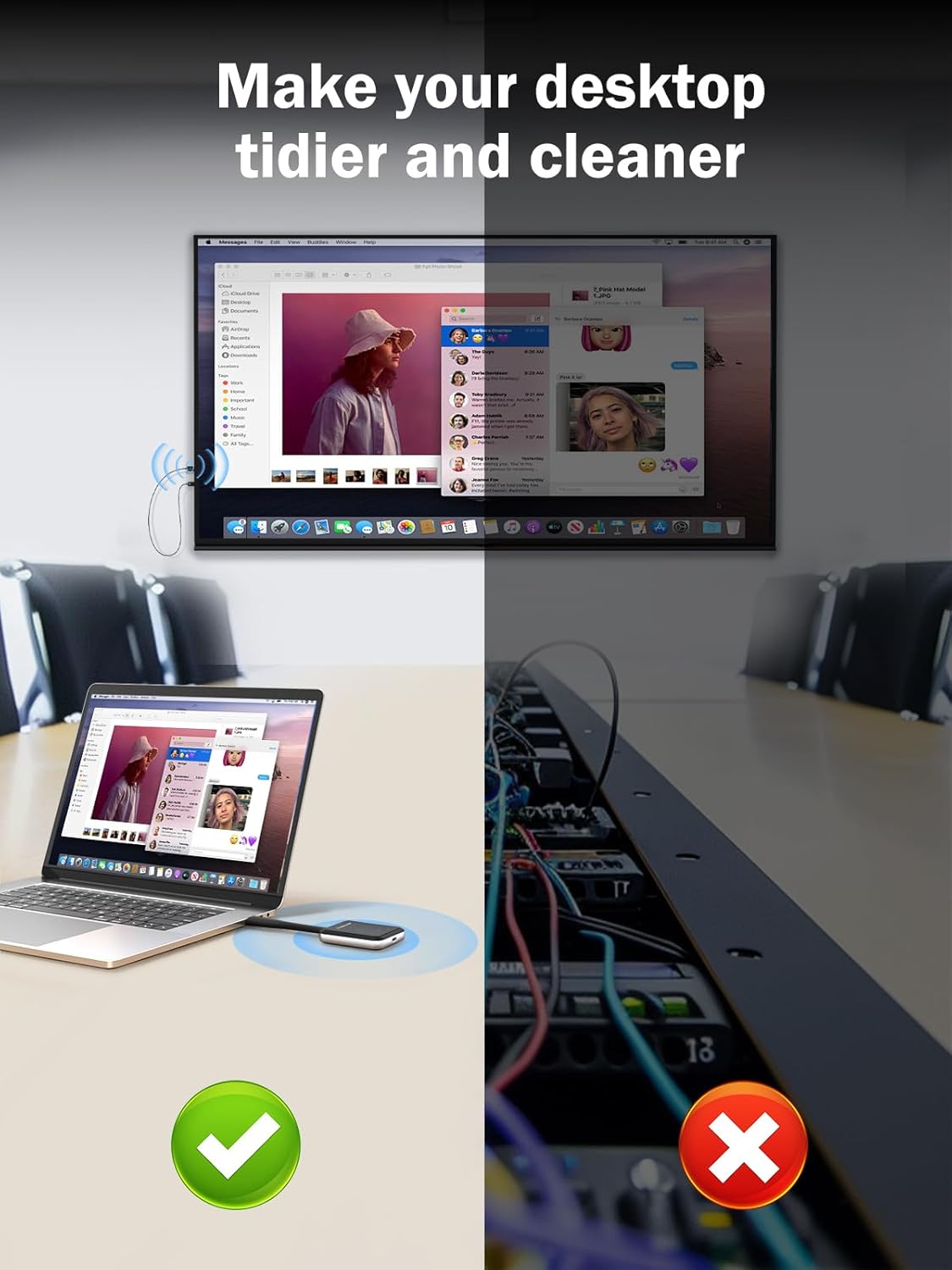
Image: Illustration of mirror mode and extend mode functionality when using the wireless kit with a laptop and external monitor.
5.2. Using Multiple Transmitters (Up to 8 TX to 1 RX)
For environments requiring multiple presenters, the system supports up to 8 transmitters connected to a single receiver. This allows for quick switching between different sources.
- Enter Pairing Mode (Receiver): Press and hold the receiver's function button for more than 3 seconds. An "EZCast TX" message will appear on the screen, indicating the receiver is in pairing mode.
- Pair Transmitter: Press and hold the transmitter's function button for more than 5 seconds. When the indicator light on the transmitter stays steadily on, the connection is successful.
- Switching Sources: Once paired, a simple short press of the transmitter's function button will switch the active display source.

Image: Visual guide demonstrating the process of pairing multiple transmitters with a single receiver for collaborative presentations.
6. Maintenance
To ensure the longevity and optimal performance of your Lemorele Wireless Kit, please follow these maintenance guidelines:
- Keep the devices clean and free from dust. Use a soft, dry cloth for cleaning.
- Avoid exposing the devices to extreme temperatures, humidity, or direct sunlight.
- Do not attempt to disassemble or repair the devices yourself. Refer to qualified service personnel for any issues.
- Store the devices in a cool, dry place when not in use.
7. Troubleshooting
If you encounter issues with your Lemorele Wireless Kit, please refer to the following common problems and solutions:
| Problem | Possible Cause | Solution |
|---|---|---|
| No signal on display | Incorrect HDMI input selected; Receiver not powered; Transmitter not connected or powered; Pairing issue. | Ensure correct HDMI input is selected on display. Verify receiver is powered (LED on). Ensure transmitter is securely connected to a compatible USB-C port. Re-pair transmitter and receiver if necessary. |
| Poor video quality or flickering | Interference from other wireless devices; Excessive distance or obstacles; Low power to transmitter/receiver. | Reduce distance between transmitter and receiver. Minimize obstacles. Ensure both units receive stable power. Avoid strong Wi-Fi or Bluetooth interference. |
| Audio not transmitting | Audio settings on source device; Display device audio settings. | Check audio output settings on your laptop/mobile device. Ensure display device's volume is up and not muted. |
| Transmitter not charging device (PD 45W) | Power adapter not connected or insufficient; USB-C port on device does not support PD. | Ensure a compatible PD power adapter (not included) is connected to the transmitter's USB-C port. Verify your device's USB-C port supports power delivery. |
8. Specifications
| Feature | Detail |
|---|---|
| Brand | Lemorele |
| Model Number | USB-C TX + HDMI RX |
| Connectivity Technology | HDMI, Wi-Fi (2.4G/5G Dual Band) |
| Resolution Support | 1080P@60Hz Full HD |
| Wireless Range | Up to 164 feet (50 meters) |
| Power Delivery (Transmitter) | PD 45W Max (Power adapter not included) |
| Compatible Devices | Personal Computer, Television, Monitor, Projector, Mobile Phones, Laptops, TV Boxes |
| Controller Type | Button Control |
| Audio Output Mode | Stereo |
| Surround Sound Channel Configuration | 5.1 |
| Video Encoding | H.264, H.265/HEVC |
| Item Weight | 5.6 ounces |
| Package Dimensions | 8.46 x 5.35 x 0.94 inches |
9. Warranty and Support
Lemorele products are designed and manufactured to the highest quality standards. For specific warranty information and customer support, please refer to the warranty card included with your product or visit the official Lemorele website. Our customer service team is available to assist with any questions or issues you may encounter.
For further assistance, you may contact Lemorele support via their official channels.