
1. Introduction
This manual provides essential information for the proper use and maintenance of your ORICO Portable SSD B5PLUS. Please read it thoroughly before using the device to ensure optimal performance and longevity. The ORICO B5PLUS is a compact and high-speed external solid-state drive designed for expanding storage and facilitating quick data transfers across various devices.
2. Product Features
- Expanded Storage: Provides additional storage capacity for various devices.
- High-Speed Data Transfer: Achieves speeds of up to 460MB/s for efficient file management.
- Portable Design: Compact and lightweight, measuring 2.44 x 2.72 x 0.5 inches and weighing approximately 0.09 lb.
- Versatile Connectivity: Includes a 2-in-1 USB-C and USB-A cable for broad compatibility.
- Status Indicator: Features an indicator light for operational status.

Figure 2.1: Overview of the ORICO B5PLUS highlighting its compact design, available capacities, and included 2-in-1 cable.
3. Setup Instructions
3.1 Package Contents
- ORICO Portable SSD B5PLUS
- 2-in-1 USB-C to USB-C/A Data Cable
- User Manual (this document)
3.2 Connecting the SSD
- Identify the appropriate port on your device (USB-C or USB-A).
- Connect the 2-in-1 data cable to the ORICO B5PLUS.
- Connect the other end of the cable to your computer, smartphone, or tablet.
- The status indicator light on the SSD will illuminate, indicating a successful connection.

Figure 3.1: Connecting the ORICO B5PLUS to a smartphone for storage expansion.

Figure 3.2: The built-in USB-C to USB-C/A cable ensures broad compatibility with various devices.
3.3 Initializing the SSD (First Use)
For first-time use, the SSD may need to be formatted or initialized by your operating system. Follow the on-screen prompts or refer to your device's operating system documentation for instructions on disk management.
- Windows: Open Disk Management, locate the ORICO B5PLUS, initialize it (if prompted), and create a new simple volume.
- macOS: Open Disk Utility, select the ORICO B5PLUS, and erase/format it to a suitable file system (e.g., APFS, exFAT).
- Android/iOS (USB-C compatible): The device should typically be recognized automatically. You may need to grant permissions for file access.
4. Operating Instructions
4.1 Data Transfer
Once connected and recognized by your device, the ORICO B5PLUS functions like any other external storage drive. You can drag and drop files, copy and paste, or use your device's file management software to transfer data.
- Copying Files: Select the files you wish to transfer, then copy them to the ORICO B5PLUS drive.
- Moving Files: Select the files, then cut and paste them to the ORICO B5PLUS drive.
- Deleting Files: Select files on the ORICO B5PLUS and delete them. Empty the recycle bin/trash for permanent removal.
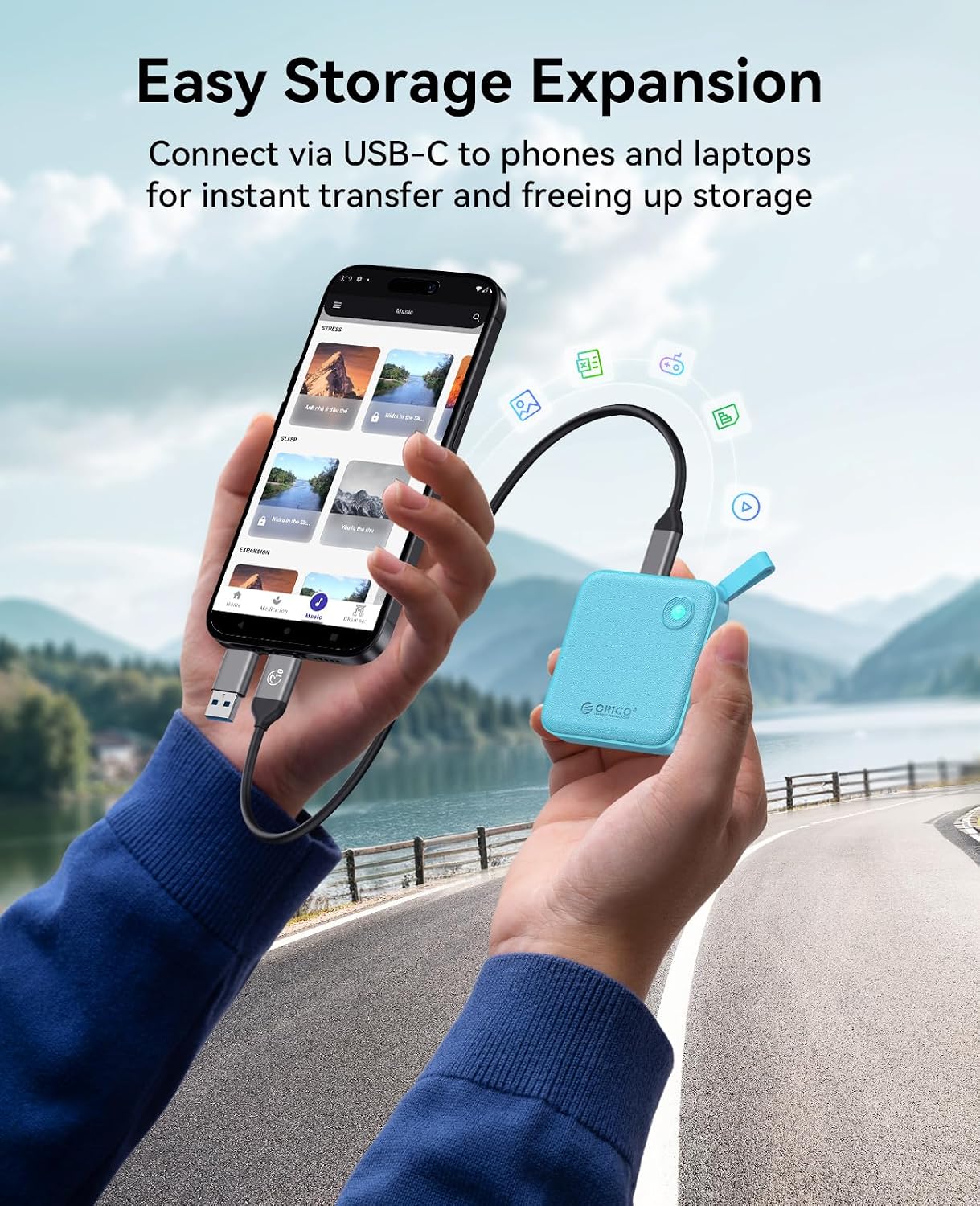
Figure 4.1: High-speed data transfer in progress between a laptop and the ORICO B5PLUS.

Figure 4.2: The ORICO B5PLUS offers stable and high-speed data transmission.
4.2 Safe Removal
Always safely eject the SSD before disconnecting it to prevent data corruption.
- Windows: Right-click the drive icon in 'This PC' or the taskbar icon, then select 'Eject'.
- macOS: Drag the drive icon to the Trash, or click the Eject button next to the drive in Finder.
- Android/iOS: Disconnect directly after ensuring no active transfers are occurring.
5. Maintenance and Care
- Keep the SSD away from extreme temperatures, direct sunlight, and moisture.
- Avoid dropping or subjecting the device to strong impacts.
- Clean the exterior with a soft, dry cloth. Do not use liquid cleaners.
- Regularly back up important data stored on the SSD to another location.
6. Troubleshooting
6.1 SSD Not Detected
- Ensure the cable is securely connected to both the SSD and your device.
- Try a different USB port on your device.
- Test with a different USB cable if available.
- Restart your computer or device.
- Check Disk Management (Windows) or Disk Utility (macOS) to see if the drive is visible but uninitialized or unformatted.
6.2 Slow Transfer Speeds
- Ensure you are using a USB 3.0/3.1/3.2 compatible port on your device. Older USB 2.0 ports will result in significantly slower speeds.
- Verify that your device's drivers are up to date.
- Avoid running multiple demanding applications during large file transfers.
- The type of files being transferred (many small files vs. fewer large files) can affect perceived speed.
6.3 Data Corruption
- Always safely eject the SSD before disconnecting it.
- Ensure your operating system is up to date.
- Run a disk check utility on the SSD (e.g., CHKDSK on Windows, First Aid on macOS).
7. Specifications
| Feature | Detail |
|---|---|
| Brand | ORICO |
| Model Number | B5PLUS-1TB |
| Digital Storage Capacity | 1 TB |
| Hard Drive Type | Solid State Drive |
| Hard Drive Interface | USB 1.1 (Note: Actual transfer speeds depend on the connected USB port version, typically USB 3.x for high speeds) |
| Connectivity Technology | USB |
| Sequential Read Speed | Up to 460MB/s |
| Sequential Write Speed | Up to 450MB/s |
| Item Weight | 3.17 ounces (approx. 0.09 lb) |
| Package Dimensions | 5.91 x 4.25 x 0.98 inches |
| Color | Green |
| Compatible Devices | Smartphone, PC, Laptop, Tablet, Router, TV |

Figure 7.1: The compact dimensions and light weight of the ORICO B5PLUS.
8. Warranty and Support
ORICO products typically come with a limited manufacturer's warranty. For specific warranty terms, duration, and support options, please refer to the warranty card included with your product or visit the official ORICO website. Keep your proof of purchase for warranty claims.
8.1 Contacting Support
If you encounter issues not covered in this manual or require further assistance, please contact ORICO customer support through their official website or the retailer where you purchased the product.
9. Product Overview Video
Video 9.1: An official overview of the ORICO External Solid State Drive B5PLUS, demonstrating its features and usage scenarios. This video is provided by the seller, ORICO Direct US Store.


