
Bewinner Bewinnerrw78n6qcfx
Bewinner 15.6 Inch 4K FHD Portable Monitor User Manual
Model: Bewinnerrw78n6qcfx
1. Introduction
Thank you for purchasing the Bewinner 15.6 Inch 4K FHD Portable Monitor. This ultra-slim travel monitor is designed to enhance your productivity and entertainment experience, offering a vivid 4K display and versatile connectivity. This manual provides detailed instructions for setup, operation, maintenance, and troubleshooting to ensure optimal performance of your device.

Image: The Bewinner 15.6 Inch 4K FHD Portable Monitor with its protective case acting as a stand, displaying a vibrant image.
2. Package Contents
Please check the package contents upon unboxing to ensure all items are present:
- 1 x Laptop Screen Extender (Portable Monitor)
- 1 x Protective Case
- 1 x HD Multimedia Interface Cable
- 2 x USB C Cable
- 1 x USB Cable
- 1 x User Manual (This document)
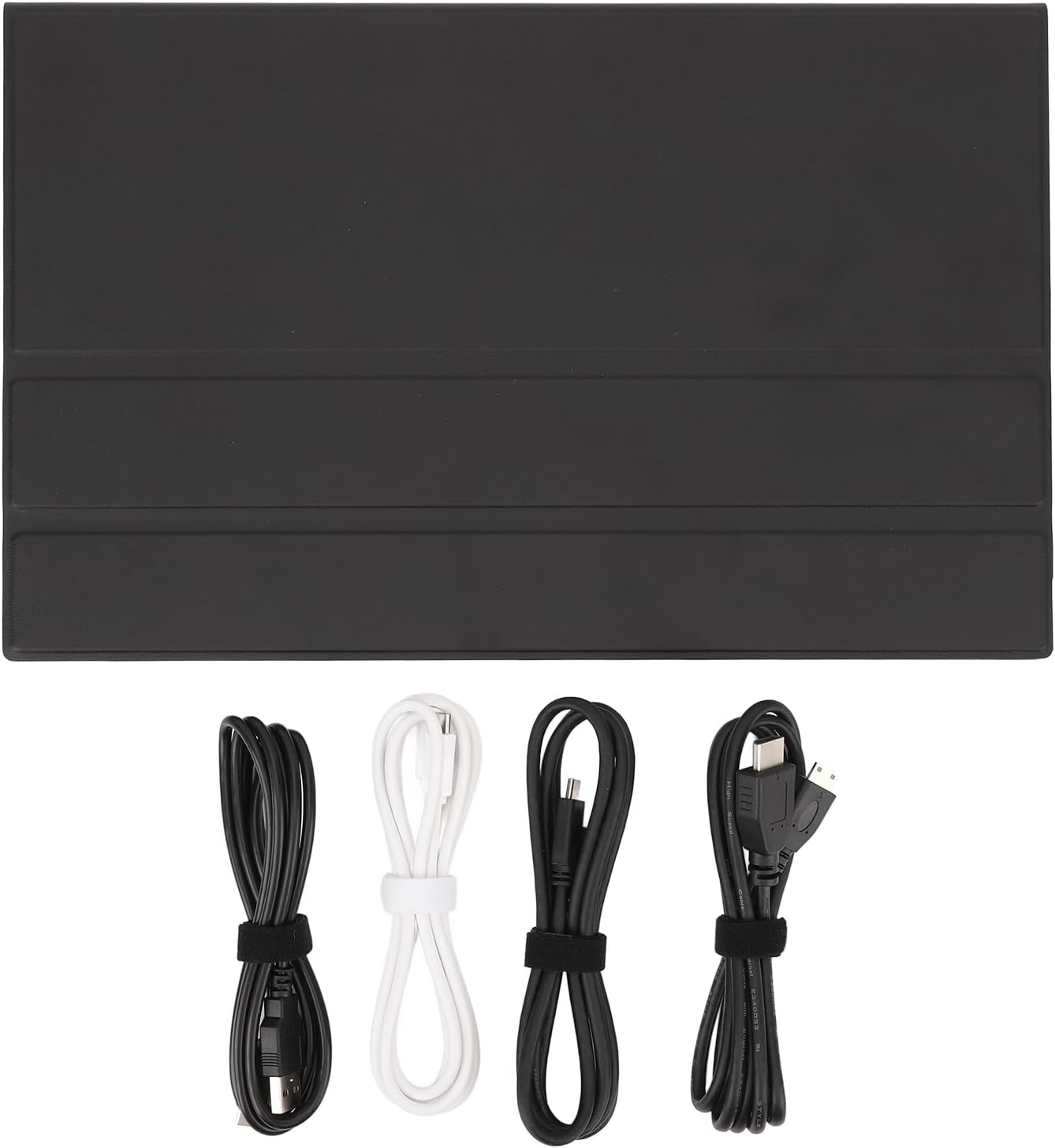
Image: The protective case and various cables (HD Multimedia Interface, USB-C, USB) included with the Bewinner Portable Monitor.
3. Product Features
- 10 Point Touch: Equipped with 4K touch panel technology, supporting 10 point touch and 3840x2160 pixel resolution, delivering incredibly detailed images. Ideal for graphic design, photo editing, or video production.

Image: A hand interacting with the touchscreen of the Bewinner Portable Monitor, demonstrating its 10-point touch capability.
- Vivid Visual Experience: 15.6 inch 100% sRGB wide color gamut screen, 16.7M (8 bit) colors, higher contrast ratio of 1200:1, and 300 nit brightness. Presents vivid images, clear motion, and details, maximizing the authenticity of images and videos.
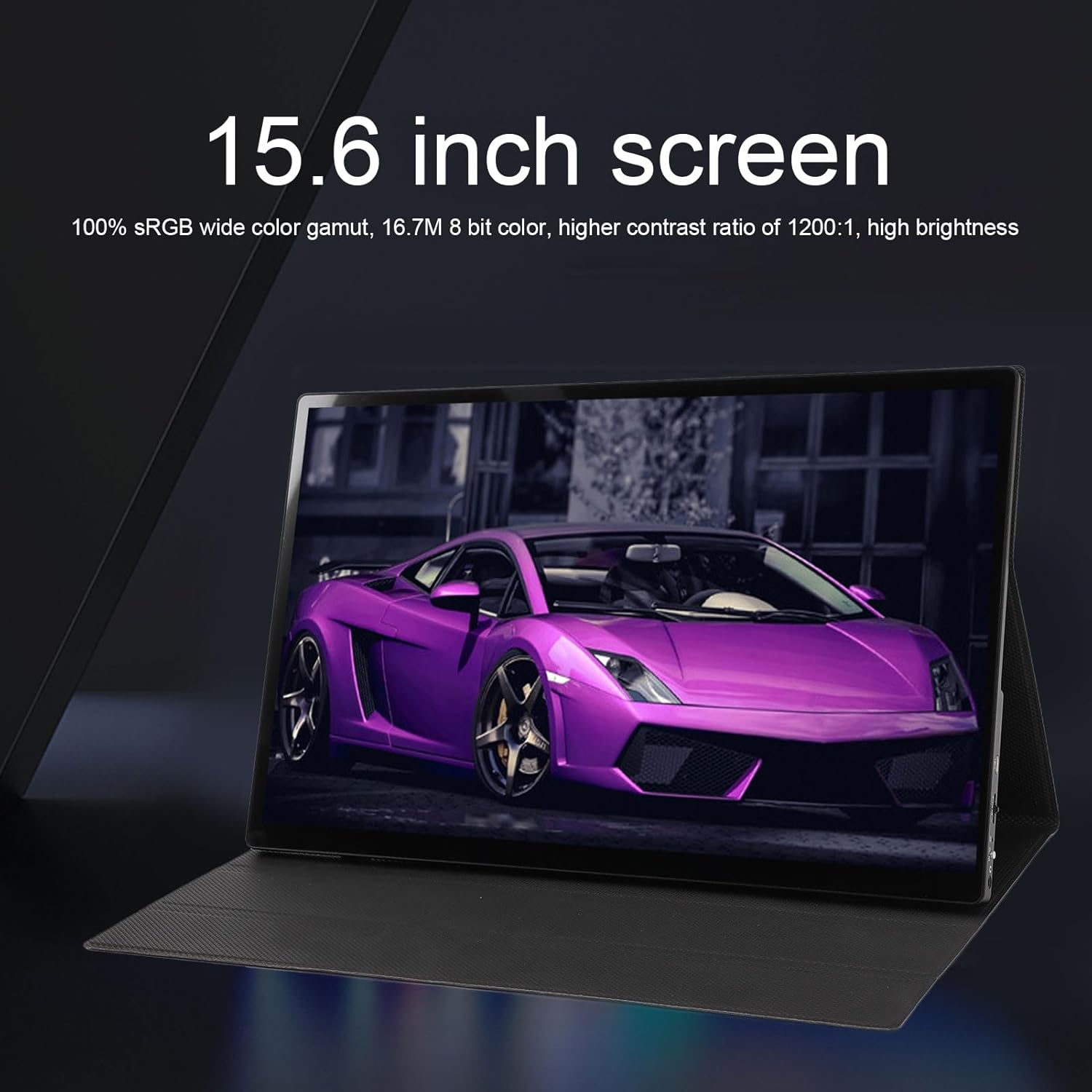
Image: The 15.6-inch screen of the Bewinner Portable Monitor highlighting its 100% sRGB wide color gamut and high contrast ratio.
- Multi-Functional Applications: Suitable for real-time stock monitoring, editing and designing, business meetings, gaming, and entertainment.
- Rich Ports: Includes two USB C 3.1 full-featured ports, a micro HD Multimedia Interface port, a micro USB data transfer port, and a 3.5mm headphone jack.
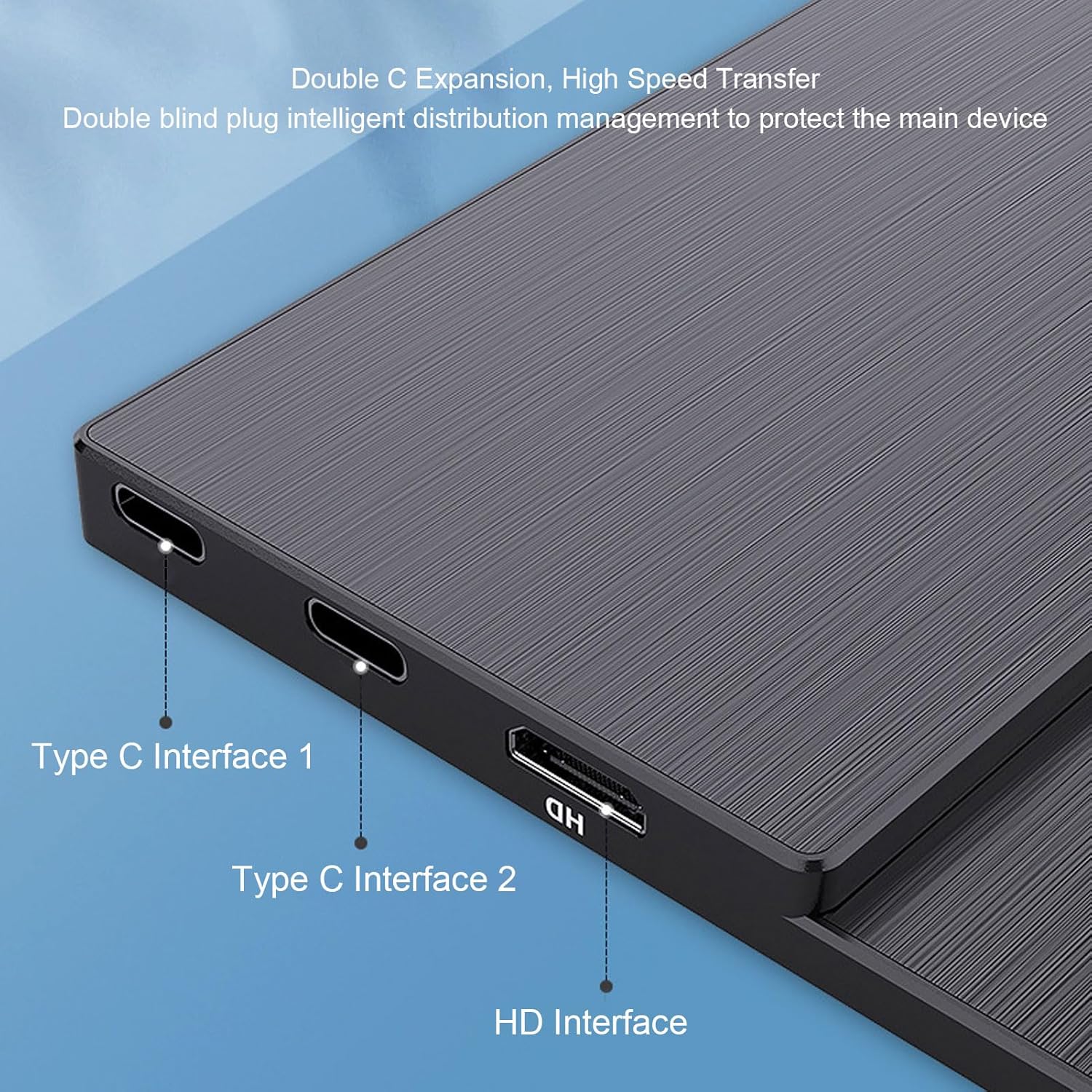
Image: A close-up view of the side of the Bewinner Portable Monitor, showing the Type-C and HD Multimedia Interface ports.
- Wide Compatibility and Easy Setup: Compatible with most laptops, PCs, for Switch, for OS X, etc. The USB Type C port allows power and signal transmission with just one cable.
- Slim and Lightweight Design: Portable design, easily slides into your bag for travel.

Image: A side view of the Bewinner Portable Monitor, emphasizing its slim and lightweight design.
- Integrated Speakers: Features 8Ω/1W Box x 2 speakers for self-contained audio.

Image: An illustration depicting sound waves emanating from the Bewinner Portable Monitor, indicating its integrated stereo speakers.
4. Setup Guide
4.1 Power Requirements
The monitor requires a 5V 3A power adapter, which is not included in the package. The best power supply method is to use an independent power supply for stable operation.
4.2 Connecting Your Device
The Bewinner Portable Monitor offers multiple connection options:
- USB-C Connection (Single Cable Solution):
If your device (laptop, smartphone, etc.) has a full-featured USB-C port that supports both video output (DisplayPort Alternate Mode) and power delivery, you can connect the monitor using a single USB-C to USB-C cable. This cable will transmit both video signal and power to the monitor.
Connect one end of the provided USB-C cable to your device's USB-C port and the other end to either of the Type C Interfaces on the monitor.
- HD Multimedia Interface Connection (Video + Power):
For devices with an HD Multimedia Interface output (e.g., PC, gaming console), use the provided micro HD Multimedia Interface to HD Multimedia Interface cable for video transmission. You will also need to power the monitor separately using a USB-C power adapter (not included) connected to one of the monitor's USB-C ports.
Connect the micro HD Multimedia Interface end to the monitor's micro HD Multimedia Interface port and the standard HD Multimedia Interface end to your device. Then, connect a 5V 3A power adapter to one of the monitor's USB-C ports using a USB-C cable.
- Micro USB Data Transfer:
The micro USB port is available for data transfer, typically for connecting peripherals or for specific device functions.

Image: A close-up of the side of the Bewinner Portable Monitor, showing the control buttons (Menu, +, -) and various ports including USB-C and micro HD Multimedia Interface.
5. Operating Instructions
5.1 Power On/Off
Once connected to a power source and a compatible device, the monitor should automatically power on. To manually power off or on, locate the power button (often integrated with the menu controls) on the side of the monitor and press and hold for a few seconds.
5.2 On-Screen Display (OSD) Menu
The monitor features an OSD menu for adjusting settings such as brightness, contrast, color temperature, input source, and more. Use the physical buttons on the side of the monitor (typically labeled "MENU", "+", "-") to navigate and select options within the OSD.
- Press the "MENU" button to open the OSD menu.
- Use the "+" and "-" buttons to navigate through menu options.
- Press "MENU" again or a dedicated "Enter" button (if present) to select an option or confirm a setting.
- Press and hold "MENU" or an "Exit" button to exit the OSD.
5.3 Touchscreen Functionality
The 10-point touch functionality is automatically enabled when connected to a compatible device that supports touch input (e.g., Windows laptops, certain Android phones). Ensure your device's operating system is configured to recognize external touch displays.
6. Maintenance
- Cleaning the Screen: Use a soft, lint-free cloth slightly dampened with water or a non-abrasive screen cleaner. Avoid using alcohol, ammonia, or harsh chemicals, as these can damage the screen surface.
- General Cleaning: Wipe the monitor's casing with a soft, dry cloth.
- Storage: When not in use, store the monitor in its protective case to prevent scratches and damage. Keep it in a cool, dry place away from direct sunlight and extreme temperatures.
- Handling: Always handle the monitor by its edges. Avoid applying pressure to the screen.
7. Troubleshooting
| Problem | Possible Cause | Solution |
|---|---|---|
| No display/Power off | Insufficient power; Incorrect cable connection; Device not outputting signal. | Ensure a 5V 3A power adapter is used. Check all cable connections (USB-C, HD Multimedia Interface). Verify your source device is powered on and configured to output to an external display. |
| No touch response | Device does not support touch output; Incorrect USB-C cable; Driver issue. | Ensure your device supports touch input over USB-C. Use a full-featured USB-C cable. For Windows, check Device Manager for touch screen drivers. |
| Flickering screen | Unstable power; Faulty cable; Graphics driver issue. | Ensure stable power supply. Try a different cable. Update graphics drivers on your source device. |
| No sound from monitor speakers | Volume too low; Audio output not set to monitor; Muted. | Adjust volume via OSD menu or source device. Set the monitor as the default audio output device in your computer's sound settings. |
8. Specifications
| Feature | Detail |
|---|---|
| Screen Size | 15.6 inches |
| Touch Type | Full Lamination, 10 Point Touch |
| Best Resolution | 3840 x 2160P (4K UHD) |
| Contrast Ratio | 1200:1 (Transmissive) |
| Screen Ratio | 16:9 (Wide Screen) |
| Display Colors | 16.7M (8 bit) |
| Brightness | 300cd/m² |
| Color Gamut | 100 percent sRGB |
| Color Temperature | 6485K |
| Refresh Rate | 60Hz |
| Response Time | 6ms |
| Viewing Angle | 85/85/85/85 (CR≥10) |
| Speakers | 8Ω/1W Box x 2 |
| Interfaces | USB C x 2, micro HD Multimedia Interface, Micro USB x 1, 3.5mm AUX x 1 |
| Product Dimensions | 16.14 x 11.02 x 2.36 inches |
| Item Weight | 4.69 pounds |
| Model Number | Bewinnerrw78n6qcfx |
9. Warranty and Support
For warranty information and technical support, please refer to the official Bewinner website or contact their customer service directly. Keep your purchase receipt as proof of purchase for any warranty claims.
You can visit the Bewinner Store for more information: Bewinner Store on Amazon
Related documentsBewinnerrw78n6qcfx

Ask a question about this manual
Ask about setup, troubleshooting, compatibility, parts, safety, or missing instructions. Manuals+ will review the question and use this page’s manual context to help answer it.