
1. Introduction
The Lenovo IdeaCentre Neo 50s SFF (Small Form Factor) is a business desktop computer designed for efficiency and reliability. Its compact size allows for minimal desk space usage while providing robust performance for various tasks. This manual provides essential information for setting up, operating, and maintaining your computer, ensuring optimal performance and security.
This model features an Intel Core i5 processor, 16GB RAM, a 256GB SSD, and a 1TB HDD, running on Windows 11 Pro. It offers a variety of connectivity options for seamless integration with your existing peripherals.
2. Package Contents
Before proceeding with the setup, please verify that all items are present in the package:
- Lenovo IdeaCentre Neo 50s SFF Desktop Computer
- Keyboard
- Mouse
- Power Cable
- Documentation (this manual, warranty information)
3. Hardware Overview
Familiarize yourself with the ports and components of your IdeaCentre Neo 50s SFF desktop.

Image Description: This image displays the front and rear panels of the Lenovo IdeaCentre Neo 50s SFF desktop computer, highlighting various ports and buttons with numbered labels. The front panel includes the power button, card reader, microphone/headphone jacks, USB-C, and USB-A ports. The rear panel shows audio line-out, HDMI, DisplayPort, serial ports, VGA, additional USB-A ports, Ethernet (RJ-45), and a Kensington Security Slot.
Front Panel Components:
- Power button: Used to turn the computer on or off.
- Card reader: (Only available on selected models) For reading memory cards.
- Microphone (3.5mm): Audio input for a microphone.
- Headphone / mic: Combined audio jack for headphones and microphone.
- USB-C® 3.2 Gen 1: (Data transfer, 15W charging) For connecting USB-C devices.
- 2 x USB 3.2 Gen 1: For connecting USB-A devices.
- Optical drive: (Only available on selected models) For reading/writing CDs/DVDs.
Rear Panel Components:
- Audio line-out (3.5mm): Audio output for speakers or headphones.
- HDMI® 2.1 TMDS: Video output for HDMI displays.
- DP 1.4: DisplayPort video output.
- Serial: (Only available on selected models) For connecting serial devices.
- VGA: Video output for VGA displays.
- 2 x USB 2.0: For connecting USB-A devices.
- 1 x USB 3.2 Gen 1: For connecting USB-A devices.
- 1 x USB 3.2 Gen 1: (Smart power on) For connecting USB-A devices.
- Kensington® Security Slot™: For attaching a security cable.
- Ethernet (RJ-45): For wired network connection.
- Smart cable clip slots: (Only available on selected models) For cable management.
- Serial: (Only available on selected models) For connecting serial devices.
- Optional ports: (Only available on selected models) Additional expansion ports.
4. Setup Instructions
- Unpack the Computer: Carefully remove the computer and all accessories from the packaging.
- Connect Peripherals:
- Connect the keyboard and mouse to the available USB ports on the front or rear panel.
- Connect your monitor(s) to the appropriate video output ports (HDMI, DisplayPort, or VGA) on the rear panel.
- If using a wired network, connect an Ethernet cable to the RJ-45 port on the rear panel.
- Connect any other peripherals (e.g., speakers, printer) to their respective ports.
- Connect Power: Plug the power cable into the power connector on the rear of the computer, then plug the other end into a grounded electrical outlet.
- Power On: Press the power button on the front panel of the computer. The system will boot up.
- Initial Setup: Follow the on-screen instructions to complete the Windows 11 Pro initial setup, including language selection, network configuration, and user account creation.
5. Operating Instructions
Power On/Off:
- To Power On: Press the power button on the front of the computer.
- To Shut Down: Click the Start button in Windows, then select Power > Shut down.
- To Restart: Click the Start button in Windows, then select Power > Restart.
- To Sleep: Click the Start button in Windows, then select Power > Sleep.
Windows 11 Pro:
Your computer comes pre-installed with Windows 11 Pro. This operating system offers features designed to enhance productivity and collaboration, such as:
- Pre-configured layouts for organizing open applications.
- Intuitive navigation for efficient task management.
- Integrated Microsoft Teams for streamlined collaboration.
Connecting to the Internet:
- Wired Connection: If you connected an Ethernet cable during setup, your computer should automatically connect to the network.
- Wireless Connection (Optional): If your model includes optional Wi-Fi, click the network icon in the taskbar, select your Wi-Fi network, enter the password, and connect.

Image Description: A user is shown working at a desk with a Lenovo IdeaCentre Neo 50s SFF desktop computer connected to a monitor, alongside a laptop. This setup illustrates the computer's capability for remote collaboration and integration into a modern workspace. The monitor and laptop are sold separately.
6. Features and Capabilities
Performance:
The IdeaCentre Neo 50s SFF is powered by a 12th Gen Intel Core i5-12500 processor (6 Cores, 12 Threads, up to 4.6GHz) and equipped with 16GB DDR4 RAM, a 256GB SSD, and a 1TB HDD. This configuration ensures efficient multitasking and ample storage for business applications and data.
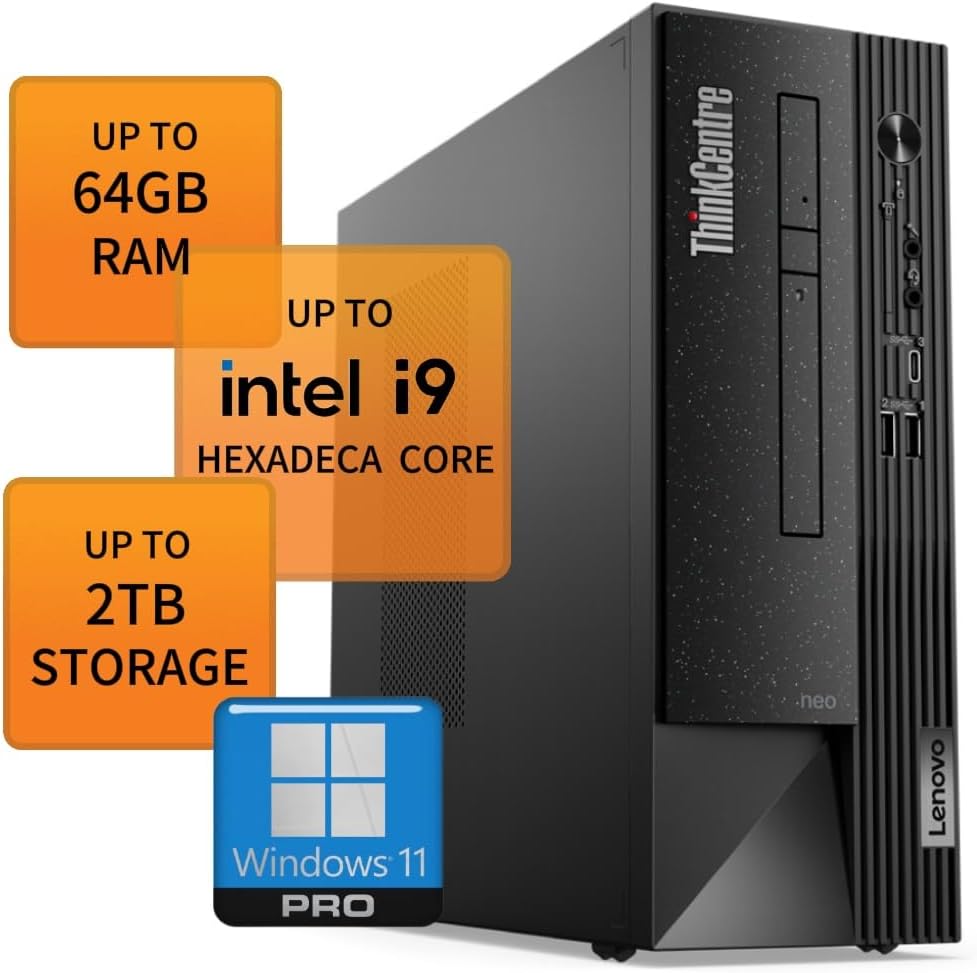
Image Description: This image features the Lenovo IdeaCentre Neo 50s SFF desktop computer, highlighting its key performance specifications such as "Up to 64GB RAM", "Up to Intel i9 Hexadeca Core", "Up to 2TB Storage", and "Windows 11 Pro". This visual emphasizes the computer's potential for high performance and expandability.

Image Description: The image shows the Lenovo ThinkCentre Neo 50s SFF desktop computer with text stating "ThinkCentre Takes productivity to a new level". It describes the power of 12th Gen Intel Core processors for handling massive datasets or graphics-intensive tasks with up to 16 cores.
Security:
The ThinkCentre Neo 50s SFF incorporates ThinkShield security solutions to protect your device and data. Key security features include:
- Discrete Trusted Platform Module (dTPM) 2.0: Encrypts passwords and sensitive data.
- BIOS Guard and Boot Guard: Provides self-healing BIOS capabilities.
- Smart USB Protection: Helps prevent unauthorized data access via USB ports.

Image Description: This image illustrates the security aspects of the Lenovo ThinkCentre Neo 50s SFF. It shows the desktop in a multi-monitor setup, a close-up of a USB-C connection, and the rear ports including the Ethernet and security slot. The accompanying text highlights "Secure by design" and mentions ThinkShield security solutions like dTPM 2.0, BIOS Guard, Boot Guard, and smart USB protection.
Environmental Responsibility:
The Neo 50s SFF is designed with sustainability in mind:
- Chassis made from 85% post-consumer content (PCC) resin.
- Packaging utilizes Ocean Bound Plastic.
- Intelligent Cooling Engine (ICE) 5.0 for optimal power consumption and thermal management.

Image Description: The image shows the Lenovo ThinkCentre Neo 50s SFF desktop computer with text emphasizing "Long-term business value". It highlights the modern chassis made from 85% post-consumer content (PCC) resin and packaging from Ocean Bound Plastic, along with energy efficiency and Intelligent Cooling Engine (ICE) 5.0.
7. Maintenance
Regular maintenance helps ensure the longevity and optimal performance of your computer.
- Cleaning:
- Use a soft, lint-free cloth to clean the exterior surfaces.
- For dust, use compressed air to clear vents and ports.
- Avoid using harsh chemicals or abrasive cleaners.
- Software Updates: Regularly check for and install operating system updates (Windows Update) and driver updates from the Lenovo support website to ensure system stability and security.
- Data Backup: Periodically back up important data to an external drive or cloud storage to prevent data loss.
8. Troubleshooting
If you encounter issues with your Lenovo IdeaCentre Neo 50s SFF, consider the following basic troubleshooting steps:
- No Power:
- Ensure the power cable is securely connected to both the computer and the electrical outlet.
- Verify the power outlet is functional by plugging in another device.
- No Display:
- Check that the monitor is powered on and the video cable (HDMI, DisplayPort, or VGA) is securely connected to both the computer and the monitor.
- Try a different video cable or monitor if available.
- Peripheral Not Working:
- Ensure the peripheral is correctly connected to the appropriate port.
- Try connecting the peripheral to a different port or another computer to rule out a device issue.
- Check for updated drivers for the peripheral.
- System Slowdown:
- Close unnecessary applications.
- Check for and install any pending Windows updates.
- Run a system scan for malware or viruses.
For more advanced troubleshooting or persistent issues, please refer to the official Lenovo support website or contact Lenovo customer service.
9. Specifications
| Feature | Specification |
|---|---|
| Brand | Lenovo |
| Series | ThinkCentre Neo 50s |
| Model Number | ThinkCentre Neo 50s |
| Operating System | Windows 11 Pro |
| Processor | 12th Gen Intel Core i5-12500 (6 Cores, 12 Threads, up to 4.6GHz) |
| RAM | 16GB DDR4 (Expandable up to 32GB/64GB based on configuration) |
| Storage | 256GB SSD + 1TB HDD |
| Graphics | Integrated Intel Graphics |
| Video Outputs | HDMI 2.1 TMDS, DisplayPort 1.4, VGA |
| USB Ports | 1x USB-C 3.2 Gen 1, 3x USB 3.2 Gen 1, 2x USB 2.0 |
| Ethernet | RJ-45 |
| Audio Ports | Headphone/Mic combo, Audio line-out |
| Optical Drive | DVD+RW (on selected models) |
| Dimensions (LxWxH) | 21 x 16 x 16 inches (approximate) |
| Weight | 16 pounds (approximate) |
| Hardware Platform | PC |
| Specific Uses | Business |
10. Warranty and Support
Your Lenovo IdeaCentre Neo 50s SFF Business Desktop Computer comes with a standard manufacturer's warranty. For detailed information regarding warranty terms, coverage, and duration, please refer to the warranty card included with your product or visit the official Lenovo support website.
For technical assistance, driver downloads, or further support, please visit the Lenovo Support Website or contact Lenovo customer service directly.
Note: Protection plans may be available for purchase separately to extend coverage. Please check with your retailer or Lenovo for options.