
Introduction
This manual provides essential information for setting up, operating, maintaining, and troubleshooting your HP 15-DY series laptop. Please read this guide thoroughly to ensure proper use and to maximize the performance and longevity of your device.
1. Setup
1.1 Unboxing and Initial Inspection
Carefully remove all components from the packaging. Verify that all items listed below are present and undamaged.
- HP 250 G9 Laptop
- Power Adapter
- Documentation (this manual)
- Lifetime Microsoft Office (pre-installed or activation key)
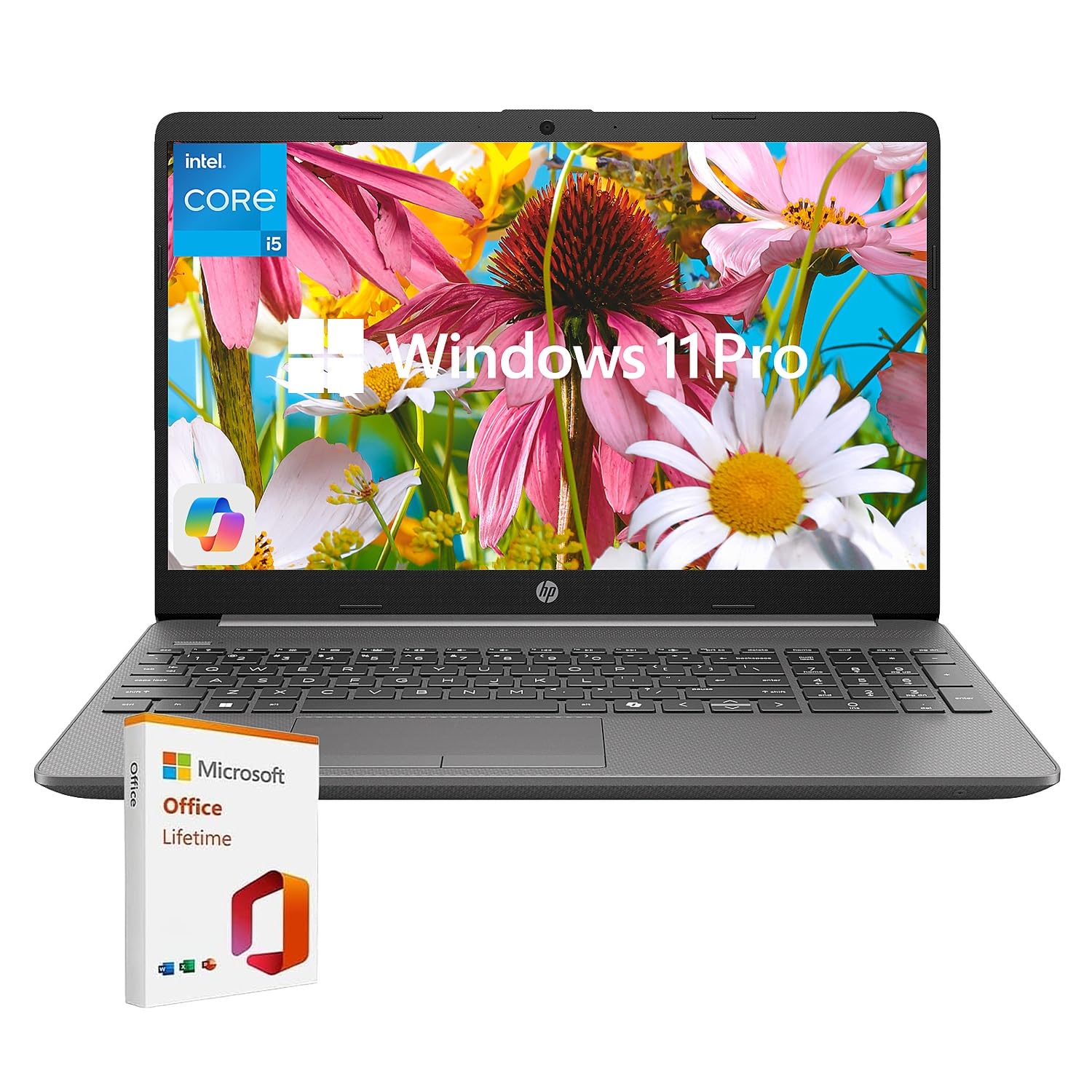
Figure 1.1: HP 15-DY Series Laptop. This image displays the laptop with its screen showing the Windows 11 Pro desktop environment, highlighting its sleek design and full-size keyboard.
1.2 Connecting the Power Adapter
Connect the power adapter to the laptop's power port and then plug it into a wall outlet. It is recommended to fully charge the battery before the first use.
1.3 Initial Power On and Windows Setup
Press the power button located on the keyboard deck. The laptop will boot up, and you will be guided through the Windows 11 Pro setup process. Follow the on-screen instructions to configure your region, language, network connection, and user account.
2. Operating Your Laptop
2.1 Power Management
- Power On: Press the power button.
- Sleep Mode: Close the lid or select "Sleep" from the Start menu.
- Shut Down: Select "Shut down" from the Start menu.
- Restart: Select "Restart" from the Start menu.
2.2 Keyboard and Touchpad
The laptop features a full-size keyboard with a numeric keypad and a multi-touch touchpad. Refer to the Windows 11 Pro settings for customizing touchpad gestures.
2.3 Ports and Connectivity
Your HP 15-DY laptop offers various ports for connecting external devices and network access.

Figure 2.1: Multi Ports for Easy Connection. This image highlights the various ports on the HP laptop, including USB Type-A, USB Type-C, HDMI, RJ-45 Ethernet, SD Card Reader, and headphone/microphone combo jack.
- USB Type-A Ports (x2): For connecting USB devices like mice, keyboards, and external storage.
- USB Type-C Port (x1): Supports data transfer, DisplayPort, and Power Delivery.
- HDMI Port (x1): For connecting to external displays or projectors.
- RJ-45 Ethernet Port (x1): For wired network connections.
- SD Card Reader (x1): For reading data from SD memory cards.
- Headphone/Microphone Combo Jack (x1): For connecting headphones or a headset.
- Wi-Fi 6: For high-speed wireless internet connectivity.
- Bluetooth: For connecting wireless peripherals such as headphones or speakers.
2.4 Display and Graphics
The laptop features a 15.6-inch Full HD (1920 x 1080) anti-glare display, powered by Intel Iris Xe Graphics. This combination provides clear visuals for productivity and entertainment.
2.5 Performance and Features
Equipped with an Intel 10-Core i5-1335U processor, 16GB RAM, and a 512GB PCIe SSD, the HP 15-DY series laptop delivers efficient performance for daily tasks, multitasking, and light creative work.
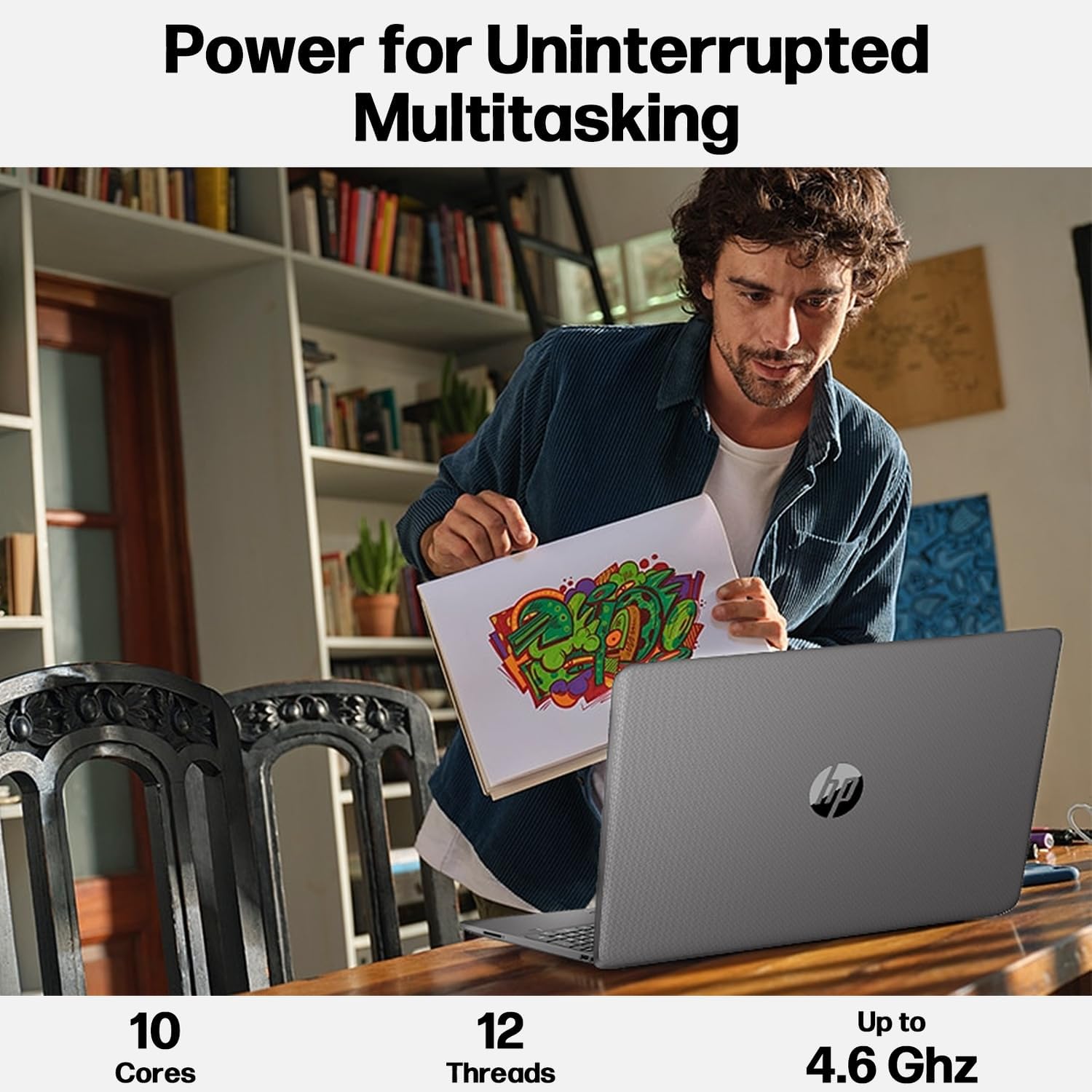
Figure 2.2: Power for Uninterrupted Multitasking. This graphic illustrates the laptop's processing power with 10 cores, 12 threads, and up to 4.6 GHz clock speed, indicating strong multitasking capabilities.
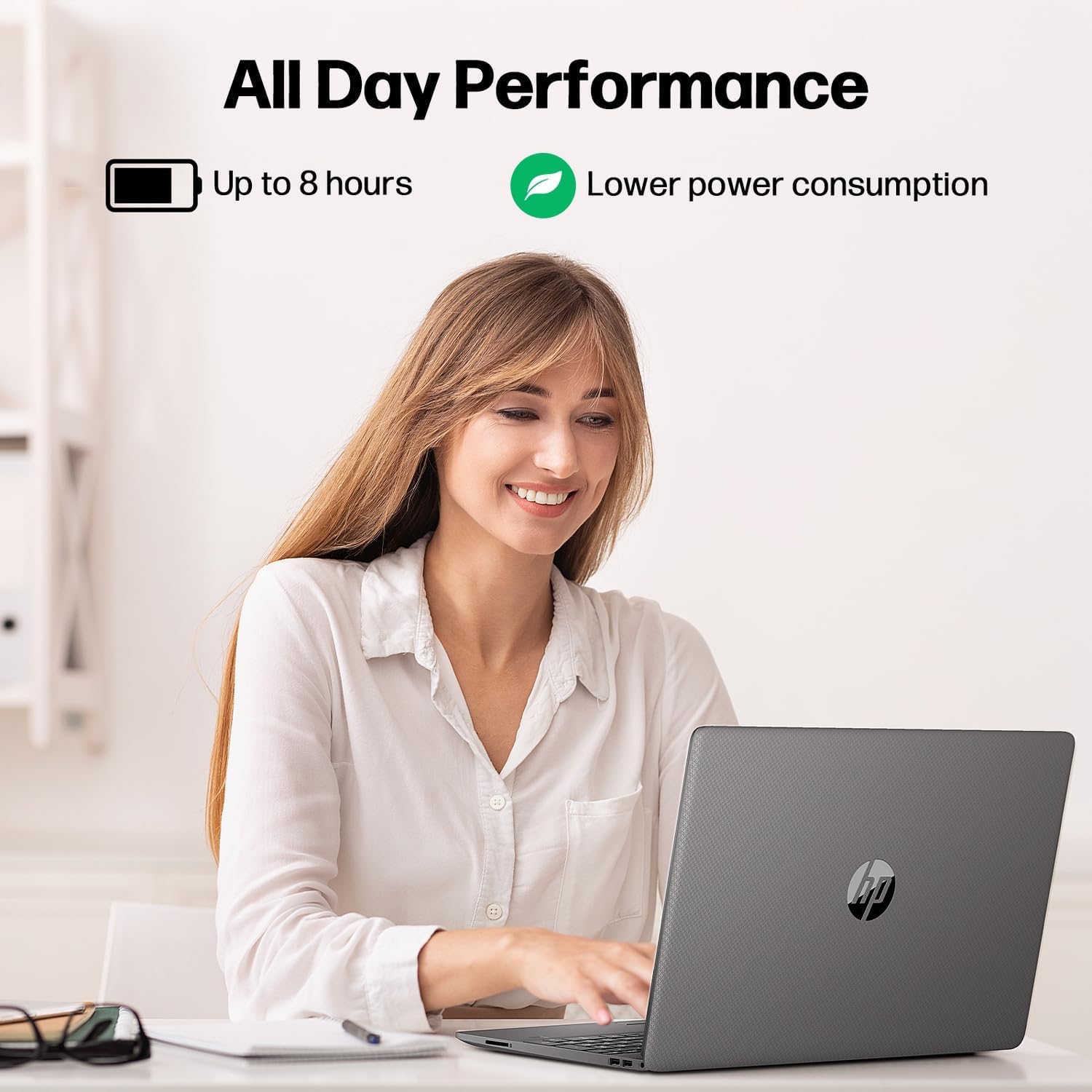
Figure 2.3: All Day Performance. This image highlights the laptop's battery life of up to 8 hours and its lower power consumption for extended use.

Figure 2.4: Upgraded and Customized for Easier Use. This graphic shows the laptop screen displaying "Free Office" and icons for a 720P Camera, WiFi 6, and Bluetooth, indicating key integrated features.
Additional features include a 720p HD webcam, AI noise-reducing microphone, and pre-installed Microsoft Office for productivity.
3. Maintenance
3.1 Cleaning Your Laptop
- Screen: Use a soft, lint-free cloth lightly dampened with water or a screen cleaner. Do not spray liquid directly onto the screen.
- Keyboard and Chassis: Use a soft cloth. For stubborn dirt, a slightly damp cloth can be used. Avoid harsh chemicals.
- Ports: Use compressed air to gently clear dust from ports.
3.2 Battery Care
- Avoid extreme temperatures.
- Do not fully discharge the battery frequently.
- For long-term storage, charge the battery to about 50-70%.
3.3 Software Updates
Regularly update your Windows operating system and device drivers to ensure optimal performance, security, and compatibility. Access Windows Update through the Settings menu.
4. Troubleshooting
This section addresses common issues you might encounter with your laptop.
4.1 No Power or Laptop Not Turning On
- Ensure the power adapter is securely connected to both the laptop and a working power outlet.
- Verify the power outlet is functional by plugging in another device.
- Try holding the power button for 15-20 seconds to perform a hard reset.
4.2 Display Issues
- If the screen is blank, try connecting an external monitor via the HDMI port to check if the issue is with the laptop's display.
- Adjust screen brightness using the function keys (Fn + Fx keys, specific to HP models).
- Ensure display drivers are up to date.
4.3 Wi-Fi or Bluetooth Connectivity Problems
- Ensure Wi-Fi and Bluetooth are enabled in Windows settings.
- Restart your router/modem.
- Update wireless adapter drivers.
- Run Windows Network Troubleshooter.
4.4 Slow Performance
- Close unnecessary applications running in the background.
- Check for malware or viruses using antivirus software.
- Ensure Windows and drivers are updated.
- Consider freeing up disk space or upgrading RAM if performance issues persist after basic troubleshooting.
5. Specifications
| Brand | HP |
| Model Name | G9 (Series 15-DY) |
| Screen Size | 15.6 Inches |
| Display Resolution | 1920 x 1080 (Full HD) |
| Processor | Intel 10-Core i5-1335U (up to 4.6 GHz) |
| RAM Memory | 16 GB DDR4 (expandable up to 64 GB) |
| Storage | 512 GB PCIe SSD |
| Graphics | Intel Iris Xe Graphics (Integrated) |
| Operating System | Windows 11 Pro |
| Connectivity | Wi-Fi 6 (802.11ax), Bluetooth 4.2, Gigabit Ethernet (RJ-45) |
| Ports | 2x USB Type-A, 1x USB Type-C (DisplayPort/Power Delivery), 1x HDMI, 1x RJ-45, 1x SD Card Reader, 1x Headphone/Microphone Combo |
| Webcam | Yes (HD Camera) |
| Dimensions (L x W x H) | 14.09 x 9.53 x 0.78 inches |
| Weight | Approx. 3.84 lbs |
| Battery Type | Lithium Ion (6 cells) |

Figure 5.1: Nice and Light. This image illustrates the laptop's dimensions (14.09" x 9.52" x 0.78") and weight (3.84 lbs), emphasizing its portability and slim profile.
6. Warranty Information
Your HP 15-DY series laptop comes with a 1-year manufacturer's limited warranty. This warranty covers defects in materials and workmanship under normal use. For detailed terms and conditions, please refer to the warranty documentation included with your product or visit the official HP support website.
The product description also mentions a 12-month warranty provided by the seller for customized and tested units. Please contact your seller for specific details regarding this extended warranty.
7. Customer Support
For technical assistance, driver downloads, or further support, please visit the official HP support website:
You may also contact HP customer service directly through the contact information provided on their website.


