1. Introduction
Thank you for choosing the Bettdow Magnetic Keyboard Case. This product is designed to enhance your Samsung Galaxy Tab experience by providing a comfortable typing solution, a precise trackpad, and robust protection. This manual provides detailed instructions for setup, operation, and maintenance to ensure optimal performance.
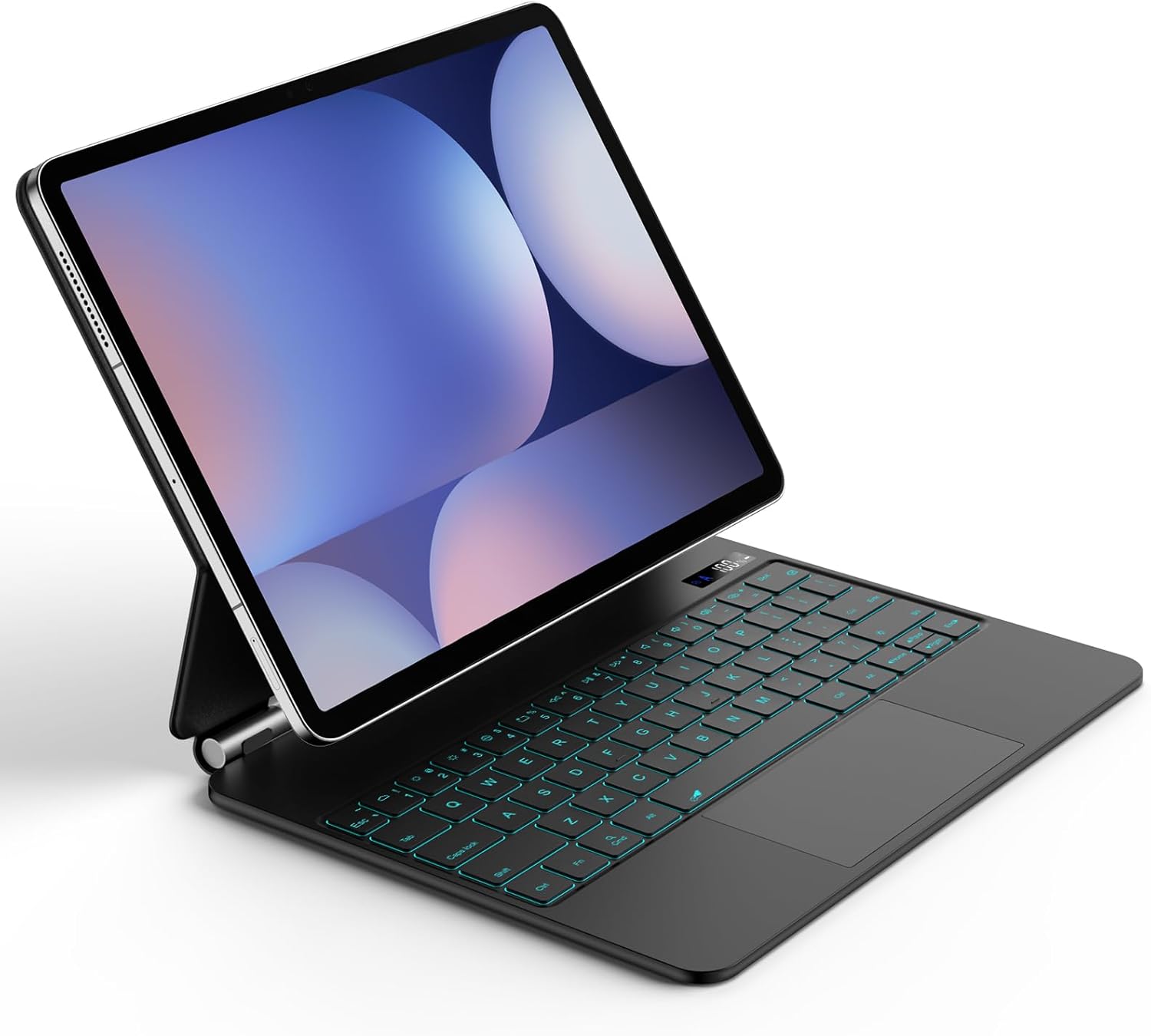
Image 1.1: The Bettdow Magnetic Keyboard Case with a tablet attached, showcasing its floating design and illuminated QWERTZ keyboard.
2. Compatibility
This keyboard case is specifically designed for 12.4-inch Samsung Galaxy Tab models. Please verify your tablet's model number before use to ensure proper magnetic attachment and functionality.
- Samsung Galaxy Tab S10+ 2024 (Models: SM-X820/X826B)
- Samsung Galaxy Tab S9 FE+ 2023 (Models: SM-X610/X616B)
- Samsung Galaxy Tab S9+ 2023 (Models: SM-X810/X816B)
- Samsung Galaxy Tab S8+ 2022 (Models: SM-X800/X806)
- Samsung Galaxy Tab S7 FE 2021 (Models: SM-T730/T733/T736B)
- Samsung Galaxy Tab S7+ 2020 (Models: SM-T970/T976B/T975)

Image 2.1: Visual representation of compatible Samsung Galaxy Tab models and their respective model numbers.
3. Package Contents
Please check the package for the following items:
- Bettdow Magnetic Keyboard Case
- USB-C Charging Cable
- User Manual
4. Setup
4.1 Initial Charging
Before first use, fully charge the keyboard. Connect the provided USB-C charging cable to the keyboard's charging port and a power source. The digital display will indicate charging status.

Image 4.1: The keyboard connected to a charging cable, showing the LCD display indicating battery percentage and charging status.
4.2 Attaching the Tablet
The case features a strong magnetic floating design. Simply align your compatible Samsung Galaxy Tab with the magnetic area on the case. The magnets will securely hold the tablet in place, allowing for easy attachment and detachment.
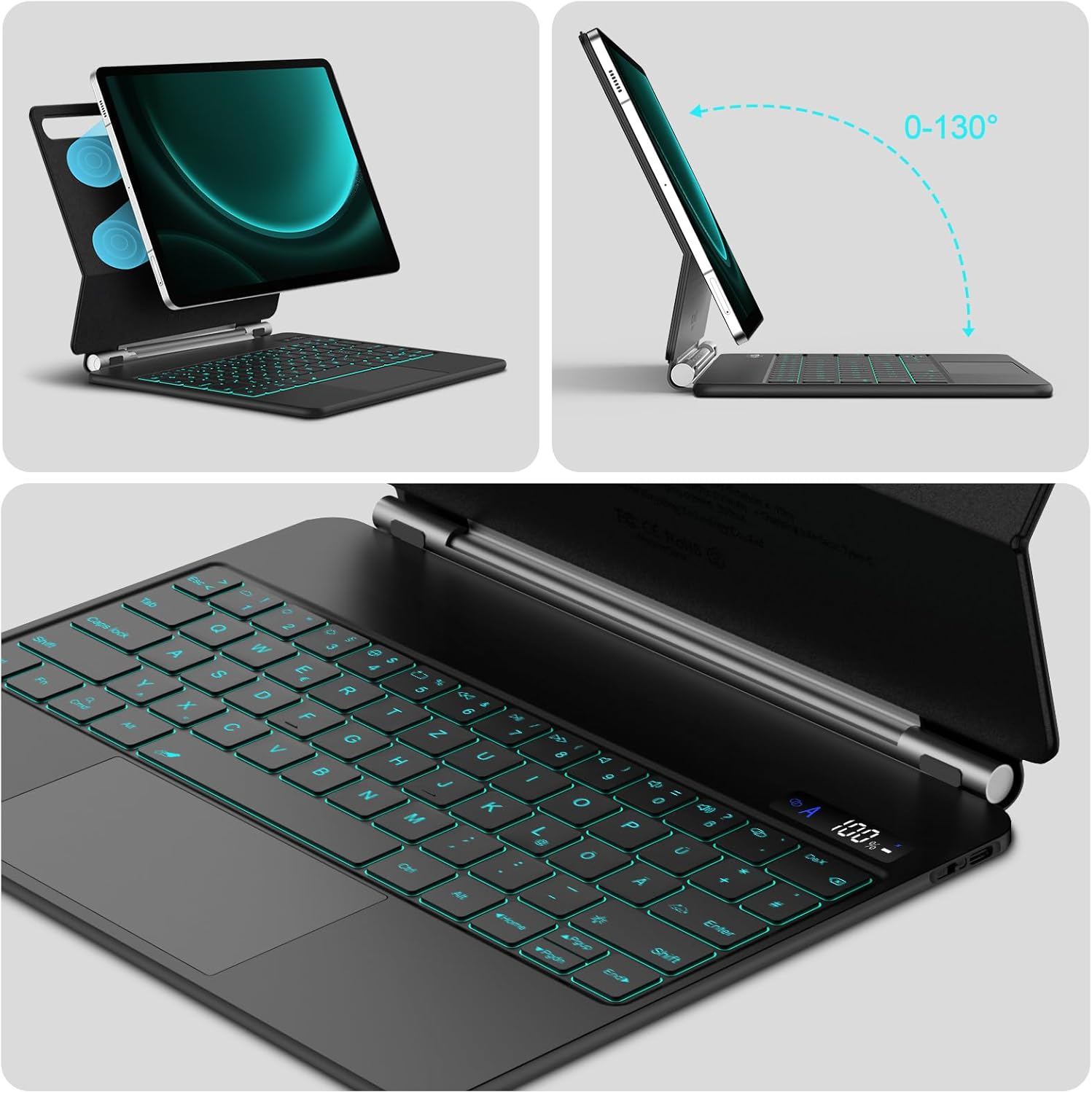
Image 4.2: Illustration of the magnetic attachment mechanism and the adjustable viewing angle range of 0-130 degrees.
4.3 Bluetooth Pairing
- Ensure the keyboard is charged and powered on.
- On your Samsung Galaxy Tab, go to Settings > Connections > Bluetooth.
- Turn on Bluetooth.
- The tablet will search for available devices. Select the keyboard (usually named 'Bluetooth Keyboard' or similar) from the list.
- Follow any on-screen prompts to complete the pairing process. The Bluetooth status indicator on the keyboard's digital display will confirm connection.
5. Operating Instructions
5.1 Keyboard Functions
The keyboard features a QWERTZ layout and illuminated keys for comfortable typing in various lighting conditions.
- Backlight On/Off & Brightness Adjustment: Press Fn + Enter to cycle through backlight brightness levels (3 adjustable levels) or turn the backlight off.
- Backlight Color Change: Press Fn + Shift to change between 7 available backlight colors.

Image 5.1: Instructions for controlling the 7-color LED backlight and 3 brightness levels using Fn key combinations.
5.2 Trackpad Functions
The integrated trackpad supports multi-touch gestures and offers a click-anywhere surface for precise navigation.
- Click: Press anywhere on the trackpad.
- Scroll: Use two fingers to scroll up or down.
- Swipe: Utilize various multi-touch gestures supported by your tablet's operating system.

Image 5.2: Overview of key features including the illuminated keyboard, multi-touch trackpad, and dedicated hotkeys.
5.3 Digital Display
The integrated LCD digital display provides real-time status information:
- Power Status: Shows remaining battery percentage.
- Lock Button Status: Indicates if Caps Lock or other lock functions are active.
- Charging Status: Displays when the keyboard is charging.
- Bluetooth Connection Status: Confirms active Bluetooth connection.
5.4 Stand Adjustment
The magnetic stand allows for flexible viewing angles from 0 to 130 degrees. Adjust the tablet's position to your preferred angle for typing, viewing, or drawing.
5.5 Automatic Wake/Sleep Function
Opening or closing the keyboard case will automatically wake or put your Samsung tablet to sleep, conserving battery life.

Image 5.3: Examples of the keyboard case in use, demonstrating typing and trackpad interaction for productivity.
6. Maintenance
To ensure the longevity of your keyboard case:
- Keep the keyboard clean by wiping it with a soft, dry cloth.
- Avoid exposing the device to extreme temperatures, direct sunlight, or moisture.
- Do not use harsh chemicals or abrasive cleaners.
- Store the case in a cool, dry place when not in use.
7. Troubleshooting
- Keyboard not connecting via Bluetooth:
- Ensure the keyboard is charged and powered on.
- Turn off and on Bluetooth on your tablet.
- Forget the device in your tablet's Bluetooth settings and re-pair.
- Restart both the tablet and the keyboard. - Keys not responding:
- Check battery level on the digital display and charge if low.
- Ensure Bluetooth connection is stable.
- Restart the keyboard and tablet. - Backlight not working:
- Press Fn + Enter to activate or adjust brightness.
- Check battery level. - Trackpad unresponsive:
- Ensure Bluetooth connection is active.
- Clean the trackpad surface.
- Restart the keyboard and tablet.
8. Specifications
| Brand Name | Bettdow |
| Compatible Devices | Samsung Galaxy Tab 12.4-inch models (S7+, S7 FE, S8+, S9+, S9 FE+, S10+) |
| Connectivity Technology | Bluetooth |
| Keyboard Layout | QWERTZ |
| Special Features | Backlit (7 colors, 3 brightness levels), Multi-touch Trackpad, Magnetic Floating Design, Digital Power Display, Auto Wake/Sleep |
| Power Source | Battery Powered (1 Lithium Ion battery included) |
| Switch Type | Membrane |
| Color | Black |
| Package Dimensions | 30.7 x 24.1 x 2.7 cm |
| Item Weight | 1.08 kg |
9. Warranty and Support
For warranty information or technical support, please refer to the documentation provided with your purchase or contact the seller directly. Keep your proof of purchase for any warranty claims.


