
CHROX
CHROX H96 MAX M7 Android 13.0 TV Box User Manual
Model: H96 MAX M7 | Version: 1.0
Introduction
This manual provides comprehensive instructions for the setup, operation, and maintenance of your CHROX H96 MAX M7 Android 13.0 TV Box. Please read this manual carefully before using the device to ensure proper functionality and safety. The CHROX H96 MAX M7 is a versatile multimedia device designed to transform your television into a smart entertainment hub, supporting 8K/4K video playback, dual-band Wi-Fi, and Bluetooth connectivity.
Safety Information
Please observe the following safety precautions to prevent damage to the device or personal injury:
- Handle the device with care to avoid drops and impacts.
- Ensure the product is securely assembled before use.
- Do not expose the device to water, moisture, or extreme temperatures.
- Use only the provided power adapter.
- Do not attempt to disassemble or repair the device yourself. Refer to qualified service personnel.
- Keep the device away from heat sources and direct sunlight.

Image: Multilingual warning label emphasizing careful handling and secure assembly.
Package Contents
Verify that all items are present in the package:
- 1 x CHROX H96 MAX M7 TV Box
- 1 x Remote Control
- 1 x HD Cable (HDMI)
- 1 x Power Adapter
- 1 x User Manual (this document)

Image: All components included in the CHROX H96 MAX M7 package.
Product Overview
The CHROX H96 MAX M7 TV Box features a compact design with various ports for connectivity. Familiarize yourself with the device's layout:
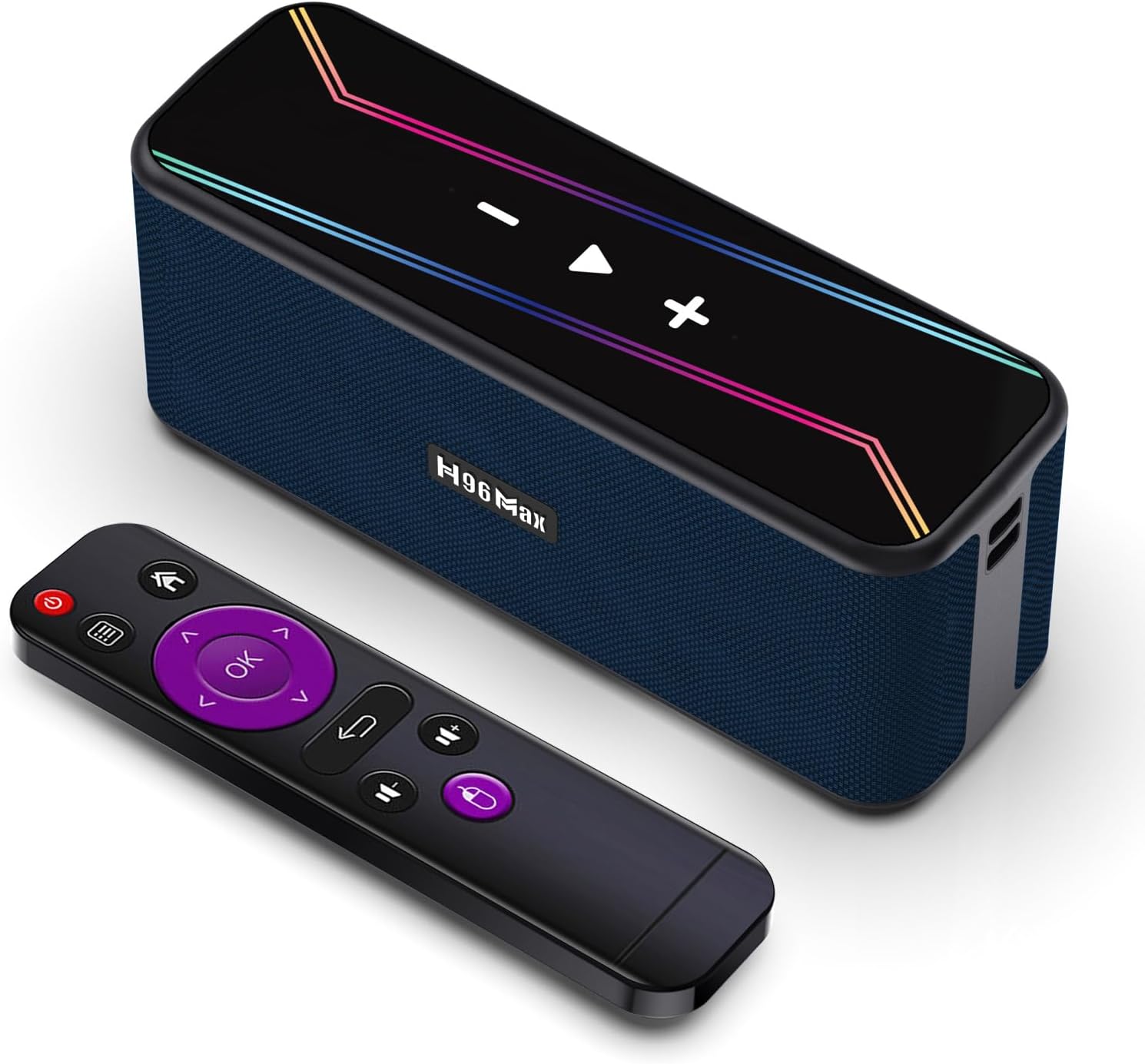
Image: The CHROX H96 MAX M7 TV Box and its accompanying remote control.
Ports and Interfaces:
- USB 3.0: 1 port for high-speed data transfer.
- USB 2.0: 1 port for standard connectivity.
- HDMI 2.0a: For connecting to your TV or display, supporting 4K@60Hz output.
- AV Port: For older televisions or audio output.
- Micro SD Card Reader: For expanding storage.
- DC 5V/2.5A Power Input: For connecting the power adapter.
- LAN Ethernet: 10/1000M standard RJ-45 port for wired network connection.
- SPDIF: For digital audio output.
Setup Guide
1. Connecting to Your Television
- Connect one end of the provided HD Cable (HDMI) to the HDMI port on the CHROX TV Box.
- Connect the other end of the HDMI cable to an available HDMI input port on your television or display. Note the HDMI input number (e.g., HDMI 1, HDMI 2) for later selection.
2. Powering On the Device
- Connect the power adapter to the DC 5V/2.5A input port on the CHROX TV Box.
- Plug the power adapter into a wall outlet.
- The device will automatically power on, or you may need to press the power button on the remote control.
3. Initial Setup and Network Configuration
- Turn on your television and select the correct HDMI input source using your TV's remote control.
- Follow the on-screen prompts for initial setup, which typically include selecting your language, time zone, and connecting to a network.
- For Wi-Fi connection: Select your Wi-Fi network from the list, enter the password, and confirm.
- For wired Ethernet connection: If an Ethernet cable is connected, the device should automatically detect the network.

Image: The CHROX H96 MAX M7 TV Box connected to a television, demonstrating its use as a TV box.
Operating Instructions
Navigating the Interface
Use the provided remote control to navigate the Android 13.0 interface. The directional buttons allow you to move between icons and menus, while the "OK" button confirms selections. The "Back" button returns to the previous screen, and the "Home" button takes you to the main screen.
Using as a TV Box
Once connected to your TV and powered on, the device functions as a smart TV box. You can access pre-installed applications, download new apps from the Google Play Store, browse the internet, and stream content. The green indicator light on the device signifies that the TV Box function is active and operating normally.

Image: The CHROX H96 MAX M7 TV Box connected to a computer monitor, showcasing its ability to output sound through the device and connect to various displays.
Using as a Bluetooth Speaker
The CHROX H96 MAX M7 can also function as a standalone Bluetooth speaker. To activate this mode:
- Ensure the device is connected to a power supply.
- Press the power/on-off key on the remote control to enter AUX-in mode. The blue indicator light will illuminate, indicating it has entered Bluetooth pairing mode.
- On your mobile phone or other Bluetooth-enabled device, search for "H96 MAX" or a similar device name in the Bluetooth settings.
- Select the device to pair. Once paired, you can play music from your mobile device through the CHROX H96 MAX M7 speaker.

Image: The CHROX H96 MAX M7 operating as a Bluetooth speaker, receiving audio from a smartphone.

Image: The CHROX H96 MAX M7's Bluetooth 5.1 capability, allowing music playback from mobile devices within a 0-10 meter range.
Media Playback
The device supports a wide range of media formats and resolutions, including 8K and 4K video playback with H.265 decoding for efficient streaming. You can play media from connected USB drives, Micro SD cards, or network sources.

Image: Key features of the H96 Max M7, including Android 13, 8K video support, Rockchip RK3528 processor, Bluetooth 5.1, and dual-band Wi-Fi.
Maintenance
To ensure the longevity and optimal performance of your CHROX H96 MAX M7 TV Box, follow these maintenance guidelines:
- Cleaning: Use a soft, dry cloth to clean the exterior of the device. Do not use liquid cleaners or aerosols.
- Ventilation: Ensure the device is placed in a well-ventilated area to prevent overheating. Do not block any ventilation openings.
- Storage: When not in use for extended periods, store the device in a cool, dry place away from direct sunlight.
- Software Updates: Periodically check for and install system updates to ensure the latest features and security patches.
Troubleshooting
If you encounter issues with your CHROX H96 MAX M7 TV Box, refer to the following common problems and solutions:
| Problem | Possible Cause | Solution |
|---|---|---|
| No power/Device not turning on | Power adapter not connected or faulty; power outlet issue. | Ensure the power adapter is securely connected to the device and a working power outlet. Try a different outlet. |
| No display on TV | Incorrect HDMI input selected; loose HDMI cable; TV Box not powered on. | Verify the TV is on the correct HDMI input. Check HDMI cable connections. Ensure the TV Box is powered on. |
| Wi-Fi connection issues | Incorrect password; router too far; network interference. | Double-check Wi-Fi password. Move the device closer to the router. Restart your router and the TV Box. |
| Remote control not responding | Low battery; obstruction; pairing issue. | Replace batteries. Ensure no obstructions between remote and device. Re-pair the remote if applicable (refer to device settings). |
| Slow performance/App crashes | Too many apps running; low storage; outdated software. | Close background apps. Clear cache/data for problematic apps. Check for system updates. Consider a factory reset if issues persist (backup data first). |
Specifications
Detailed technical specifications for the CHROX H96 MAX M7 Android 13.0 TV Box:
| Feature | Detail |
|---|---|
| Operating System | Android 13.0 |
| CPU | RK3528 Quad-Core 64bit Cortex-A53 |
| GPU | Penta-Core Mali-450 |
| SDRAM | 4GB (as per product variant) |
| ROM FLASH | 32GB (as per product variant) |
| Wi-Fi | 2.4G/5G Dual-band WIFI, 802.11 a/b/g/n/ac/ax (WiFi 6) |
| Bluetooth | BT 5.0 |
| LAN Ethernet | 10/1000M Standard RJ-45 |
| USB Ports | 1x USB 3.0, 1x USB 2.0 |
| HDMI Output | HDMI 2.0a for 4K@60Hz (Supports 8K/4K video) |
| Video Decoder Support | 4K VP9, H.265/H.264, 1080P (VC-1, MPEG-1/2/4, VP6/8) |
| HDR Support | HDR10 |
| Media Formats | Avi/Ts/Vob/Mkv/Mov/ISO/wmv/asf/flv/dat/mpg/mpeg |
| Music Formats | MP3/WMA/AAC/WAV/OGG/DDP/HD/FLAC/APE |
| Photo Formats | HD JPEG/BMP/GIF/PNG/TIFF |
| Languages | English/French/German/Spanish/Italian etc. multilateral languages |
| Model Number | 4GB32GB-66167808 |
Warranty and Support
For warranty information and technical support, please refer to the contact details provided by your retailer or visit the official CHROX support website. Keep your purchase receipt as proof of purchase for any warranty claims.
Ask a question about this manual
Ask about setup, troubleshooting, compatibility, parts, safety, or missing instructions. Manuals+ will review the question and use this page’s manual context to help answer it.