
1. Introduction
Thank you for choosing the GIZMORE GIZ WHEELZ T300 Thunder DJ Trolley Party Speaker. This manual provides essential information for the safe and efficient operation of your speaker. Please read it thoroughly before use and retain it for future reference.
The GIZ WHEELZ T300 is a portable 300W party speaker designed for various audio applications, featuring multiple connectivity options, RGB lighting, and a wireless microphone for karaoke.
2. Safety Information
- Do not expose the speaker to water, moisture, or extreme temperatures.
- Avoid placing the speaker near heat sources or in direct sunlight.
- Use only the provided charging cable and power adapter.
- Do not attempt to open or repair the speaker yourself. Refer all servicing to qualified personnel.
- Keep the speaker away from children and pets.
- Ensure proper ventilation around the speaker during operation.
3. Package Contents
Verify that all items are present in the package:
- 1U GIZMORE GIZ WHEELZ T300 Speaker
- 1U UHF Wireless Microphone
- 1U Remote Control
- 1U AUX Cable
- 1U Charging Cable
- 1U User Manual (this document)
4. Product Overview
Familiarize yourself with the main components of your GIZ WHEELZ T300 speaker.

Image: The GIZMORE GIZ WHEELZ T300 speaker, showcasing its front panel with RGB lights, digital LED display, included remote control, and wireless microphone.

Image: Close-up view of the GIZ WHEELZ T300 speaker emphasizing the UHF DSP Rechargeable Wireless Microphone, indicating its advanced audio processing capabilities.
Key Features:
- Digital LED Display: Shows current mode, track information, and battery status.
- Control Panel (DJ Console): Buttons and knobs for volume, mode selection, equalizer, and other functions.
- RGB Lights: Dynamic lighting effects integrated into the speaker grille.
- Connectivity Ports: USB, TF Card slot, AUX input, Microphone input, Guitar input.
- Trolley Handle and Wheels: For easy portability.
5. Setup
5.1 Initial Charging
Before first use, fully charge the speaker for approximately 4-5 hours. Connect the provided charging cable to the speaker's charging port and a suitable power source. The LED display will indicate charging status.
5.2 Powering On/Off
Press and hold the POWER button on the control panel or remote control to turn the speaker on or off.
5.3 Connecting the Wireless Microphone
- Ensure the wireless microphone is charged and powered on.
- The microphone will automatically pair with the speaker when both are powered on and within range.
- Adjust the microphone volume using the dedicated knob on the speaker's control panel.
5.4 Guitar Connectivity
To connect a guitar:
- Locate the 'GUITAR IN' port on the speaker's control panel.
- Connect your guitar using a standard 6.35mm (1/4 inch) jack cable.
- Adjust the guitar volume using the dedicated control on the speaker.

Image: A user playing an electric guitar connected to the GIZ WHEELZ T300 speaker, demonstrating the guitar input feature. The wireless microphone is also visible, indicating karaoke functionality.
6. Operating Instructions
6.1 Mode Selection
Press the MODE button on the control panel or remote control to switch between Bluetooth, FM Radio, AUX, USB, and TF Card modes.
6.2 Bluetooth Connectivity (v5.0)
- Turn on the speaker and select Bluetooth mode. The LED display will show 'BT'.
- Enable Bluetooth on your mobile device and search for 'GIZ WHEELZ T300'.
- Select the speaker to pair. A confirmation sound will indicate successful pairing.
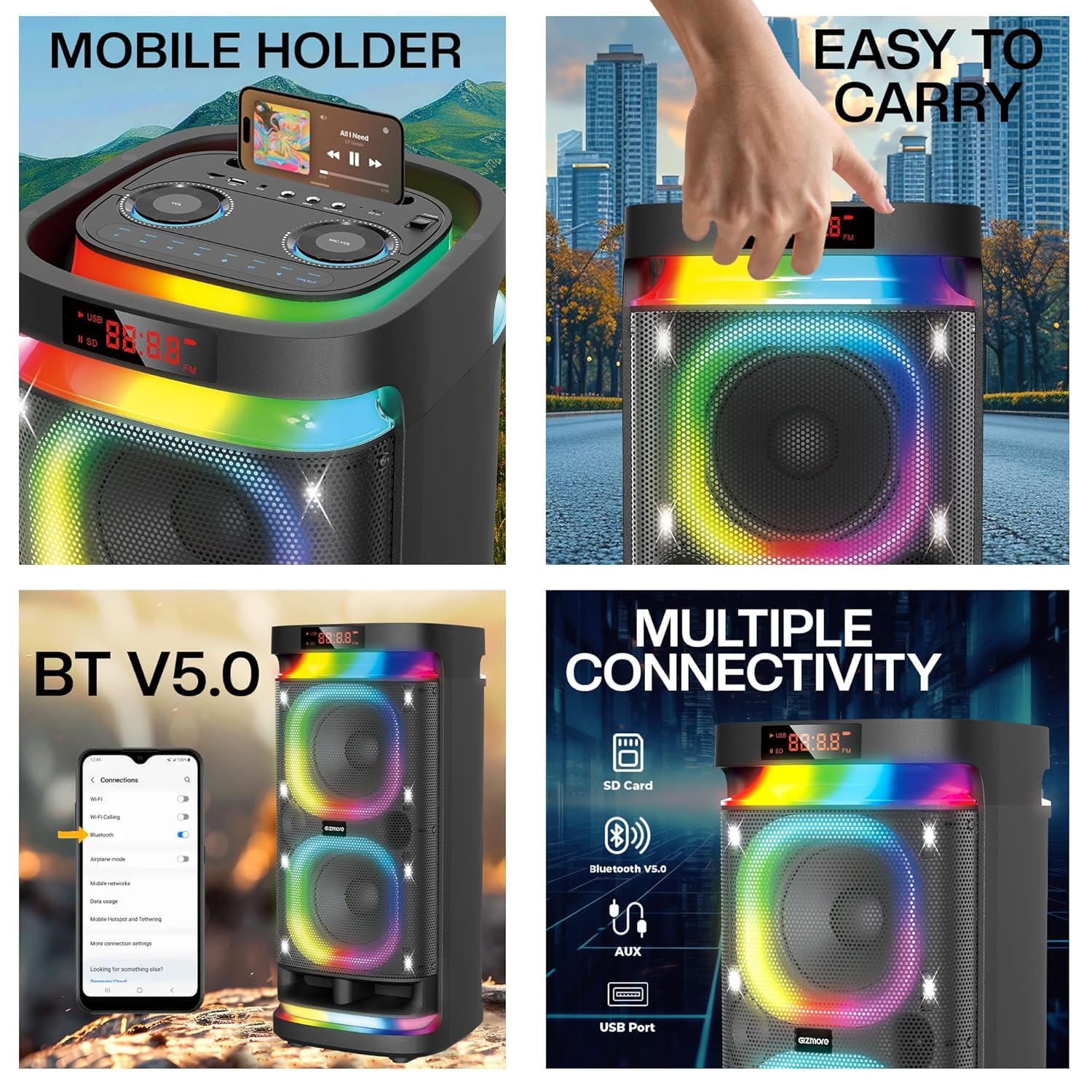
Image: The GIZ WHEELZ T300 speaker displaying its Bluetooth V5.0 capability and illustrating various connectivity options including SD Card, AUX, and USB Port.
6.3 USB/TF Card Playback
- Insert a USB drive or TF card into the respective slot.
- The speaker will automatically switch to USB/TF mode and begin playing audio files.
- Use the PLAY/PAUSE, PREV, and NEXT buttons to control playback.
6.4 FM Radio
- Switch to FM mode.
- Press the PLAY/PAUSE button to auto-scan and save available FM stations.
- Use the PREV and NEXT buttons to navigate through saved stations.
6.5 AUX Input
Connect an external audio device (e.g., smartphone, MP3 player) to the speaker's AUX port using the provided 3.5mm AUX cable. Switch the speaker to AUX mode.
6.6 Karaoke Function & Voice Modulator
Use the included UHF wireless microphone for karaoke. The speaker features a voice modulator function. Refer to the control panel or remote for specific buttons to activate and cycle through voice effects.
6.7 TWS (True Wireless Stereo) Function
To connect two GIZ WHEELZ T300 speakers for stereo sound:
- Ensure both speakers are powered on and in Bluetooth mode, but not connected to any device.
- On one speaker (the master), press and hold the TWS button.
- The speakers will connect automatically. A confirmation sound will indicate successful TWS pairing.
- Connect your mobile device to the master speaker via Bluetooth.

Image: Two GIZ WHEELZ T300 speakers positioned side-by-side, illustrating the True Wireless Stereo (TWS) function which allows them to connect and deliver enhanced sound output.
6.8 RGB Lights Control
Press the LIGHT button on the control panel or remote to cycle through different RGB lighting modes or to turn the lights off.
6.9 Equalizer Controls
Use the equalizer controls on the DJ console or remote to adjust bass, treble, and mid-range frequencies to customize your audio experience.
7. Maintenance
7.1 Cleaning
Wipe the speaker's exterior with a soft, dry cloth. Do not use abrasive cleaners or solvents. Ensure all ports are free from dust and debris.
7.2 Storage
Store the speaker in a cool, dry place away from direct sunlight and extreme temperatures. If storing for an extended period, charge the battery periodically to maintain its health.
7.3 Battery Care
To prolong battery life, avoid fully discharging the speaker frequently. Charge the speaker when the battery level is low.
8. Troubleshooting
| Problem | Possible Cause | Solution |
|---|---|---|
| Speaker does not power on. | Low battery. | Charge the speaker fully. |
| No sound. | Volume too low; incorrect mode selected; device not connected properly. | Increase volume; select correct input mode; ensure device is paired/connected. |
| Bluetooth pairing fails. | Speaker not in pairing mode; device too far; interference. | Ensure speaker is in BT mode; move device closer; restart both devices. |
| Microphone not working. | Microphone off; low battery in mic; mic volume low. | Turn on mic; charge mic; increase mic volume on speaker. |
| TWS connection fails. | Speakers already paired to a device; incorrect TWS pairing procedure. | Disconnect speakers from any device; follow TWS pairing steps carefully. |
9. Specifications
- Model: GIZ WHEELZ T300
- Power Output: 300W RMS
- Woofer Size: 10 inch x 2
- Tweeter Size: 2.36 inch x 1
- Connectivity: Bluetooth v5.0, USB, TF Card, FM Radio, AUX, Wired MIC, Wireless MIC, Guitar Input
- Wireless Microphone: UHF DSP Rechargeable
- Playtime: Up to 3 hours (at moderate volume)
- Dimensions (L x W x H): 32 x 33.5 x 71.5 cm
- Item Weight: 13 kg
- Mounting Type: Floor Standing
- Special Features: Digital LED Display, RGB Lights, DJ Console, Voice Modulator, TWS Function

Image: An internal view diagram of the GIZ WHEELZ T300 speaker, illustrating its dual 10-inch speaker drivers for enhanced bass and a single 2.36-inch tweeter for clear high frequencies.

Image: The GIZ WHEELZ T300 speaker emphasizing its 300W RMS power output and a battery life of up to 3 hours, suitable for extended use.
10. Warranty and Support
10.1 Warranty Information
The GIZMORE GIZ WHEELZ T300 speaker comes with a 1-Year Limited Warranty from the date of purchase. This warranty covers manufacturing defects. Please retain your purchase receipt as proof of purchase.
The warranty does not cover damage caused by misuse, accidents, unauthorized modifications, or normal wear and tear.
10.2 Customer Support
For technical assistance, warranty claims, or product inquiries, please contact GIZMORE customer support.
- Manufacturer: ZAZZ Technology Connect Pvt.Ltd
- Address: B-65, 2nd Floor, Sector 60, Noida, Uttar Pradesh 201301
Please visit the official GIZMORE website for the most up-to-date contact information and support resources.


