
1. Introduction
This manual provides detailed instructions for the setup, operation, and maintenance of your CHROX H96 MAX M9 Android 14.0 TV Box. Please read this guide thoroughly before using the device to ensure proper functionality and to maximize your viewing experience.

Image 1.1: The CHROX H96 MAX M9 AI Smart TV Box highlighting its key features.

Image 1.2: Visual representation of Android 14.0, indicating a smoother and safer user experience compared to previous Android versions.
2. Package Contents
Verify that all items listed below are included in your product packaging:
- 1 x CHROX H96 MAX M9 Android 14.0 TV Box
- 1 x Power Adapter
- 1 x Remote Control
- 1 x User Manual (this document)
- 1 x HDMI Cable
3. Product Overview
3.1 Device Features
The CHROX H96 MAX M9 is an advanced Android TV Box designed for high-definition media streaming and smart home entertainment. Key features include:
- Operating System: Latest Android 14.0 for a stable and smooth user interface.
- Processor: Powerful RK3576 Quad-core Cortex-A76 and Quad-core Cortex-A55 CPU, ensuring fast and stable performance.
- Graphics: ARM Mali-G610 MP4 GPU for professional image processing and clear display.
- Memory & Storage: 8GB RAM and 128GB ROM for ample space for applications and data.
- Connectivity: 1000M Ethernet, Dual-Band Wi-Fi (2.4G/5G) with Wi-Fi 6 support, and Bluetooth 5.0.
- Video Output: Supports 8K Ultra HD, 3D output, and H.265 decoding via HDMI 2.0.
- USB Ports: 1 High-speed USB 3.0 and 1 High-speed USB 2.0.

Image 3.1: The CHROX H96 MAX M9 Android TV Box and its accompanying remote control.
3.2 Device Interfaces
Familiarize yourself with the various ports and connections on your TV Box:

Image 3.2: A detailed diagram illustrating all available interfaces on the CHROX H96 MAX M9 TV Box, including power input, audio output, SPDIF, Ethernet, HDMI 2.1, USB 3.0, and USB 2.0 ports.
- DC (Power Input): Connect the provided power adapter here.
- Audio: Analog audio output port.
- SPDIF: Digital audio output for connecting to compatible audio systems.
- Ethernet (LAN): RJ-45 port for wired network connection (10/100/1000M).
- HD 2.1 (HDMI): Connect to your TV or display for video and audio output. Supports up to 8K resolution.
- USB 3.0: High-speed USB port for connecting external storage devices or peripherals.
- USB 2.0: Standard USB port for connecting external devices.
4. Setup Guide
Follow these steps to set up your CHROX H96 MAX M9 TV Box:
- Connect to TV: Connect one end of the provided HDMI cable to the HD 2.1 port on the TV Box and the other end to an available HDMI input on your television.
- Connect to Power: Plug the power adapter into the DC port on the TV Box, then plug the adapter into a wall outlet.
- Connect to Network (Optional):
- Wired Connection: For optimal performance, connect an Ethernet cable from your router to the Ethernet port on the TV Box.
- Wireless Connection: If using Wi-Fi, you will configure this during the initial setup wizard.
- Power On: The TV Box should automatically power on. If not, press the power button on the remote control.
- Select Input: On your TV, select the correct HDMI input source using your TV's remote control.
- Initial Setup Wizard: Follow the on-screen instructions to complete the initial setup, including language selection, network configuration, and Google account login.
5. Operating Instructions
5.1 Navigating the Interface
Use the provided remote control to navigate the Android 14.0 interface. The directional buttons allow you to move between icons, and the 'OK' button selects items. The 'Back' button returns to the previous screen, and the 'Home' button takes you to the main launcher.
5.2 Installing and Uninstalling Applications
- Install: Access the Google Play Store from the home screen to browse and install applications. A Google account is required.
- Uninstall: Go to Settings > Apps, select the desired application, and choose 'Uninstall'.
5.3 Media Playback
The TV Box supports various media formats and resolutions up to 8K. You can play media from:
- Pre-installed streaming services (e.g., Netflix, Hulu, Amazon Prime Video).
- External USB drives connected to the USB 2.0 or USB 3.0 ports.
- Network shares (requires a file manager app).
5.4 Screen Casting
The device supports screen casting, allowing you to mirror content from compatible mobile devices to your TV. Refer to the specific casting application's instructions on your mobile device for details.

Image 5.1: Illustration of the screen casting feature, showing content from a smartphone being displayed on a television via the TV Box.
6. Connectivity
The CHROX H96 MAX M9 offers robust connectivity options:
- Wi-Fi 6: Supports the latest Wi-Fi 6 standard for faster speeds, greater capacity, and reduced network congestion on both 2.4GHz and 5GHz bands.
- Dual-Band Wi-Fi (2.4G/5G): Provides flexibility for connecting to various Wi-Fi networks, with 5GHz offering higher speeds and 2.4GHz offering wider range.
- 1000M Ethernet: A gigabit Ethernet port ensures a stable and high-speed wired internet connection, ideal for 8K streaming and large file transfers.
- Bluetooth 5.0: Connect wireless peripherals such as keyboards, mice, game controllers, or audio devices.

Image 6.1: An explanation of Wi-Fi 6 technology, illustrating its benefits in terms of speed and network efficiency compared to previous generations.
7. Specifications
Detailed technical specifications for the CHROX H96 MAX M9 TV Box:
| Feature | Specification |
|---|---|
| Model Name | H96 MAX M9 |
| Operating System | Android 14.0 |
| CPU | RK3576 Quad-core Cortex-A76 and Quad-core Cortex-A55 |
| GPU | ARM Mali-G610 MP4 |
| RAM | 8GB DDR3 |
| Storage | 128GB EMMC |
| Wi-Fi | Wi-Fi 6, Dual-Band (2.4G/5G) |
| Ethernet | 10/100/1000M RJ-45 |
| Bluetooth | BT 5.0 |
| HDMI Output | HDMI 2.0 (up to 8K@30fps) with HDR, CEC, HDCP 2.2 |
| USB Ports | 1 x USB 3.0, 1 x USB 2.0 |
| Card Reader | SD/SDHC/MMC cards |
| Video Decoding | 4K H.265 Hardware Video Decode, 8K support |
| Supported Internet Services | Netflix, Hulu, Amazon Prime Video (via apps) |
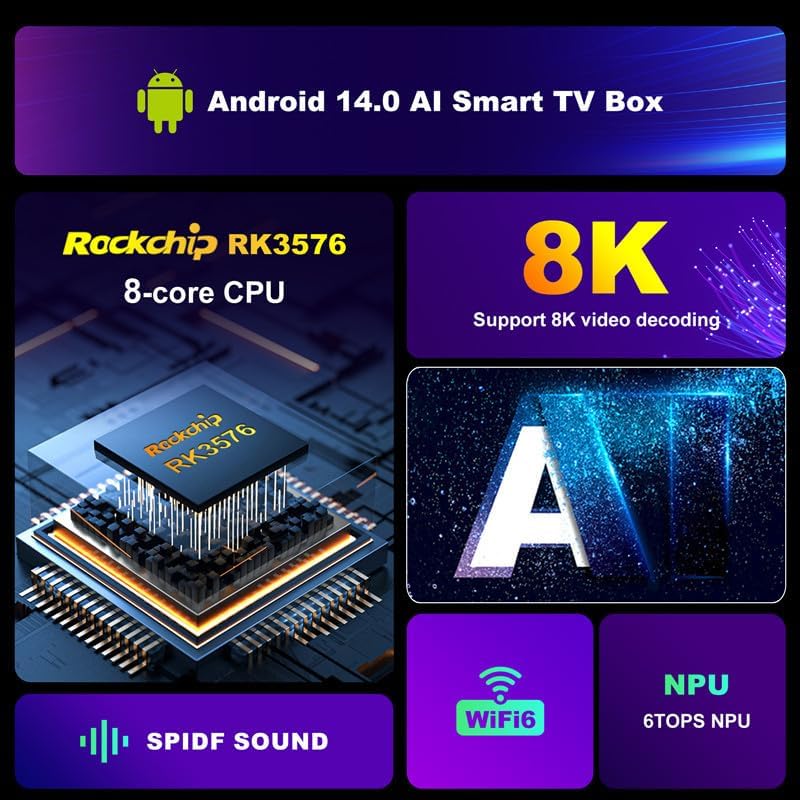
Image 7.1: An overview of the internal architecture and key features, including the Rockchip RK3576 8-core CPU, 8K video decoding, Wi-Fi 6, NPU, and SPDIF audio output.
8. Troubleshooting
If you encounter issues with your TV Box, refer to the following common problems and solutions:
- No Power:
- Ensure the power adapter is securely connected to the TV Box and a working power outlet.
- Try a different power outlet.
- No Picture on TV:
- Verify the HDMI cable is correctly connected to both the TV Box and the TV.
- Ensure your TV is set to the correct HDMI input source.
- Try a different HDMI cable or HDMI port on your TV.
- No Sound:
- Check the volume levels on both the TV Box and your TV.
- Ensure audio settings on the TV Box are configured correctly (Settings > Sound).
- Wi-Fi Connection Issues:
- Ensure your Wi-Fi router is on and functioning.
- Go to Settings > Network & Internet > Wi-Fi and ensure Wi-Fi is enabled and you are connected to the correct network.
- Re-enter your Wi-Fi password if prompted.
- Move the TV Box closer to the router or reduce interference from other devices.
- Remote Control Not Responding:
- Replace the batteries in the remote control.
- Ensure there are no obstructions between the remote and the TV Box.
- System Lag or Freezing:
- Close unnecessary background applications.
- Clear cache for problematic applications (Settings > Apps > [App Name] > Clear Cache).
- Restart the TV Box by unplugging the power adapter for 10 seconds and plugging it back in.
9. Maintenance
To ensure the longevity and optimal performance of your CHROX H96 MAX M9 TV Box, consider the following maintenance tips:
- Keep Clean: Gently wipe the device with a soft, dry cloth. Avoid using liquid cleaners or abrasive materials.
- Ventilation: Ensure the TV Box is placed in a well-ventilated area to prevent overheating. Do not block ventilation holes.
- Software Updates: Periodically check for system updates via Settings > About > System Update to ensure you have the latest features and security patches.
- Avoid Extreme Conditions: Do not expose the device to extreme temperatures, humidity, or direct sunlight.
- Safe Shutdown: Always power off the device properly through the system menu or by pressing the power button on the remote, rather than simply unplugging it.
10. Warranty and Support
For warranty information, please refer to the warranty card included with your purchase or visit the official CHROX website. If you require technical support or have questions not covered in this manual, please contact CHROX customer service through the channels provided on their official website.