
JVC LT-40VQF545A
JVC LT-40VQF545A QLED TV
User Manual
Model: LT-40VQF545A | Brand: JVC
Introduction
Welcome to the user manual for your new JVC LT-40VQF545A QLED TV. This manual provides essential information for setting up, operating, maintaining, and troubleshooting your television. Designed for an immersive viewing experience, this Full HD Android Smart TV features QLED technology, HDR10, a triple-tuner, and integrated Bluetooth connectivity, offering a wide range of entertainment options and smart functionalities.

Figure 1: JVC LT-40VQF545A QLED TV front view, highlighting key features like Android TV, Full HD, QLED, and HDR10.
1. Setup
1.1 Unpacking and Contents
Carefully remove all components from the packaging. Ensure the following items are present:
- JVC LT-40VQF545A QLED TV
- Stand feet (2x)
- Remote control
- AAA Batteries (2x) for remote control
- User Manual (this document)
1.2 Stand Installation
Place the TV screen face down on a soft, clean surface to prevent scratches. Attach the stand feet to the designated slots on the bottom of the TV using the provided screws. Ensure they are securely fastened.
1.3 Connecting Peripherals
Connect your external devices to the TV's ports. Refer to the image below for port locations and types.

Figure 2: Overview of TV connection ports. The TV includes 2x HDMI, 1x USB, Digital Audio Out, Antenna input, CI Slot, LAN port, Headphone jack, and Bluetooth connectivity.
- HDMI: Connect Blu-ray players, game consoles, or set-top boxes. (2 ports available)
- USB: For media playback from USB drives. (1 port available)
- Antenna: Connect your terrestrial, cable, or satellite antenna for DVB-T2, DVB-C, or DVB-S2 reception.
- LAN: For wired internet connection.
- Digital Audio Out: Connect to a soundbar or home theater system for enhanced audio.
- Headphones: For private listening.
- Bluetooth: For wireless connection to compatible audio devices.
1.4 Initial Power On and Android TV Setup
After connecting all necessary cables, plug the TV into a power outlet. Press the power button on the remote control or the TV itself. The TV will guide you through the initial Android TV setup process, including network connection (Wi-Fi or LAN), Google account login, and channel scanning.

Figure 3: The Android TV interface, providing access to a wide range of apps and streaming services.
2. Operating
2.1 Remote Control Functions
Familiarize yourself with the remote control. It provides access to all TV functions, including power, volume, channel selection, smart TV navigation, and dedicated app buttons.

Figure 4: The TV remote control, featuring dedicated buttons for popular streaming services and essential TV controls.
2.2 Smart TV Features and Apps
Your JVC QLED TV runs on Android TV, offering access to the Google Play Store. This allows you to download and enjoy a vast selection of apps, including popular streaming services like Netflix, Prime Video, Disney+, DAZN, and YouTube. Navigate the smart TV interface using the remote control's directional pad and OK button.
2.3 Voice Control with Google Assistant
Utilize the integrated Google Assistant for convenient voice control. Simply say "OK Google" (if supported by your remote or TV) or press the dedicated Google Assistant button on your remote to issue commands such as changing channels, adjusting volume, opening apps, or searching for content.

Figure 5: The TV supports voice control via Google Assistant, allowing hands-free operation.
2.4 Picture and Sound Settings
Your TV features QLED technology, HDR10, Super Resolution, and Micro Dimming for stunning visuals. Access the picture settings menu to adjust brightness, contrast, color, and sharpness to your preference. The HDR10 support ensures high dynamic range content is displayed with enhanced detail and vibrant colors.
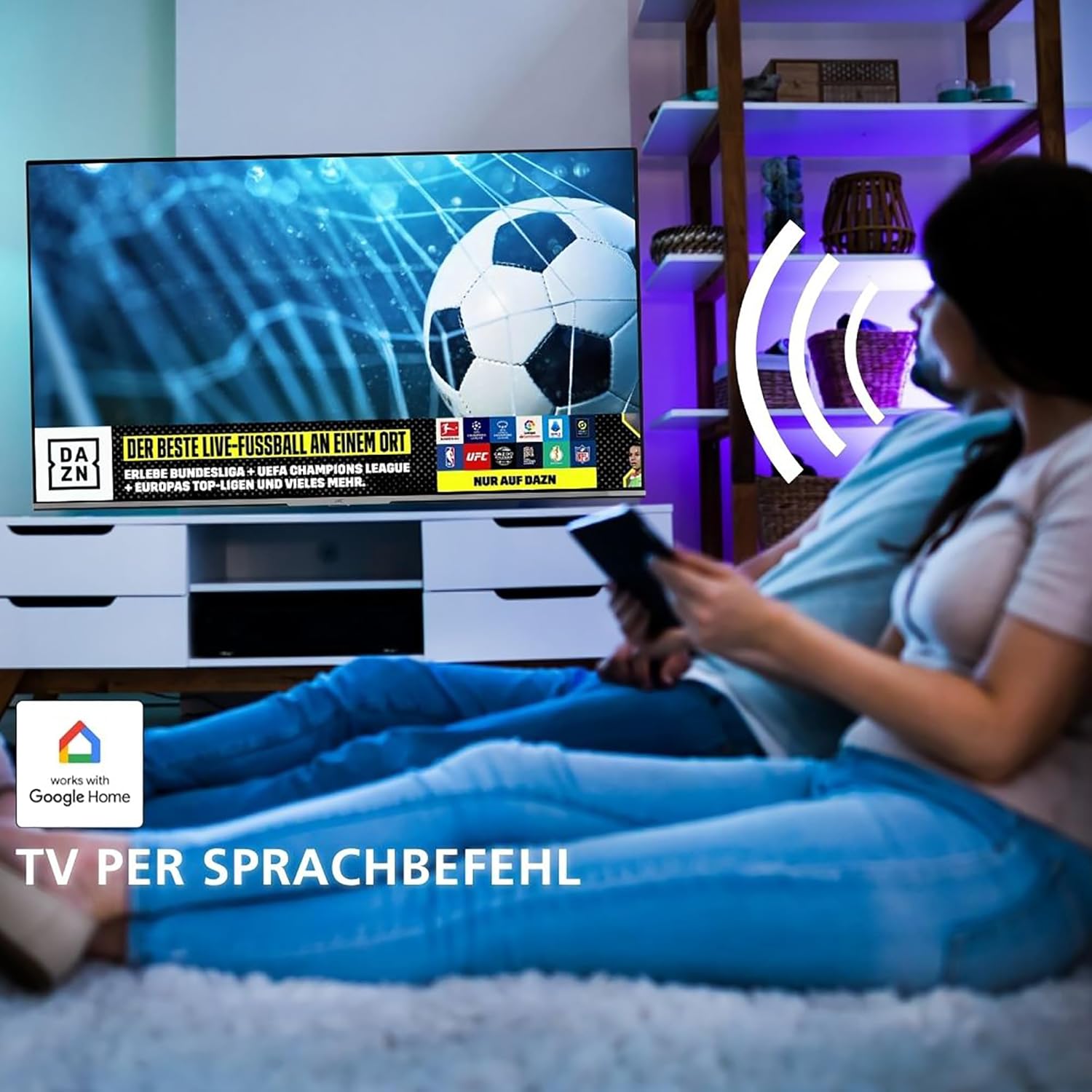
Figure 6: High Dynamic Range (HDR10) enhances picture quality with greater detail and contrast.

Figure 7: Super Resolution and Micro Dimming technologies contribute to breathtaking image quality with sharp details.
Adjust sound settings to optimize audio output. While the TV's built-in speakers provide clear sound, connecting external audio systems via Digital Audio Out or Bluetooth can significantly enhance your audio experience.
2.5 Optimal Viewing Distance
For the best viewing experience, consider the recommended seating distance based on the TV's size and resolution. For your 40-inch Full HD TV, an approximate viewing distance of 160 cm is recommended.

Figure 8: Recommended optimal seating distance for different TV sizes and resolutions.
3. Maintenance
3.1 Cleaning the TV
To clean the screen, gently wipe it with a soft, lint-free cloth. For stubborn marks, slightly dampen the cloth with water or a screen-cleaning solution. Avoid using harsh chemicals or abrasive materials. Clean the TV body with a dry, soft cloth.
3.2 Software Updates
Your Android TV may receive software updates periodically. It is recommended to allow these updates to ensure optimal performance, security, and access to new features. You can usually check for updates in the TV's settings menu.
4. Troubleshooting
If you encounter issues with your TV, refer to the following common troubleshooting steps before contacting support.
- No Power: Ensure the power cable is securely plugged into both the TV and the wall outlet. Check if the power outlet is functioning.
- No Picture/Sound: Verify that the correct input source is selected. Check all cable connections (HDMI, antenna). Restart the TV by unplugging it from the power outlet for a few minutes, then plugging it back in.
- Remote Control Not Responding: Replace the batteries in the remote control. Ensure there are no obstructions between the remote and the TV's IR sensor.
- Slow Performance/App Issues: Restart the TV. Clear the cache of problematic apps in the TV's settings. Ensure your internet connection is stable.
- Poor Picture Quality: Check antenna connection for broadcast issues. For streaming, ensure sufficient internet bandwidth. Adjust picture settings (brightness, contrast, sharpness).
For more complex issues, consult the comprehensive help section within your TV's Android TV interface or visit the JVC support website.
5. Specifications
| Model Name | LT-40VQF545A |
| Display Size | 40 inches (102 cm) |
| Resolution | Full HD (1920 x 1080p) |
| Display Technology | QLED, LCD, LED |
| Refresh Rate | 50 Hz |
| Special Features | Android TV, HDR10, Triple-Tuner (DVB-T2/C/S2), Google Assistant, Micro Dimming, Super Resolution |
| Connectivity | 2x HDMI, 1x USB, Bluetooth, WLAN, Digital Audio Out, Antenna, CI Slot, LAN |
| Product Dimensions (W x H x D) | 90.9 x 57 x 20.8 cm (with stand) |
| Weight | 7.5 Kilograms |
| Energy Efficiency Class | E |
| Energy Consumption | 37 kWh/1000h (SDR), 67 kWh/1000h (HDR) |

Figure 9: Energy label for the JVC LT-40VQF545A. For more details, visit the EPREL database (QR code 50730296).

Figure 10: Detailed dimensions of the JVC LT-40VQF545A TV, including VESA mounting information.
6. Warranty and Support
Your JVC LT-40VQF545A QLED TV comes with a standard manufacturer's warranty. Please refer to the warranty card included with your product for specific terms and conditions, including warranty period and coverage details.
For technical support, service inquiries, or further assistance, please visit the official JVC support website or contact their customer service. Keep your purchase receipt and product model number (LT-40VQF545A) handy when seeking support.
You can find more information and support resources on the JVC Brand Store on Amazon.
Related documentsLT-40VQF545A


Ask a question about this manual
Ask about setup, troubleshooting, compatibility, parts, safety, or missing instructions. Manuals+ will review the question and use this page’s manual context to help answer it.