
1. Introduction
Thank you for choosing the SOPYOU Aurora P5 Projector. This device is designed to provide a high-quality visual experience for various applications, from home entertainment to professional presentations. This manual will guide you through the setup, operation, and maintenance of your projector to ensure optimal performance and longevity.
The Aurora P5 features native 1080P resolution with 4K support, electric focus, auto keystone correction, WiFi 6, and Bluetooth 5.3 connectivity. It supports a large display size up to 450 inches, making it versatile for both indoor and outdoor use.
2. Package Contents
Please check the box for the following items:
- SOPYOU Aurora P5 Projector
- Remote Control
- HDMI Cable
- AV Cable
- Power Cord
- User Manual
3. Product Overview
Familiarize yourself with the physical components and connection ports of your projector.
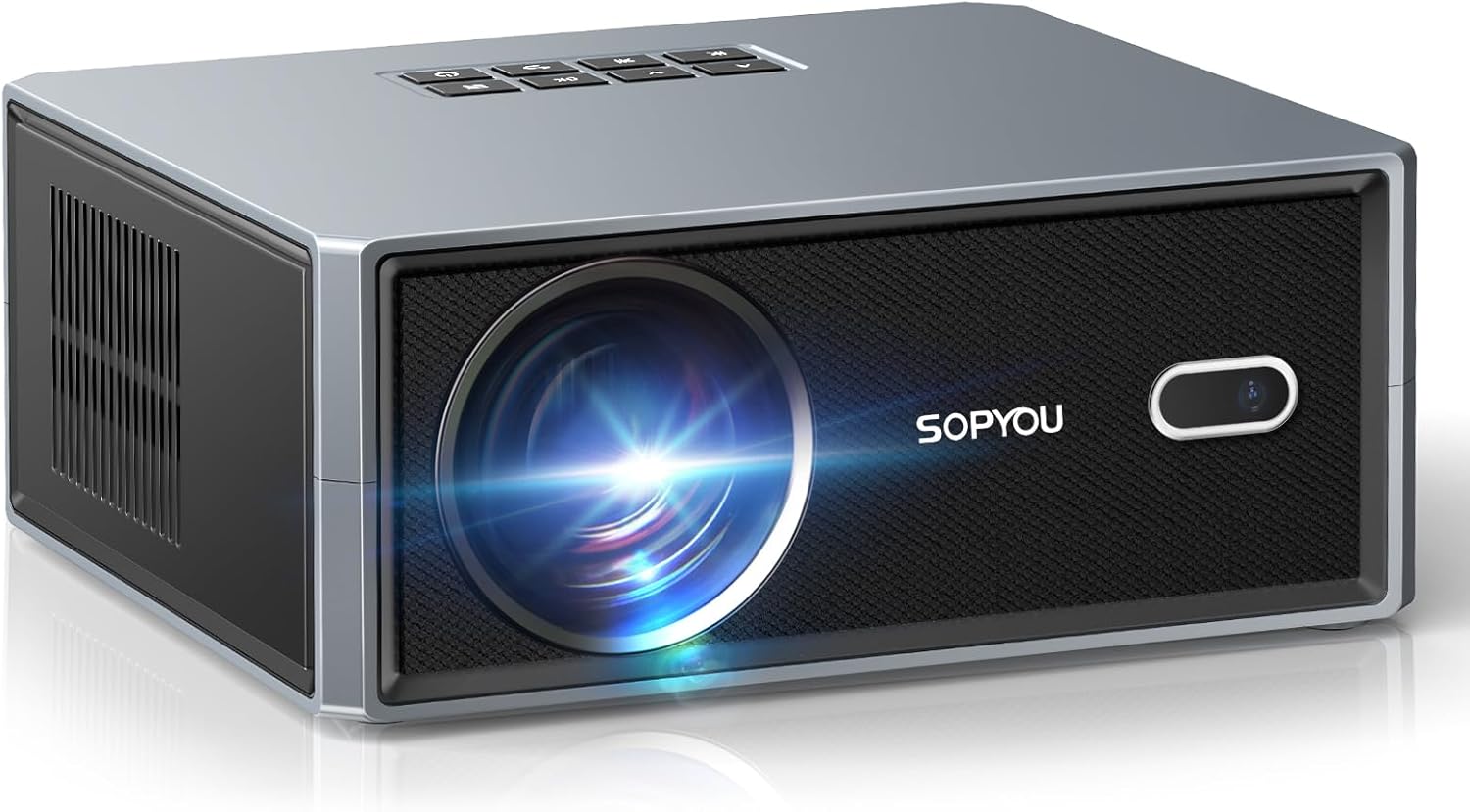
Figure 3.1: Front view of the SOPYOU Aurora P5 Projector, showing the lens and IR receiver.

Figure 3.2: Rear view of the SOPYOU Aurora P5 Projector, highlighting various input/output ports.
3.1 Ports and Controls
- Lens: Projects the image onto the screen.
- IR Receiver: Receives signals from the remote control.
- Control Panel: Buttons on top for basic navigation and power.
- HDMI Ports (x2): Connect HDMI-compatible devices like laptops, gaming consoles, or TV sticks.
- USB Ports (x2): Connect USB drives for media playback.
- AV Port: Connect older devices using the provided AV cable.
- 3.5mm Audio Jack: Connect external headphones or speakers.
- Power Input: Connect the power cord.
- Adjustable Foot: Located on the bottom, allows for height adjustment.
- Tripod Mount: Standard screw thread on the bottom for tripod mounting.
4. Key Features
The SOPYOU Aurora P5 Projector is equipped with advanced features for an enhanced viewing experience:
- Electric Focus & Auto Keystone: Effortlessly achieve a perfectly clear and rectangular image with electric focus and automatic keystone correction.
- WiFi 6 & Bluetooth 5.3: Enjoy seamless wireless connectivity for screen mirroring from iOS/Android/Windows devices and stable two-way audio transmission to Bluetooth speakers or headphones.
- Native 1080P & 4K Support: Delivers high clarity, contrast, and rich color images with native 1080P resolution and support for 4K decoding.
- Large Display Size: Projects images up to a massive 450 inches with a 1.1:1 throw ratio, offering a larger picture at the same distance compared to traditional projectors.
- Customized Viewing: Tailor image modes, brightness levels, and wallpapers to your preferences. Includes a unique companion mode for versatile use.
- Built-in HiFi Speakers: Features powerful 2*5W HiFi speakers for immersive audio.
5. Setup Guide
5.1 Initial Power On and Language Selection
- Connect the power cord to the projector and a power outlet.
- Press the power button on the projector or remote control.
- Upon first use, the language settings menu will appear. Use the navigation buttons on the remote or projector to select your preferred language (English).
5.2 Network Settings (Wi-Fi & Bluetooth)
To access streaming features and screen mirroring, connect your projector to a Wi-Fi network.
- Navigate to 'Settings' from the home screen.
- Select 'Network Setting' and choose your Wi-Fi network.
- Enter your Wi-Fi password using the on-screen keyboard or a connected USB keyboard.
- For Bluetooth devices, select 'Bluetooth Settings' to pair headphones or external speakers.
5.3 Projection Settings (Focus, Keystone, Zoom)
Adjust the image for optimal clarity and shape.
- Electric Focus: Use the 'F+' or 'F-' buttons on the remote control to sharpen the image.
- Auto Keystone Correction: The projector automatically corrects the image shape. For manual adjustments, navigate to 'Settings' > 'Projection Settings' > 'Keystone Correction'.
- Zoom In/Out: Adjust the image size without moving the projector via 'Settings' > 'Projection Settings' > 'Zoom In/Out'.

Figure 5.1: Demonstrating Auto Keystone and Electric Focus adjustments.
5.4 Connecting External Devices
The projector supports various input sources:
- HDMI: Connect your device to either HDMI1 or HDMI2 port. Select the corresponding HDMI input from the 'Signal Source' menu on the home screen.
- USB: Insert a USB drive into a USB port. Select 'USB' from the 'Signal Source' menu to browse media files.
- AV: Connect devices using the provided AV cable. Select 'AV' from the 'Signal Source' menu.
- Screen Mirroring: Select 'Android Mirroring', 'iOS Wi-Fi Mirroring', or 'iOS Cellular Mirroring' from the home screen and follow the on-screen instructions to connect your mobile device.
6. Operation
6.1 Navigating the User Interface
Use the remote control or the top panel buttons to navigate the projector's interface. The home screen provides quick access to input sources, settings, and mirroring options.
6.2 Companion Modes
The projector offers various companion modes to enhance your environment:
- Clock Mode: Displays a clock.
- Wall Painting: Projects various artistic images.
- Screen Saver: Engages a screen saver.
- Ambient Mode: Provides soothing visual and audio backgrounds.

Figure 6.1: Overview of the 4 Type of Companion Modes available.
7. Specifications
| Feature | Description |
|---|---|
| Model Number | Aurora P5 |
| Product Dimensions | 13 x 9 x 4.7 inches |
| Item Weight | 4.6 pounds |
| Display Resolution | 1920 x 1080 (Native 1080P, 4K Support) |
| Connectivity Technology | 3.5mm Jack, Bluetooth 5.3, HDMI (x2), USB (x2), Wi-Fi 6 |
| Special Features | Electric Focus, Auto Keystone, 450" Giant Screen, Low Noise Cooling, Dual Built-in Subwoofer Speakers, Supports Table/Tripod/Ceiling Mount |
| Recommended Uses | Business, Education, Gaming, Home Cinema |
8. Maintenance
To ensure the longevity and optimal performance of your SOPYOU Aurora P5 Projector, regular maintenance is recommended.
- Lens Cleaning: Use a soft, lint-free cloth or lens cleaning wipes to gently clean the projector lens. Avoid abrasive materials that could scratch the lens.
- Dust Filter Cleaning: The projector features a built-in dust filter. Regularly remove and clean the dust filter at the bottom of the projector with a clean, dry cloth or cotton swab. It is recommended to clean the cover on a monthly basis to keep your projector running smoothly.
- General Cleaning: Wipe the exterior of the projector with a soft, dry cloth. Do not use liquid cleaners or solvents.

Figure 8.1: Instructions for cleaning the built-in dust filter.
9. Troubleshooting
If you encounter any issues with your projector, please refer to the following common troubleshooting steps:
- No Image/Poor Image Quality:
- Ensure all cables are securely connected.
- Check the selected input source matches your device.
- Adjust focus using the 'F+'/'F-' buttons on the remote.
- Perform keystone correction if the image is distorted.
- Check room lighting conditions; ambient light can affect image clarity.
- No Sound:
- Increase the volume on the projector and your connected device.
- Check if the projector is muted.
- If using Bluetooth, ensure the device is properly paired and connected.
- Remote Control Not Working:
- Ensure batteries are correctly inserted and not depleted.
- Point the remote directly at the projector's IR receiver.
- Remove any obstacles between the remote and the projector.
- Screen Mirroring Issues:
- Ensure both devices are connected to the same Wi-Fi network.
- Some streaming apps (e.g., Amazon Prime Video, Hulu) do not support screen mirroring due to copyright protections. Use an HDMI connection for these services.
10. Warranty and Support
SOPYOU is committed to providing excellent customer service and support for our products.
- 24-Hour Quick Reply: We aim to respond to all inquiries within 24 hours.
- 30-Day No Reason to Return: Enjoy a 30-day return policy for any reason.
- Lifetime Technical Support: Benefit from lifetime technical support for your SOPYOU projector.
For any questions or concerns, please contact us at:
- Email: support@sopyouhome.com
- Website: www.sopyouhome.com
11. Official Product Videos
Watch these official videos for additional guidance and demonstrations.
SOPYOU Projector Unboxing, Setup and Overview with Gaming
This video provides an unboxing experience, setup instructions, and an overview of the SOPYOU Aurora P5 projector, including a gaming demonstration.
First test - Impressed with the image quality!
A user's first test of the SOPYOU Aurora P5 projector, showcasing impressive image quality and performance.
SOPYOU Projector Review-Like An OLED On Steroids!!
A detailed review of the SOPYOU Aurora P5 projector, highlighting its exceptional image quality and comparing it to high-end displays.
450 Inch Large Screen Projector! SOPYOU P5 REVIEW
This video reviews the SOPYOU Aurora P5 projector, focusing on its capability to project a large 450-inch screen.