
1. Product Overview
The HoloSpin 3D Hologram Fan (Model F60) is a display device designed to project 3D holographic images. It features 720 high-brightness LEDs and offers a resolution of approximately 720px with 2200 cd/m² brightness. The device supports WiFi and Bluetooth connectivity for content management and audio output.
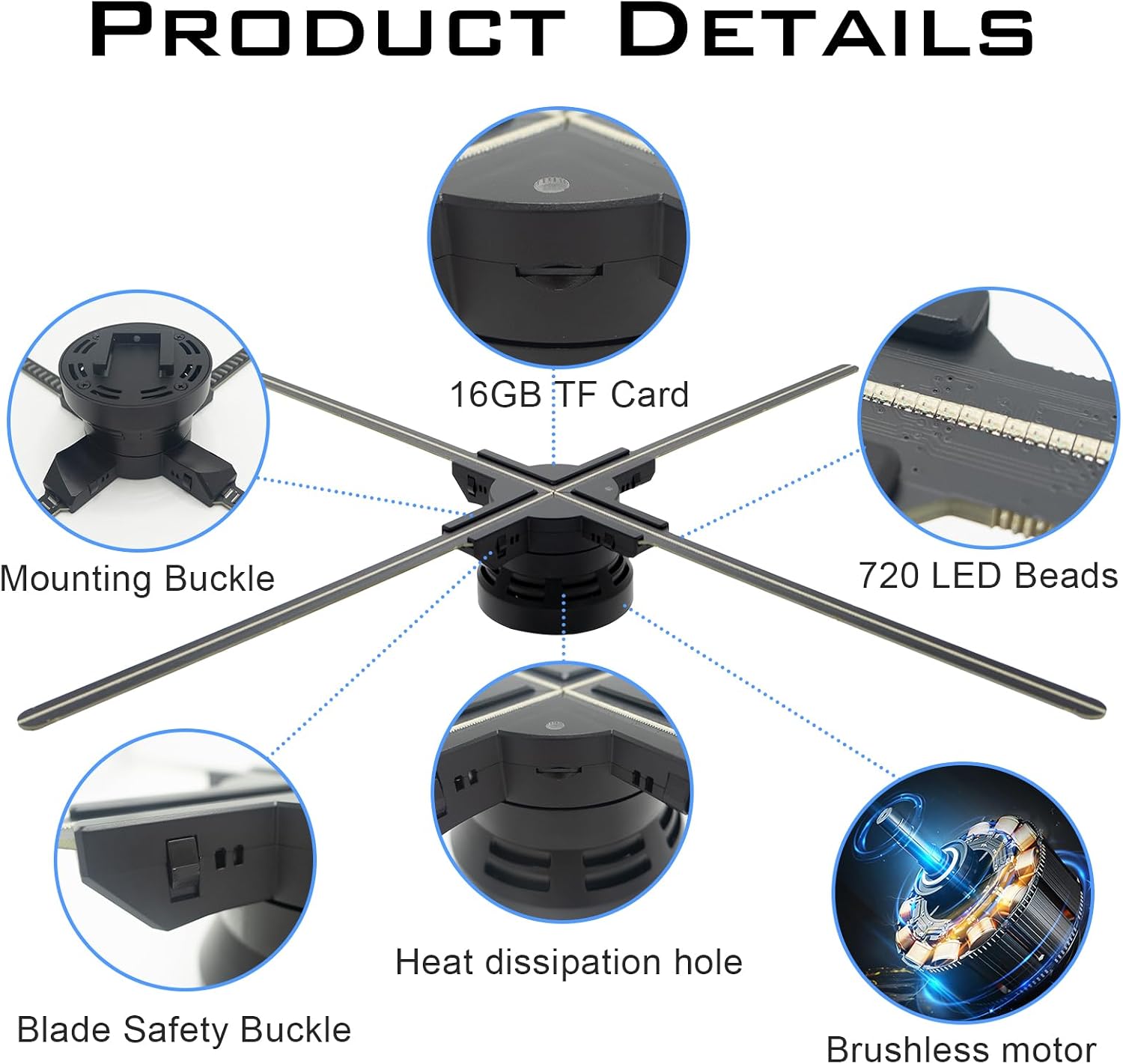
Image 1.1: Overview of the HoloSpin 3D Hologram Fan F60.
Key Features:
- Clear Image Quality: 720pcs 16*15mm highlight beads, 720px resolution, 2200cd/m² brightness.
- Simple Content Management: WiFi connectivity for app control (Android/Apple) and SD card uploads.
- Premium Quality Hardware: Brushless motors, smart chips for multi-core control, Bluetooth 5.0.
- Smart Video Wall Capability: Multiple units can be combined for larger displays.
2. Package Contents
Verify that all items listed below are included in your package:
- HoloSpin 3D Hologram Fan (Main Unit)
- LED Blade x 4
- Mounting Buckle x 1
- Remote Control x 1
- Power Adapter x 1 (US Plug)
- Screw x 2
- Expansion screw x 3
- 16GB TF Card (pre-installed)

Image 2.1: Contents of the HoloSpin 3D Hologram Fan F60 package.
3. Setup Instructions
3.1 Blade Assembly
- Locate the four LED blades and the main fan unit.
- Identify the blade safety buckles on the main unit.
- Gently push down the two buttons on either side of a blade slot simultaneously.
- Slide an LED blade into the slot until it clicks securely into place.
- Release the buttons. Ensure the latches spring back to secure the blade. If latches do not spring back, there is a risk of the light board being thrown out when powered on.
- Repeat for all four blades.

Image 3.1: Close-up of product details, including blade safety buckles and LED beads.
3.2 Mounting the Device
The HoloSpin F60 can be mounted using the provided wall mount or adapted for a tripod mount.
Wall Mounting:
- Select a suitable location on a wall, ensuring it can support the device's weight (approximately 3.1 pounds).
- Use the mounting buckle and appropriate screws (expansion screws for masonry, regular screws for wood studs) to securely attach the buckle to the wall.
- Slide the assembled fan unit onto the wall-mounted buckle from the top down.
- Secure the fan to the mount using the small set screw provided to prevent accidental dislodgement.
Tripod Mounting:
For tripod mounting, an M6 bolt can be used through the main mounting bracket to attach it to a portable tripod. Ensure the tripod is stable and rated for the device's weight.
3.3 Initial Power-Up
- Connect the power adapter to the fan unit and then to a power outlet.
- The fan will power up and begin displaying pre-installed content within seconds.
Video 3.1: Demonstration of how to install the 3D Hologram fan, including blade assembly and mounting.
4. Operating Instructions
4.1 Content Management
The HoloSpin F60 offers multiple methods for managing and uploading content:
4.1.1 Mobile App Control (Android & Apple)
- Scan the QR code in the physical instruction manual to download the official HoloSpin app.
- Connect your smartphone to the fan's dedicated WiFi network. The fan creates its own WiFi hotspot.
- Within the app, you can:
- Upload and delete videos.
- Adjust playlists and switch between videos.
- Adjust brightness and projection angle.
- Control power (open/close).
- Create 3D animated text and pictures (exclusive to phone apps).
4.1.2 PC Application Control
- Install the HoloSpin PC application (available on the included SD card or via download link).
- Connect your PC to the fan's dedicated WiFi network.
- The PC application provides similar functionalities to the mobile app, including content upload, playlist management, and device control. It also supports the splice feature for synchronizing multiple fans.
4.1.3 SD Card Upload
- Power off the fan.
- Remove the pre-installed 16GB TF (Micro SD) card from the fan unit.
- Insert the SD card into your computer (an adapter may be required).
- Transfer your desired video or image files directly to the SD card. The fan supports various formats including FTLV, JPG, JPEG, PNG, BMP, MP4, AVI, MOV, WMV, MKV, RM, RMVB, MPG, MPEG, and FLV without requiring prior conversion.
- Safely eject the SD card and reinsert it into the fan unit.
- Power on the fan. The new content will be available for playback.

Image 4.1: Illustration of WiFi connectivity and app interface for content management.
4.2 Bluetooth Connectivity
The HoloSpin F60 features Bluetooth 5.0 for enhanced sound quality. It can automatically connect to Bluetooth speakers without requiring a key or return receipt.

Image 4.2: Bluetooth 5.0 connectivity for higher sound quality with external speakers.
4.3 Projection Mode
The Android and PC applications include a 'projection' mode, allowing live streaming of your phone's or PC's screen to be displayed on the fan in real-time.
4.4 Scheduling and Timer Functions
The PC application allows you to set a start and stop time for the fan to power on and off automatically. Individual videos can also be scheduled to run at specific times of the day.
Video 4.3: Demonstration of the hologram LED fan in operation, showcasing its visual effects.
5. Maintenance
5.1 General Care
- Keep the device clean and free from dust. Use a soft, dry cloth for cleaning.
- Avoid exposing the device to liquids or excessive moisture.
- Ensure the heat dissipation holes are not obstructed to maintain optimal performance and prevent overheating.
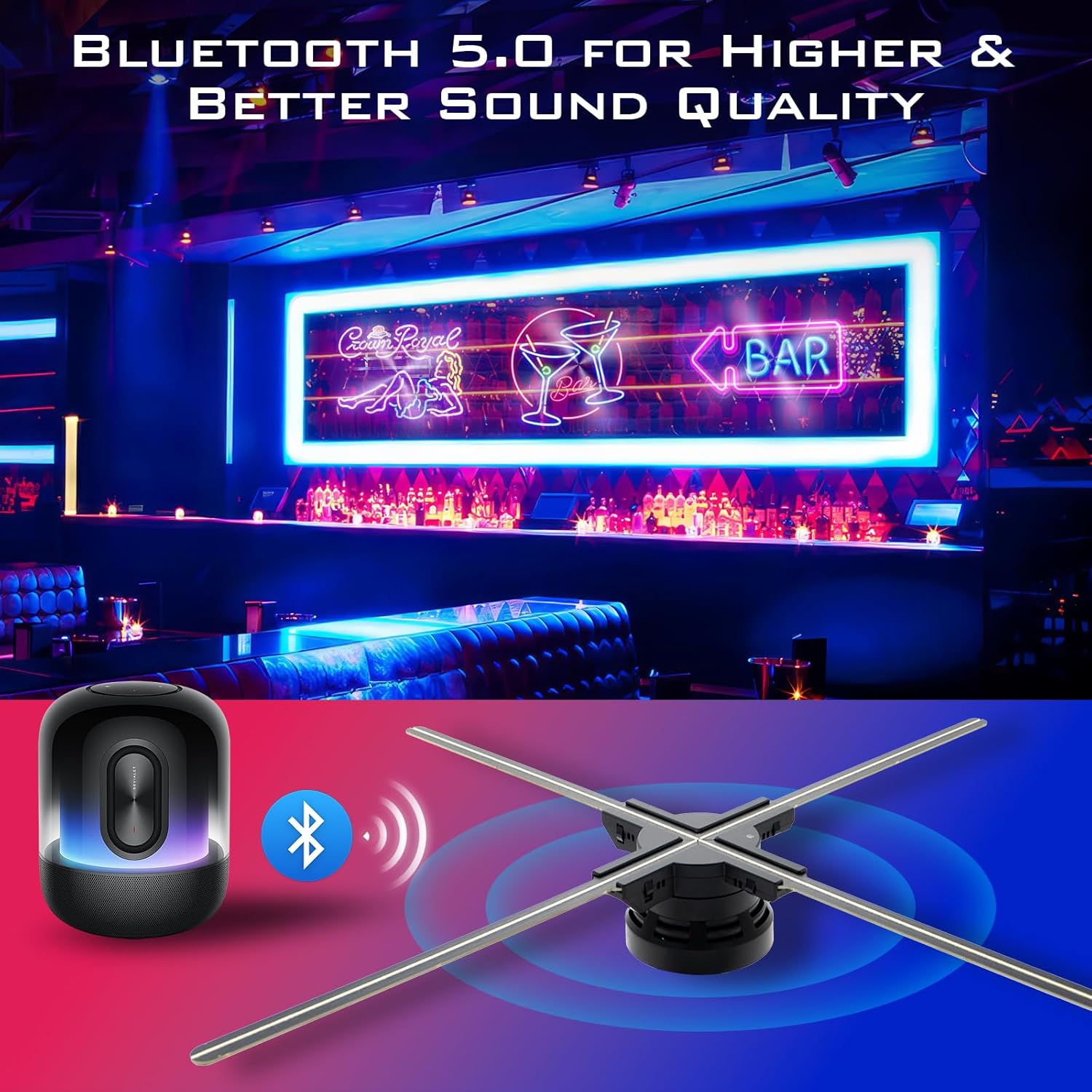
Image 5.1: Internal components and materials, including smart chips and brushless motor, designed for efficient operation and heat dissipation.
6. Troubleshooting
6.1 Common Issues and Solutions
- Blades not secure: Ensure the blade safety buckles fully spring back after inserting the blades. If not, re-insert the blade firmly. Operating with unsecured blades can be hazardous.
- App connectivity issues: Verify that your device is connected to the fan's specific WiFi network, not your home network. Restarting both the fan and your mobile device/PC may resolve connection problems.
- Content upload difficulties: Ensure your content files are in a supported format (FTLV, JPG, JPEG, PNG, BMP, MP4, AVI, MOV, WMV, MKV, RM, RMVB, MPG, MPEG, FLV). For PC uploads, ensure the PC application is correctly installed and connected to the fan's WiFi. For SD card uploads, ensure the card is properly formatted and re-inserted.
- Image quality concerns: Ensure the content you are uploading is of high resolution. The fan's smart chip decoding provides superior video reproduction compared to app soft decoding.

Image 6.1: Comparison of video definition and fluency between smart chip decoding and app decoding.
7. Specifications
| Model Name | F60 |
| Display Size | 23.6 inches |
| LED Quantity | 720 pcs |
| Brightness | 2200 cd/m² |
| Resolution | 1024 x 720 (Native), 720x720 (Display Max) |
| Connectivity | WiFi (5G+2.4G dual), Bluetooth 5.0, USB |
| Control Method | App (Smartphone), PC Application, Remote Control |
| Supported File Types | FTLV, JPG, JPEG, PNG, BMP, MP4, AVI, MOV, WMV, MKV, RM, RMVB, MPG, MPEG, FLV |
| Power | Max 96W (24V/4A) |
| Item Dimensions (L x W x H) | 23.6"L x 23.6"W x 3.15"H |
| Item Weight | 3.1 pounds |
| Body Material | ABS + Glass fiber nylon + Aluminium alloy |
8. Warranty and Support
8.1 Warranty Information
The HoloSpin 3D Hologram Fan F60 comes with a 1-year limited warranty. Please refer to the warranty card included in your package for specific terms and conditions.
8.2 Customer Support
For technical assistance, troubleshooting, or any questions regarding your HoloSpin 3D Hologram Fan, please contact HoloSpin customer support. Contact details are typically provided in the instruction booklet or on the official HoloSpin website. HoloSpin is committed to providing professional after-sales service and replacement parts.