
1. Introduction
Welcome to the user manual for your new SVITOO P10 Android 16 Tablet. This guide provides detailed instructions on how to set up, operate, and maintain your device, ensuring you get the most out of its advanced features. Please read this manual carefully before using your tablet.
2. Product Overview
The SVITOO P10 is a high-performance Android 16 tablet designed for both entertainment and productivity. It features a vibrant 10.1-inch IPS display, a powerful 8-core processor, and extensive storage options.
Key Features:
- Operating System: Latest Android 16 with enhanced customization, privacy protection, and user assistance.
- Processor: UNISOC T615 8-core CPU (1.8GHz) for fast and smooth multitasking.
- Memory & Storage: Up to 20GB RAM (4GB + 16GB expansion) and 128GB internal storage, expandable up to 1TB via microSD card.
- Display: 10.1-inch IPS in-cell display with 1280x800 resolution, 6mm narrow bezels, and a 16:10 aspect ratio for vivid visuals and wide viewing angles.
- Streaming: Widevine L1 support for 1080P HD streaming on platforms like YouTube, Netflix, Amazon Prime Video, Disney+, and Hulu.
- Navigation: Built-in GPS positioning system, ideal for maps and in-car navigation.
- Cameras: 8MP main camera with autofocus and AI sub-camera, 2MP front camera for video calls and online classes.
- Connectivity: 2.4G/5G Wi-Fi (IEEE 802.11b/g/n/ac) and Bluetooth 5.0 for stable and high-speed connections.
- Battery: Large-capacity 6600mAh battery for extended usage.
- Additional Features: Multi-screen connection, split-screen, floating window, wireless projection, face recognition unlock, and parental control functions.
Product Images:
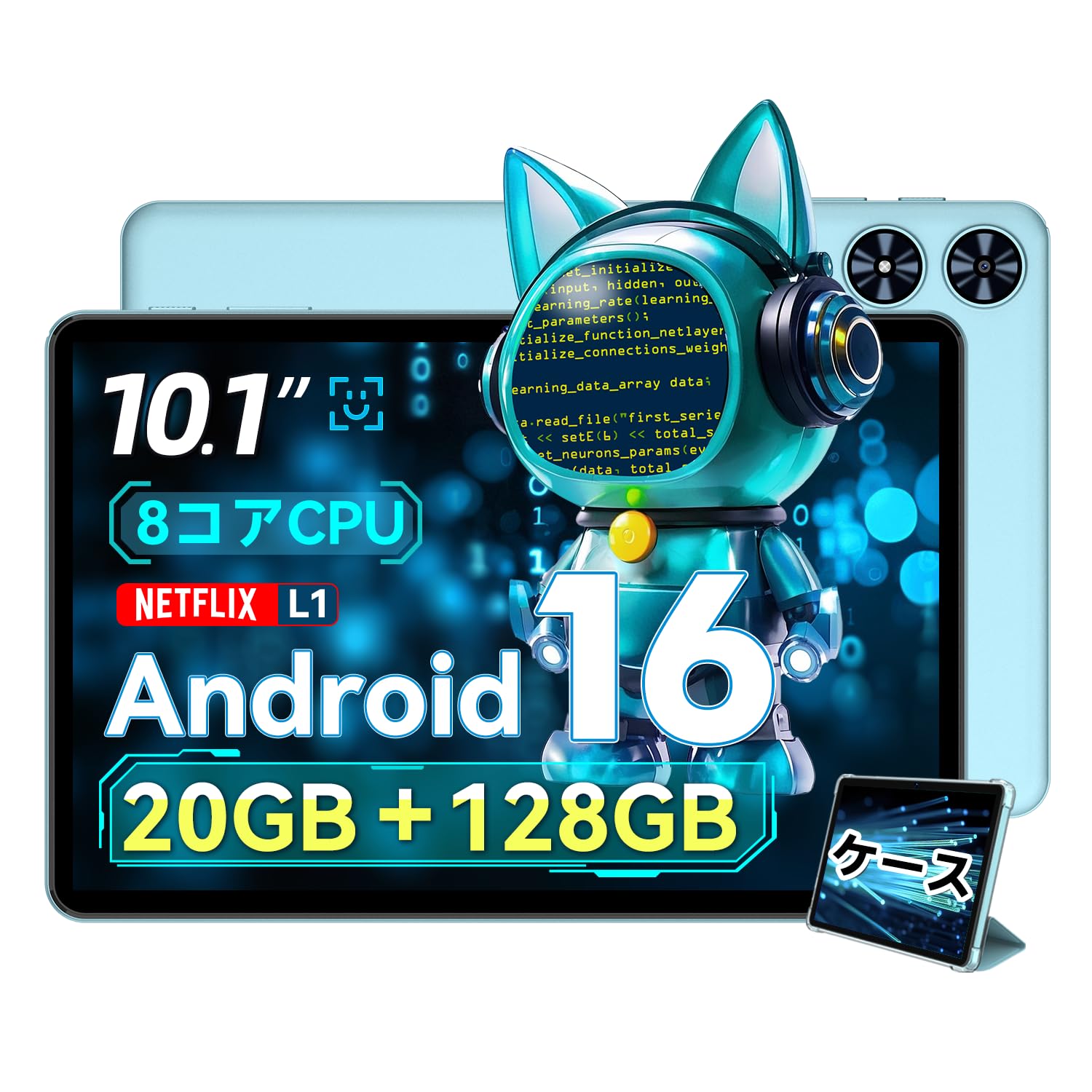
Figure 2.1: Front view of the SVITOO P10 tablet, showcasing its 10.1-inch display.

Figure 2.2: The SVITOO P10 tablet with on-screen graphics highlighting its 10.1-inch display, Android 16 OS, Bluetooth 5.0, 128GB storage, 20GB RAM expansion, 2.4G/5G Wi-Fi, 6600mAh battery, and Widevine L1 support.
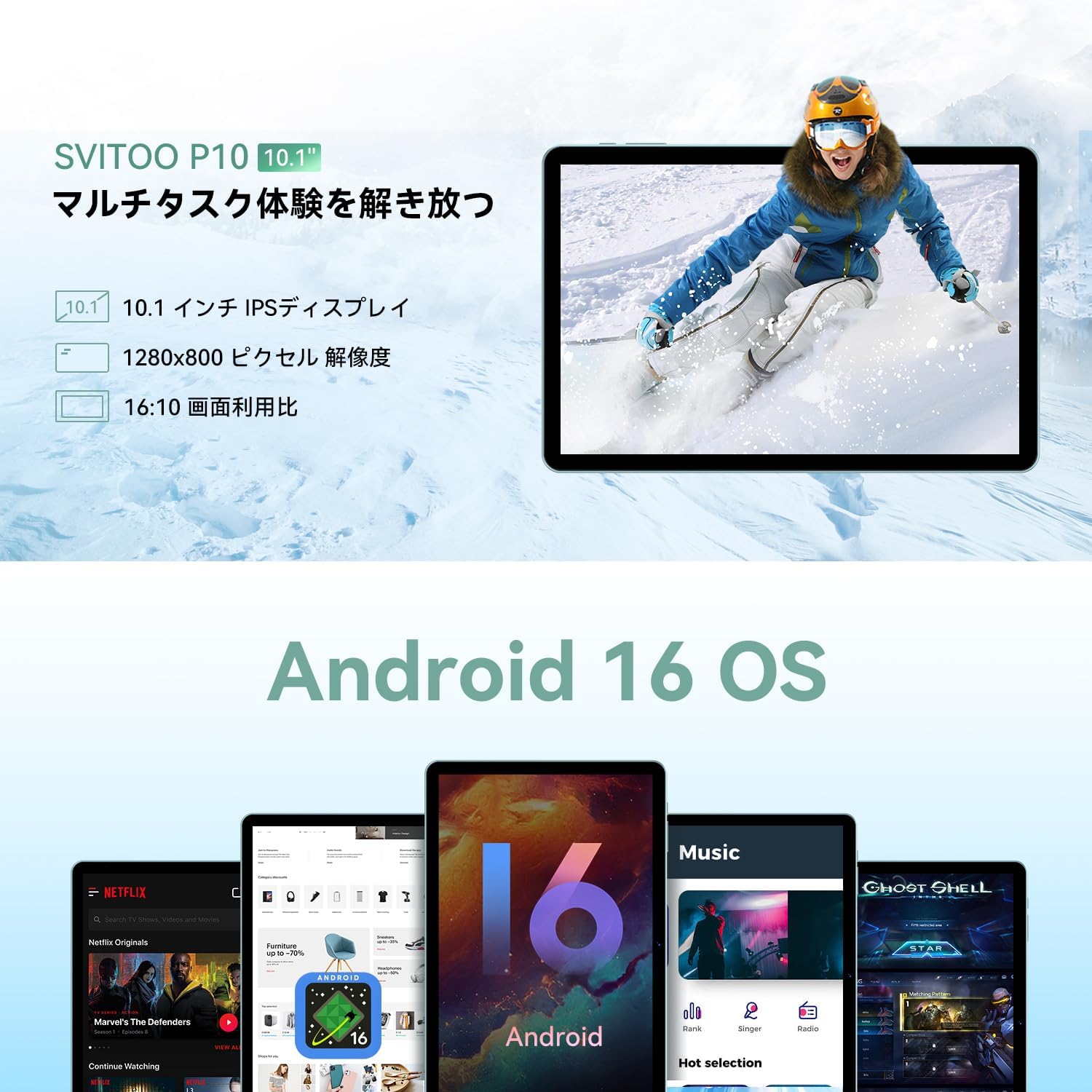
Figure 2.3: The SVITOO P10 tablet displaying a vibrant image, emphasizing its 10.1-inch IPS display, 1280x800 pixel resolution, and 16:10 aspect ratio.

Figure 2.4: Internal components of the SVITOO P10, illustrating the 20GB RAM (4GB + 16GB expandable), 128GB ROM, 1TB microSD card support, and the efficient 8-core CPU (UNISOC T7250 shown in diagram, actual is T615).
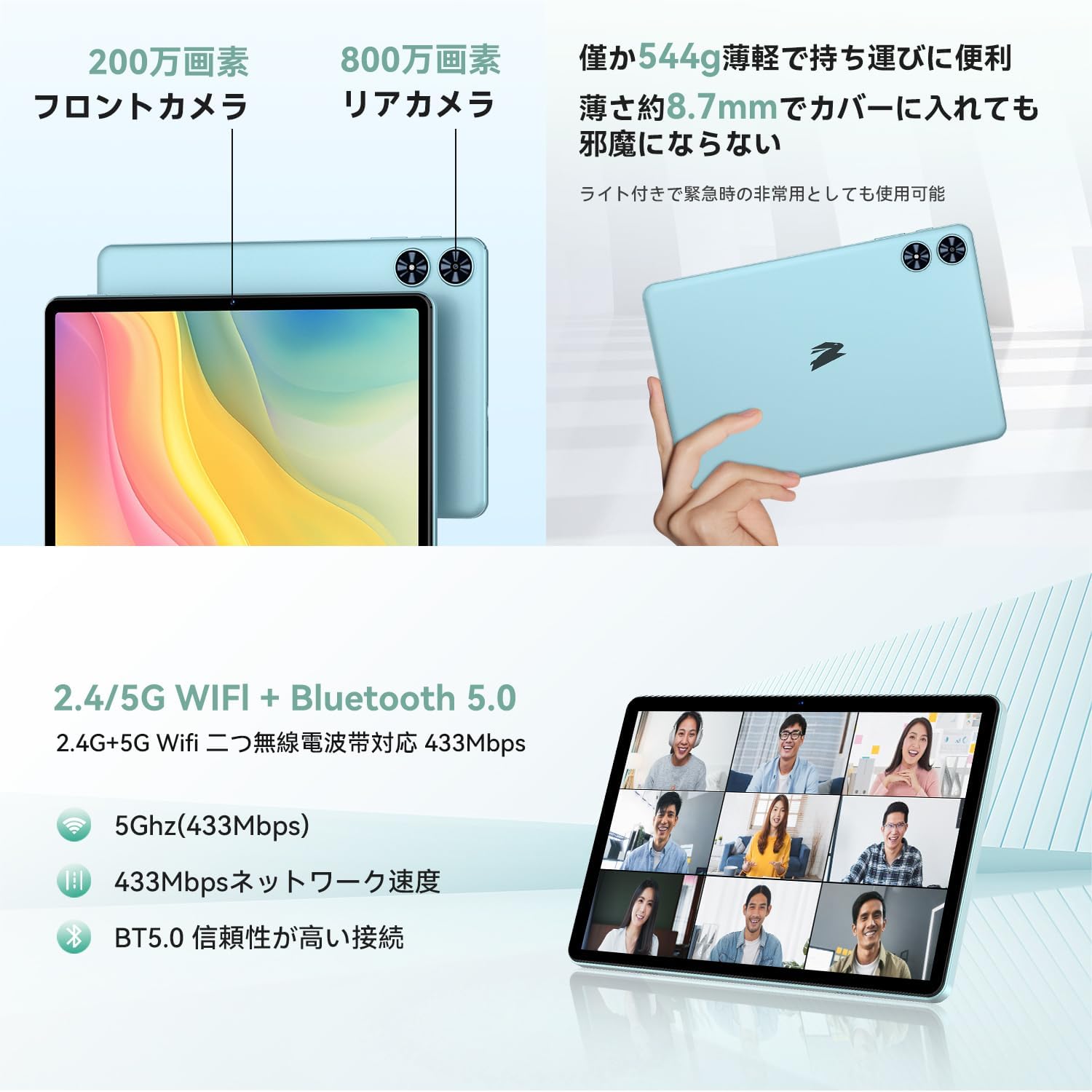
Figure 2.5: Rear and front views of the SVITOO P10 tablet, highlighting the 2MP front camera, 8MP rear camera, 2.4G/5G WiFi, and Bluetooth 5.0. An example of a video conference is shown on the screen.

Figure 2.6: Demonstrates the SVITOO P10's software capabilities, including convenient multi-window, wireless projection, face recognition unlock, and eye protection screen modes (reading mode, blue light reduction).
Product Videos:
Video 2.1: This video demonstrates how the Android 16 OS on the SVITOO P10 tablet enhances both entertainment and work tasks, showcasing its smooth performance and user-friendly interface.
3. Setup
3.1. Unboxing and Initial Inspection
Upon receiving your SVITOO P10 tablet, carefully open the package and ensure all components are present:
- SVITOO P10 Tablet
- USB-C Charging Cable
- Power Adapter
- USB-C to 3.5mm Audio Adapter
- User Manual
- SIM Ejector Pin (for microSD card slot)
Inspect the tablet for any physical damage. The screen comes with a pre-applied protective film.
3.2. Powering On/Off
- To Power On: Press and hold the Power button (located on the side) until the SVITOO logo appears on the screen.
- To Power Off: Press and hold the Power button, then select 'Power off' from the options that appear.
- To Restart: Press and hold the Power button, then select 'Restart' from the options.
3.3. Initial Setup Wizard
The first time you power on your tablet, you will be guided through an initial setup process:
- Select your preferred language.
- Connect to a Wi-Fi network.
- Sign in with your Google account or create a new one.
- Follow the on-screen prompts to complete the setup.
3.4. Inserting a MicroSD Card
To expand your tablet's storage:
- Locate the SIM/microSD card tray on the side of the tablet.
- Insert the provided SIM ejector pin into the small hole next to the tray to open it.
- Place your microSD card (up to 1TB, sold separately) into the designated slot on the tray.
- Gently push the tray back into the tablet until it clicks into place.
4. Operating Instructions
4.1. Basic Navigation
The SVITOO P10 uses standard Android touch gestures:
- Tap: Select an item or open an app.
- Swipe: Scroll through screens or lists.
- Pinch: Zoom in or out on photos and web pages.
- Long Press: Access contextual menus or move icons.
4.2. Display Settings
Adjust your viewing experience:
- Brightness: Swipe down from the top of the screen to access Quick Settings, then adjust the brightness slider.
- Dark Mode: Go to Settings > Display > Dark theme to enable or disable dark mode for a more comfortable viewing experience in low light.
- Reading Mode: Activate reading mode (often found in Quick Settings or Display settings) to reduce eye strain during prolonged reading.
4.3. Connectivity
- Wi-Fi: Go to Settings > Network & internet > Wi-Fi to connect to available networks. The tablet supports 2.4G and 5G bands.
- Bluetooth: Go to Settings > Connected devices > Bluetooth to pair with Bluetooth 5.0 devices like headphones, speakers, or keyboards.
- GPS: The built-in GPS allows for accurate location tracking and navigation using map applications.
4.4. Multimedia
- Video Streaming: With Widevine L1 support, enjoy high-definition content from popular streaming services.
- Audio: The tablet features quad speakers for immersive sound. A 3.5mm headphone jack is also available via the included adapter.
4.5. Camera Usage
The SVITOO P10 is equipped with an 8MP rear camera and a 2MP front camera.
- Open the Camera app from the home screen or app drawer.
- Switch between front and rear cameras using the camera icon.
- Tap the shutter button to take a photo or record a video.
4.6. Productivity Features
- Split Screen: Use the split-screen function to run two apps side-by-side for enhanced multitasking.
- Wireless Projection: Easily connect your tablet to a larger TV or display wirelessly for a broader visual experience.
4.7. Security and Parental Controls
- Face Recognition: Set up face recognition in Settings > Security & privacy > Face unlock to quickly and conveniently unlock your device.
- Parental Controls: Utilize the parental control features to manage screen time, app access, and prevent unauthorized purchases when children use the tablet.
5. Maintenance
5.1. Battery Charging
Charge your SVITOO P10 tablet using the provided USB-C cable and power adapter. The durable Type-C port ensures reliable charging. Avoid using damaged cables or chargers.
5.2. Storage Management
Regularly manage your tablet's storage to maintain optimal performance. Delete unnecessary files and apps, or offload large media files to your microSD card (up to 1TB) or cloud storage.
5.3. Cleaning the Device
Use a soft, lint-free cloth to clean the screen and body of your tablet. Avoid using harsh chemicals or abrasive materials that could damage the device.
6. Troubleshooting
If you encounter issues with your SVITOO P10 tablet, refer to the following common solutions:
6.1. Device Not Powering On
- Ensure the battery is charged. Connect the tablet to the charger for at least 30 minutes.
- Press and hold the Power button for 10-15 seconds to force a restart.
6.2. Wi-Fi Connection Problems
- Check if Wi-Fi is enabled in Settings > Network & internet > Wi-Fi.
- Restart your Wi-Fi router.
- Forget the network and reconnect by re-entering the password.
6.3. Apps Crashing or Slow Performance
- Close background apps.
- Clear the cache of problematic apps (Settings > Apps > [App Name] > Storage & cache > Clear cache).
- Ensure your tablet's software is up to date (Settings > System > System update).
- If issues persist, consider a factory reset (Settings > System > Reset options > Erase all data (factory reset)). Warning: This will delete all data on your tablet. Back up important information first.
7. Specifications
| Feature | Specification |
|---|---|
| Brand | SVITOO |
| Model Name | P10 |
| Operating System | Android 16 (GMS certified) |
| CPU Brand | Unisoc |
| CPU Speed | 1.8 GHz |
| Graphics Accelerator | Mali-G57 |
| Display Size | 10.1 Inches |
| Display Resolution | 1280x800 Pixels |
| Memory Storage Capacity | 128 GB |
| Expandable Storage | Up to 1TB via microSD card |
| Front Camera | 2MP |
| Rear Camera | 8MP |
| Wireless Type | 802.11a/g/n/ac (2.4G/5G Wi-Fi) |
| Connectivity Type | Bluetooth 5.0, GPS |
| Battery Capacity | 6600mAh |
| Charging Port | USB-C |
| Audio Port | 3.5mm Headphone Jack (via adapter) |
| Item Weight | 1.05 Kilograms |
| Package Dimensions | 32.4 x 20.3 x 2.9 cm |
8. Warranty and Support
8.1. Manufacturer's Warranty
The SVITOO P10 tablet comes with a 1-year manufacturer's warranty. This warranty covers defects in materials and workmanship under normal use.
Returns or exchanges are accepted for defects found before use (after unboxing) or for initial defects discovered after use.
8.2. Customer Support
For any inquiries, technical support, or warranty claims, please contact SVITOO customer service through your Amazon account:
- Log in to your Amazon account.
- Go to 'Order History'.
- Locate your SVITOO P10 tablet order.
- Click 'Contact Seller' to reach our support team.