
1. Introduction
This manual provides essential information for the safe and efficient use of your xTool SafetyPro IF2 Hyper Flow Inline Duct Fan. Please read these instructions carefully before installation and operation. Keep this manual for future reference.
2. Safety Information
- Ensure the power supply matches the fan's requirements.
- Do not operate the fan with damaged cords or plugs.
- Keep the fan away from water or excessive moisture.
- Ensure proper ventilation during operation, especially when used with laser cutting equipment.
- Do not insert objects into the fan's inlet or outlet.
- Disconnect power before performing any maintenance or cleaning.
3. Product Overview
The xTool SafetyPro IF2 is an inline duct fan designed for efficient smoke and fume extraction, particularly for laser cutting applications. It features a dual-fan system and intelligent control for optimized performance.

Figure 3.1: xTool SafetyPro IF2 Inline Duct Fan and its control unit.
Key Components:
- Fan Unit: Contains dual high-speed fans and a 100W brushless motor.
- Control Unit: Provides power and interface for mode selection and speed adjustment.
- Flexible Ducting Tube: A 2.3-meter tube for directing exhaust fumes.
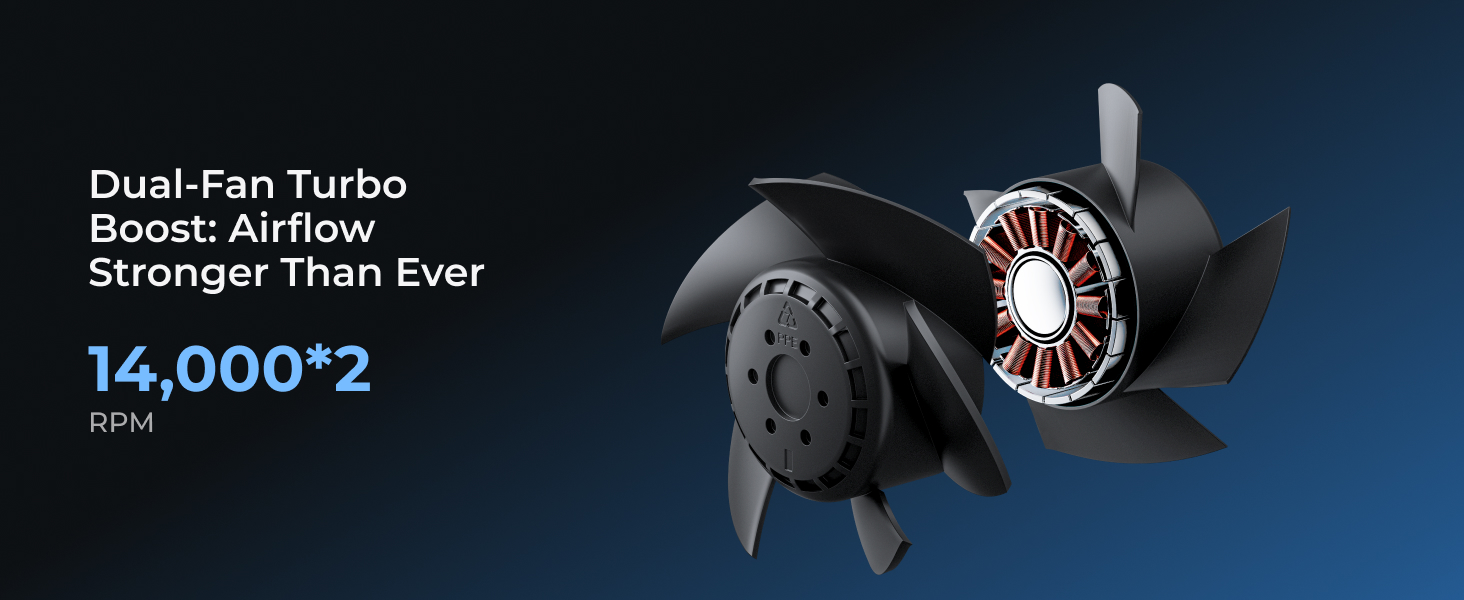
Figure 3.2: The internal dual-fan system, designed for strong exhaustion.
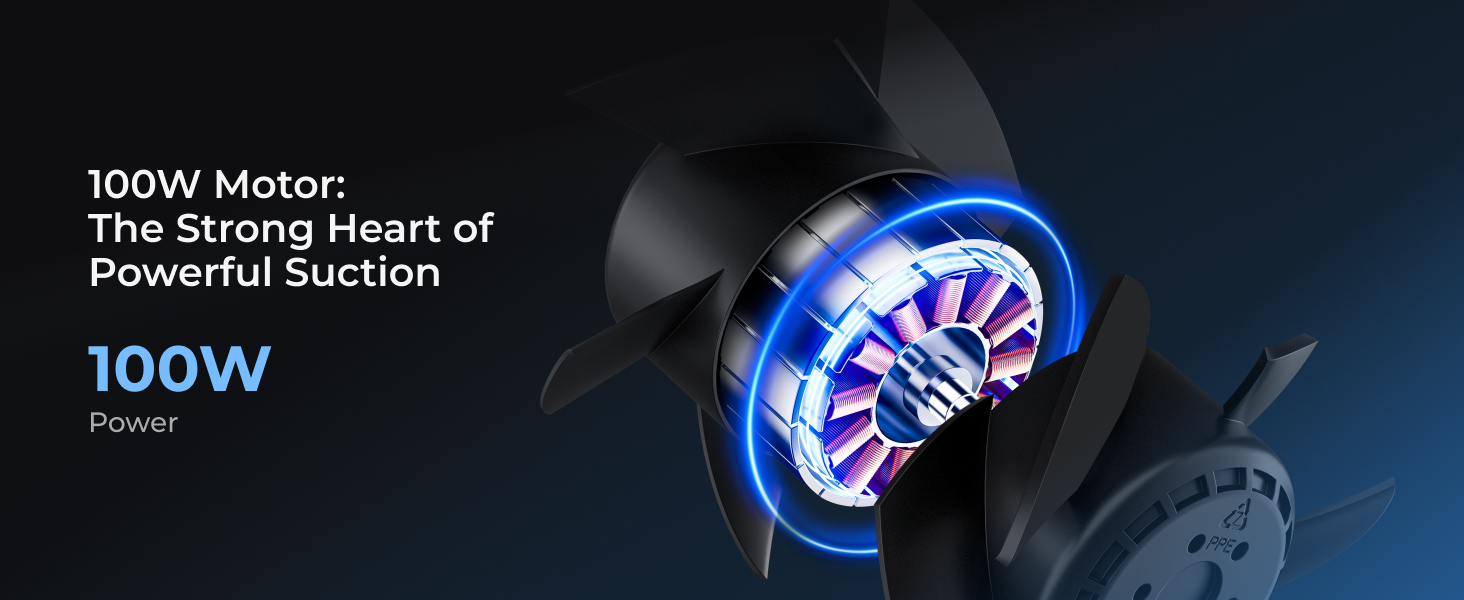
Figure 3.3: The 100W brushless motor, providing consistent suction.
4. Setup
4.1 Unpacking and Placement
- Carefully remove all components from the packaging.
- Choose a suitable location for the fan unit. The compact design (approximately 7.61 inches long by 4.68 inches high) allows for flexible placement.
- Ensure the chosen location allows for proper routing of the flexible ducting tube to an outdoor exhaust point.
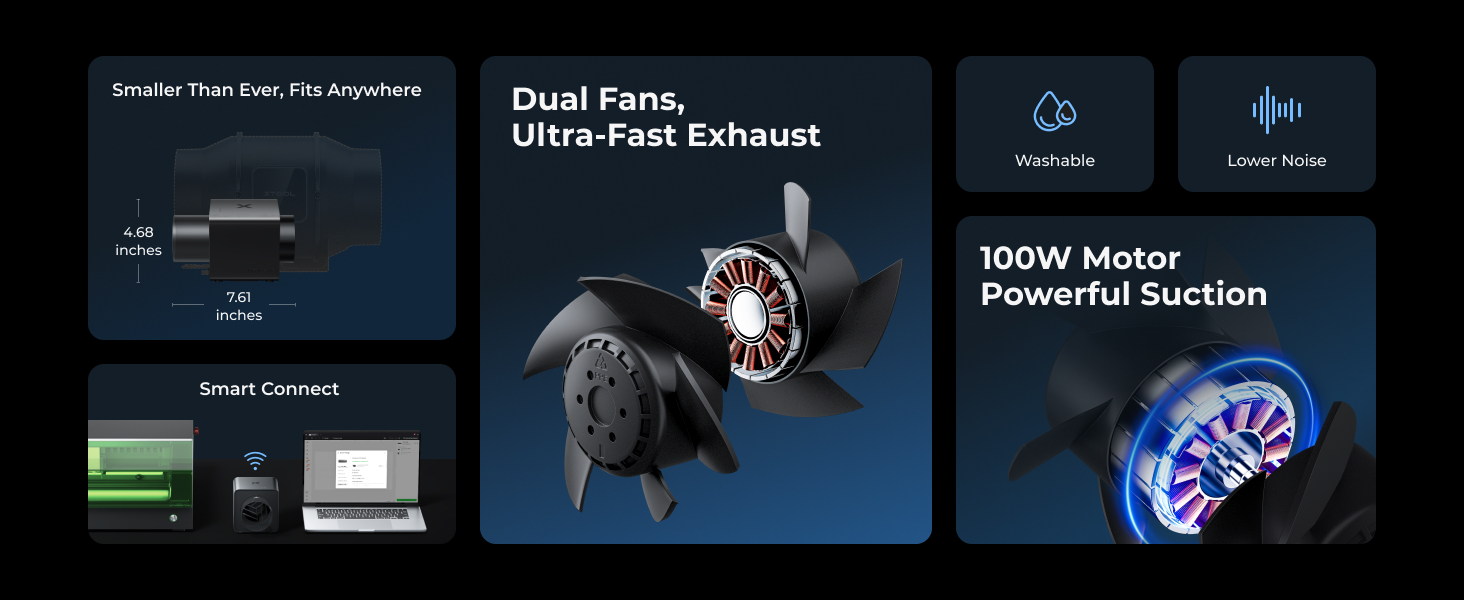
Figure 4.1: The compact size of the IF2 fan unit, indicating its dimensions for placement.
4.2 Connecting the Ducting Tube
- Attach one end of the 2.3-meter flexible PP tube to the fan unit's exhaust port. Ensure a secure connection to prevent air leaks.
- Route the other end of the tube to an appropriate outdoor ventilation point, such as a window or dedicated exhaust vent. The flexible nature of the tube allows for various setups.

Figure 4.2: The flexible 2.3-meter tube provides freedom in setting up your workspace.
4.3 Power Connection
Connect the power adapter to the control unit, then plug the adapter into a standard electrical outlet.
4.4 Connecting to xTool Laser System (Optional)
The IF2 fan can auto-sync with your xTool laser system. Refer to your laser system's manual or the xTool Creative Space software for instructions on establishing this connection. This enables automatic fan operation based on laser activity.
5. Operation
5.1 Powering On/Off
Press the power button on the control unit to turn the fan on or off.

Figure 5.1: The control unit for the IF2 fan, showing power and mode selection buttons.
5.2 Operating Modes
The IF2 offers dual operating modes:
- Regular Mode: Provides maximum suction power for demanding tasks.
- Quiet Mode: Reduces fan speed and noise for less intensive operations.
- Auto-Sync Control: When connected to a compatible xTool laser system, the fan can automatically adjust its power and airflow based on the material being processed, ensuring optimal ventilation without manual intervention.
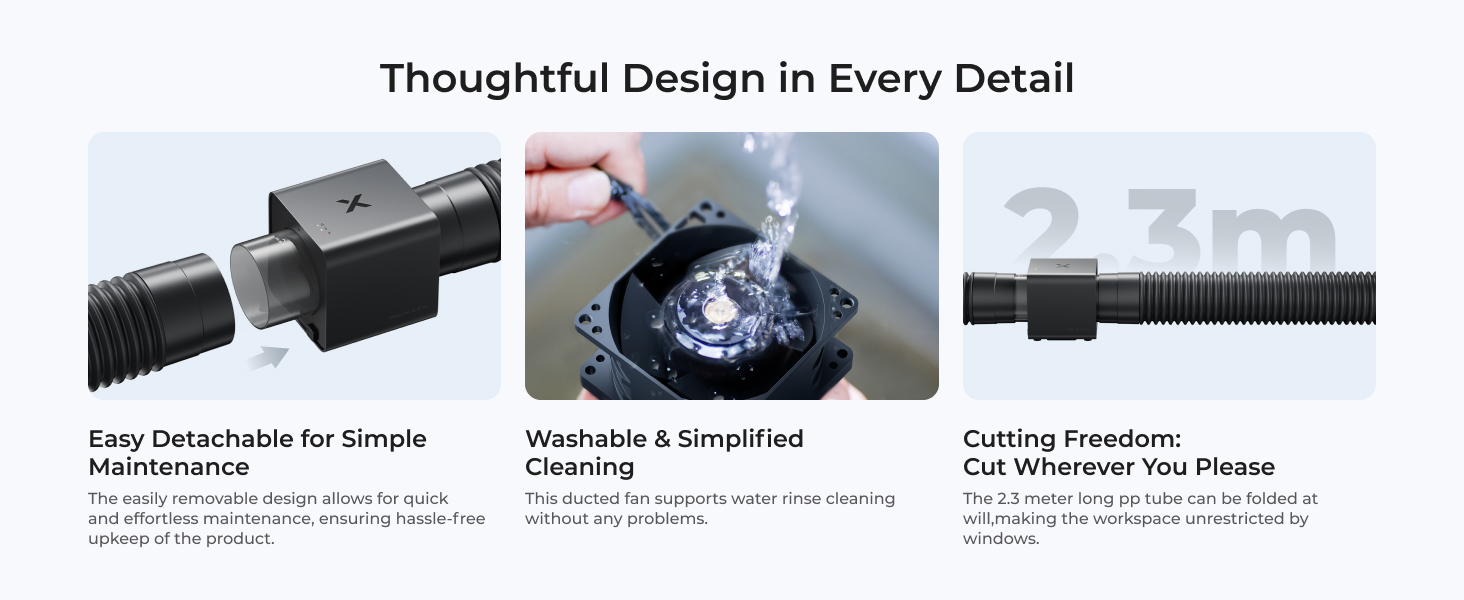
Figure 5.2: Intelligent control allows auto on/off with xTool lasers and tailored settings for various materials.
5.3 Using xTool Creative Space
For advanced control and monitoring, connect your IF2 fan to the xTool Creative Space software. This allows for seamless operation and customization of settings.

Figure 5.3: The xTool Creative Space interface for managing fan settings, including regular and quiet modes.
6. Maintenance
6.1 Cleaning the Fan Unit
The xTool IF2 fan unit features a removable design for easy cleaning. Regular cleaning helps maintain optimal suction performance.
- Disconnect Power: Always unplug the fan from the power source before cleaning.
- Detach Fan: Carefully detach the fan component from its housing.
- Rinse with Water: The fan component is washable. Rinse it under running water to remove dust and debris.
- Dry Thoroughly: Ensure the fan is completely dry before reassembling and reconnecting power.

Figure 6.1: The fan unit is easily detachable for simple maintenance.

Figure 6.2: The fan component can be rinsed with water for simplified cleaning.
6.2 Ducting Tube Inspection
Periodically inspect the flexible ducting tube for any tears, blockages, or loose connections. Ensure all connections are secure to maintain effective fume extraction.
7. Troubleshooting
If you encounter issues with your xTool SafetyPro IF2, refer to the following common problems and solutions:
| Problem | Possible Cause | Solution |
|---|---|---|
| Fan does not power on. | No power supply; loose connection. | Check power cable and adapter connections. Ensure outlet is functional. |
| Poor smoke extraction. | Blocked ducting tube; fan blades dirty; loose tube connections. | Inspect ducting tube for blockages. Clean fan blades (refer to Maintenance section). Secure all tube connections. |
| Fan is unusually loud. | Operating in Regular Mode; foreign object in fan; fan blades dirty. | Switch to Quiet Mode if applicable. Disconnect power and inspect for foreign objects. Clean fan blades. |
| Cannot connect to xTool Creative Space. | Connectivity issue (Bluetooth/wired); software glitch. | Ensure fan is powered on. Check Bluetooth or wired connection. Restart xTool Creative Space. Consult xTool support if issue persists. |
For further assistance, please contact xTool customer support.
8. Specifications
| Feature | Specification |
|---|---|
| Brand | xTool |
| Model Name | IF2 (Inline Duct Fan) |
| Color | Black |
| Wattage | 100 watts |
| Air Flow Capacity | 135 Cubic Feet Per Minute (CFM) |
| Fan Speed | 14000 RPM (Dual Fans) |
| Product Dimensions (Fan Unit) | Approx. 7.61" (Length) x 4.68" (Height) |
| Item Weight | 8.18 pounds |
| Ducting Tube Length | 2.3 meters (approx. 7.5 feet) |
| Recommended Use | Ventilating (for laser cutting smoke) |
9. Warranty and Support
For warranty information, please refer to the documentation included with your purchase or visit the official xTool website. xTool provides multi-channel support for its products.
Contacting Support:
- Email: For general inquiries and technical support.
- Live Chat: Available on the xTool official website for immediate assistance.
- Phone: Contact numbers may be available on the official website.
- Facebook Group: Join the xTool community for peer support and official announcements.
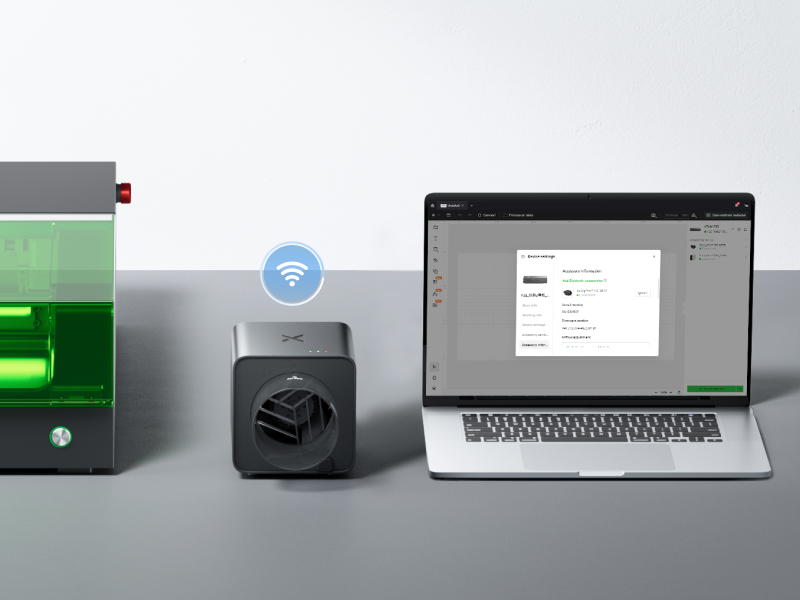
Figure 9.1: xTool offers multiple channels for customer support.
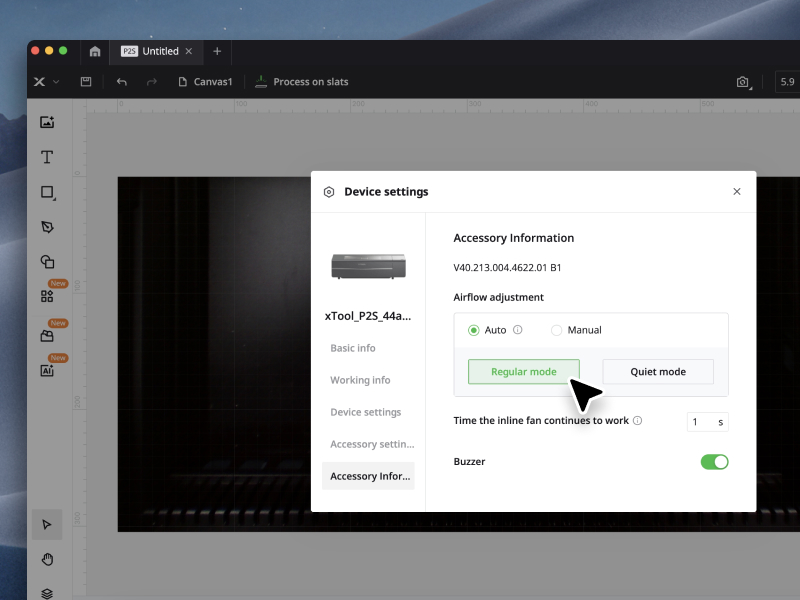
Figure 9.2: A dedicated technical service team is available to assist users.