
1. Introduction
Thank you for choosing the PAMBRUM Mini Camera Clock. This device is designed to provide discreet surveillance for your indoor spaces, offering 4K FHD video recording, night vision, and motion detection capabilities. Its design as a functional clock allows it to blend seamlessly into any home or office environment. This manual provides detailed instructions for setup, operation, maintenance, and troubleshooting to ensure optimal performance of your device.
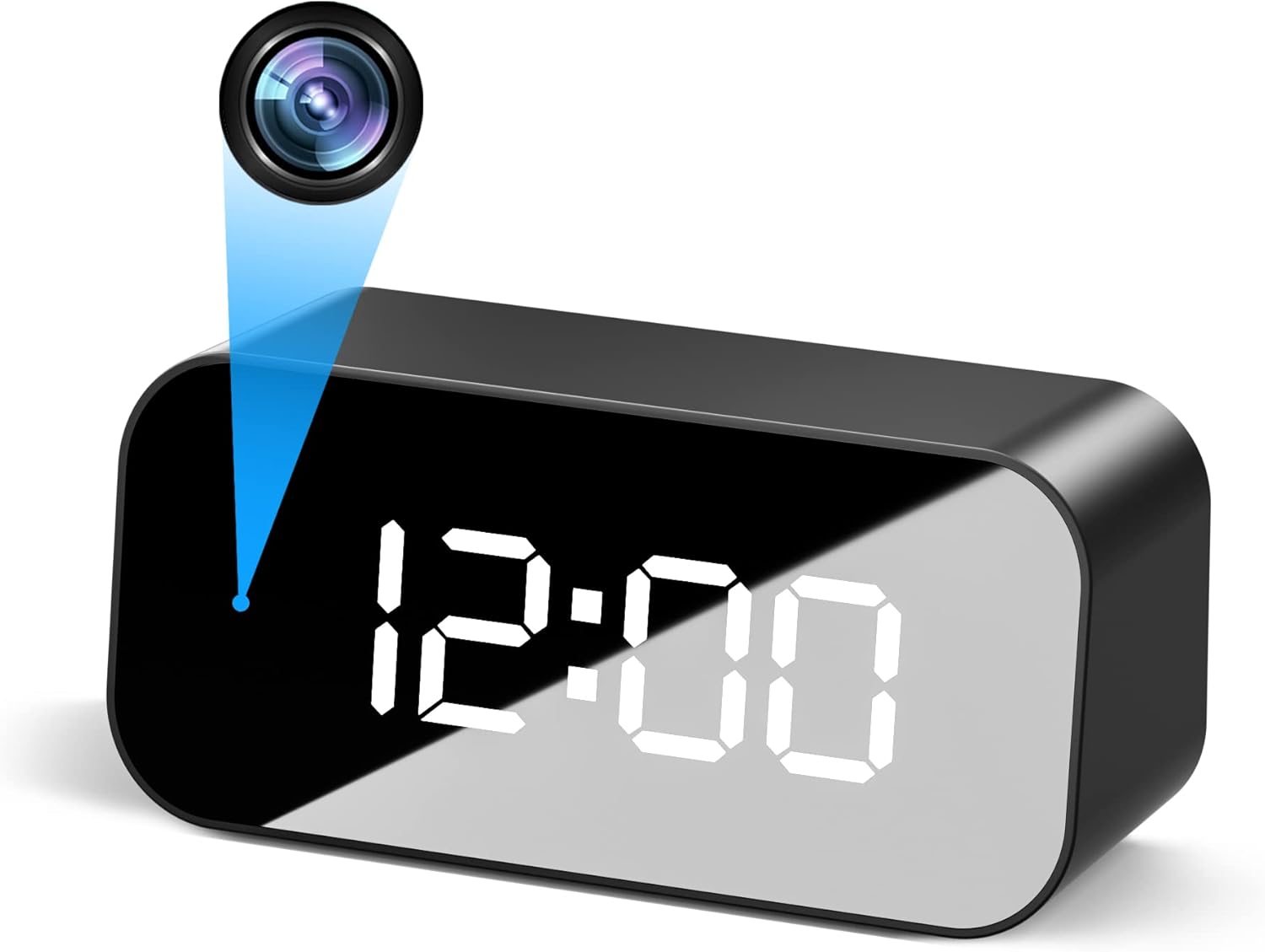
Image: The PAMBRUM Mini Camera Clock, showcasing its discreet design with the hidden camera lens indicated.
2. Product Features
- 4K HD Video Recording: Captures high-definition video with a 166° wide-angle lens.
- Dual-Band Wi-Fi Connectivity: Supports both 2.4G and 5G Wi-Fi networks for remote viewing.
- Live Streaming via App: Access live footage 24/7 from anywhere using the dedicated mobile application (Tuya App).
- Smart Motion Detection: Sends real-time push notifications to your phone upon detecting movement.
- Strong Night Vision: Equipped with 6 invisible infrared lights (IR CUT) for clear video recording in low-light or dark conditions up to 10 meters.
- SD Card Loop Recording: Supports Micro SD cards up to 256GB (not included) for continuous recording, overwriting older files when full.
- Discreet Design: Appears as a normal digital clock, concealing the camera lens.

Image: Illustration of the 4K FHD video quality, emphasizing clear and vivid color restoration.

Image: Visual representation of the 166-degree wide-angle lens, showing its expansive field of view.
3. Package Contents
Please verify that all items are present in the package:
- Camera clock
- Power Adapter
- USB Data Cable
- User Manual (this document)
4. Setup Guide
Follow these steps for the initial setup of your PAMBRUM Mini Camera Clock:
- Charge the Device: Before first use, connect the camera clock to the power adapter using the provided USB data cable and charge it fully.
- Insert Micro SD Card (Optional): If you plan to use local storage, gently insert a Micro SD card (up to 256GB, not included) into the designated slot. Ensure the card is inserted correctly.
- Download the App: Scan the QR code in the quick start guide (if provided) or search for "Tuya Smart" or a similar recommended app in your smartphone's app store (iOS/Android) and install it.
- Power On: Press and hold the power button on the device until the indicator lights up.
- Connect to Wi-Fi: Open the app, register an account, and follow the in-app instructions to add your device. You will need to connect the camera clock to your home or office 2.4G or 5G Wi-Fi network.
- Placement: Position the camera clock in your desired indoor location. Ensure it has a clear line of sight to the area you wish to monitor.
5. Operating Instructions
Once set up, you can operate your camera clock using the mobile application:
- Live View: Open the app and select your device to view the live video feed from the camera.
- Recording: The device will automatically record to the SD card if inserted. You can also initiate manual recording through the app.
- Playback: Access recorded footage from the SD card or cloud storage (if subscribed) through the app's playback feature.
- Settings: Adjust various settings such as video resolution, motion detection sensitivity, and night vision mode within the app.

Image: Depiction of the camera's versatility for indoor surveillance, including baby monitoring, pet monitoring, and office security, supported by 2.4G and 5G Wi-Fi.
6. Motion Detection
The camera clock features intelligent motion detection to alert you to activity in its field of view:
- Activation: Enable motion detection in the app settings. You can adjust sensitivity levels to minimize false alarms.
- Alerts: When motion is detected, the app will send a real-time push notification to your smartphone.
- Recording: Motion-triggered events can be set to automatically record and save footage.
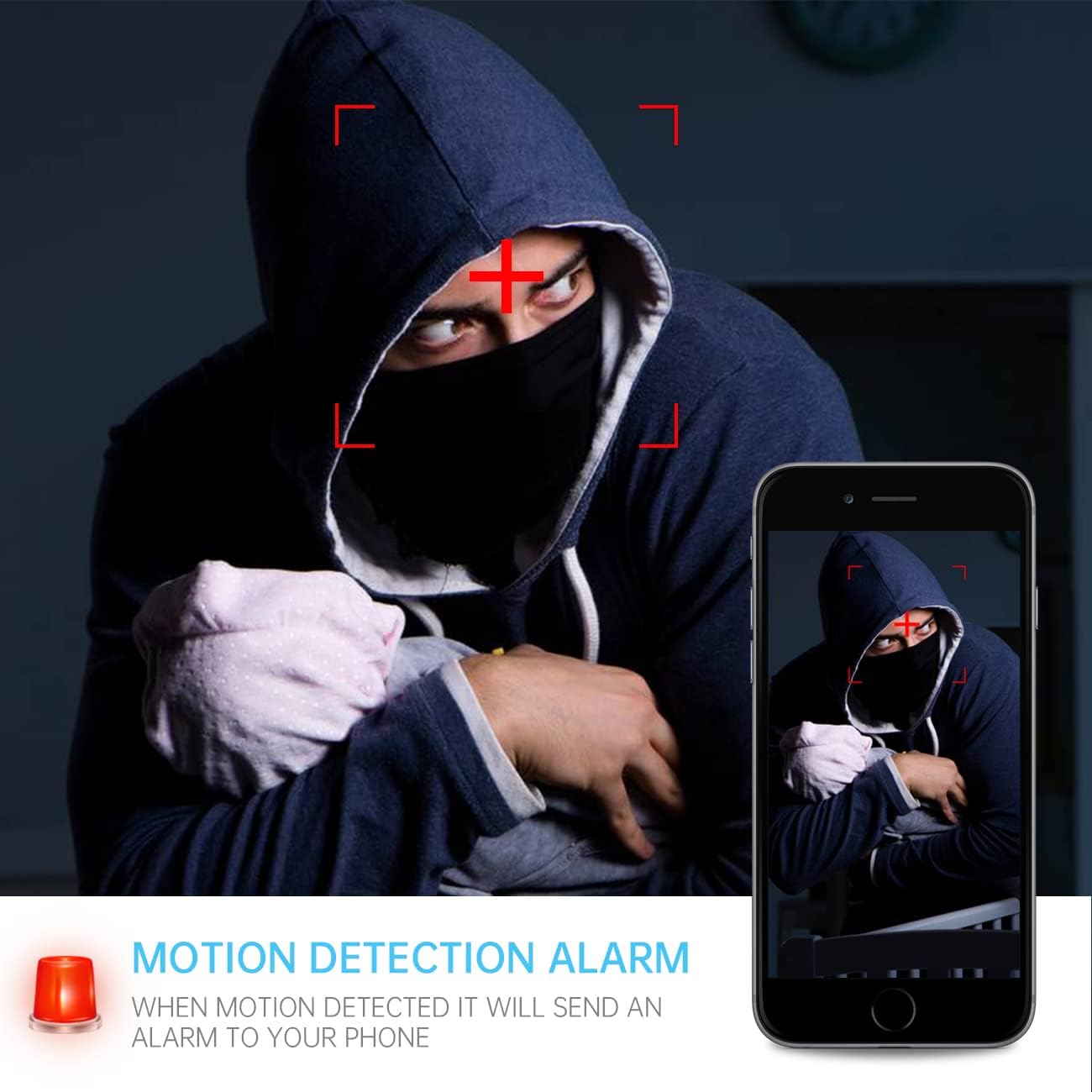
Image: Illustration of the motion detection alarm system, showing an alert being sent to a smartphone when movement is detected.
7. Night Vision
The integrated night vision functionality ensures clear monitoring even in complete darkness:
- Automatic Activation: The device automatically switches to night vision mode in low-light conditions.
- Infrared Lights: Six invisible IR lights provide illumination without emitting visible light, maintaining discretion.
- Clear Footage: Records clear black and white video in dark environments.

Image: Comparison demonstrating the superior night vision capability of the PAMBRUM camera clock, providing clear visibility in dark conditions.
8. SD Card Recording
The camera supports local storage via a Micro SD card:
- Continuous Recording: Once an SD card is inserted and the device is powered on, it will begin continuous loop recording.
- Storage Management: When the SD card's memory is full, the oldest video files will be automatically overwritten to make space for new recordings.
- Capacity: Supports Micro SD cards up to 256GB.
9. Maintenance
To ensure the longevity and optimal performance of your camera clock, follow these maintenance guidelines:
- Cleaning: Use a soft, dry cloth to clean the device's exterior. Do not use liquid cleaners or aerosols.
- Placement: Avoid placing the device in direct sunlight, near heat sources, or in areas with high humidity.
- Storage: If storing the device for an extended period, ensure it is fully charged and stored in a cool, dry place.
- Software Updates: Periodically check the app for firmware updates to ensure your device has the latest features and security enhancements.
10. Troubleshooting
If you encounter issues with your PAMBRUM Mini Camera Clock, refer to the following common problems and solutions:
- Device not powering on: Ensure the device is fully charged or connected to a power source. Check the power adapter and USB cable for damage.
- Unable to connect to Wi-Fi:
- Ensure your Wi-Fi network is 2.4GHz or 5GHz and stable.
- Verify the Wi-Fi password entered in the app is correct.
- Move the camera closer to the Wi-Fi router to improve signal strength.
- Restart both the camera and your Wi-Fi router.
- No video feed/offline in app: Check Wi-Fi connection. Ensure the device is powered on. Restart the app and the camera.
- SD card not recording/playback issues:
- Ensure the Micro SD card is inserted correctly and is not full.
- Format the SD card through the app (this will erase all data).
- Try a different compatible Micro SD card.
- Motion detection alerts not received:
- Ensure motion detection is enabled in the app settings.
- Check app notification permissions on your smartphone.
- Adjust motion detection sensitivity.
11. Specifications

Image: Detailed dimensions of the PAMBRUM Mini Camera Clock.
| Feature | Specification |
|---|---|
| Model Name | Camera clock 100 |
| Indoor/Outdoor Usage | Indoor |
| Compatible Devices | iPhone, Desktop, Smartphone |
| Power Source | Battery Powered |
| Connectivity Protocol | Wi-Fi (2.4G & 5G) |
| Controller Type | App |
| Mounting Type | Freestanding |
| Video Capture Resolution | 4K |
| Included Components | Camera clock, Power Adapter, USB data cable |
| Viewing Angle | 166 Degrees |
| Night Vision Range | 10 Meters |
| Frame Rate | 25 frames per second |
| Material | Plastic |
| Dimensions (L x W x H) | 5.86 x 2.08 x 2.36 inches |
| Item Weight | 10.8 ounces |
| Battery Type | 1 Lithium Polymer (included) |
| Battery Power | 8.15 Watt Hours |
| Video Capture Format | AVI |
| Number of IR LEDs | 6 |
| UPC | 762716331679 |
12. Warranty and Support
For warranty information and technical support, please refer to the contact details provided by your retailer or visit the official PAMBRUM website. Keep your purchase receipt as proof of purchase for any warranty claims.