
1. Introduction
This manual provides essential information for the safe and efficient operation of your LG 50QNED86T6A 50-inch 4K QNED Smart TV. Please read this manual thoroughly before using the product and retain it for future reference. This television features a 50-inch 4K Ultra HD QNED display, Smart TV capabilities, and integrated DVB-T2/C/S2 tuners.
2. Safety Information
Always follow these basic safety precautions to reduce the risk of fire, electric shock, or injury:
- Power Source: Connect the TV to an AC 100-240V, 50/60Hz power outlet. Do not overload power outlets.
- Ventilation: Ensure adequate ventilation around the TV. Do not block ventilation openings.
- Water and Moisture: Do not expose the TV to rain or moisture. Do not place objects filled with liquids on the TV.
- Cleaning: Unplug the TV before cleaning. Use a soft, dry cloth. Avoid liquid cleaners.
- Mounting: If wall-mounting, ensure the wall mount is securely installed and capable of supporting the TV's weight. Refer to the wall mount instructions for proper installation.
- Children: Keep small parts and packaging materials out of reach of children.
3. Package Contents
Verify that all items are present in the box:
- LG 50QNED86T6A 50-inch 4K QNED Smart TV
- Remote Control with Batteries
- Power Cable
- Stand Base and Screws (if applicable)
- User Manual (this document)
- Quick Setup Guide
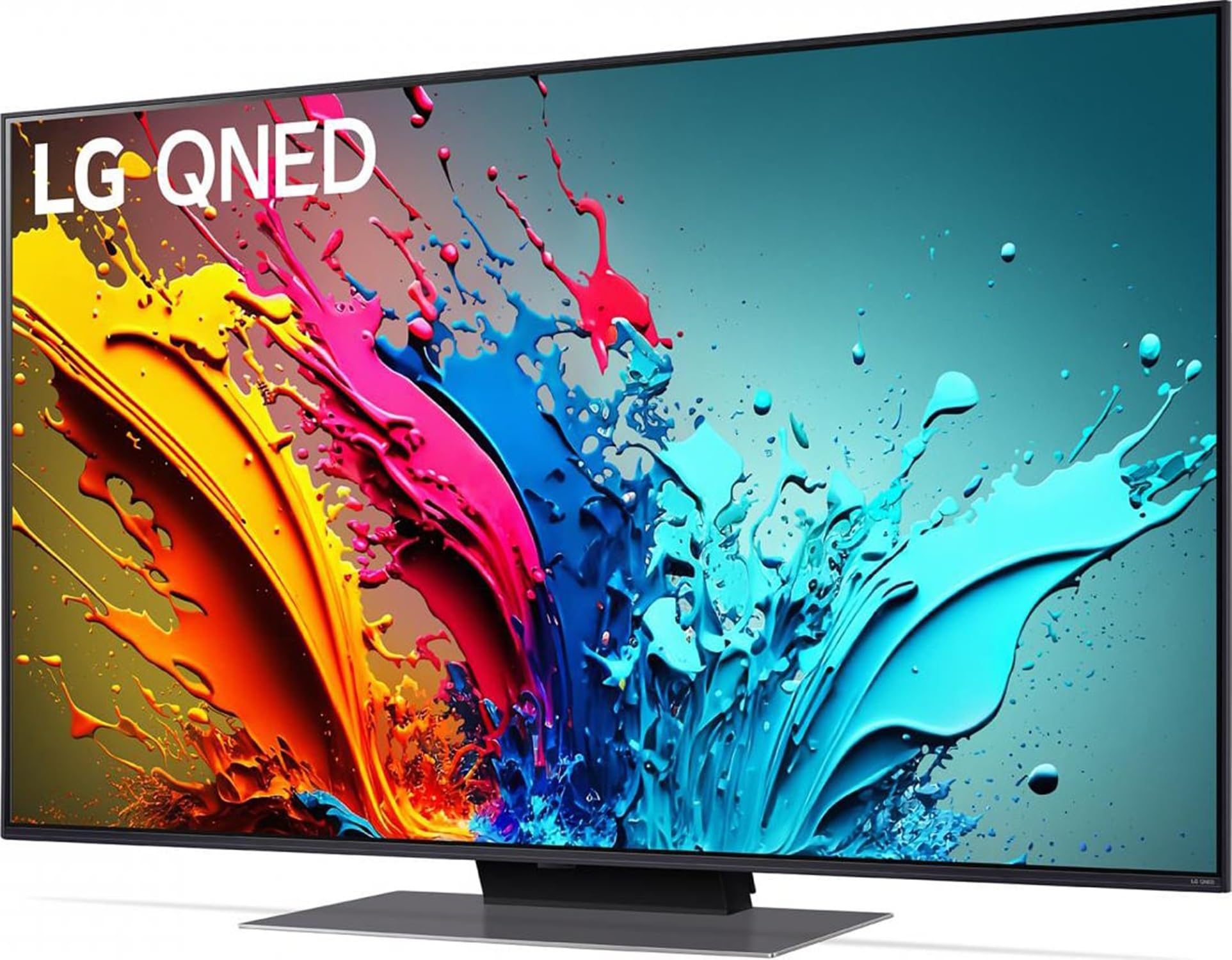
Image 1: LG 50QNED86T6A 50-inch 4K QNED Smart TV with included accessories. The image shows the television unit, a remote control, and a power cable.
4. Setup
4.1 Physical Setup
Before connecting any cables, decide whether to use the included stand or a wall mount (sold separately).
- Stand Installation: Carefully place the TV screen-down on a soft, flat surface. Attach the stand base to the TV using the provided screws, ensuring it is secure.
- Wall Mounting: If wall-mounting, remove the stand (if pre-attached). Follow the instructions provided with your wall mount kit. Ensure proper VESA compatibility (e.g., 300x200mm).
- Placement: Place the TV on a stable, level surface or mount it securely on a wall, away from direct sunlight, heat sources, and moisture.
4.2 Connecting Devices
Connect your external devices (e.g., cable box, Blu-ray player, gaming console) to the appropriate ports on the back of the TV.
- HDMI: Use HDMI cables for high-definition video and audio. Your TV has multiple HDMI ports.
- USB: Connect USB storage devices for media playback or software updates. Your TV has 3 USB ports.
- Antenna/Cable: Connect your antenna or cable TV feed to the ANTENNA/CABLE IN port.
- Ethernet: For a stable internet connection, connect an Ethernet cable to the LAN port.
4.3 Initial Power On and First-Time Setup
After connecting all devices and the power cable:
- Plug the power cable into a wall outlet.
- Press the Power button on the remote control or on the TV.
- Follow the on-screen instructions to complete the initial setup, which includes language selection, country, time zone, and network connection.
4.4 Network Connection
To access Smart TV features, connect your TV to the internet.
- Wi-Fi: During initial setup or via the settings menu, select your Wi-Fi network and enter the password.
- Wired (Ethernet): If you connected an Ethernet cable, the TV should automatically detect the wired connection.
5. Operating Your TV
5.1 Basic Functions
- Power On/Off: Press the Power button on the remote.
- Volume Control: Use the Volume Up/Down buttons.
- Channel Change: Use the Channel Up/Down buttons or enter numbers directly.
- Input Selection: Press the Input button to switch between HDMI, USB, and TV sources.
5.2 Smart TV Features (webOS)
Your LG Smart TV runs on the webOS platform, providing access to various apps and streaming services.
- Home Screen: Press the Home button on the remote to access the launcher bar with your favorite apps.
- App Store: Download new applications from the LG Content Store.
- Voice Control: Use the built-in voice assistant (if available on your remote) to search for content or control TV functions.
5.3 Picture and Sound Settings
Adjust picture and sound settings to your preference via the TV's menu.
- Picture Mode: Select from modes like Standard, Vivid, Cinema, Game, or customize settings like brightness, contrast, and color.
- Sound Mode: Choose from modes like Standard, Cinema, Clear Voice, or adjust equalizer settings.
- Advanced Settings: Explore advanced options for motion interpolation (Motion Pro), color management, and audio output.
6. Maintenance
6.1 Cleaning Your TV
To maintain the appearance and performance of your TV:
- Screen: Gently wipe the screen with a soft, dry, lint-free cloth. For stubborn marks, lightly dampen the cloth with water or a specialized screen cleaner (apply to cloth, not directly to screen).
- Cabinet: Wipe the cabinet with a soft, dry cloth. Avoid using abrasive cleaners, waxes, or solvents.
- Power Off: Always unplug the TV from the power outlet before cleaning.
6.2 Software Updates
Regular software updates ensure optimal performance and introduce new features.
- Automatic Updates: Ensure your TV is connected to the internet. The TV may automatically download and install updates.
- Manual Check: You can manually check for updates through the TV's settings menu (typically under "General" or "Support").
- Do Not Unplug: Do not unplug the TV or turn off the power during a software update.
7. Troubleshooting
Refer to this section for solutions to common issues.
| Problem | Possible Cause | Solution |
|---|---|---|
| No power | Power cable disconnected; power outlet issue | Check power cable connection; try a different outlet. |
| No picture, but sound is present | Incorrect input source; external device issue | Press the Input button to select the correct source; check external device connections. |
| No sound, but picture is present | Volume muted or too low; incorrect audio output setting | Increase volume; check mute status; verify audio output settings in TV menu. |
| Remote control not working | Dead batteries; obstruction; remote not paired | Replace batteries; remove obstructions; re-pair remote if it's a Smart Remote. |
| Cannot connect to Wi-Fi | Incorrect password; router issue; TV too far from router | Re-enter password; restart router; move TV closer or use wired connection. |
8. Specifications
Key technical specifications for the LG 50QNED86T6A TV:
- Model: 50QNED86T6A
- Screen Size: 50 inches (127 cm)
- Display Technology: QNED
- Resolution: 4K Ultra HD (3840 x 2160 pixels)
- Backlight Type: Edge-LED
- Aspect Ratio: 16:9
- Motion Interpolation Technology: Motion Pro
- Digital Signal Format: DVB-C, DVB-S, DVB-S2, DVB-T, DVB-T2
- Connectivity: Wi-Fi, Ethernet LAN, Multiple HDMI ports, 3 USB ports
- Mounting Type: Wall Mountable
- Model Year: 2024
- Contrast Ratio: 1000:1
- Peak Brightness: 1000 Nits (coating)
9. Warranty and Support
For warranty information, please refer to the warranty card included with your product or visit the official LG website for your region. LG provides customer support for product inquiries, technical assistance, and service requests.
Online Support: Visit www.lg.com/support
Telephone Support: Refer to the LG website for local contact numbers.
Spare parts availability and software update guarantees are subject to regional policies and may not be available for all models or for an indefinite period. Please check with LG support for specific details.