1. Introduction
This manual provides detailed instructions for the SWITCHFLUX 6-in-1 USB C Hub Dual Monitor Adapter. This device expands the connectivity of your USB-C enabled computer or smart device, offering dual HDMI outputs, multiple USB ports, and power delivery capabilities.
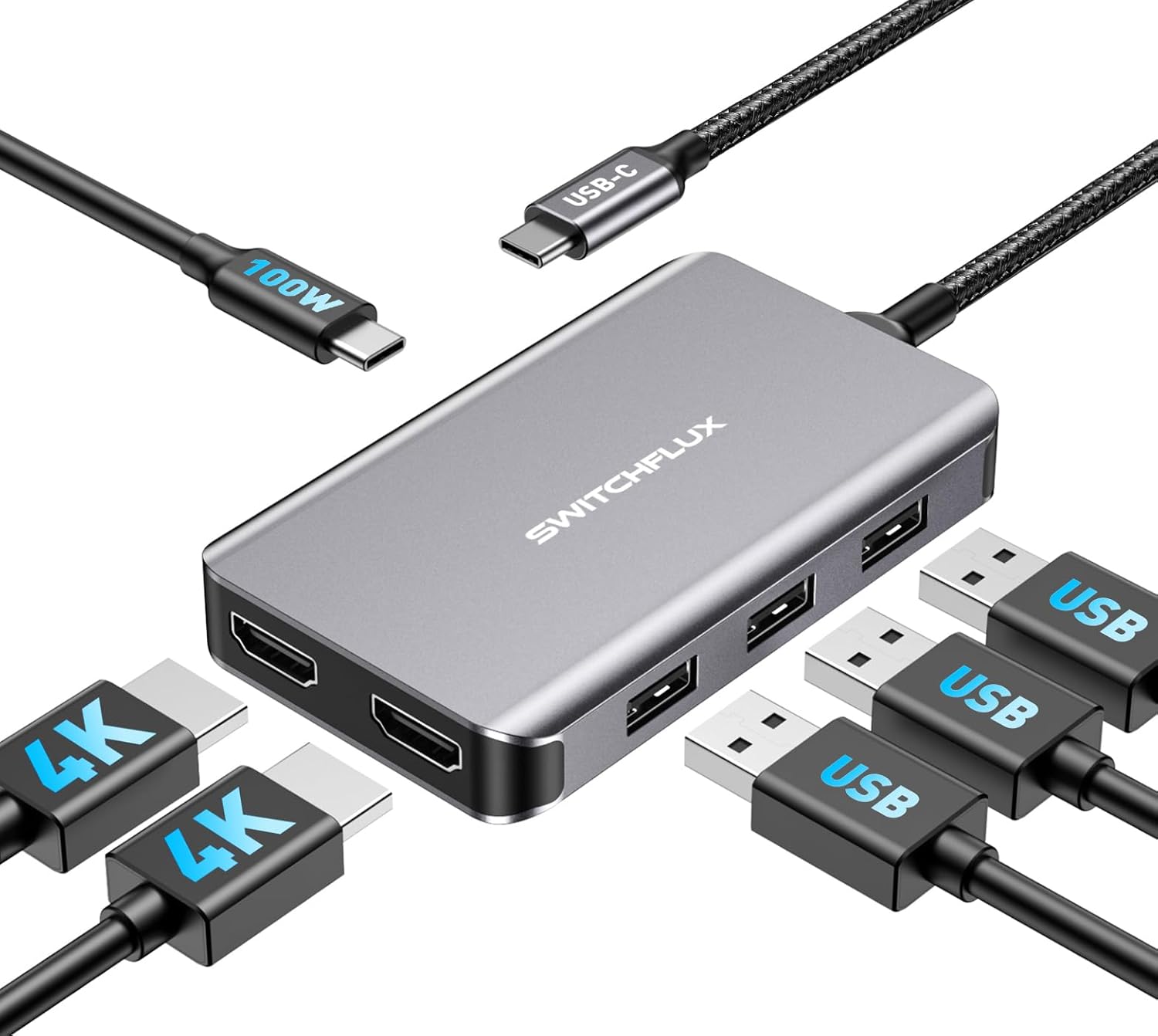
Image 1: The SWITCHFLUX 6-in-1 USB C Hub, showcasing its compact design and available ports including USB-C input, dual HDMI outputs, and multiple USB-A ports.
2. Product Features
The SWITCHFLUX 6-in-1 USB C Hub is designed to enhance your device's connectivity with the following features:
- Multi-Port Integration: Combines 3 USB ports (1x USB 3.0, 2x USB 2.0), 2 HDMI ports, and a 100W Power Delivery (PD) charging port into a single USB-C connection.
- High Definition Output: Supports dual HDMI displays with resolutions up to 4K@30Hz, and is backward compatible with 1080p@60Hz.
- Fast Data Transfer: Features USB 3.0 for high-speed data transfer up to 5Gbps, alongside USB 2.0 ports for peripherals.
- Power Delivery: 100W PD port for fast charging of connected devices.
- Durable Construction: Made with high-quality aluminum alloy for heat dissipation and a nylon braided cable for long-term durability.
- Plug and Play: No driver or software installation required.
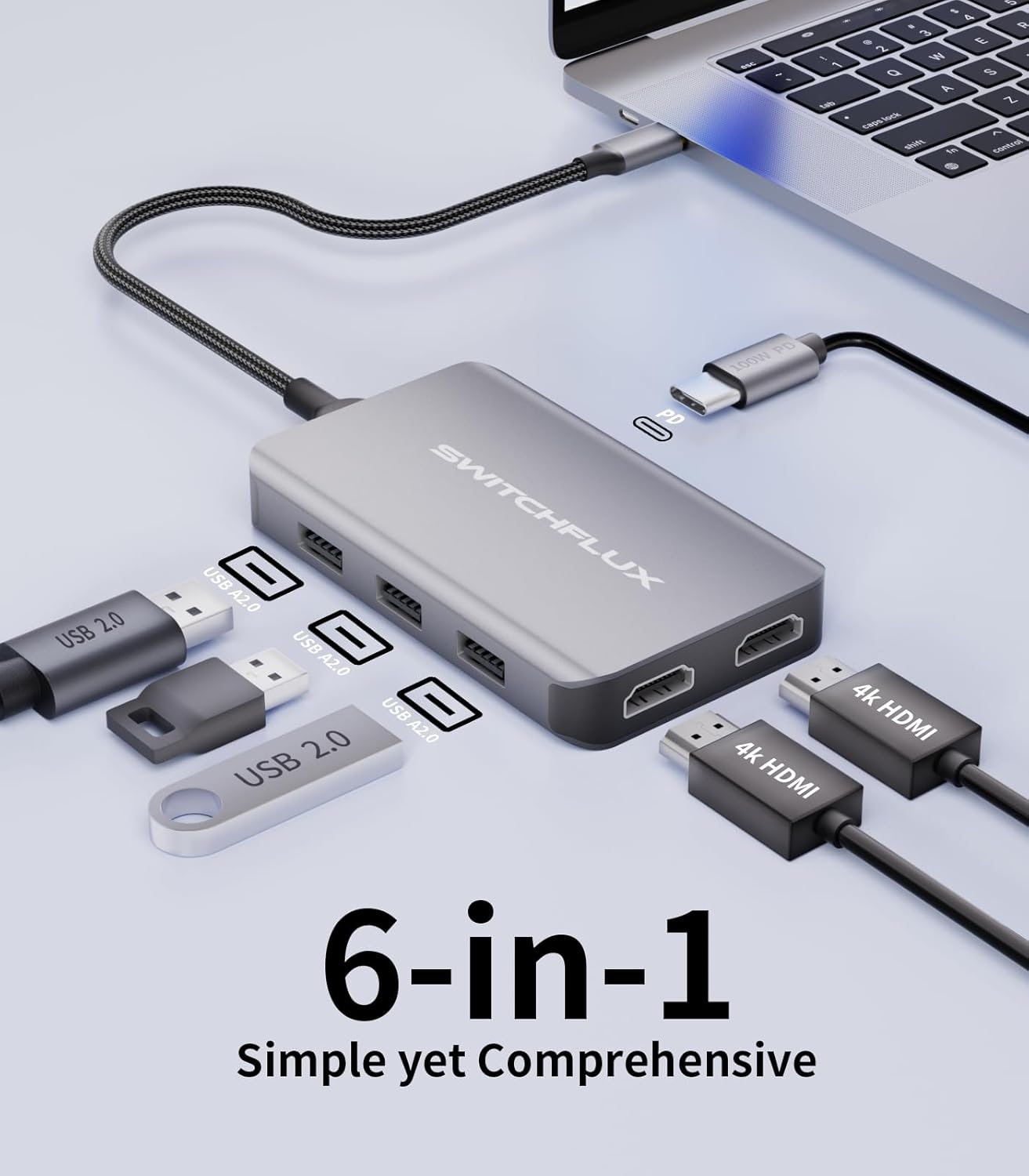
Image 2: A visual representation of the hub's 6-in-1 functionality, highlighting the USB-C input, two HDMI ports, and three USB-A ports, along with the 100W PD port.
3. Specifications
| Feature | Detail |
|---|---|
| Model Number | 6 in 1 USB C Hub |
| Input Connector | USB C 3.0 Gold-plated male |
| Output Ports | 2x HDMI, 3x USB-A (1x USB 3.0, 2x USB 2.0), 1x 100W Power Delivery (PD) |
| HDMI Resolution | Up to 4K@30Hz (backward compatible with 1080p@60Hz, 720p, 1600x1200, 1280x1024) |
| USB Data Transfer Speed | USB 3.0 up to 5Gbps, USB 2.0 up to 480Mbps |
| Power Delivery | Up to 100W |
| Material | High-quality aluminum alloy, nylon braided cable |
| Dimensions | 5.71 x 4.02 x 0.75 inches |
| Weight | 3.2 ounces |
4. Setup Guide
Follow these steps to set up your SWITCHFLUX 6-in-1 USB C Hub:
- Connect to Host Device: Plug the USB-C connector of the hub into a compatible USB-C port on your laptop, tablet, or smartphone. Ensure your device's USB-C port supports video output (USB Type-C DP Alt mode).
- Connect External Displays: Connect your HDMI monitors or projectors to the HDMI ports on the hub using HDMI cables.
- Connect USB Peripherals: Plug your USB devices (e.g., keyboard, mouse, USB flash drives) into the USB-A ports on the hub.
- Connect Power Adapter (Optional but Recommended): For stable operation, especially when using multiple displays or power-intensive peripherals, connect your device's original USB-C power adapter to the 100W PD port on the hub. This will also charge your host device.

Image 3: A laptop connected to the SWITCHFLUX hub, which in turn is connected to two external monitors, demonstrating a typical dual-display setup.
5. Operating Instructions
5.1. Dual Monitor Setup
Once connected, your operating system should automatically detect the external displays. You may need to configure display settings:
- Windows: Right-click on the desktop, select "Display settings," and arrange your displays. You can choose to extend or duplicate your desktop.
- macOS: Go to "System Settings" > "Displays" to arrange and configure your monitors.
- Note: The hub supports resolutions up to 4K@30Hz for dual displays. For optimal performance, ensure your cables and monitors support these resolutions.
5.2. USB Port Usage
The hub provides three USB-A ports:
- USB 3.0 Port: Ideal for high-speed data transfer devices like external hard drives or SSDs, offering speeds up to 5Gbps.
- USB 2.0 Ports: Suitable for connecting peripherals such as keyboards, mice, printers, or USB flash drives, with speeds up to 480Mbps.

Image 4: The USB ports on the hub, illustrating the distinction between USB 3.0 (5Gbps) and USB 2.0 (480Mbps) for various data transfer needs.
5.3. Power Delivery (PD)
The 100W PD port allows you to charge your host device while using the hub. Connect your original USB-C power adapter to this port. The hub will pass through power to your laptop or tablet.
- Important: When using a smartphone or iPad, connecting a power source to the PD port is crucial for stable video output. Insufficient power can lead to unstable or non-functional video output.

Image 5: A laptop receiving power through the SWITCHFLUX hub's 100W Power Delivery port, demonstrating simultaneous charging and hub functionality.
5.4. OTG Function Support
The hub supports On-The-Go (OTG) functionality, allowing you to connect peripherals like a mouse and keyboard to compatible tablets and smartphones, transforming them into a more desktop-like experience.

Image 6: A tablet connected to the SWITCHFLUX hub, demonstrating OTG function support with an external mouse and keyboard for enhanced productivity.
6. Compatibility
The SWITCHFLUX 6-in-1 USB C Hub is widely compatible with devices that feature a full-featured USB-C port supporting DisplayPort Alternate Mode (DP Alt Mode). This includes:
- Laptops: MacBook Pro/Air, Dell XPS 13/15/17, HP, Lenovo, Surface, Chromebooks, and more.
- Tablets: iPad Pro, Samsung Galaxy Tab series, Surface Pro 7/Book 2/Go.
- Smartphones: Samsung Galaxy series, iPhone 15/15 Pro Series (with USB-C).
- Gaming Consoles: Steam Deck, Nintendo Switch.
Operating System Compatibility:
- Windows
- macOS
- Linux
- Android
- iOS (for iPad/iPhone)

Image 7: An overview of the hub's broad compatibility with host devices like MacBooks, Dell XPS, iPads, iPhones, Galaxy phones, Steam Deck, and operating systems including Windows, macOS, and Linux.
7. Troubleshooting
- Q: No video output or unstable display.
- A: Ensure your host device's USB-C port supports video output (DP Alt Mode). Connect a power adapter to the hub's PD port, especially for smartphones or iPads, to provide sufficient power. Try different HDMI cables or monitors to rule out external issues.
- Q: USB devices are not recognized.
- A: Ensure the hub is securely connected to your host device. Try connecting the USB device to a different port on the hub. If using a high-power USB device, ensure the hub is connected to an external power source via its PD port.
- Q: Host device is not charging.
- A: Verify that your USB-C power adapter is connected to the hub's 100W PD port and that the power adapter is functional. Ensure your host device supports USB-C Power Delivery.
- Q: Slow data transfer speeds.
- A: Ensure you are using the USB 3.0 port for devices requiring high-speed transfer. USB 2.0 ports offer slower speeds. Performance can also be affected by the host device's USB-C port capabilities.
8. Maintenance
To ensure the longevity and optimal performance of your SWITCHFLUX 6-in-1 USB C Hub, follow these maintenance guidelines:
- Cleaning: Use a soft, dry cloth to clean the hub. Avoid liquid cleaners or abrasive materials.
- Storage: Store the hub in a cool, dry place away from direct sunlight and extreme temperatures.
- Handling: Avoid dropping the device or subjecting it to strong impacts. Do not bend the cable excessively.
- Ventilation: The aluminum alloy design aids in heat dissipation. Ensure the hub is not covered during operation to allow for proper airflow.
9. Support
For technical assistance or further inquiries, please contact SWITCHFLUX customer support. We are committed to providing fast and responsible support within 18 hours.
Please refer to the product packaging or the official SWITCHFLUX website for the most current contact information.
Online Support: Visit the SWITCHFLUX Store on Amazon


