1. Product Overview
The Mini 4G LTE Router is a compact and reliable device designed to provide high-speed internet connectivity using a SIM card. It features dual Gigabit Ethernet ports and supports global 4G LTE bands, making it suitable for various applications including travel, camping, security cameras, and temporary internet backups for offices or construction sites.

Figure 1: Overview of the Mini 4G LTE Router, showing its compact design and wireless signal indicators.
2. Key Features
- Dual Gigabit Ethernet Ports: Equipped with two RJ45 LAN ports, supporting Wi-Fi 802.11b/g/n for stable connections.
- Compact and Reliable: Ideal for mobile use, including travel, camping, and security camera setups. Requires a SIM card for operation.
- Global Connectivity: Supports global 4G LTE bands (1, 2, 3, 4, 5, 7, 8, 12, 13, 17, 28, 66) and quad-band 3G/2G.
- High-Speed 4G LTE: Offers download speeds up to 150 Mbps and upload speeds up to 50 Mbps with 3G fallback.
- Simple Configuration: Designed for quick setup as a temporary internet solution.
- Built-in Antennas: Features 4 built-in 5dBi antennas for dual receiving and dual sending, providing fast internet without lagging and Wi-Fi coverage up to 200m².
3. Package Contents
Please check the package contents upon unboxing to ensure all items are present:
- 1 x Mini 4G LTE Router
- 1 x Power Cable (Type-C)
- 1 x User Manual
4. Setup Guide
4.1 Inserting the SIM Card
The router requires a Nano SIM card for internet access. Ensure the SIM card is active and has a data plan.
- Locate the Nano SIM card slot on the side of the router.
- Gently insert the Nano SIM card into the slot until it clicks into place. Ensure the correct orientation as indicated on the device.
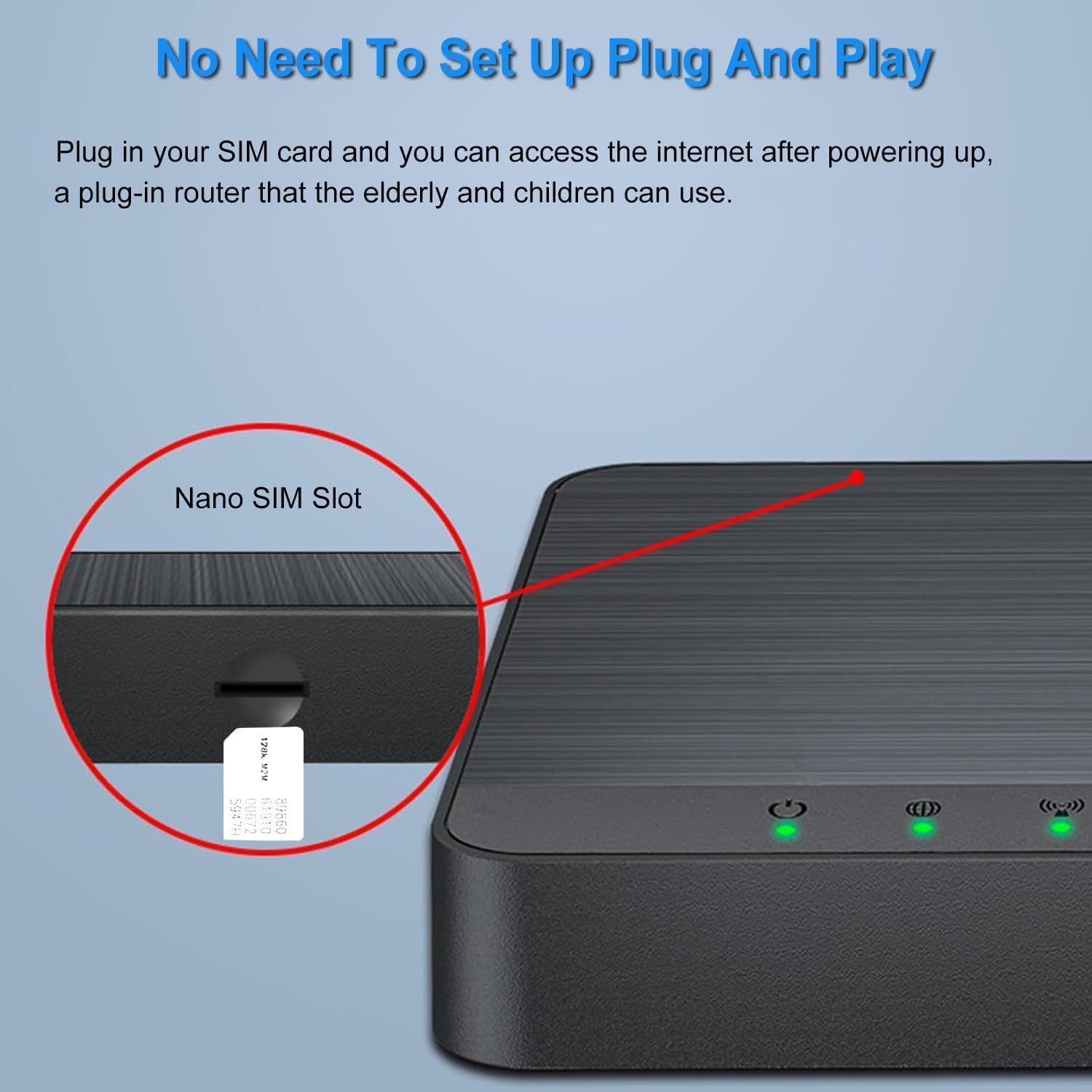
Figure 2: Illustration showing the location and insertion of the Nano SIM card into the router.
4.2 Powering On the Router
The router is designed for simple plug-and-play operation.
- Connect the provided Type-C power cable to the power port on the router.
- Connect the other end of the power cable to a compatible USB power source (e.g., a computer USB port, a USB wall adapter, or a power bank).
- The router will automatically power on and attempt to establish an internet connection.

Figure 3: The router can be conveniently powered via a Type-C cable from various sources like laptops, power banks, or car chargers.
5. Operating Instructions
5.1 Connecting Devices
Once powered on and connected to the internet via the SIM card, you can connect your devices to the router.
- Wi-Fi Connection: Search for the router's Wi-Fi network name (SSID) on your device (smartphone, tablet, laptop). The default SSID and password are usually printed on a label on the router. Select the network and enter the password to connect.
- Wired Connection: Use an Ethernet cable to connect your device (e.g., computer, gaming console, security camera system) to one of the two RJ45 LAN ports on the router.

Figure 4: The router supports simultaneous access for up to 10 devices, including smartphones, tablets, and laptops.

Figure 5: The router enables Wi-Fi access anytime, anywhere, suitable for activities like gaming, watching movies, online classes, and connecting various devices such as switches, computers, smartphones, monitoring systems, and cashiers.
5.2 Indicator Lights
The router features several indicator lights to show its status:
- POWER: Indicates power status.
- WAN: Indicates WAN (Wide Area Network) connection status.
- LAN1/LAN2: Indicate status of the respective LAN ports.
- 2.4G: Indicates 2.4GHz Wi-Fi activity.
- 4G: Indicates 4G LTE network status.
6. Specifications
| Parameter | Value |
|---|---|
| Item Type | 4G LTE Router |
| Material | Plastic, Electronics |
| Chipset | MTK7628KN |
| Main Frequency | 580 MHz |
| Network Interface | 2 x RJ45 LAN ports (1 WAN + 1 LAN), 10/100Mbps adaptive |
| Power Port | Type-C |
| SIM Card Slot | 1 x Nano SIM card slot |
| Buttons | 1 x RESET button (long press for 3 seconds to restore factory settings) |
| Antenna | Built-in on-board antenna (4 x 5dBi) |
| Work Mode | 4G access, routing mode, AP mode |
| Wireless Standard | 802.11b/g/n |
| Data Transfer Rate | Up to 300 Mbps (Wi-Fi) |
| Dimensions | 98mm x 98mm x 17mm (approx.) |
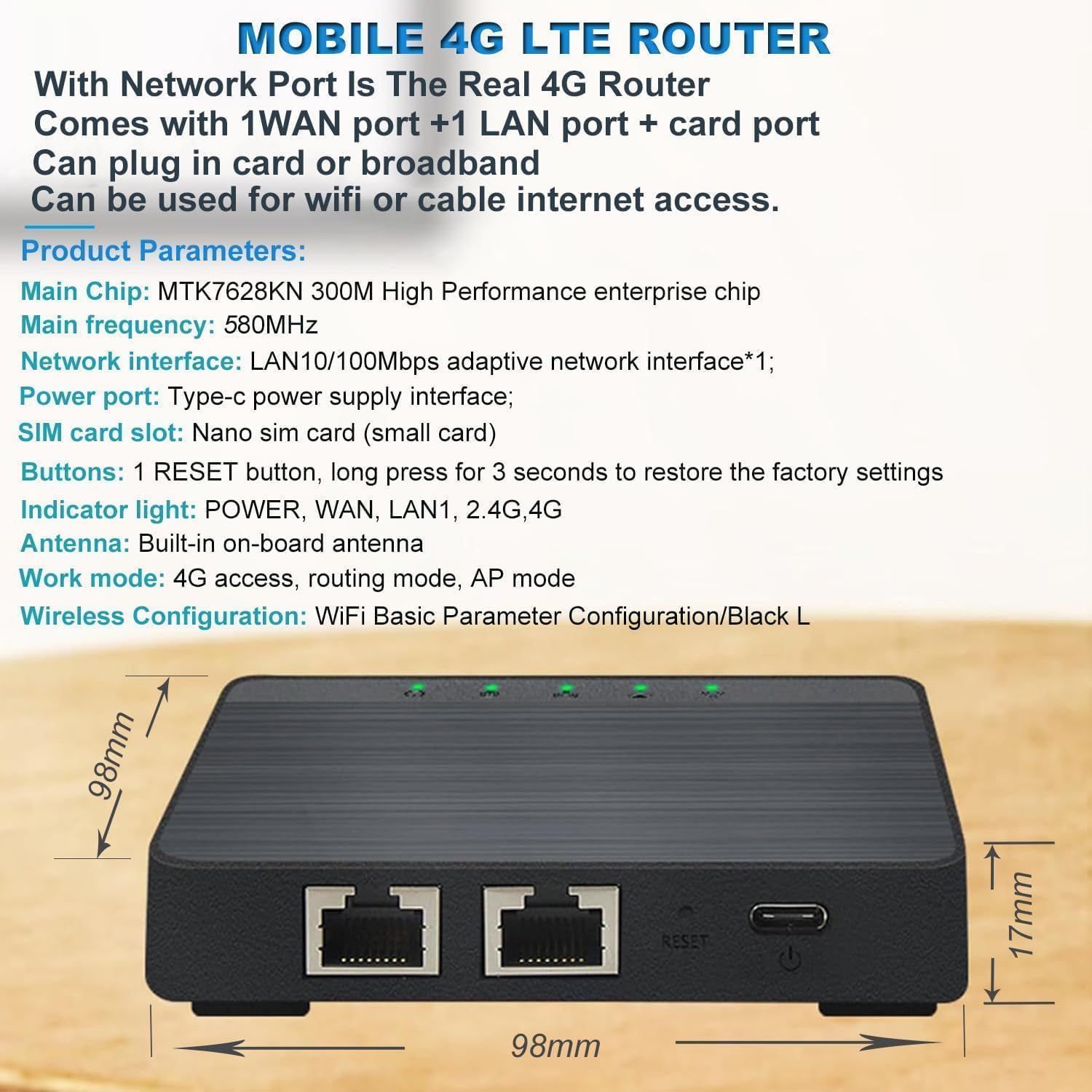
Figure 6: Detailed view of the router's dimensions and key product parameters.

Figure 7: Illustration of the router's internal structure, highlighting the built-in 4x 5dBi antennas for enhanced Wi-Fi coverage.

Figure 8: Internal view of the router's main components, including the standalone 4G module and independent routing module, which work together for efficient data processing.
7. Troubleshooting
| Problem | Possible Cause | Solution |
|---|---|---|
| No internet connection | SIM card not inserted correctly or not active; no data plan; network signal issues. | Ensure SIM card is properly inserted. Verify SIM card is active and has a data plan with your mobile carrier. Check network signal strength. Try restarting the router. |
| Slow internet speed | Weak signal; too many connected devices; network congestion. | Relocate the router to an area with better signal. Disconnect unnecessary devices. Contact your mobile carrier if network congestion is suspected. |
| Cannot connect to Wi-Fi | Incorrect Wi-Fi password; router not broadcasting Wi-Fi. | Double-check the Wi-Fi password. Ensure the Wi-Fi indicator light is on. Restart the router. |
| Router unresponsive | Temporary software glitch. | Press and hold the RESET button for 3 seconds to restore factory settings. Note: This will erase all custom configurations. |
8. Maintenance
The Mini 4G LTE Router is designed for low maintenance. Follow these guidelines to ensure optimal performance and longevity:
- Keep the device in a cool, dry place, away from direct sunlight and excessive heat or moisture.
- Avoid blocking the ventilation holes to prevent overheating.
- Clean the exterior with a soft, dry cloth. Do not use liquid cleaners or aerosols.
- Do not attempt to open or repair the device yourself, as this will void the warranty.
9. Warranty and Support
For warranty information and technical support, please refer to the documentation provided with your purchase or contact the manufacturer directly. Information regarding software updates and spare parts availability is not provided in this manual.
Manufacturer: EEAABBR
Model Number: T-CPE301K
For further assistance, please visit the official EEAABBR support website or contact their customer service.


