1. Introduction
This manual provides comprehensive instructions for the operation, maintenance, and troubleshooting of your THINKSCAN Plus 689BT and THINKOBD 100 OBD2 Scanner. Please read this manual thoroughly before using the devices to ensure proper and safe operation.

Figure 1.1: The THINKSCAN Plus 689BT (left, in case) and THINKOBD 100 (right) OBD2 Scanners. The image displays both diagnostic tools, highlighting their compact design and the included carrying case for the THINKSCAN Plus 689BT.
2. Product Features
The THINKSCAN Plus 689BT and THINKOBD 100 offer a range of diagnostic capabilities for automotive vehicles. Key features include:
- THINKSCAN 689BT: All-System Bi-Directional OBD2 Scanner with ECU Coding, 34+ Services, FCA Autoauth, CANFD & DoIP support, and lifetime free updates.
- THINKOBD 100: Portable Check Engine OBD2 Scanner designed for quick and easy diagnostics.

Figure 2.1: The THINKOBD 100 scanner interface showing icons for various OBD2 functions including Read Codes, Clear Codes, Live Data, Smog Check, Freeze Frame, O2 Sensor Test, On-board Monitor Test, Evap Test, DTC Code, I/M Readiness, MIL Fault Indicator Light, and Vehicle Information.
3. Setup
Follow these steps to set up your OBD2 scanner:
- Locate the OBD2 Port: The 16-pin Data Link Connector (DLC) is usually located under the dashboard, on the driver's side of the vehicle. Refer to your vehicle's service manual for the exact location if needed.
- Connect the Scanner: Plug the scanner's OBD2 cable into the vehicle's DLC. Ensure a secure connection.
- Power On: Turn the vehicle's ignition to the "ON" position (engine off). The scanner should power on automatically. If not, check the connection and your vehicle's battery.
- Initial Configuration (THINKSCAN Plus 689BT): For the THINKSCAN Plus 689BT, follow the on-screen prompts for initial setup, including language selection and Wi-Fi connection for updates.
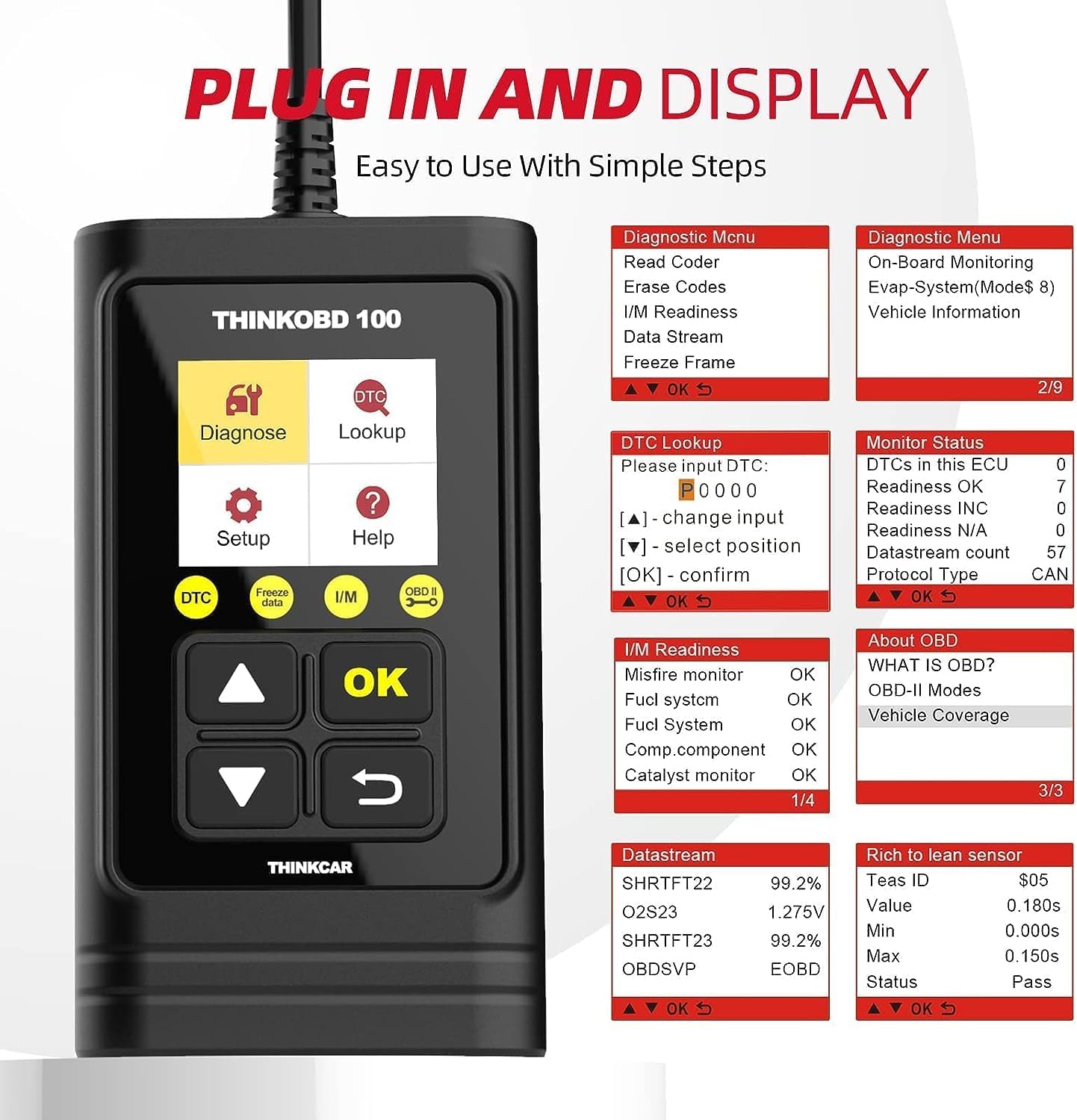
Figure 3.1: The THINKOBD 100 scanner connected to a vehicle's OBD2 port, illustrating its "Plug In and Display" feature. The image shows various diagnostic menu options and data streams on the scanner's screen, emphasizing ease of use.
4. Operating Instructions
4.1. THINKOBD 100 Basic Operations
The THINKOBD 100 is designed for straightforward diagnostic tasks:
- Read Codes: Retrieve Diagnostic Trouble Codes (DTCs) from the vehicle's ECU.
- Clear Codes: Erase DTCs from the vehicle's memory. This will turn off the Check Engine Light (MIL).
- Live Data: View real-time data streams from the vehicle's sensors.
- I/M Readiness: Check the status of emission-related monitors to determine if the vehicle is ready for an emissions test.
- DTC Lookup: Look up definitions of DTCs directly on the device.

Figure 4.1: Illustration of the THINKOBD 100's ability to diagnose and clear the Check Engine Light (MIL). The image shows a vehicle engine and dashboard indicators before and after using the scanner to erase fault codes and turn off the engine light.
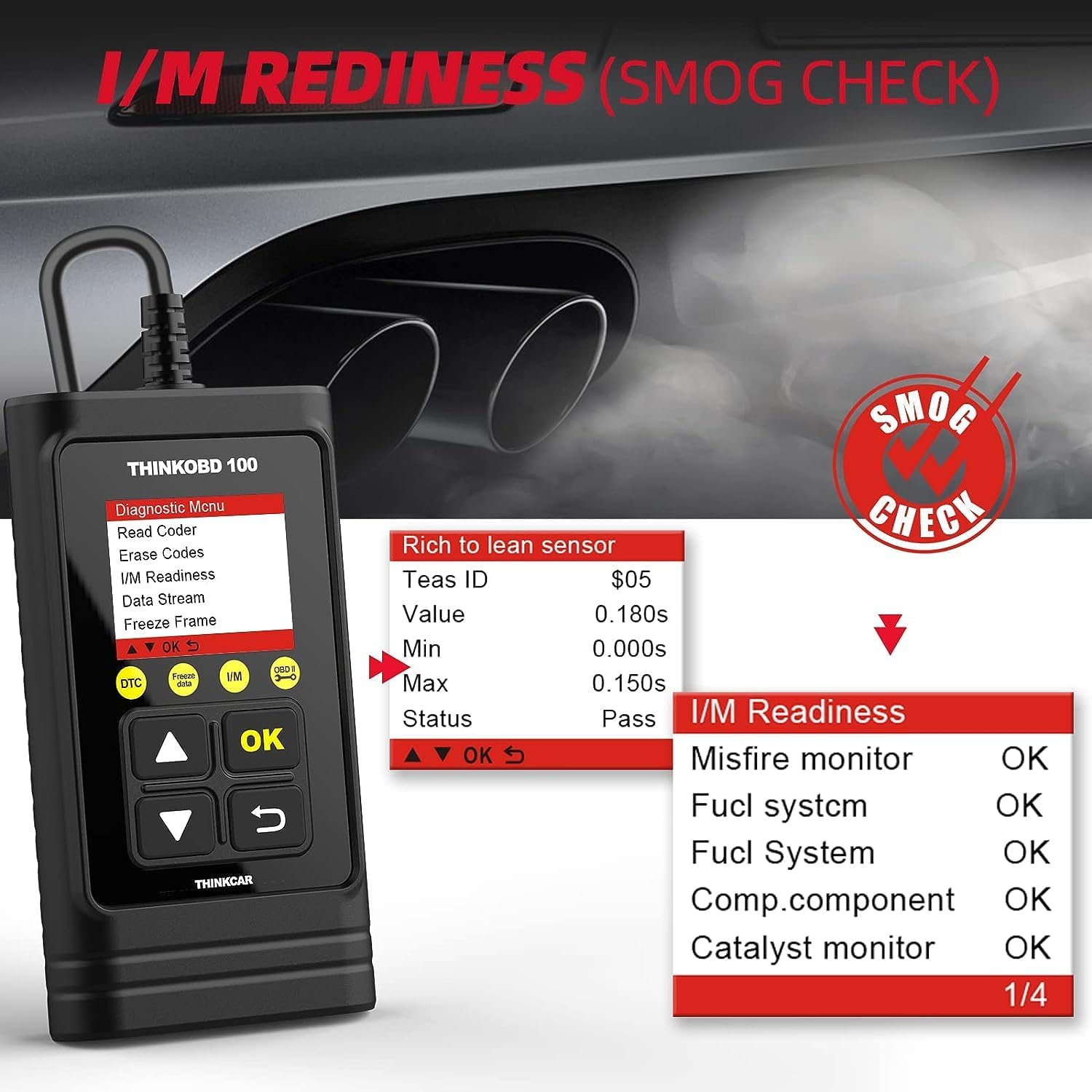
Figure 4.2: The THINKOBD 100 screen showing I/M Readiness (Smog Check) results. The display indicates the status of various monitors like Misfire, Fuel System, Component, and Catalyst, with "OK" status for readiness.

Figure 4.3: The THINKOBD 100's DTC Lookup interface. Users can input a Diagnostic Trouble Code (DTC) to view its definition directly on the scanner, eliminating the need for external resources.
4.2. THINKSCAN Plus 689BT Advanced Operations
The THINKSCAN Plus 689BT offers more advanced diagnostic functions:
- All-System Diagnostics: Access and diagnose all available vehicle systems (e.g., Engine, ABS, SRS, Transmission).
- Bi-Directional Control: Perform active tests to control vehicle components and systems (e.g., turn on/off fuel pump, cycle ABS solenoids).
- ECU Coding: Reprogram adaptive data for certain components after repairs or replacements.
- 34+ Reset Services: Perform various maintenance reset functions such as Oil Reset, EPB Reset, SAS Reset, BMS Reset, TPMS Reset, DPF Regeneration, etc.
- FCA AutoAuth: Access protected FCA (Fiat Chrysler Automobiles) vehicles for diagnostics.
- CANFD & DoIP Support: Compatible with newer vehicle communication protocols.
5. Maintenance
Proper maintenance ensures the longevity and accuracy of your diagnostic tools:
- Cleaning: Use a soft, dry cloth to clean the device. Avoid abrasive cleaners or solvents.
- Storage: Store the scanners in a cool, dry place, away from direct sunlight and extreme temperatures. Keep them in their protective cases when not in use.
- Software Updates: Regularly check for and install software updates for the THINKSCAN Plus 689BT to ensure compatibility with new vehicle models and improved functionalities. The THINKOBD 100 also supports lifetime free updates.
6. Troubleshooting
If you encounter issues, refer to the following common troubleshooting steps:
| Problem | Possible Cause | Solution |
|---|---|---|
| Scanner does not power on. | Loose connection; vehicle ignition not on; vehicle battery low. | Ensure the OBD2 cable is securely connected. Turn vehicle ignition to "ON". Check vehicle battery voltage. |
| Communication error with vehicle. | Incorrect protocol; faulty OBD2 port; vehicle ECU issue. | Verify vehicle compatibility. Check for bent pins in the OBD2 port. Try on another vehicle if possible. |
| Inaccurate readings or functions not working. | Outdated software; sensor malfunction in vehicle. | Update scanner software. Consult a professional mechanic to diagnose vehicle sensor issues. |
7. Specifications
Key specifications for the THINKSCAN Plus 689BT and THINKOBD 100:
- Brand: thinkcar
- ASIN: B0DK34QN4L
- Date First Available: October 15, 2024
- Supported Protocols (THINKOBD 100): SAE J1850 PWM, SAE J1850 VPW, ISO 9141-2, ISO 14230-4 KWP, ISO 15765-4 CAN (11bit ID, 29bit ID, 250 Kbaud, 500 Kbaud).
- Display (THINKOBD 100): 2.8" Colorful LCD Screen.
- Language Support (THINKOBD 100): English, Spanish, German, Russian, Italian, French, Portuguese, Polish.

Figure 7.1: The THINKOBD 100 highlighting its support for 99% of vehicle brands and 8 languages. The image lists various OBDII protocols and shows flags representing the supported languages: English, Spanish, German, Russian, Italian, French, Portuguese, and Polish.
8. Warranty and Support
Your THINKSCAN Plus 689BT and THINKOBD 100 OBD2 Scanners are backed by a manufacturer's warranty. For specific warranty details, please refer to the warranty card included with your product or visit the official thinkcar website.
For technical support, troubleshooting assistance, or warranty claims, please contact thinkcar customer service through their official channels. Keep your purchase receipt and product serial number handy when contacting support.
Official thinkcar Store: Visit the thinkcar Store on Amazon


