1. Product Overview
The Okinos Cypress 5 AIR is a mid-tower ATX PC case designed for optimal airflow and component compatibility. It features a unique oak wood front panel, a tempered glass side panel, and comes with four pre-installed 120mm fans to ensure efficient cooling for your system.

Image 1.1: Front view of the Okinos Cypress 5 AIR PC Case, showcasing its internal layout and oak wood front panel.
Key Features:
- Oak Wood Front Panel: Combines aesthetic appeal with functional air intake.
- Pre-installed Fans: Four 120mm 3-pin fans (3 front, 1 rear) for immediate cooling.
- Optimized Airflow: 1.5mm mesh design on the front panel enhances cooling efficiency and reduces wind noise.
- Tempered Glass Side Panel: 4mm thick tempered glass with thumbscrew design for easy access and component display.
- Modern Connectivity: Features a Type-C 3.2 Gen 2 (10Gbps) port, two USB 3.0 ports, and audio jacks on the I/O panel.
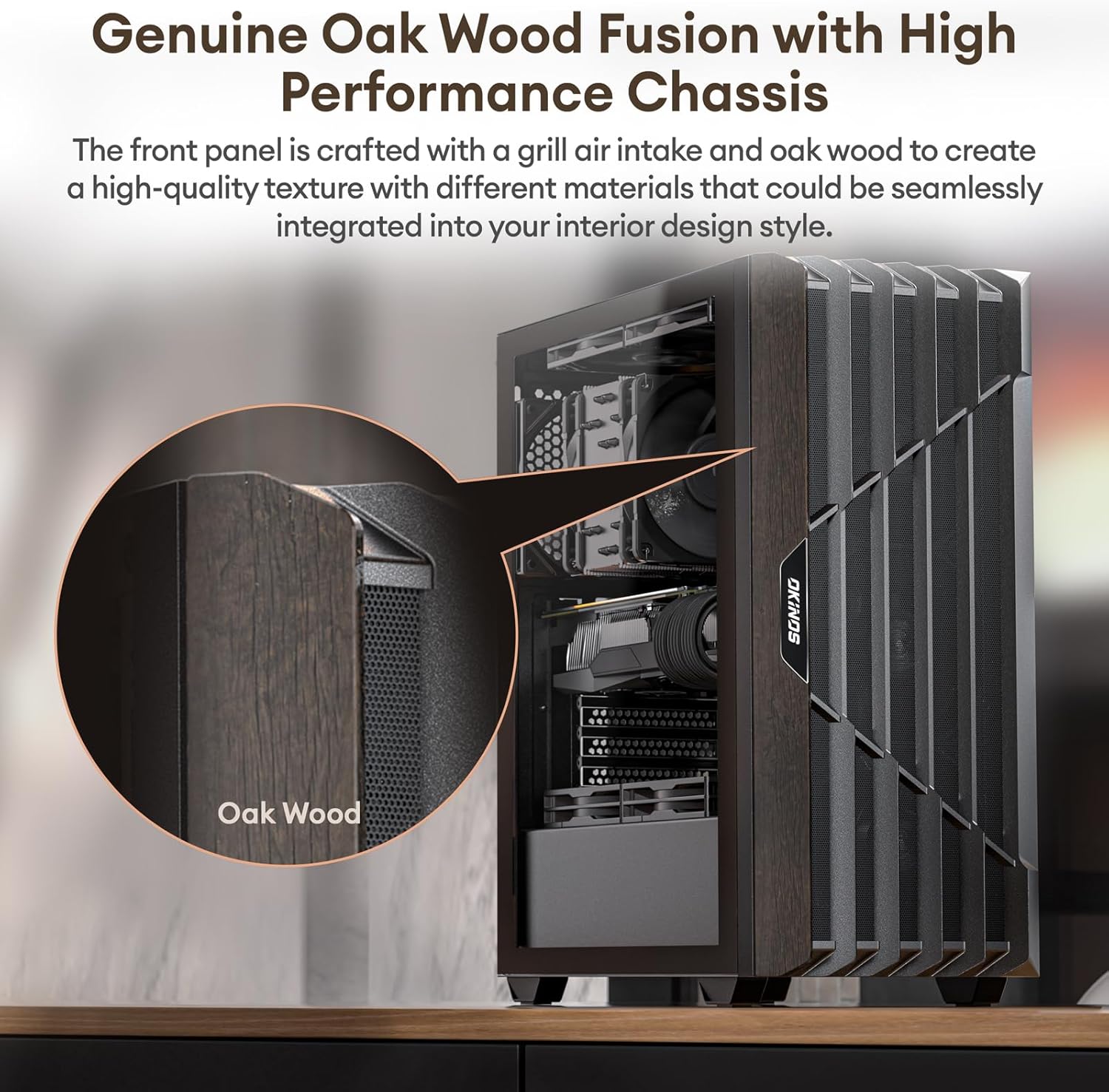
Image 1.2: Detail of the genuine oak wood fusion on the front panel, highlighting the texture and design.

Image 1.3: Illustration of optimized airflow through the 1.5mm mesh front panel, demonstrating cooling efficiency.
2. Safety Information
Please read and understand all safety instructions before installing or operating your PC case. Failure to do so may result in personal injury or damage to your components.
- Always disconnect the power supply from the wall outlet before performing any installation or maintenance inside the case.
- Handle tempered glass panels with care. They are fragile and can shatter if dropped or subjected to impact.
- Be aware of sharp edges inside the case. Wear protective gloves if necessary.
- Ensure proper grounding to prevent electrostatic discharge (ESD) which can damage sensitive electronic components.
- Keep small parts and screws away from children.
3. Package Contents
Verify that all items are present in the package:
- Okinos Cypress 5 AIR PC Case
- 4 x 120mm 3-pin H12 Case Fans (3 front, 1 rear, pre-installed)
- Accessory Box (containing screws, zip ties, motherboard standoffs)
- User Manual (this document)
4. Setup and Installation
Follow these steps to install your components into the Okinos Cypress 5 AIR PC Case.
4.1 Preparing the Case
- Place the case on a stable, flat surface.
- Carefully remove the tempered glass side panel by unscrewing the thumbscrews at the rear and sliding the panel off.
- Remove the opposite side panel to access the cable management area.

Image 4.1: Illustration of how to remove the 4mm tempered glass side panel using the rear thumbscrew design.
4.2 Motherboard Installation
The Cypress 5 AIR supports ATX, Micro-ATX, and ITX motherboards.
- Ensure the motherboard standoffs are correctly aligned for your motherboard's form factor. Extra standoffs are provided in the accessory box if needed.
- Install the I/O shield into the rear opening of the case.
- Carefully place your motherboard onto the standoffs, aligning the screw holes.
- Secure the motherboard with the provided screws.
4.3 CPU Cooler Installation
The case supports CPU air coolers with a maximum height of 160mm.
- Install your CPU cooler according to its manufacturer's instructions.
- Ensure the cooler does not exceed the 160mm height limit to allow the side panel to close properly.

Image 4.2: Measurement indicating the maximum CPU cooler height of 160mm for compatibility.
4.4 Graphics Processing Unit (GPU) Installation
The case supports GPUs with a maximum length of 345mm (with front fan), 320mm (with rear fan), or 290mm (with a 360mm radiator in the front).
- Remove the necessary PCIe slot covers from the rear of the case.
- Insert your GPU into the appropriate PCIe slot on the motherboard.
- Secure the GPU with screws.

Image 4.3: Visual guide for GPU length compatibility, showing maximum lengths under different fan/radiator configurations.
4.5 Storage Device Installation
The case supports up to 3 SSDs and features a removable HDD cage.
- 2.5" SSDs: Mount SSDs to the designated brackets on the rear of the motherboard tray.
- 3.5" HDDs: Install HDDs into the removable HDD cage located in the PSU shroud area.

Image 4.4: Locations for installing up to three 2.5-inch SSDs within the case.
4.6 Power Supply Unit (PSU) Installation
The case supports PSUs with a maximum length of 345mm (without HDD cage) or 165mm (with HDD cage in standard position). The HDD cage can be moved to allow for PSUs up to 205mm.
- Slide your PSU into the dedicated compartment at the bottom rear of the case.
- Secure the PSU with screws from the rear of the case.
- Adjust the HDD cage position if a longer PSU is used.

Image 4.5: Guide for power supply length compatibility, illustrating how the removable HDD cage affects available space.
4.7 Fan Configuration
The case comes with four 120mm fans pre-installed (3 front, 1 rear). It supports up to 8 x 120mm fans simultaneously. Note: This case does not support any radiators.

Image 4.6: Locations of the three front and one rear pre-installed 120mm H12 fans.

Image 4.7: Overview of all fan mounting points, supporting up to eight 120mm fans. Radiator installation is not supported.
4.8 Cable Management
The case provides sufficient space for cable management, with 24mm depth on the left side and 13mm on the right side behind the motherboard tray.
- Route all necessary cables (motherboard power, CPU power, GPU power, SATA, fan cables, front I/O cables) through the designated cutouts.
- Use the included zip ties to bundle and secure cables, ensuring they do not obstruct airflow or interfere with component installation.

Image 4.8: Suggested cable routing for CPU, GPU, 24-pin, fan, and I/O cables for efficient management.
4.9 Front I/O Panel Connections
Connect the front I/O panel cables to the corresponding headers on your motherboard.
- USB 3.2 Gen 2 Type-C (10Gbps): Connect to the appropriate Type-C header on your motherboard.
- USB 3.0: Connect to the USB 3.0 headers on your motherboard.
- Audio Jacks (Headphone/Mic Combo): Connect to the HD Audio header.
- Power Switch, Reset Button: Connect to the front panel headers.

Image 4.9: Detailed view of the I/O panel, indicating the Type-C 3.2 Gen 2 port, USB 3.0 ports, audio jacks, power, and reset buttons.
5. Operating Instructions
After all components are installed and cables are connected, you can power on your system.
- Reconnect the power supply to the wall outlet.
- Press the Power button on the front I/O panel to start your computer.
5.1 USB Ports Usage
The USB ports on the front I/O panel are primarily for data transfer. It is not recommended for power charging, as most motherboard USB ports support a maximum voltage of 5V.
6. Maintenance
Regular maintenance helps ensure optimal performance and longevity of your PC components.
6.1 Cleaning the Case
- Dust Filters: The case features magnetic dust filters. Regularly remove and clean them with compressed air or water (ensure they are completely dry before reinstallation).
- Exterior: Wipe the exterior surfaces with a soft, damp cloth. Avoid harsh chemicals.
- Interior: Use compressed air to remove dust from internal components and fan blades. Perform this with the system powered off and unplugged.
6.2 Tempered Glass Care
- Clean the tempered glass panel with a microfiber cloth and a glass cleaner.
- Avoid abrasive materials or cleaners that could scratch the glass.
- Do not apply excessive force or impact to the tempered glass.
7. Troubleshooting
If you encounter issues, refer to the following common troubleshooting steps:
- System not powering on: Double-check all power connections, including the 24-pin ATX, 8-pin CPU, and GPU power cables. Ensure the power supply switch is in the 'ON' position. Verify front panel header connections (Power SW).
- Fans not spinning: Check fan connections to the motherboard or fan controller. Ensure they are securely plugged in.
- No display output: Confirm the GPU is properly seated and connected to power. Ensure your monitor cable is connected to the GPU, not the motherboard's integrated graphics port (unless using integrated graphics).
- USB ports not working: Verify the USB 3.0 and Type-C headers are correctly connected to the motherboard.
For more complex issues, consult your motherboard and component manuals or seek professional assistance.
8. Specifications
| Feature | Specification |
|---|---|
| Model Name | Cypress 5 AIR |
| Case Type | Mid Tower |
| Material | Oak Wood, Steel, Tempered Glass |
| Dimensions (L x W x H) | 15.94 x 7.68 x 17.68 inches (405 x 195 x 449 mm) |
| Weight | 10.76 pounds (4.88 kg) |
| Motherboard Compatibility | ATX, Micro-ATX, ITX |
| Max CPU Cooler Height | 160mm |
| Max GPU Length | 345mm (with front fan) 320mm (with rear fan) 290mm (with 360mm radiator in front - Note: Radiators not supported) |
| Max PSU Length | 345mm (without HDD cage) 165mm (with HDD cage) 205mm (with HDD cage moved) |
| Drive Bays | Up to 3 x 2.5" SSD 1 x 3.5" HDD (in removable cage) |
| Pre-installed Fans | 3 x 120mm H12 (Front) 1 x 120mm H12 (Rear) |
| Fan Support | Front: 3 x 120mm Top: 2 x 120mm Rear: 1 x 120mm Bottom: 2 x 120mm (total up to 8 x 120mm) |
| Radiator Support | None |
| Front I/O Ports | 1 x USB 3.2 Gen 2 Type-C (10Gbps) 2 x USB 3.0 1 x Headphone/Mic Combo Jack Power Button, Reset Button |

Image 8.1: Detailed compatibility diagram showing motherboard support, CPU cooler height, GPU length, SSD/HDD bays, and PSU length.
9. Warranty and Support
Okinos products are manufactured to high-quality standards. For specific warranty information, please refer to the warranty card included with your product or visit the official Okinos website.
Customer Support:
If you require technical assistance or have questions regarding your Okinos Cypress 5 AIR PC Case, please contact Okinos customer support through their official website or the retailer where the product was purchased.
Please have your product model (Cypress 5 AIR) and purchase information ready when contacting support.