
Bonsaii C283-A
Contents
Bonsaii C283-A Auto-Feed Micro-Cut Paper Shredder User Manual
Model: C283-A
Introduction
This manual provides instructions for the safe and efficient operation, maintenance, and troubleshooting of your Bonsaii C283-A Auto-Feed Micro-Cut Paper Shredder. Please read this manual thoroughly before using the shredder and retain it for future reference.

Image: The Bonsaii C283-A paper shredder, showing its compact design and auto-feed tray.
Important Safety Instructions
- Read all instructions before use.
- Keep children and pets away from the shredder.
- Keep loose clothing, jewelry, hair, and hands away from the paper entry slot.
- Do not shred metal objects, large paper clips, or hard plastic.
- Do not spray any flammable products or lubricants into the shredder.
- Unplug the shredder when not in use or before cleaning.
- Do not operate if the power cord is damaged.
- Do not attempt to repair the shredder yourself. Contact customer support.
Setup
- Unpacking: Carefully remove the shredder from its packaging.
- Placement: Place the shredder on a flat, stable surface. Ensure adequate ventilation around the unit.
- Waste Bin: Ensure the waste bin is correctly inserted into the shredder body. The shredder will not operate if the bin is not properly closed.
- Power Connection: Plug the power cord into a standard electrical outlet.
Operating Instructions
Control Panel Overview

Image: Close-up of the shredder's control panel, showing LED indicators for various statuses like Feed Error, Bin Full, Overheat, Overload, and Door Open, along with control buttons for Reverse, Auto, and Forward.
- AUTO (On): The shredder is in standby mode, ready to shred when paper is detected.
- REV (Reverse): Moves the shredder blades in reverse to clear paper jams.
- FWD (Forward): Manually engages the shredder blades forward.
- LED Indicators:
- Working (Blue): Indicates the shredder is operational.
- Error (Red): Indicates a problem (e.g., Overheat, Overload, Bin Full, Door Open, Feed Error).
Automatic Shredding Mode
This mode is designed for shredding up to 200 sheets of paper automatically. Only paper should be used in the auto-feed tray.
- Ensure the shredder is plugged in and the waste bin is properly closed.
- Set the switch to AUTO mode.
- Lift the auto-feed tray cover.
- Stack up to 200 sheets of paper neatly into the auto-feed tray. Ensure there are no folded or crumpled sheets.
- Close the auto-feed tray cover. The shredder will automatically begin shredding.
- The shredder can operate continuously for up to 60 minutes in this mode.

Image: The Bonsaii C283-A shredder demonstrating its 200-sheet auto-feed capacity, highlighting its 60-minute continuous operation for paper only.
Manual Shredding Mode
Use the manual feed slot for shredding smaller quantities of paper, credit cards, staples, and paper clips.
- Ensure the shredder is plugged in and the waste bin is properly closed.
- Set the switch to AUTO mode.
- Insert up to 12 sheets of paper, one credit card, or a few stapled/clipped sheets into the manual feed slot.
- The shredder will automatically detect the item and begin shredding.
- The shredder can operate continuously for up to 30 minutes in this mode.
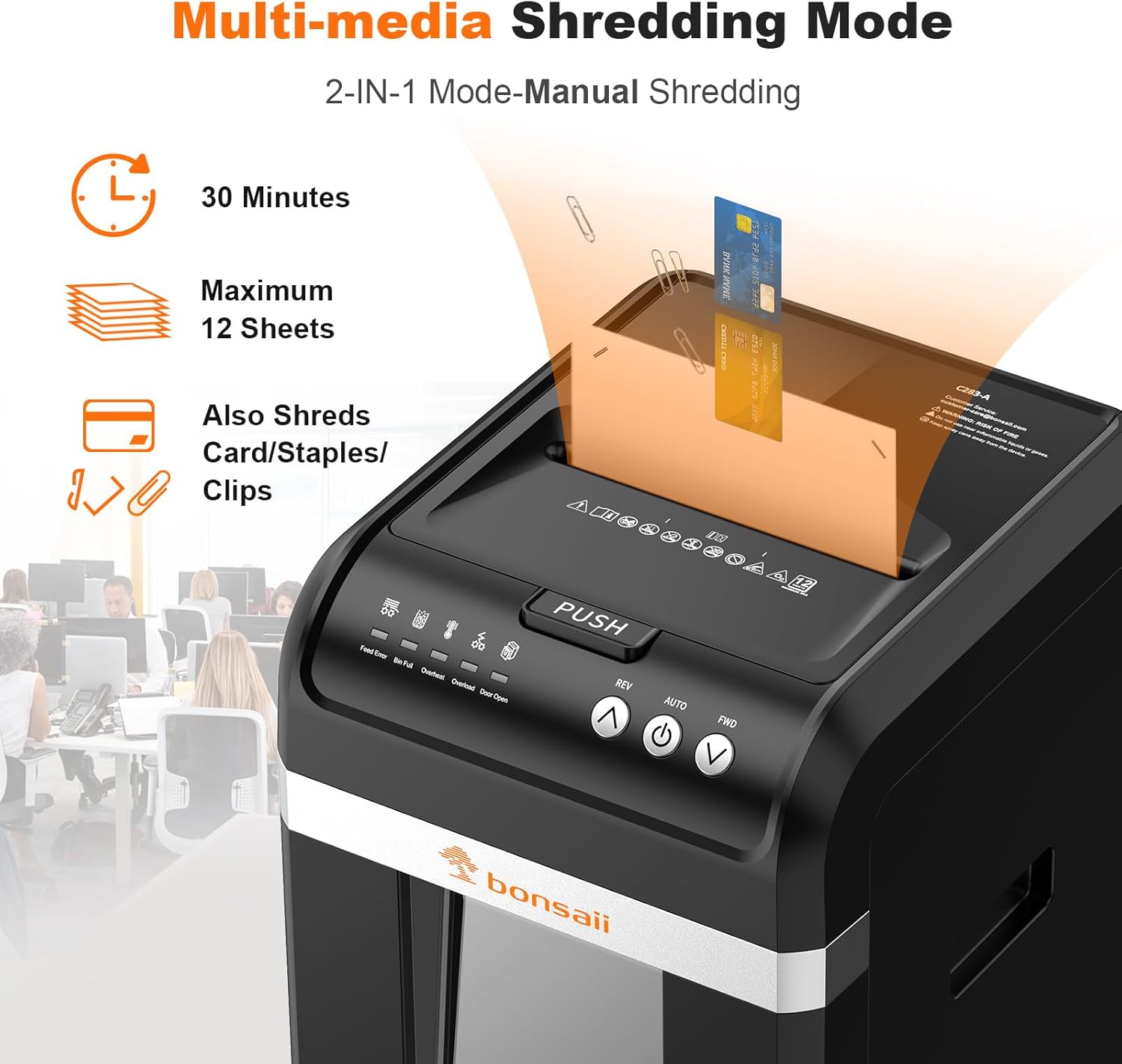
Image: The Bonsaii C283-A shredder illustrating its manual shredding mode, capable of handling up to 12 sheets, credit cards, staples, and paper clips.
Security Level and Particle Size
The Bonsaii C283-A provides P-4 security by shredding documents into micro-cut particles of 4x12 mm, ensuring confidential information is securely destroyed.
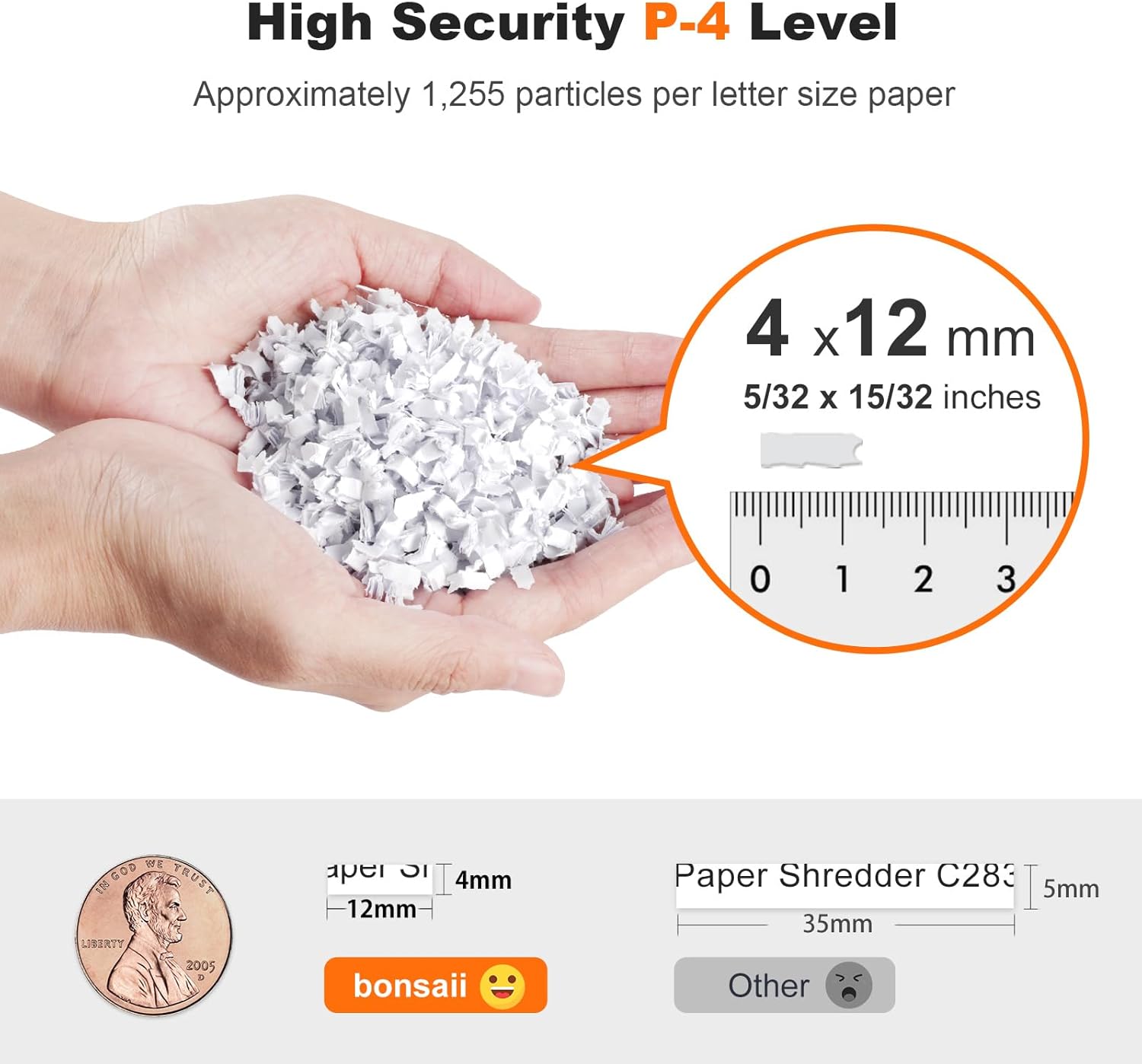
Image: A visual representation of the micro-cut paper particles (4x12 mm) produced by the shredder, demonstrating the P-4 security level.
Energy Saving and Low Noise Operation
The shredder features an energy-saving mode, automatically entering low power consumption after 10 minutes of inactivity. It operates at a low noise level of ≤58dB, suitable for office environments.
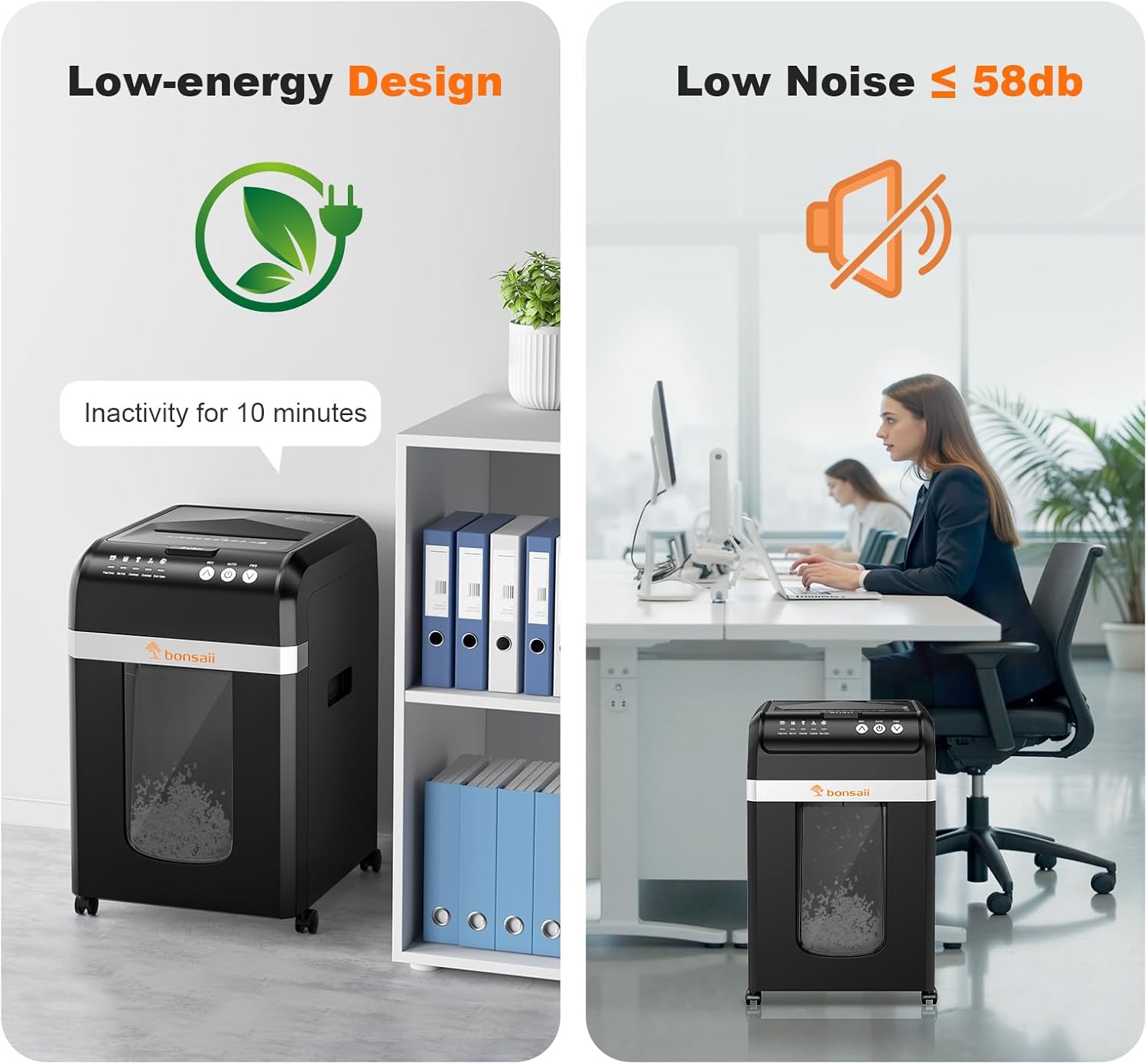
Image: Two scenes depicting the shredder's low-energy design (entering standby after 10 minutes of inactivity) and its low noise operation (≤58dB) in an office setting.
Maintenance
Emptying the Waste Bin
The 31-liter waste bin features a "Bin Full" indicator. When this indicator illuminates, the bin needs to be emptied.
- Unplug the shredder from the power outlet.
- Pull out the waste bin.
- Empty the shredded material. The bin includes built-in hooks for easy trash bag setup.
- Reinsert the waste bin firmly until it clicks into place.
- Plug the shredder back in.

Image: The 31-liter waste basket of the shredder, showing the "Bin Full" indicator, built-in hooks for trash bags, and the swivel casters for mobility.
Cleaning
- Always unplug the shredder before cleaning.
- Wipe the exterior of the shredder with a soft, dry cloth. Do not use abrasive cleaners or solvents.
- Do not allow liquids to enter the shredder opening.
Lubrication
Regularly oiling the shredder blades is recommended to maintain performance and extend the life of the shredder. Use shredder oil sheets or liquid shredder oil.
- Follow the instructions provided with your shredder oil product.
- Typically, apply oil across the paper entry slot and run a few sheets of paper through the shredder.
Troubleshooting
| Problem | Possible Cause | Solution |
|---|---|---|
| Shredder does not operate. |
|
|
| Paper jam. |
|
|
| Overload indicator (red) is on. |
|
|
| Shredder stops during operation. |
|
|
Specifications
| Feature | Detail |
|---|---|
| Brand | Bonsaii |
| Model | C283-A |
| Shred Type | Micro-Cut |
| Security Level | P-4 (4x12 mm particles) |
| Auto-Feed Capacity | Up to 200 sheets (paper only) |
| Manual Feed Capacity | Up to 12 sheets (paper, credit cards, staples, paper clips) |
| Auto-Feed Continuous Run Time | 60 minutes |
| Manual Feed Continuous Run Time | 30 minutes |
| Waste Bin Capacity | 31 Liters |
| Noise Level | ≤58 dB |
| Dimensions (D x W x H) | 26.3 cm x 36.7 cm x 50.6 cm |
| Power Source | Electric Cable |
| Special Features | Anti-jam, Bin Full Sensor, Quiet Operation, Auto Start/Stop, Energy Saving Mode, Overheat/Overload Protection, Door Open Sensor, Casters |

Image: The Bonsaii C283-A shredder with its key dimensions (depth, width, height) labeled for reference.
Warranty and Support
For warranty information or technical support, please refer to the documentation included with your purchase or contact Bonsaii customer service. Do not attempt to repair the shredder yourself, as this may void your warranty.
Contact information for Bonsaii customer support can typically be found on the official Bonsaii website or on your product registration card.
Ask a question about this manual
Ask about setup, troubleshooting, compatibility, parts, safety, or missing instructions. Manuals+ will review the question and use this page’s manual context to help answer it.