
1. Product Overview
The ARPHA Fingerprint Smart Door Lock is a versatile and secure keyless entry solution designed for modern homes. It integrates multiple unlocking methods and smart features for enhanced convenience and safety. This manual provides detailed instructions for installation, setup, operation, and maintenance.
- Built-in WiFi & APP Remote Control: Seamlessly connect to your home network for real-time monitoring and remote control from anywhere via the mobile application. Compatible with Alexa for voice commands.
- Efficient Fingerprint Unlocking: Advanced biometric technology provides 0.3-second recognition speed and 99.99% accuracy. Supports storage of up to 50 unique fingerprints.
- 5-in-1 Unlocking Methods: Offers flexibility with fingerprint, password, APP, voice control (Alexa), and traditional key access.
- Durable & Reliable: Constructed with high-quality stainless steel for corrosion resistance and protection against forced entry. Operates reliably in temperatures from -4°F to 140°F.
- Fast Installation: Standardized design allows for quick and easy installation within approximately 15 minutes on most wooden or iron doors.
2. What's in the Box
Carefully unpack the contents and ensure all items are present before beginning installation.

Image: Main components of the ARPHA Smart Door Lock.
- Exterior Keypad Assembly
- Interior Unit Assembly
- Deadbolt Latch
- Mounting Plate
- Strike Plate & Dust Box
- Installation Template
- Mounting Screws & Hardware
- Mechanical Keys (2)
- User Manual
3. Installation Guide
The ARPHA Smart Door Lock is designed for easy installation, typically taking around 15 minutes. Ensure your door thickness is between 1-3/8" to 2-1/8" (35mm - 55mm) and the backset is 2-3/8" (60mm) or 2-3/4" (70mm).

Image: Door lock dimensions and compatibility.
- Prepare the Door: If replacing an existing deadbolt, remove it. Use the provided installation template to mark and drill holes if necessary.
- Install the Deadbolt Latch: Insert the deadbolt latch into the door edge, ensuring the 'UP' arrow is facing upwards. Secure it with screws.
- Install Exterior Assembly: Carefully route the control wire through the deadbolt latch set. Secure the exterior keypad assembly to the door.
- Install Mounting Plate: Attach the mounting plate to the interior side of the door, aligning it with the exterior assembly.
- Connect Wires: Connect the control wire from the exterior assembly to the interior unit.
- Install Interior Assembly: Attach the interior unit to the mounting plate, ensuring the spindle engages correctly with the deadbolt latch. Secure with screws.
- Insert Batteries: Open the battery cover on the interior unit and insert 8 AA batteries (not included), ensuring correct polarity.
- Test Operation: With the door open, test the lock and unlock functions manually and via the keypad to ensure smooth operation.

Image: Illustrates the simple 15-minute installation process.
4. Initial Setup & App Control
The ARPHA Smart Door Lock connects to your smartphone via the Tuya Smart app for convenient control and management.

Image: Built-in Wi-Fi Control by App.
- Download the App: Search for "Tuya Smart" in your device's app store (App Store for iOS, Google Play for Android) and install it.
- Sign Up/Log In: Create a new account or log in with an existing one.
- Add Device: Follow the in-app instructions to add your ARPHA Smart Door Lock. Ensure your phone is connected to a 2.4G Wi-Fi network.
- Set Administrator Password: This is typically the first password you set after connecting the lock to the app. Refer to the quick guide for specific steps.
- Add Fingerprints: Use the app to register fingerprints for quick and secure access. The lock supports up to 50 fingerprints.
- Member Management: The app allows you to manage different users, assign unique passwords, and view access logs.
- Temporary Passwords: Generate time-limited or single-use passwords for guests or service providers directly from the app.
5. Operating the Lock
The ARPHA Smart Door Lock offers multiple convenient ways to secure and access your home.

Image: 5-in-1 Unlocking Methods.
- Fingerprint Unlocking: Place your registered finger on the sensor. The lock will unlock in approximately 0.3 seconds.
- Keypad Password: Enter your 6-8 digit password on the illuminated keypad.
- APP Control: Use the Tuya Smart app to remotely lock or unlock your door by holding the respective icon.
- Voice Control (Alexa): Integrate with Amazon Alexa for convenient voice commands to lock or unlock your door.
- Mechanical Key: In case of power failure or emergency, use the physical key provided to unlock the deadbolt.
6. Advanced Features
- Auto-Lock: Configure the lock to automatically re-lock after a set period (10 seconds to 15 minutes) for added security. This feature can be adjusted via the app.
- Anti-Peeking Keypad: When entering your password, you can input random numbers before or after your correct code to prevent others from guessing your entry. The lock will still recognize the correct sequence within the longer string.
- Temporary Passwords: As mentioned in the setup section, you can generate temporary passwords for visitors or one-time access, which expire after a set time or single use.
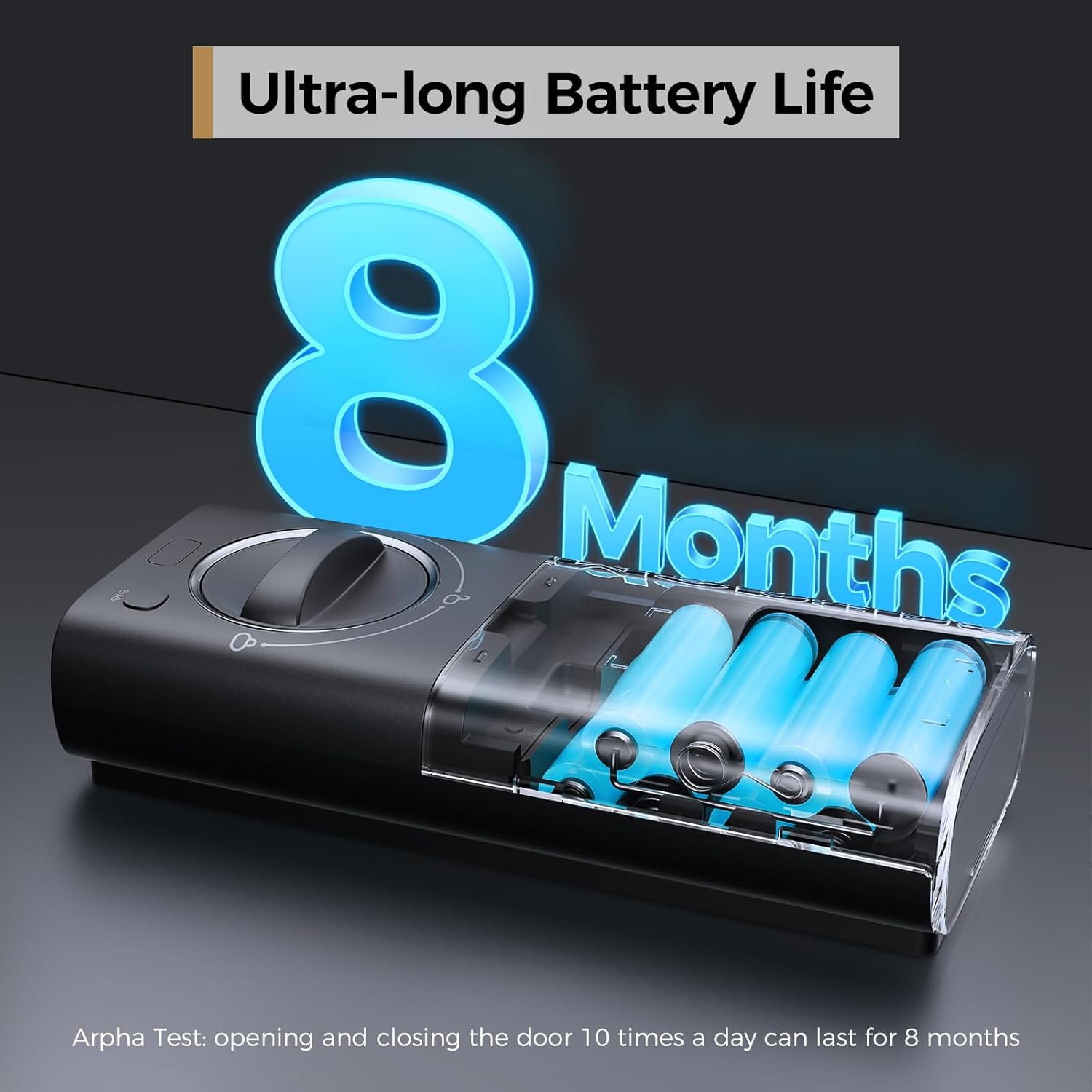
Image: Safe & Reliable features including temporary password and anti-peeking keypad.
7. Maintenance
- Battery Replacement: The lock uses 8 AA batteries and is equipped with a low-battery reminder. Replace all batteries promptly when the alert is given to ensure continuous operation.
- Cleaning: Use a soft, dry cloth to clean the keypad and lock body. Avoid abrasive cleaners or solvents that could damage the finish or electronic components.
- Environmental Conditions: While durable, avoid exposing the lock to extreme moisture or direct water spray for prolonged periods.
8. Product Specifications
| Feature | Specification |
|---|---|
| Brand | ARPHA |
| Model Name | A280-wifi |
| Lock Type | Deadbolt |
| Item Dimensions (L x W x H) | 5.45 x 1.89 x 2.89 inches |
| Material | Zinc |
| Special Features | Fingerprint, Passcode Unlock, Built-in Wi-Fi, Auto-Lock |
| Connectivity Protocol | Wi-Fi (2.4G only) |
| Power Source | 8 AA Batteries |
| Operating Temperature | -4°F to 140°F |
9. Warranty and Support
ARPHA is committed to providing high-quality smart lock products and excellent customer service.
Image: ARPHA Customer Support.
- Warranty: This product comes with a 3-year long warranty.
- Customer Service: ARPHA provides 7x24 hours online customer service. For any malfunctions or inquiries, our professional after-sales team aims to respond within 2 hours.
- Contact: Please refer to the contact information provided on the product packaging or the official ARPHA website for support.