
1. Introduction
Welcome to the user manual for your YUTOO S1 14-inch Portable Triple Monitor Extender. This device is designed to enhance your productivity by providing additional display space for your laptop, offering a full HD visual experience with versatile connectivity and adjustability. Please read this manual carefully to ensure proper setup, operation, and maintenance of your new monitor extender.

Image 1.1: The YUTOO S1 Portable Triple Monitor Extender in use, expanding a laptop's display to three screens.
2. Package Contents
Please verify that all items listed below are included in your package:
- 1 * Dual Laptop Screen Extender S1
- 2 * USB-C to C Cable (1.2M)
- 2 * USB-A to C Cable (1.2M)
- 2 * HDMI to mini HDMI Cable (1.2M)
- 1 * Carrying Bag
- 1 * User Manual (this document)
- 1 * Quick Guide
3. Technical Specifications
| Feature | Specification |
|---|---|
| Model Number | S1 |
| Screen Size | 14 Inches (each screen) |
| Resolution | 1920 x 1080 Pixels (FHD 1080p) |
| Display Technology | IPS Panel |
| Brightness | 300 Candela (nits) |
| Contrast Ratio | 1000:1 |
| Aspect Ratio | 16:9 |
| Screen Surface | Glossy |
| Connectivity | HDMI, USB-A, USB-C (Total 4 USB Ports) |
| Voltage | 5 Volts |
| Product Dimensions | 19.5 x 11.8 x 6.3 inches |
| Item Weight | 3.13 pounds |
4. Device Compatibility
The YUTOO S1 Portable Monitor is designed for broad compatibility with various devices. It supports laptops with screen sizes between 13.5 and 16.5 inches, and a display panel thickness of less than 0.28 inches. It is compatible with Windows, Mac OS, Android, Phones, PS4, Switch, and Xbox.
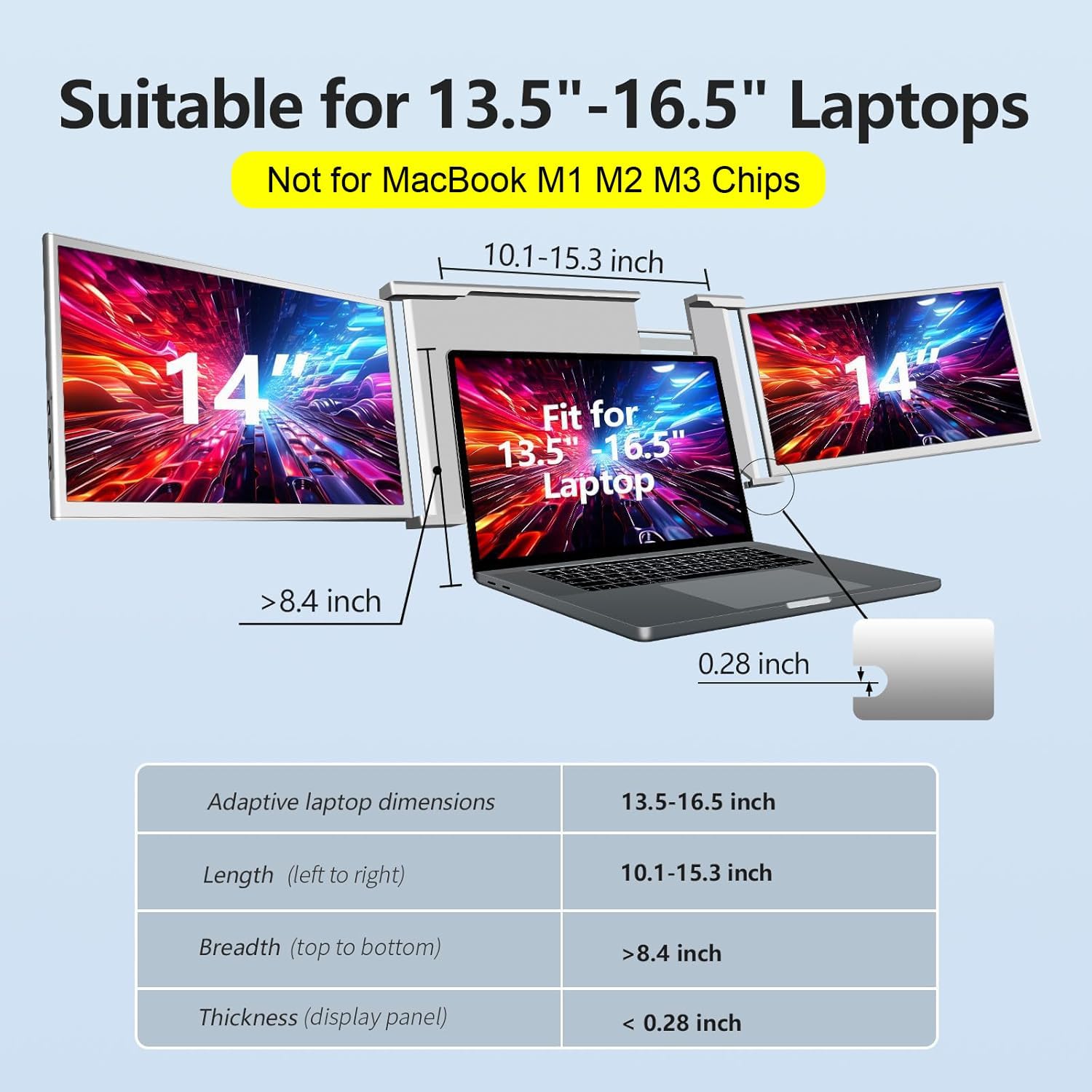
Image 4.1: Laptop size compatibility for the YUTOO S1 extender, suitable for 13.5"-16.5" laptops.
4.1. Compatible Devices
- MacBook: Pro 14" M4/Pro/Max 2024, 16" M4/Pro/Max, M3 Pro/Max 2023, 16" M1 Pro/Max 2021, 2020, 16" 2013-2019, 15" 2013-2018, 15" 2017, 15" 2016; MacBook Air 13" 2025, 13" 2020/2019/2018
- HP: Pavilion Laptop 15/16, x360 2-in-1 Laptop 14", x360 Convertible 15.6", Plus Laptop 16", Victus Gaming Laptop 16.1", HP Laptop 15.6" (15-fd1073nr, 15-fd1072nr, 15-fd1071nr, 15z-fc100, 15z-fc100), HP Laptop 14" (14-ep1072nr, 14t-ep100), Envy x360 2-in-1 Laptop 16" 14", HP Spectre x360 2-in-1 Laptop 16" 14"
- Dell: Inspiron 16 14, 16 14 plus, Inspiron 16 14 2-in-1, XPS 16 14 13, Latitude 5550, 3550, 7450, 5450, Precision 7680, 5690, Alienware m16 R2, G16 G15 Gaming Laptop
- Acer: Aspire 3 15.6", Acer 315 15.6", Aspire Go 15 15.6", Nitro V ANVI5
- Lenovo: ThinkPad X1 Carbon Gen 12, P16 Gen 2 P1, P1 Gen 7 16", E16 Gen 2, Yoga 7i 2-in-1 14", Legion Slim 5 Gen 9 16", Legion Pro 5i Gen 9 16", ThinkBook 16, Gen 7 16", ThinkPad P14s Gen 5 14", Yoga Pro 9i 16", Lenovo Slim 7i 14", ThinkPad E14 Gen 6 14", ThinkPad P16s Gen 3 16", IdeaPad 3 15.6"
- Samsung: Galaxy Book5 Pro(14") 16", Book5 360 15.6", Book4 Edge 16" 15.6" 14", Book4 Ultra 16", Book4 Pro16" 14", Book4 Pro 360 16" Book4 360 15.6, Book3 Ultra 16", Book3 Pro 16" 14, Book3 Pro 360 16" 15.6" Book3 360 15.6" 13.3", Book2 360 13.3", Book Ion, Book Flex

Image 4.2: A list of compatible laptop models and brands.
4.2. Incompatible Devices
Please note that the YUTOO S1 is not compatible with the following:
- MacBook: M1, M2, M3 chip models (e.g., MacBook Pro 14" M3 2023, 13" M2 2022, 13" M1 2020, 15" 2013, 15" 2014; MacBook Air 13" 15" M3 2024, 15" M2 2023, 13" M2 2022, 13" M1 2020, 13" 2017, 11" 2013, 11" 2015)
- Microsoft Surface Series (ARM chip)
- Chromebook (ARM chip)
- HP: HP 14 Laptop (dp0040nr, dq0020nr, 14z-em000, 14z-ep0097nr, 14-em0047nr), HP Laptop 15.6" (15s-fd000, 15z-fc000, HP Laptop 17.3" (17-cp3047nr, 17z-cp200, 17z-cp300, 17t-cn200)
- Dell: Inspiron 15 AMD 15.6", Inspiron 3000 3520 15.6", Inspiron 3511, Inspiron 15 12th Gen Intel
- Acer: Gateway Chromebook 311 11.6"
- Lenovo: IdeaPad 15.6" 2025, Flagship Chromebook, IdeaPad 1 15.6", Essential IdeaPad 15.6", V-Series Slim 3 Chromebook, IdeaPad 3i Chromebook 15.6"
- Samsung: Book4 15.6", Book3 15.6", Book2 Pro 360 15.6" 13.3", Book Pro 360 5G 13.3", Book Pro 360 13.3"
- Others: ASUS Vivobook 14", ASUS E410 14", KAIGERR AX15, ApoloSign 15.6", ApoloMedia TW 15.6"

Image 4.3: A list of incompatible laptop models and brands.
Always check your laptop's specifications, especially the type and number of available ports, to ensure full compatibility. If you are unsure, please consult the YUTOO customer support.
5. Setup Guide
5.1. Unpacking
Carefully remove the YUTOO S1 monitor extender and all accessories from the packaging. Retain the packaging for future storage or transport.
5.2. Attaching to Laptop
- Open your laptop screen to a comfortable viewing angle.
- Gently place the YUTOO S1 extender onto the top edge of your laptop screen. The central bracket should securely grip the top of your laptop display.
- Adjust the side screens to extend outwards from your laptop.
5.3. Connecting Cables
The YUTOO S1 offers flexible connection options depending on your laptop's available ports. Each external monitor requires both video signal and power.

Image 5.1: Guide to checking laptop compatibility for connection.
Option 1: Laptop with 2 Full-Featured USB-C Ports
If your laptop has two full-featured USB-C ports (which support both video and power delivery), you will only need one USB-C to USB-C cable for each extended monitor.
- Connect one USB-C to USB-C cable from your laptop's first full-featured USB-C port to the USB-C port on the left extender screen.
- Connect a second USB-C to USB-C cable from your laptop's second full-featured USB-C port to the USB-C port on the right extender screen.
Option 2: Laptop with 1 Full-Featured USB-C Port, 1 HDMI Port, and 1 USB-A Port
If your laptop has a combination of these ports, you will use different cables for each screen.
- For Monitor 1 (e.g., left screen): Connect one USB-C to USB-C cable from your laptop's full-featured USB-C port to the USB-C port on the first extender screen. This provides both video and power.
- For Monitor 2 (e.g., right screen): Connect one HDMI to mini HDMI cable from your laptop's HDMI port to the mini HDMI port on the second extender screen for video. Then, connect one USB-A to C cable from your laptop's USB-A port to the USB-C port on the second extender screen for power.

Image 5.2: Detailed connection diagrams for different laptop port configurations.
Important: If using HDMI for video, you must also connect a USB-A to C cable for power to that screen. Otherwise, the screen will display a black screen.

Image 5.3: Visual guide for connecting the YUTOO S1 to a laptop using different cable combinations.
5.4. Powering On
Once connected, the screens should automatically power on and detect the signal from your laptop. If they do not, check all cable connections and ensure your laptop is powered on.
6. Operating Instructions
6.1. Display Modes
The YUTOO S1 supports multiple display modes to suit your workflow:
- Extend Mode: Each screen displays different content, expanding your desktop workspace. This is ideal for multitasking.
- Mirror Mode (AAB): Both external screens mirror the content of your laptop's main display. Useful for presentations or sharing content.
- Portrait Mode: The screens can be rotated to a vertical orientation, which is beneficial for viewing long documents, code, or web pages.

Image 6.1: The YUTOO S1 supporting Extend, Mirror, and Portrait display modes.
6.2. Screen Rotation
The external screens offer a 315° rotation capability, allowing you to adjust them to the best viewing angle for your needs, whether for individual use or collaborative sharing.

Image 6.2: The 315° rotation feature of the YUTOO S1 screens.
6.3. Brightness Adjustment
Each dual screen features dedicated brightness adjustment buttons. Press these buttons to customize the display brightness to a comfortable level, helping to protect your eyesight during prolonged use.
6.4. Using the Adjustable Kickstand
The YUTOO S1 includes an adjustable kickstand for added stability. Extend the kickstand from the back of the central unit to provide additional support, especially when the screens are fully extended or rotated.

Image 6.3: The adjustable and durable kickstand for the YUTOO S1.
7. Care and Maintenance
- Cleaning: Use a soft, lint-free cloth slightly dampened with water or a screen-cleaning solution to clean the display surfaces. Avoid harsh chemicals or abrasive materials.
- Storage: When not in use, fold the screens inward and store the extender in the provided carrying bag to protect it from dust and scratches.
- Handling: Handle the device with care. Avoid dropping it or subjecting it to strong impacts. Do not apply excessive force when adjusting the screens or kickstand.
- Temperature: Avoid exposing the device to extreme temperatures or direct sunlight for extended periods.
8. Troubleshooting Common Issues
8.1. No Display / Black Screen
- Check Cables: Ensure all USB-C, HDMI, and USB-A cables are securely connected to both the extender and your laptop.
- Power Supply: Verify that the screens are receiving adequate power. If using HDMI for video, ensure a separate USB-A to C cable is connected for power.
- Laptop Output: Confirm your laptop's display output settings. You may need to extend or duplicate your display in your operating system's display settings.
- Compatibility: Double-check that your laptop model and its ports are compatible with the YUTOO S1, especially regarding full-featured USB-C ports.
8.2. Flickering Screen
- Cable Integrity: Inspect cables for any damage. Try using different cables if available.
- Connection Stability: Ensure cables are firmly seated in their ports.
- Power: Insufficient power can cause flickering. Ensure the screens are receiving stable power.
8.3. Rapid Battery Drain
- The YUTOO S1 draws power from your laptop. Using multiple external screens will naturally increase your laptop's power consumption.
- For extended use, it is recommended to connect your laptop to its power adapter.
8.4. Kickstand Not Functioning Properly
- Ensure the kickstand is fully extended and locked into position for stability.
- Do not force the kickstand if it feels stiff; gently adjust it.
9. Warranty and Support
9.1. Warranty Information
YUTOO products are covered by a limited warranty against defects in materials and workmanship. Please refer to the warranty card included with your product or contact YUTOO customer support for specific warranty terms and conditions.
9.2. Customer Support
For any questions, technical assistance, or troubleshooting not covered in this manual, please contact YUTOO customer service. You can also refer to the official YUTOO website for updated information and support resources.
For a downloadable PDF version of the user manual, please visit: YUTOO S1 User Manual (PDF)
