
1. Introduction
Thank you for choosing the 52HZ G100 Fingerprint Smart Door Knob. This advanced biometric lock offers secure and convenient access to your rooms with multiple unlocking options, including fingerprint recognition, smartphone application control, and traditional physical keys. Designed for ease of use and robust security, this manual will guide you through the installation, operation, and maintenance of your new smart door knob.
2. Product Overview
The 52HZ G100 Fingerprint Smart Door Knob integrates modern technology with reliable security features. Key functionalities include:
- Multiple Unlocking Methods: Supports up to 50 fingerprints, app control, and physical keys.
- One-Touch Locking: Securely lock the door by long-pressing the rear lock button for 3 seconds.
- Smart App Control: Manage users, add fingerprints/passwords, view unlock records, adjust volume, check battery levels, activate passage mode, set auto-lock, and privacy mode via a dedicated app (Bluetooth range limited).
- Fast Fingerprint Recognition: Recognizes fingerprints in just 0.1 seconds.
- Emergency USB Charging: Equipped with a USB port for emergency power in case of battery depletion.
- Low Battery Alarm: Provides alerts when battery levels are low.
- Durable Construction: Tested for mechanical life (200,000 cycles), salt spray, humidity, and strength, ensuring long-term reliability.
- Wide Door Compatibility: Fits standard American doors with backsets of 60mm and 70mm, and door thicknesses from 30mm to 55mm.
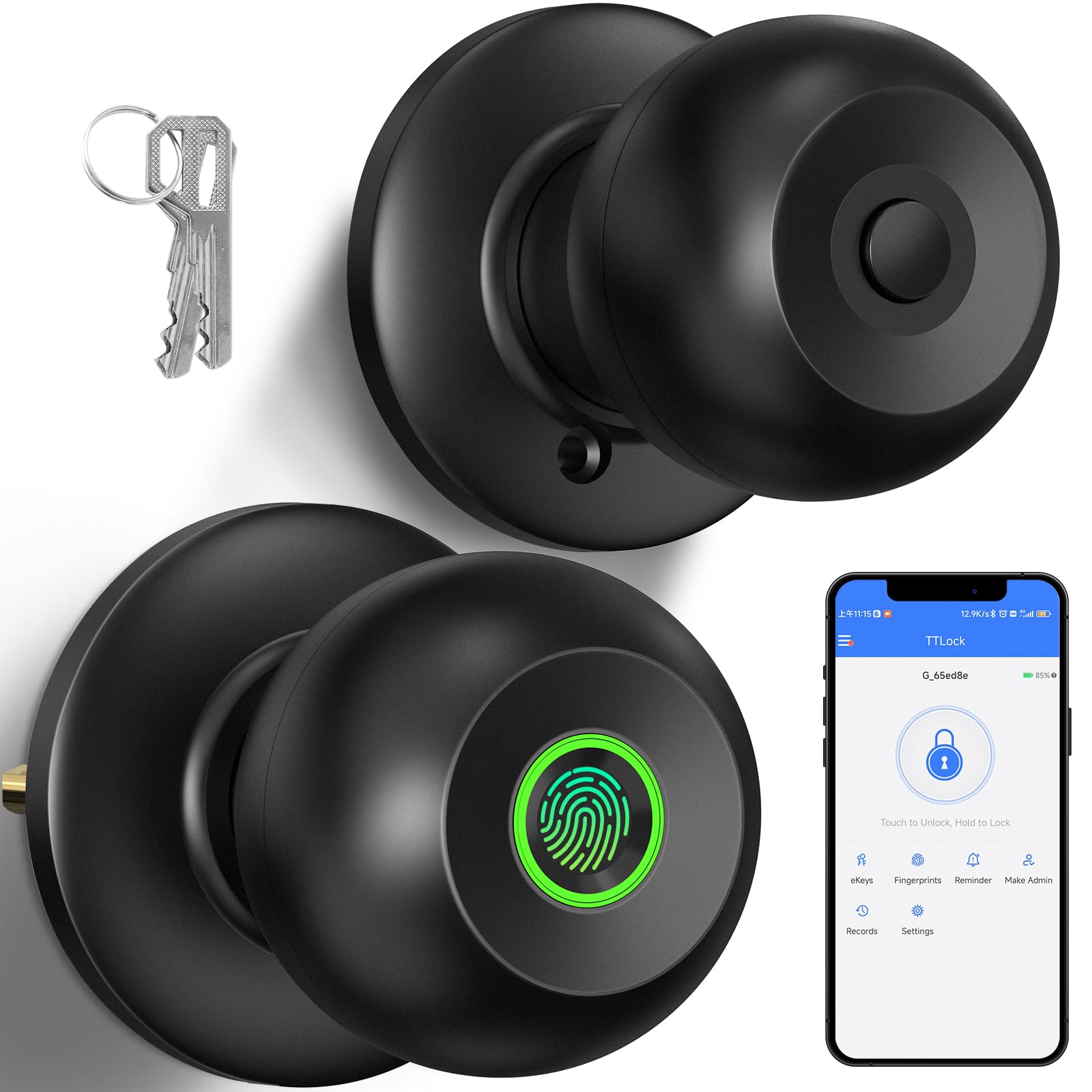
Figure 2.1: Multiple unlocking methods and one-touch lock.

Figure 2.2: Smart App features for comprehensive control.
3. Package Contents
Ensure all components are present before beginning installation:
- 1 x Smart Door Lock
- 1 x Installation Hardware Kit
- 2 x Physical Keys
- 1 x User Manual
4. Installation Guide
The 52HZ G100 is designed for easy installation on standard American doors. Please refer to the detailed installation instructions provided in the included user manual for step-by-step guidance. Below are general considerations:
4.1 Door Compatibility
- Backset: Compatible with 60mm and 70mm backsets.
- Door Thickness: Suitable for doors ranging from 30mm to 55mm thick.
- Handing: Ambidextrous design, suitable for both left and right-handed doors.
4.2 Mounting the Lock
Follow the instructions carefully to ensure proper alignment and functionality. Handle wires with care during installation to prevent damage.

Figure 4.1: General installation view of the smart door knob.
5. Operating Instructions
5.1 Unlocking Methods
- Fingerprint Unlock: Place your registered fingerprint on the sensor. The lock will unlock in approximately 0.1 seconds.
- App Unlock: Use the dedicated smartphone application within Bluetooth range to unlock the door.
- Physical Key Unlock: Insert and turn the physical key provided in the event of battery failure or other emergencies.
5.2 Locking Methods
- One-Touch Lock: Long press the rear lock button for 3 seconds. The door will automatically lock, and a voice prompt will announce "Secure Lock is on."
- Auto-Lock: Configure an automatic locking timer (5 to 60 seconds) via the smartphone application.
5.3 Smart App Control
Download the free application to manage your smart door knob. Features include:
- Adding/managing fingerprints and passwords.
- Viewing unlock records.
- Adjusting volume settings.
- Displaying battery levels.
- Activating Passage Mode.
- Setting automatic locking timers.
- Enabling Privacy Mode.
Note: App control is limited to Bluetooth range. For offline handle status, revoke access with fingerprint authentication before reconnecting.
5.4 Operating Modes

Figure 5.1: Different operating modes for varied access control.
- Privacy Mode: Creates a private space by disabling external access.
- Entrance Mode: Standard mode where access is controlled by registered fingerprints, app, or physical keys.
- Passage Mode: Allows free entry and exit without requiring authentication. Ideal for high-traffic periods.
6. Power Management
6.1 Emergency Charging
The lock is powered by 4 AAA batteries (not included). In case of battery depletion, a Type-C USB port is available for emergency charging. Connect a power bank or USB charger to the port to temporarily power the lock and gain access.
6.2 Low Battery Alarm
The lock will provide an audible and/or visual alert when the battery level is low, prompting you to replace the batteries or use emergency charging. The app also displays battery levels.

Figure 6.1: Emergency Type-C charging port and battery compartment.
7. Maintenance
- Battery Replacement: Replace the 4 AAA batteries when the low battery alarm sounds. Ensure correct polarity.
- Cleaning: Wipe the lock surface with a soft, dry cloth. Avoid abrasive cleaners or solvents that may damage the finish or electronic components.
- Fingerprint Sensor: Keep the fingerprint sensor clean and dry for optimal performance.
8. Troubleshooting
| Problem | Possible Cause | Solution |
|---|---|---|
| Lock does not respond. | Dead batteries. | Use physical key or emergency Type-C charging. Replace batteries. |
| Fingerprint not recognized. | Fingerprint sensor dirty; unregistered fingerprint; improper placement. | Clean sensor; ensure finger is dry and placed correctly; register fingerprint via app. |
| App control not working. | Out of Bluetooth range; app glitch; lock offline. | Ensure device is within Bluetooth range; restart app; if lock is offline, revoke access via fingerprint and reconnect. |
| Lock is permanently locked (safety hazard). | App connectivity issues; software malfunction. | Use the physical key for immediate access. Try restarting the lock (if possible) or contacting support. |
9. Specifications
| Feature | Detail |
|---|---|
| Model Number | G100 |
| Dimensions (L x W x H) | 7.57 x 7.49 x 7.49 cm |
| Weight | 689 grams |
| Material | Aluminum |
| Color | Matte Black |
| Door Backset | 60 mm and 70 mm |
| Door Thickness | 30 mm to 55 mm |
| Handle Type | Knob |
| Lock Type | Push Button Lock, Key Lock, Combination Lock, Deadbolt Lock (features combined) |
| Hand Orientation | Ambidextrous |
| Power Source | 4 x AAA Batteries (not included), Type-C USB for emergency power |
| Operating Temperature | -30 °C to 80 °C |
| Fingerprint Capacity | Up to 50 |
10. Durability and Testing
The 52HZ G100 Fingerprint Smart Door Knob undergoes rigorous testing to ensure long-term reliability and durability:
- Mechanical Life Test: Successfully passed 200,000 cycles.
- Salt Spray Test: 168 hours.
- Humidity Test: 168 hours.
- Lock Case Strength Intensity Test: 8000N.

Figure 10.1: Durability and reliability testing details.
11. Warranty and Support
While specific warranty details are not provided in this document, the product is designed for long-term reliability, backed by extensive durability testing. For any technical assistance, troubleshooting beyond this guide, or warranty inquiries, please contact 52HZ customer support through your purchase platform or the official 52HZ website.