1. Overview
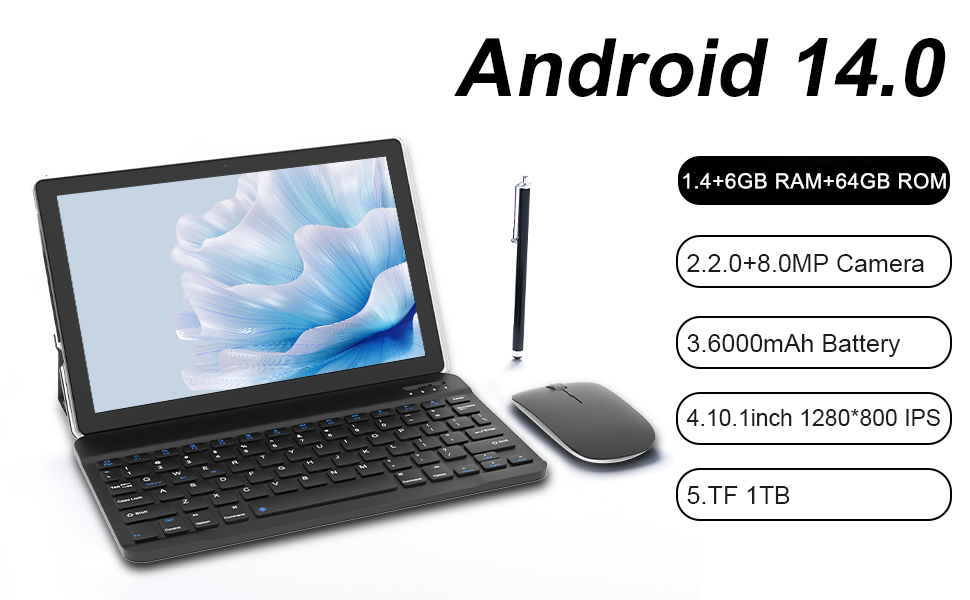
The PEICHENG 10.1-inch Tablet is a versatile device designed for a wide range of applications, from professional and educational settings to home entertainment and on-the-go productivity. Featuring an MTK8768 Octa-core 2.3GHz processor, 10GB (4+6GB expandable) RAM, 64GB ROM, and an IPS 800x1280 screen, it delivers smooth performance and vibrant visuals. The 6000mAh battery ensures extended use throughout the day. This package includes essential accessories to enhance your experience: a protective case, a wireless keyboard, a wireless mouse, a charging cable, and a stylus.

2. What's in the Box
- PEICHENG 10.1-inch Tablet
- Protective Case
- Wireless Keyboard
- Wireless Mouse
- Charging Cable (USB-C)
- Stylus
3. Technical Specifications
| Feature | Specification |
|---|---|
| Standing Screen Display Size | 10 inches |
| Screen Resolution | 1280 x 800 pixels (IPS) |
| Processor | MTK8768 Octa-core 2.3GHz |
| RAM | 10GB (4GB + 6GB Expandable Virtual Memory) |
| ROM (Internal Storage) | 64GB |
| Flash Memory Size | 6 GB |
| Operating System | Android 14.0 |
| Battery Capacity | 6000mAh |
| Average Battery Life | 10 Hours |
| Wireless Type | 802.11n (Wi-Fi) |
| Item Weight | 2.7 pounds |
| Product Dimensions | 10.1 x 4.85 x 0.4 inches |
| Cameras | Front and Rear (specific megapixels not provided, but dual cameras mentioned in features) |
4. Initial Setup
- Charge the Tablet: Before first use, fully charge the tablet using the provided USB-C cable and a compatible power adapter. The charging port is located on the side of the tablet.
- Power On: Press and hold the power button (located on the side) for a few seconds until the screen lights up.
- Initial Configuration: Follow the on-screen prompts to select your language, connect to a Wi-Fi network, and set up your Google account.
- Connect Keyboard and Mouse:
- Ensure the keyboard and mouse are charged or have fresh batteries (AAA batteries for the mouse are typically not included).
- Turn on the keyboard and mouse.
- On the tablet, go to Settings > Connected devices > Bluetooth.
- Enable Bluetooth and search for available devices.
- Select the keyboard and mouse from the list to pair them.
- Install Protective Case: Carefully place the tablet into the protective case to safeguard it from drops and scratches.
5. Operating Instructions
5.1 Tablet Navigation
The tablet operates on Android 14.0, offering an intuitive user interface. Use standard touch gestures such as tapping to select, swiping to scroll, pinching to zoom, and long-pressing for contextual menus.

5.2 Using Accessories
- Keyboard: Once paired via Bluetooth, the keyboard allows for comfortable typing, ideal for documents, emails, and browsing.
- Mouse: The wireless mouse provides precise navigation and control, similar to a desktop computer experience.
- Stylus: Use the stylus for drawing, note-taking, or precise selection on the touchscreen.
5.3 Multimedia and Entertainment
Enjoy high-resolution media playback on the 10.1-inch IPS screen. The tablet supports various streaming applications and local media files. Dual stereo speakers provide clear audio for an immersive experience.


5.4 Productivity and Applications
The tablet comes with Google Mobile Services (GMS) certification, providing access to a wide range of applications from the Google Play Store. Its powerful processor ensures smooth operation for various tasks, from managing finances to creating multimedia content.


5.5 Battery Life
The 6000mAh battery provides ample power for all-day use, supporting various activities from gaming to video playback and web browsing.

5.6 Product Video Overview
6. Care and Maintenance
- Cleaning: Use a soft, lint-free cloth to clean the screen and body of the tablet. Avoid abrasive materials or harsh chemicals.
- Battery Care: To prolong battery life, avoid extreme temperatures. Do not let the battery completely drain frequently.
- Storage: Store the tablet in a cool, dry place away from direct sunlight and moisture when not in use.
- Protection: Always use the provided protective case to prevent physical damage.
7. Troubleshooting
| Issue | Possible Solution |
|---|---|
| Tablet does not power on | Ensure the tablet is fully charged. Press and hold the power button for 10-15 seconds to perform a forced restart. |
| Cannot connect to Wi-Fi | Check if Wi-Fi is enabled in settings. Restart your router and the tablet. Ensure you are entering the correct password. |
| Accessories (keyboard/mouse) not connecting | Ensure Bluetooth is enabled on the tablet and accessories are in pairing mode. Check battery levels of accessories. Try re-pairing them in Bluetooth settings. |
| Slow performance | Close unnecessary background applications. Clear cache and data for frequently used apps. Consider performing a factory reset if issues persist (back up data first). |
| Screen unresponsive | Restart the tablet. Ensure the screen is clean and free of debris. If using a screen protector, ensure it is properly applied. |
| Charging issues | Ensure the charging cable and adapter are working correctly. Try a different USB-C cable or power source. Check the charging port for any obstructions. |
8. Warranty and Support Information
Your PEICHENG tablet comes with a standard manufacturer's warranty. For detailed warranty terms, technical support, or service inquiries, please refer to the warranty card included in your product packaging or visit the official PEICHENG support website. Keep your purchase receipt as proof of purchase for warranty claims.


