
Introduction
This manual provides detailed instructions for the installation, operation, and maintenance of your BDFFLY Smart TV LED Backlight Kit. This kit enhances your viewing experience by synchronizing LED lighting with your TV's content via an HDMI 4K30Hz Sync Box, offering immersive color-changing effects and app control.
What's in the Box
- 16.4ft LED Light Strips
- HDMI 4K30Hz Sync Box
- USB Cable
- HDMI Cable
- Power Adapter
- User Manual (this document)
Setup
Follow these steps to properly install your BDFFLY Smart TV LED Backlight Kit.
1. Prepare the TV and LED Strips
- Ensure your TV is unplugged and clean the back surface where the LED strips will be applied.
- Unroll the 16.4ft LED light strip. The strip is designed to fit TVs from 55 to 75 inches and can be trimmed if necessary. Refer to the cutting marks on the strip for safe trimming.
- Peel off the release sticker from the back of the LED strip to expose the adhesive.
- Carefully stick the LED strip to the back of your TV, starting from a bottom corner and working your way around the perimeter. Ensure the strip is firmly pressed against the TV for secure adhesion.
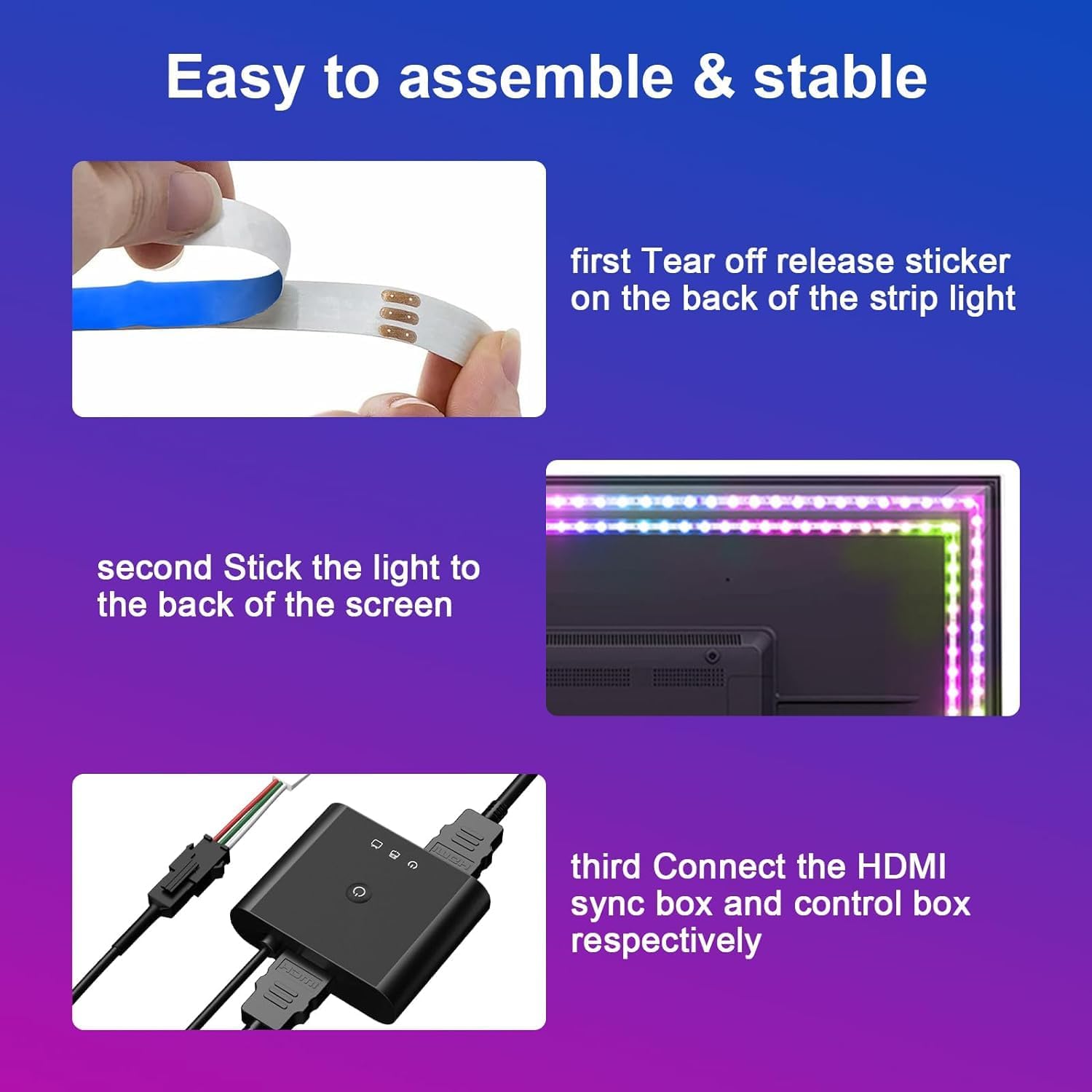
Image: Steps showing how to peel the adhesive and attach the LED strip to the back of the TV, and how to connect the HDMI sync box.
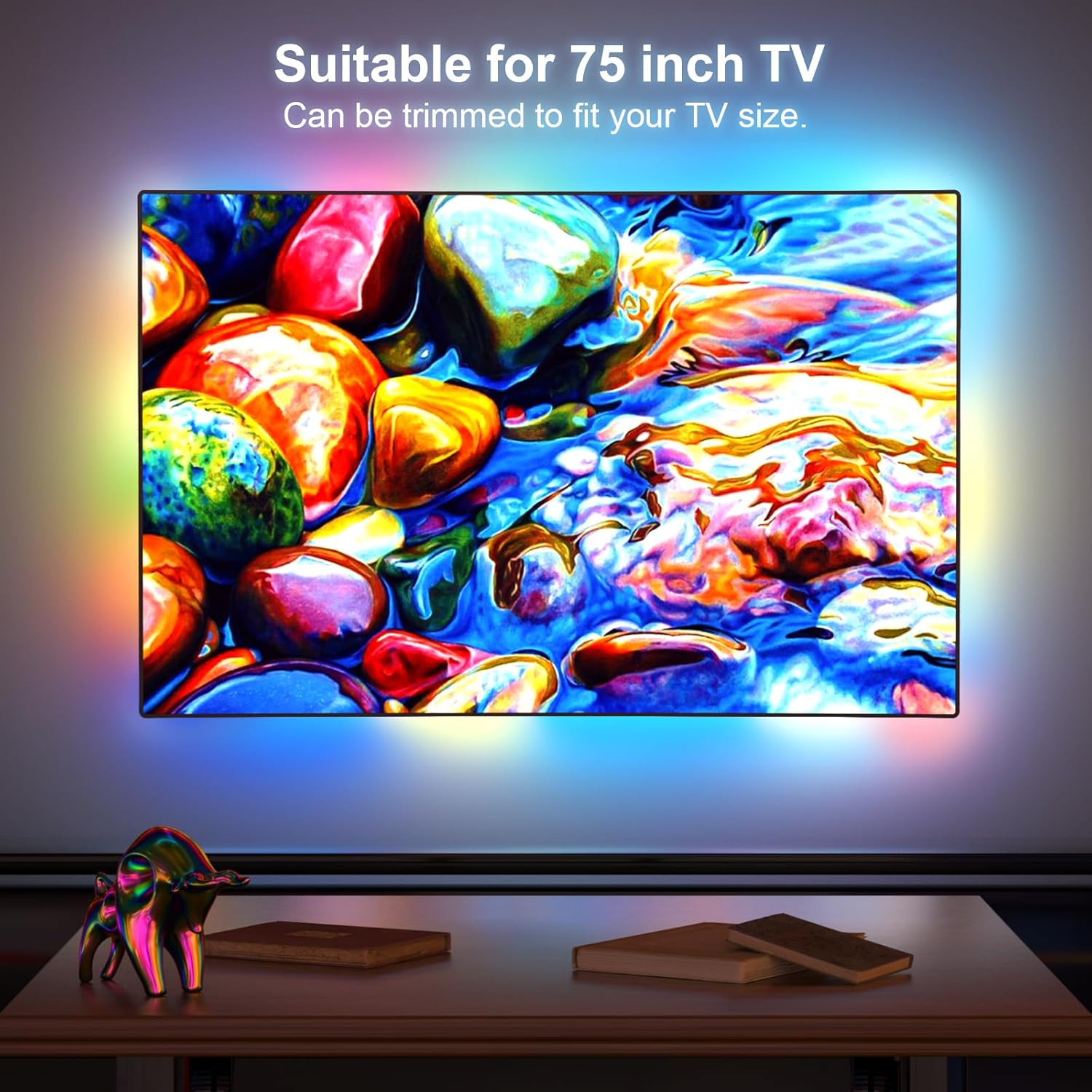
Image: The LED strip is suitable for TVs up to 75 inches and can be trimmed to fit smaller sizes.
2. Connect the HDMI Sync Box
- Connect the LED light strip to the designated port on the HDMI Sync Box.
- Connect your video source (e.g., cable box, streaming device like Roku, gaming console) to the HDMI IN port on the Sync Box using the provided HDMI cable.
- Connect the HDMI OUT port of the Sync Box to an HDMI IN port on your TV using another HDMI cable.
- Connect the power adapter to the DC IN port on the Sync Box and plug it into a power outlet.

Image: The HDMI Sync Box supports 4K HD and HDCP 1.4, ensuring no signal delay for an immersive experience.
Note: The color synchronization function requires an HDMI signal source connected to the Sync Box. It does not work with smart TV built-in apps directly.
3. App Download and Initial Setup
Download the "Hi Lighting" app from your device's app store. Scan the QR code below or visit lixingzhaoming.com/downloads to find the app.

Image: QR code for downloading the "Hi Lighting" app from Google Play or the App Store.
- Open the app and allow Bluetooth access.
- Ensure the LED lights are powered on and near your mobile device for successful Bluetooth connection.
- In the app, tap the "+" icon to add a new device. The app will scan and connect to the Sync Box (e.g., "L7178").
- Once connected, navigate to the settings (cogwheel icon) to configure position and orientation settings. Follow the on-screen prompts to ensure the light flow matches your TV's display.
- Perform color channel correction as guided by the app to ensure accurate color representation.
Video: This video demonstrates the installation process, app setup, and calibration of the Smart TV LED Backlight Kit, showing how the lights sync with the TV content.
Operating
Control your LED backlight kit using the "Hi Lighting" app.
1. Color Control
- Color Wheel: Use the color wheel in the app to select any desired color.
- Brightness Adjustment: Adjust the brightness slider to dim or brighten the lights.
- Common Colors: Tap on the pre-set common color buttons for quick selection.
2. Scene Modes
The app offers 10 scene modes and 3 audio modes for various ambiance settings:
- Image Sync Modes: Auto, High Saturation, Low Saturation, Hue Reverse, Cold Hue Only, Warm Hue Only, Fixed Brightness, Slowly Change, Rapidly Change. These modes synchronize the lights with the colors displayed on your TV screen.
- Audio Sync Modes: Softly, Normal, Rapidly. These modes allow the lights to change in rhythm with audio playback.

Image: Demonstrates the RGBIC light effect creating an immersive viewing experience.

Image: The app provides three distinct audio modes for synchronizing light changes with music rhythm.
Image: The LED lights dynamically synchronize with the colors displayed on the TV screen, enhancing visual immersion.
Maintenance
- Keep the LED strips and Sync Box clean and free from dust. Use a dry, soft cloth for cleaning.
- Avoid exposing the components to excessive moisture or extreme temperatures.
- Ensure all cable connections are secure to prevent signal loss or power interruptions.
Troubleshooting
| Problem | Solution |
|---|---|
| Lights not turning on. | Check power connections to the Sync Box and ensure the power adapter is plugged into a working outlet. Verify the LED strip is correctly connected to the Sync Box. |
| Lights not syncing with TV content. | Ensure your video source is connected to the HDMI IN port of the Sync Box, and the Sync Box is connected to the TV's HDMI IN port. The sync function only works with external HDMI sources, not built-in smart TV apps. Re-check app configuration for position and color channel correction. |
| App cannot connect to the device. | Make sure Bluetooth is enabled on your mobile device and the Sync Box is powered on. Try restarting the app and the Sync Box. Ensure your device is within Bluetooth range. |
| Incorrect colors or flickering lights. | Re-run the color channel correction in the app settings. Check for any loose connections in the LED strip or between the strip and the Sync Box. |
Specifications
- Model: AL11-C3
- Brand: BDFFLY
- LED Strip Length: 16.4 feet (5 meters)
- TV Size Compatibility: 55-75 Inch
- HDMI Sync Box: 4K30Hz, HDCP 1.4
- Light Type: RGB LED Strip Lights
- Control Method: App Control (Bluetooth)
- Power Source: DC 12 Volts
- Material: Polycarbonate
- Indoor/Outdoor Usage: Indoor
Warranty and Support
For any product inquiries, technical support, or warranty claims, please contact BDFFLY customer service. Refer to the product packaging or the official BDFFLY website for contact information.
We recommend visiting the BDFFLY Store on Amazon for additional product information and support resources.