
1. Introduction
Thank you for choosing the DOOGEE T40 Android Tablet. This manual provides essential information for setting up, operating, maintaining, and troubleshooting your device. The DOOGEE T40 is a high-performance Android tablet designed for both productivity and entertainment, featuring an 11-inch 2.5K display, a powerful Helio G99 Octa-Core processor, and extensive storage capabilities.

Figure 1.1: Front and back view of the DOOGEE T40 Android Tablet, highlighting its sleek design and camera module.
2. What's in the Box
Please check the contents of your package to ensure all items are present:
- T40 Tablet x1
- Type-C USB Cable x1
- Charger x1
- Tool for take card x1 (SIM ejector tool)
- Anti-explosion film x1 (Screen protector)
- Packing box x1
- Manual x1 (This document)
3. Initial Setup
3.1 Powering On/Off
- To Power On: Press and hold the Power button located on the side of the tablet until the DOOGEE logo appears on the screen.
- To Power Off: Press and hold the Power button until the power options menu appears. Select "Power off" and confirm.
- To Restart: Press and hold the Power button until the power options menu appears. Select "Restart" and confirm.
3.2 Inserting SIM and MicroSD Cards
The DOOGEE T40 supports Dual SIM 4G connectivity and expandable storage via a MicroSD card.
- Locate the SIM/MicroSD card tray on the side of the tablet.
- Insert the provided SIM ejector tool into the small hole next to the tray and gently push until the tray pops out.
- Carefully place your Nano-SIM cards and/or MicroSD card into the designated slots on the tray, ensuring correct orientation.
- Gently push the tray back into the tablet until it clicks into place.

Figure 3.1: The DOOGEE T40 tablet displaying its connectivity features, including the SIM and MicroSD card tray for dual SIM 4G and expandable storage.
3.3 Initial Configuration
Upon first power-on, follow the on-screen prompts to complete the initial setup, including:
- Language selection
- Wi-Fi network connection
- Google account sign-in
- Date and time settings
- Security settings (Face ID, PIN, Pattern, Password)
4. Operating Your Tablet
4.1 Display Features
The DOOGEE T40 features an 11-inch 2.5K Ultra-Clear Display with a resolution of 2560x1600 pixels, providing sharp and vibrant visuals. It supports DCI-P3 color gamut and has a max brightness of 250 nits. The ultra-narrow frame design offers an 85% screen-to-body ratio for an immersive viewing experience.

Figure 4.1: The DOOGEE T40's 11-inch 2.5K Anti-Blue Light Display, showcasing its high resolution and vibrant color capabilities.
4.2 Performance and Storage
Powered by the Helio G99 Octa-Core processor clocked at 2.2GHz and Mali-G57 GPU, the T40 ensures smooth operation for demanding tasks, gaming, and multitasking. It comes with 20GB RAM (8GB physical + 12GB extended) and 512GB internal storage, expandable up to 2TB via MicroSD.

Figure 4.2: Visual representation of the DOOGEE T40's powerful Helio G99 Octa-Core processor and Mali-G57 GPU, emphasizing its gaming performance.
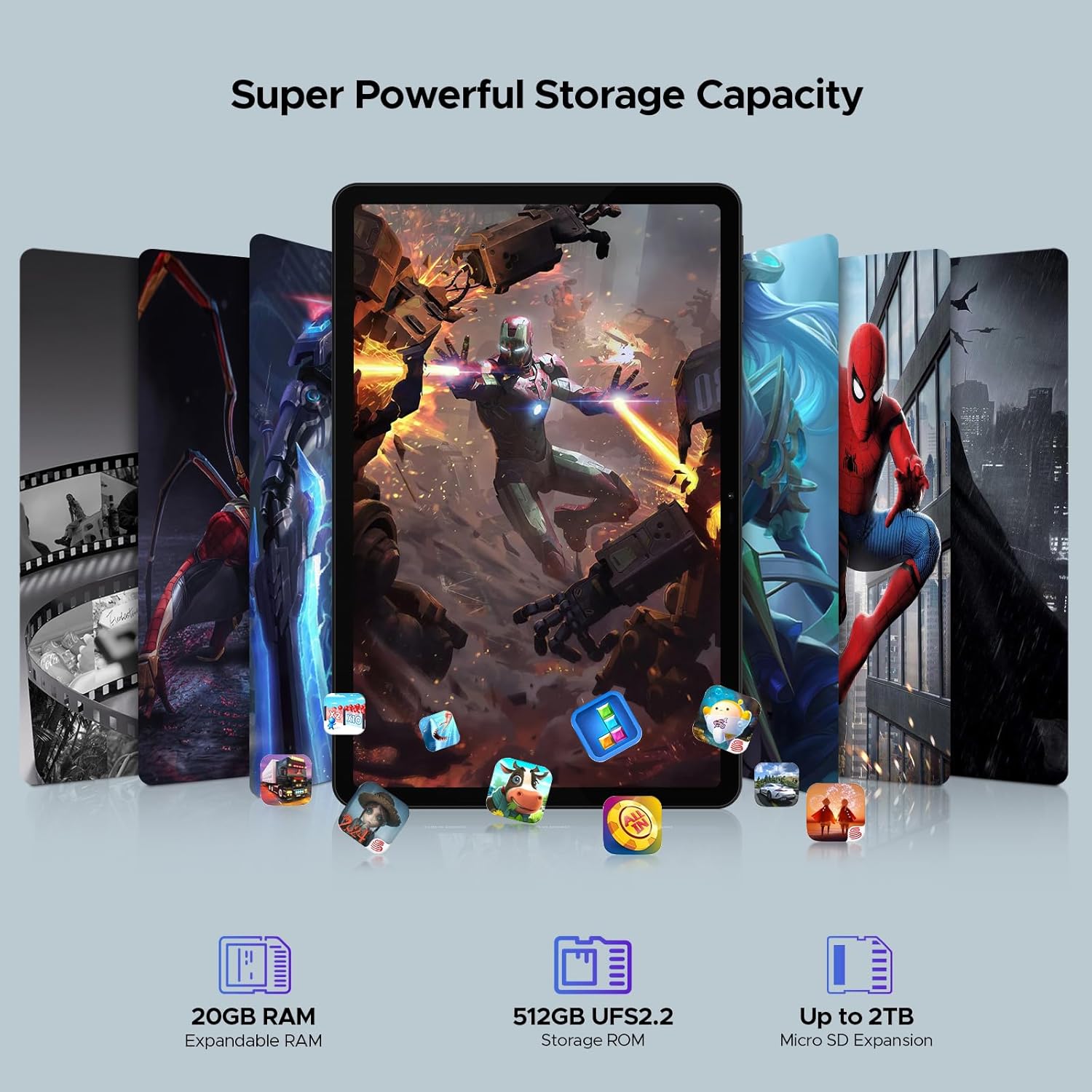
Figure 4.3: The DOOGEE T40's super powerful storage capacity, illustrating its 20GB RAM, 512GB ROM, and up to 2TB Micro SD expansion.
4.3 Battery Life and Charging
The tablet is equipped with a long-lasting 8580mAh battery, designed for all-day usage. It supports 18W fast charging, allowing for quick recharges.

Figure 4.4: The DOOGEE T40's 8580mAh battery, highlighting its capacity and 18W fast charging capability for extended use.
4.4 Camera Functionality
Capture moments with the 16MP main camera and 8MP front camera. The cameras are suitable for video calls, casual photography, and document scanning.

Figure 4.5: The DOOGEE T40's camera features, showing the 8MP front camera and 16MP main camera for capturing beautiful moments.
4.5 Audio System
The DOOGEE T40 features a quad-speaker system for immersive audio, ideal for movies, gaming, and music. It also includes a 3.5mm headphone jack for private listening.
4.6 Operating System
The tablet runs on Android 14, providing the latest features, enhanced privacy controls, and access to millions of apps via the Google Play Store.
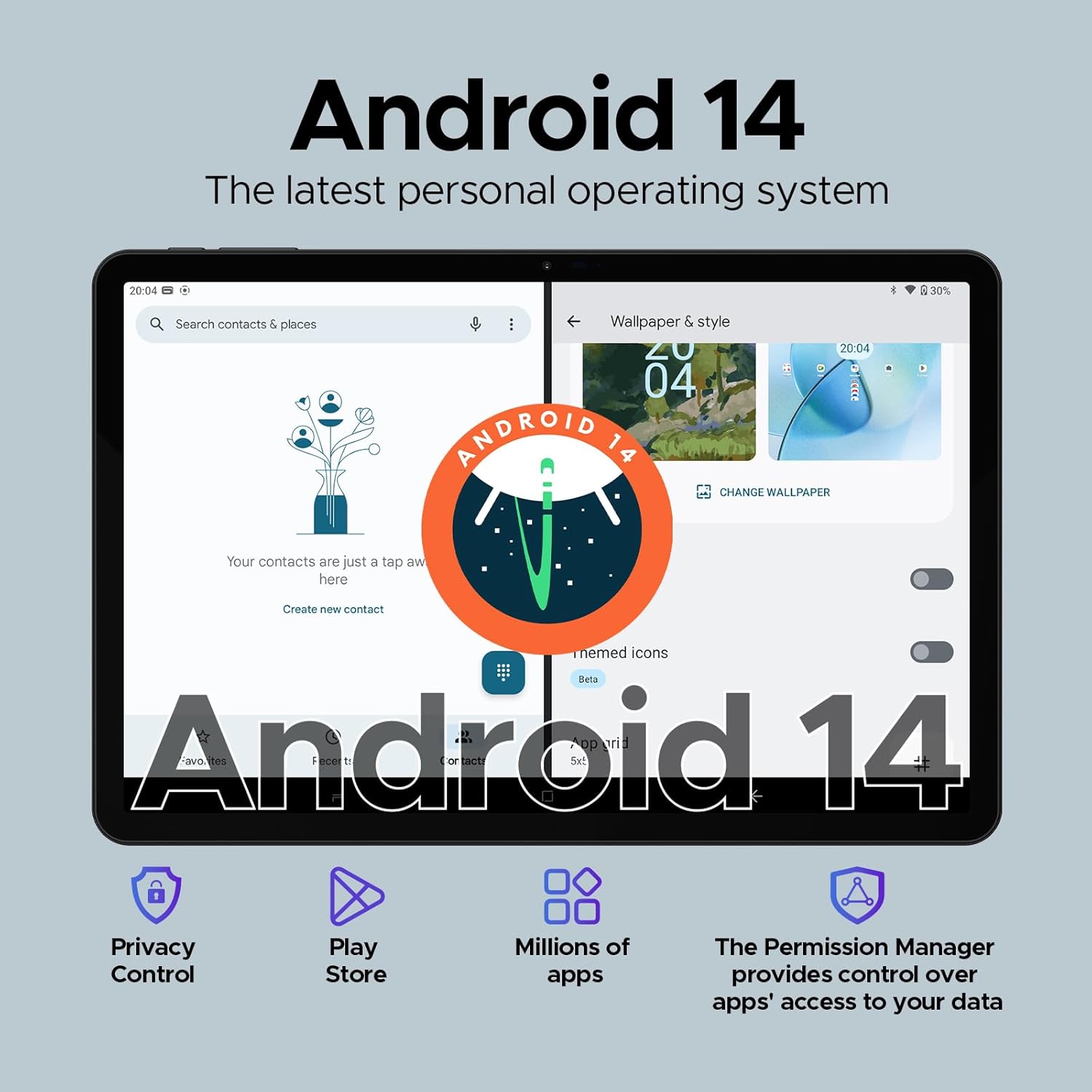
Figure 4.6: The DOOGEE T40 running Android 14, highlighting its privacy controls, Google Play Store access, and Material You design.
4.7 Official Product Videos
DOOGEE T40 Android Tablet Overview
This video provides a comprehensive overview of the DOOGEE T40 Android Tablet, showcasing its design, key features, and user experience. It highlights the 11-inch 2.5K display and overall performance.
DOOGEE T40 Tablet Features Deep Dive
This video offers a detailed look into the features of the DOOGEE T40 Tablet, including its 20GB RAM, 512GB storage, and 2TB expandability, providing insights into its capabilities for various tasks.
5. Maintenance and Care
- Cleaning: Use a soft, lint-free cloth to clean the screen and body of the tablet. Avoid using harsh chemicals or abrasive materials.
- Temperature: Operate the tablet within recommended temperature ranges (typically 0°C to 35°C or 32°F to 95°F). Avoid extreme heat or cold.
- Water Exposure: The tablet is not waterproof. Avoid exposing it to water or excessive moisture.
- Storage: When not in use for extended periods, store the tablet in a cool, dry place.
- Software Updates: Regularly check for and install system updates to ensure optimal performance and security.
6. Troubleshooting
| Problem | Possible Solution |
|---|---|
| Tablet does not power on | Ensure the battery is charged. Connect the charger and wait a few minutes before attempting to power on again. If unresponsive, perform a forced restart by holding the power button for 10-15 seconds. |
| Slow performance | Close unused applications. Clear cache and temporary files. Check for system updates. Consider a factory reset if issues persist (back up data first). |
| Wi-Fi/4G connectivity issues | Restart the tablet and your router/modem. Ensure SIM card is correctly inserted and activated. Check network settings on the tablet. |
| Battery drains quickly | Reduce screen brightness. Close background apps. Disable unnecessary features like GPS, Bluetooth, or Wi-Fi when not in use. Check for power-intensive apps in battery usage settings. |
| Apps crashing or freezing | Clear the app's cache and data in Settings > Apps. Update the app to the latest version. Reinstall the app. |
7. Specifications
| Feature | Detail |
|---|---|
| Brand | DOOGEE |
| Model Name | T40 |
| Operating System | Android 14 |
| Processor | Helio G99 Octa-Core (2.2 GHz) |
| GPU | Mali-G57 MC2 |
| RAM | 20GB (8GB physical + 12GB extended) |
| Internal Storage | 512GB UFS2.2 |
| Expandable Storage | Up to 2TB via MicroSD |
| Screen Size | 10.95 Inches |
| Screen Resolution | 2560 x 1600 pixels (2.5K) |
| Battery Capacity | 8580mAh |
| Charging | 18W Fast Charging |
| Main Camera | 16MP |
| Front Camera | 8MP |
| Connectivity | Dual SIM 4G, 2.4GHz/5GHz Wi-Fi (802.11ax), Bluetooth 5.0 |
| Audio | Quad Speaker System, 3.5mm Headphone Jack |
| Dimensions (LxWxH) | 10.1 x 6.61 x 0.3 inches |
| Weight | 2.5 pounds (approx. 1.13 kg) |
8. Warranty and Support
8.1 Warranty Information
The DOOGEE T40 Android Tablet comes with a 2-Year Limited Warranty. Please refer to the warranty card included in your package for full terms and conditions. Protection plans may also be available for purchase separately.
8.2 Customer Service
For any issues or questions regarding your DOOGEE T40 tablet, please contact DOOGEE Official Service. You can reach us through Amazon's messaging system, and we commit to responding within 24 hours to assist in resolving any issues.
Online Support: Refer to the official DOOGEE website or Amazon product page for FAQs and additional support resources.