
1. Introduction
Thank you for choosing the energeeks Ranger III Outdoor WiFi Camera. This manual provides essential information for the safe and efficient use of your camera. Please read these instructions carefully before installation and operation, and retain them for future reference.
Safety Information
- Ensure the camera is installed in a location where it is protected from direct impact.
- Do not attempt to disassemble or modify the camera. This will void the warranty.
- Use only the specified power adapter or compatible solar panel for charging.
- Keep the camera away from extreme temperatures, corrosive substances, and strong magnetic fields.
- Dispose of the product and battery responsibly according to local regulations.
2. Package Contents
Verify that all items are present in the package:
- energeeks Ranger III Outdoor WiFi Camera (EG-CIPBAT003)
- Mounting Bracket
- Mounting Screws and Wall Plugs
- USB Charging Cable
- User Manual (this document)
3. Product Overview
Camera Components
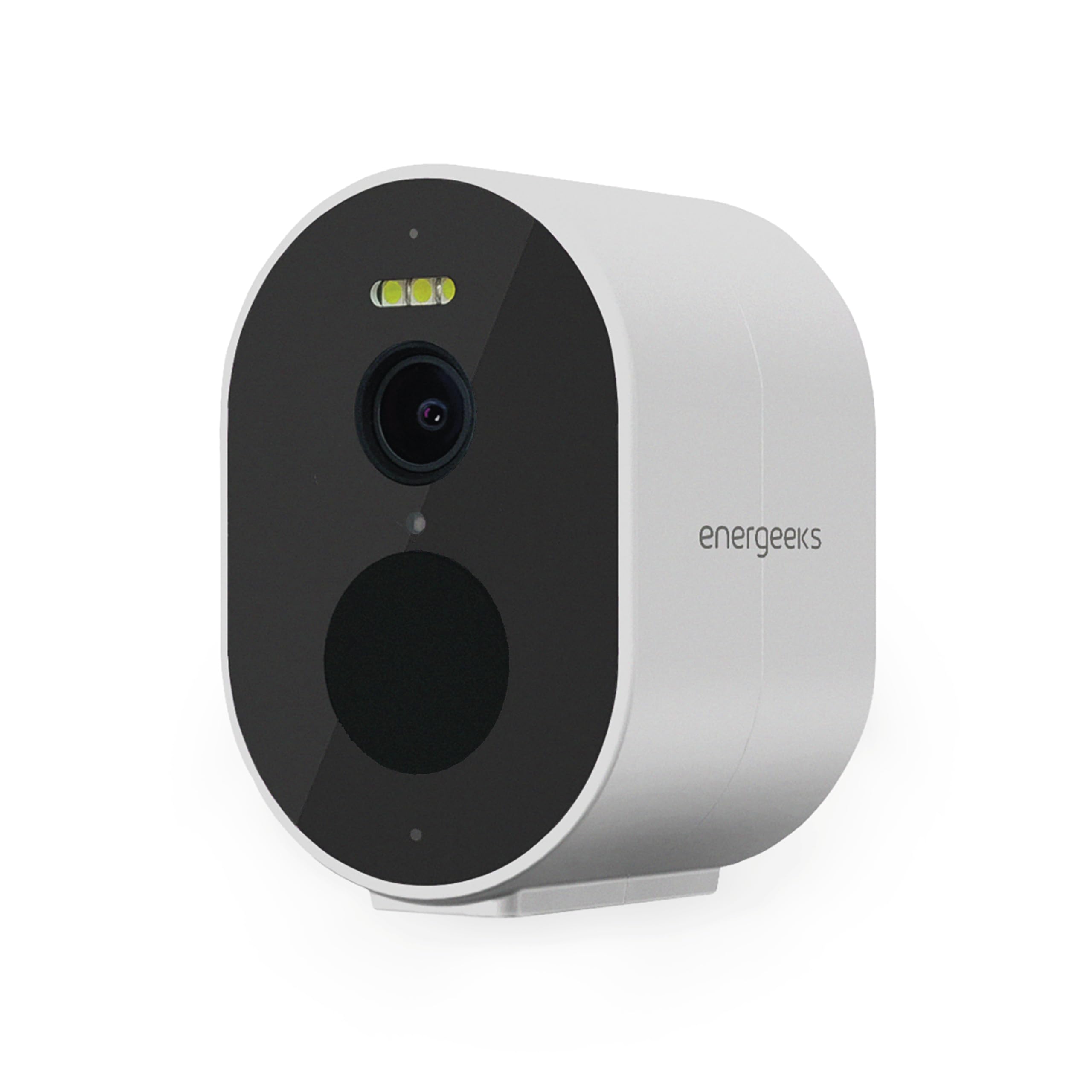
Image 3.1: Front view of the energeeks Ranger III camera, showing the lens, LED lights, and sensors.

Image 3.2: Side view of the camera, highlighting the USB-C charging port, Micro SD card slot, and reset button.

Image 3.3: Bottom view of the camera, showing the integrated speaker and mounting thread.

Image 3.4: Camera dimensions: approximately 6 cm (width) x 9 cm (height).
Key Features
- 4MP Ultra HD Resolution: Captures clear and detailed video footage.
- IP66 Weatherproof Rating: Designed for outdoor use, offering protection against dust and powerful water jets.
- 5200 mAh Rechargeable Battery: Provides long-lasting operation, up to 3 months on a single charge.
- Optional Solar Panel Compatibility: Can be connected to an energeeks solar panel for continuous charging.
- Dual-Band WiFi (2.4GHz & 5GHz): Supports flexible wireless connectivity.
- Motion and Sound Detection: Alerts you to activity with a human filter to reduce false alarms.
- Integrated LED Lights and Siren: Automatic activation for deterrence against intruders.
- Color Night Vision: Provides clear, full-color video even in low-light conditions.
- Two-Way Audio: Built-in microphone and speaker for communication.
- Mobile App Control: Manage and monitor your camera from anywhere using the free energeeks app (iOS/Android) or the generic SmartLife/Tuya app.
- Local and Cloud Storage: Supports Micro SD card recording and optional cloud storage services.
4. Setup
4.1 Charging the Battery
Before initial use, fully charge the camera battery using the provided USB cable and a standard 5V/2A USB power adapter (not included). The charging indicator light will show the charging status.
4.2 App Installation
- Download the energeeks app from the App Store (iOS) or Google Play Store (Android). Alternatively, you can use the SmartLife or Tuya Smart app.
- Register for a new account or log in if you already have one.
4.3 Adding the Camera to the App
- Power on the camera. The indicator light should blink, indicating it's in pairing mode. If not, press and hold the reset button (refer to Image 3.2) for 5 seconds until the light blinks.
- Open the energeeks app and tap the "+" icon to add a new device.
- Select "Security & Video Surveillance" > "Smart Camera (Wi-Fi)".
- Follow the on-screen instructions to connect the camera to your 2.4GHz or 5GHz Wi-Fi network. Ensure your mobile device is connected to the same Wi-Fi network during setup.
- Scan the QR code displayed on your phone screen with the camera lens. You will hear a confirmation sound from the camera.
- Once connected, name your camera and complete the setup process.
4.4 Mounting the Camera
Choose a suitable location for mounting, ensuring good Wi-Fi signal strength and an unobstructed view. The camera is designed for wall mounting.
- Mark the desired drilling points on the wall using the mounting bracket as a template.
- Drill holes and insert the wall plugs.
- Secure the mounting bracket to the wall with the screws.
- Attach the camera to the mounting bracket and adjust the angle as needed.

Image 4.1: Example of outdoor camera mounting, highlighting its weather resistance and optional solar panel compatibility.
5. Operating Instructions
Once the camera is set up and connected to the app, you can access its features.
5.1 Live View
Open the energeeks app and select your camera from the device list to view the live feed. You can pinch to zoom and pan the view.
5.2 Recording and Playback
- Manual Recording: Tap the record button in the live view interface to start/stop manual recording.
- Event Recording: The camera automatically records when motion or sound is detected. These recordings are saved to the Micro SD card (if installed) or cloud storage.
- Playback: Access recorded footage through the "Playback" option in the camera's app interface.
5.3 Motion and Sound Detection
Configure detection settings in the app:
- Sensitivity: Adjust the motion and sound detection sensitivity levels.
- Detection Area: Set specific areas for motion detection to reduce unwanted alerts.
- Human Filter: Enable the human filter to differentiate human shapes from other moving objects, minimizing false alarms.
- Notifications: Ensure push notifications are enabled in the app and on your phone settings to receive instant alerts.

Image 5.1: The camera can be used both indoors and outdoors, providing instant notifications to your mobile device.
5.4 Two-Way Audio
In the live view, tap the microphone icon to speak through the camera's speaker. Tap the speaker icon to listen to audio from the camera's microphone.
5.5 Siren and LED Lights
The integrated siren and LED lights can be configured to activate automatically upon detection of motion or sound, or manually triggered through the app for immediate deterrence.
6. Maintenance
6.1 Battery Charging
Monitor the battery level via the app. Recharge the camera when the battery is low to ensure continuous operation. If using an optional solar panel, ensure it is clean and positioned to receive adequate sunlight.
6.2 Cleaning
Wipe the camera lens and body with a soft, damp cloth. Do not use harsh chemicals or abrasive cleaners, as these can damage the camera's finish or lens coating.
6.3 Storage
If storing the camera for an extended period, ensure the battery is partially charged (around 50%) and store it in a cool, dry place away from direct sunlight.
7. Troubleshooting
| Issue | Possible Solution |
|---|---|
| Camera fails to connect to Wi-Fi. |
|
| No notifications received. |
|
| Poor image quality. |
|
| Battery drains quickly. |
|
| Micro SD card not recognized. |
|
8. Specifications
| Feature | Detail |
|---|---|
| Model | EG-CIPBAT003 |
| Brand | energeeks |
| Resolution | 4 MP Ultra HD |
| Video Recording Resolution | 1080p (Full HD) |
| Video Capture Format | MP4 |
| Connectivity | Wi-Fi (2.4GHz & 5GHz), Bluetooth (for initial setup) |
| Battery | 5200 mAh Rechargeable |
| Weather Resistance | IP66 |
| Special Features | Built-in LED light, Motion Sensor, Sound Detection, Siren, Color Night Vision, Two-Way Audio |
| Mounting Type | Wall Mount |
| Dimensions (L x W x H) | 6.4 x 6 x 9 cm (approximate) |
| Storage | Micro SD Card (up to 128GB, not included), Cloud Storage (optional subscription) |
| App Compatibility | energeeks App, SmartLife App, Tuya Smart App (iOS/Android) |
9. Warranty and Support
The energeeks Ranger III camera comes with a standard manufacturer's warranty. Please refer to the warranty card included in your package or visit the official energeeks website for detailed warranty terms and conditions.
For technical support, troubleshooting assistance, or any questions regarding your product, please contact energeeks customer service through their official channels. Contact information can typically be found on the energeeks website or within the mobile application.

