1. Introduction
Thank you for choosing the Skyworth 60G6500G 60-inch UHD 4K LED Google TV. This manual provides essential information for the safe and efficient use of your new television. Please read it thoroughly before operating the device and retain it for future reference.
This television features a stunning UHD (3840 x 2160) resolution, a borderless display, and a brightness of 250 nits. It incorporates advanced technologies such as Eye Care 2.0 and Chameleon Extreme 2.0 for an enhanced viewing experience. Powered by Google TV, it offers access to a wide range of streaming services and apps, including Netflix, YouTube, Prime Video, and Disney+.
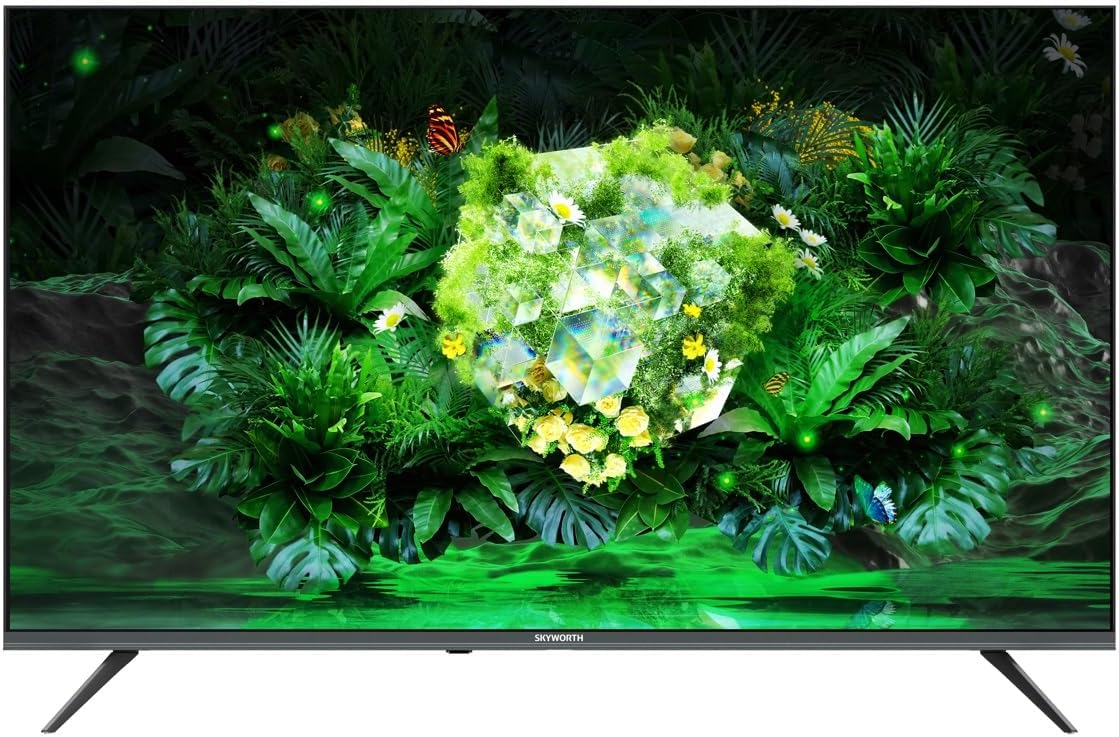
Image 1.1: Front view of the Skyworth 60G6500G television.
2. Safety Information
Always adhere to the following safety precautions to prevent electric shock, fire, or damage to the television.
- Power Source: Connect the TV only to an AC power supply as indicated on the label. Ensure the power cord is not damaged or pinched.
- Ventilation: Do not block ventilation openings. Maintain adequate space around the TV for proper airflow.
- Water and Moisture: Do not expose the TV to rain or moisture. Do not place objects filled with liquids, such as vases, on the TV.
- Heat: Keep the TV away from heat sources such as radiators, heat registers, stoves, or other appliances that produce heat.
- Cleaning: Unplug the TV from the wall outlet before cleaning. Use a soft, dry cloth. Do not use liquid cleaners or aerosol cleaners.
- Placement: Place the TV on a stable, level surface. Avoid placing it in direct sunlight or near strong electromagnetic fields.
- Children: Supervise children to ensure they do not climb on or play with the TV.
3. Package Contents
Please check that all the following items are included in your TV package:
- Skyworth 60G6500G 60-inch UHD 4K LED Google TV
- Remote Control
- Power Cable
- TV Stand (2 pieces)
- Screws for Stand Assembly
- User Manual (this document)
4. Setup
4.1 Attaching the TV Stand
- Carefully place the TV face-down on a soft, flat surface (e.g., a blanket or foam) to prevent screen damage.
- Identify the left and right stand pieces.
- Align each stand piece with the corresponding screw holes on the bottom of the TV.
- Secure each stand piece using the provided screws. Ensure they are tightened firmly.
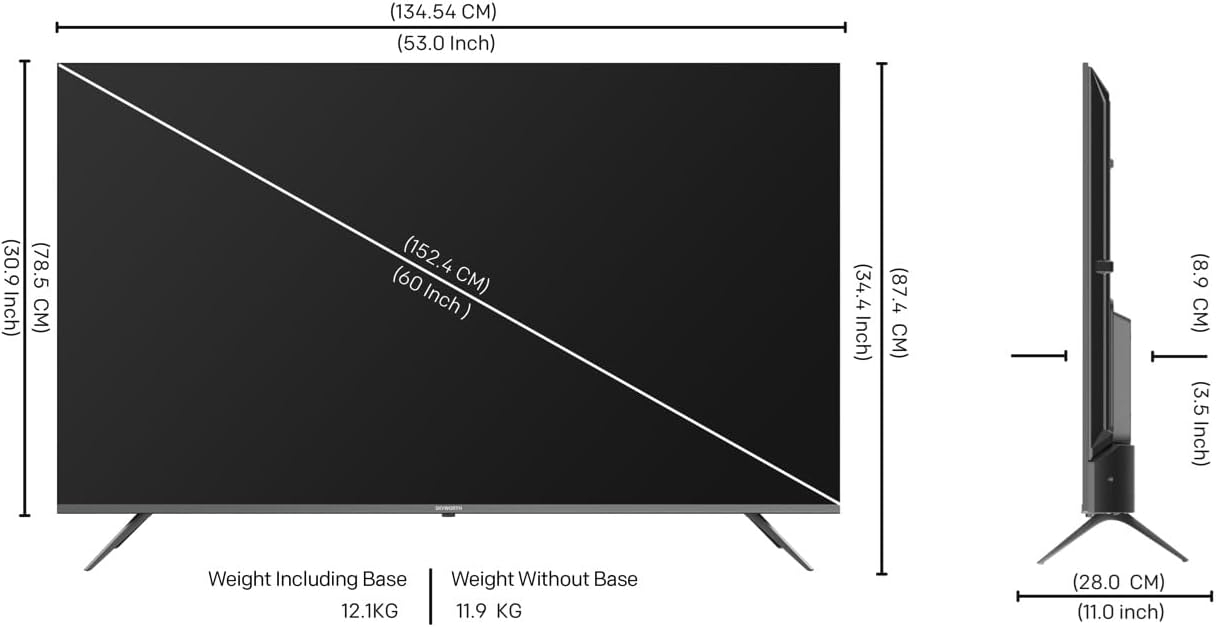
Image 4.1: Diagram illustrating TV dimensions and stand installation.
4.2 Wall Mounting (Optional)
If you choose to wall mount your TV, please ensure you use a VESA-compatible wall mount kit (not included) that supports the TV's weight and size. Follow the instructions provided with your wall mount kit. It is recommended to seek professional installation for wall mounting.
4.3 Connecting Peripherals
Connect your external devices to the TV using the appropriate ports. Refer to the image below for port locations.

Image 4.2: Side view of the TV displaying various input/output ports.
- HDMI: Connect Blu-ray players, game consoles, or other HDMI-enabled devices to the 3 HDMI ports.
- USB: Connect USB storage devices to the 2 USB ports for media playback.
- Antenna/Cable: Connect an antenna or cable TV signal to the DVB-T/T2/S input.
- Ethernet (LAN): For a wired internet connection.
- Audio Out: For connecting external audio systems.
4.4 Initial Power On and Setup
- After connecting all necessary cables, plug the power cable into a wall outlet.
- Press the Power button on the remote control or on the TV itself.
- Follow the on-screen instructions to complete the initial setup, including language selection, network connection (Wi-Fi or Ethernet), and Google account sign-in.
5. Operating Your TV
5.1 Remote Control Overview
The remote control allows you to navigate the TV's features. Key functions include:
- Power: Turns the TV on or off.
- Google Assistant: Activates voice commands.
- Navigation Buttons: Up, Down, Left, Right, and OK for menu navigation.
- Volume +/-: Adjusts the volume level.
- Channel +/-: Changes TV channels.
- Input: Selects the input source (HDMI, AV, etc.).
- Home: Returns to the Google TV home screen.
- App Shortcuts: Dedicated buttons for popular streaming services like Netflix, YouTube, Prime Video, Disney+.
5.2 Google TV Interface
Your Skyworth TV runs on Google TV, providing a personalized experience with content recommendations, easy access to apps from the Google Play Store, and integrated Google Assistant functionality.
- Home Screen: Displays recommended content, installed apps, and quick access to settings.
- Apps: Download and manage your favorite streaming and utility applications from the Google Play Store.
- Google Assistant: Use your voice to search for movies, stream apps, play music, and control the TV.
5.3 Picture and Sound Settings
Access the TV's settings menu to customize your viewing and listening experience.
- Picture Modes: Choose from various preset picture modes (e.g., Standard, Vivid, Movie, Game) or customize settings like brightness, contrast, color, and sharpness.
- Eye Care 2.0: This feature automatically adjusts screen brightness and color temperature to reduce eye strain, especially in low-light conditions.
- Filmmaker Mode: Preserves the original aspect ratio, colors, and frame rates of content, delivering the director's intended vision.
- Sound Modes: Select from preset sound modes (e.g., Standard, Music, Movie, Speech) or adjust bass and treble.
- DTS Studio Sound: Enhances audio quality for a more immersive sound experience.
5.4 Connectivity Features
- Wi-Fi (2.4G+5G): Connect to your home wireless network for internet access and streaming.
- Miracast / Chromecast: Wirelessly cast content from your compatible smartphone, tablet, or computer to the TV screen.
5.5 Game Mode
Activate Game Mode for optimized gaming performance, which typically reduces input lag and enhances responsiveness.
6. Maintenance
6.1 Cleaning the TV
- Screen: Gently wipe the screen with a soft, lint-free cloth. For stubborn marks, slightly dampen the cloth with water or a specialized screen cleaner (do not spray directly onto the screen).
- Body: Wipe the TV frame and stand with a soft, dry cloth.
- Important: Always unplug the TV before cleaning. Do not use abrasive cleaners, alcohol, benzene, or thinners, as these can damage the TV's surface.
6.2 Software Updates
Your TV may receive software updates periodically to improve performance and add new features. Ensure your TV is connected to the internet to receive these updates. You can usually check for updates in the TV's settings menu.
7. Troubleshooting
If you encounter issues with your TV, refer to the following common problems and solutions:
| Problem | Possible Solution |
|---|---|
| No power | Check if the power cable is securely plugged into the TV and the wall outlet. Try a different outlet. |
| No picture, but sound is present | Ensure the correct input source is selected. Check cable connections (HDMI, AV). |
| No sound, but picture is present | Check the volume level and mute settings. Ensure external audio devices are properly connected and powered on. |
| Remote control not working | Replace the batteries. Ensure there are no obstructions between the remote and the TV's IR sensor. |
| Cannot connect to Wi-Fi | Check your router and modem. Restart the TV and your network equipment. Re-enter the Wi-Fi password. |
| Picture is distorted or blurry | Check the signal source. Adjust picture settings. Ensure the TV's resolution matches the input source. |
If the problem persists after trying these solutions, please contact customer support.
8. Specifications
Key technical specifications for the Skyworth 60G6500G TV:
- Model Number: 60G6500G
- Screen Size: 60 inches
- Display Technology: LED
- Resolution: 4K UHD (3840 x 2160)
- Refresh Rate: 60 Hz
- Brightness: 250 nits
- Special Features: Miracast, Chromecast, Game Mode, Eye Comfort Mode (Eye Care 2.0), Filmmaker Mode, Chameleon Extreme 2.0
- Connectivity: 3 x HDMI, 2 x USB, Wi-Fi (2.4G+5G), DVB-T/T2/S Tuner
- Audio Output: 2 x 12W, DTS Studio Sound
- Operating System: Google TV
- Product Dimensions (D x W x H): 8.8 cm x 134.5 cm x 77.9 cm (without stand)
- Weight (with stand): 12.1 kg
- Weight (without stand): 11.9 kg
- Aspect Ratio: 16:9
- Country of Origin: China
9. Warranty and Support
9.1 Warranty Information
Your Skyworth 60G6500G TV comes with a standard manufacturer's warranty. Please refer to the warranty card included in your package for specific terms, conditions, and duration of coverage. Keep your purchase receipt as proof of purchase for warranty claims.
9.2 Customer Support
For technical assistance, troubleshooting beyond this manual, or warranty inquiries, please contact Skyworth customer support. Contact details can typically be found on the Skyworth official website or on your warranty card.
Online Resources: Visit the official Skyworth website for FAQs, software updates, and additional support resources.