
1. Introduction
This manual provides detailed instructions for the installation, operation, and maintenance of your Roinvou 9-inch Android 13 Car Stereo. This unit is specifically designed for Kia Sportage models manufactured between 2007 and 2013. It features a 9-inch touchscreen display, Wireless CarPlay, Android Auto, GPS navigation, Bluetooth connectivity, Mirror Link functionality, Wi-Fi, Steering Wheel Control (SWC) support, FM/RDS radio, Digital Sound Processor (DSP), and support for a backup camera.
Please read this manual thoroughly before installation and use to ensure proper functionality and to maximize your experience with the product.
2. Setup and Installation
2.1. Compatibility Verification
This car stereo is compatible with Kia Sportage models from 2007 to 2013. It includes a plug-and-play cable designed to integrate with the factory dashboard without requiring modifications or splicing. To confirm compatibility with your specific vehicle, please provide your car's model, production year, and a picture of your car's dashboard to customer support.
2.2. Package Contents
Before beginning installation, ensure all components listed below are present in your package:
- Roinvou Car Stereo Unit
- Dual Power Cable
- RCA Harness
- GPS Antenna
- AHD Backup Camera
- External Microphone
- Rear Camera Input Cable
- Dual USB Cable
- Installation Tool & Accessories

Image: Complete package contents including the head unit, wiring harnesses, and accessories.
2.3. Installation Overview
The car stereo is designed for a direct fit into the Kia Sportage 2007-2013 dashboard. The installation process typically involves removing the original radio, connecting the provided wiring harnesses, and securing the new unit. Professional installation is recommended if you are unfamiliar with car audio system installations.

Image: Comparison of the car dashboard before and after the Roinvou car stereo installation.

Image: The Roinvou car stereo fully installed and operational in a Kia Sportage.
2.4. Backup Camera Connection
To connect the included AHD backup camera, follow the wiring diagram provided. Ensure the reverse input cable is properly connected. If the reverse camera is not being used, this cable must still be plugged in to avoid affecting Bluetooth and Wi-Fi signal reception.
- Connect the camera's video output to the car stereo's video input.
- Connect the camera's red power wire to the reversing lamp's positive (+) terminal.
- Connect the camera's black ground wire to a suitable ground (GND) point.

Image: Detailed diagram for connecting the backup camera.
3. Operating Instructions
3.1. Power On/Off
The unit powers on automatically when the vehicle's ignition is turned on. To turn off the unit, turn off the vehicle's ignition. A short press of the power button (if available) may put the unit into standby mode.
3.2. Wireless CarPlay & Android Auto
Connect your smartphone wirelessly via Bluetooth to access CarPlay (for iOS devices) or Android Auto (for Android devices). This allows you to use essential phone functions such as making calls, sending messages, navigating, and playing music directly on the car stereo's screen.

Image: Wireless CarPlay and Android Auto interfaces.

Image: Apple CarPlay and Android Auto functionality.
3.3. Mirror Link
The Mirror Link feature supports both iOS and Android smartphones. You can synchronize your phone's screen to the car stereo's display, allowing you to view apps, music, and videos from your phone on the larger screen. Connection can be established either wired via USB cable or wirelessly using Wi-Fi.

Image: Mirror Link connection options for iOS and Android devices.
3.4. GPS Navigation
The unit comes with built-in offline maps. After connecting to Wi-Fi, you can download and update online maps, providing real-time traffic information and accurate satellite positioning to assist with navigation.
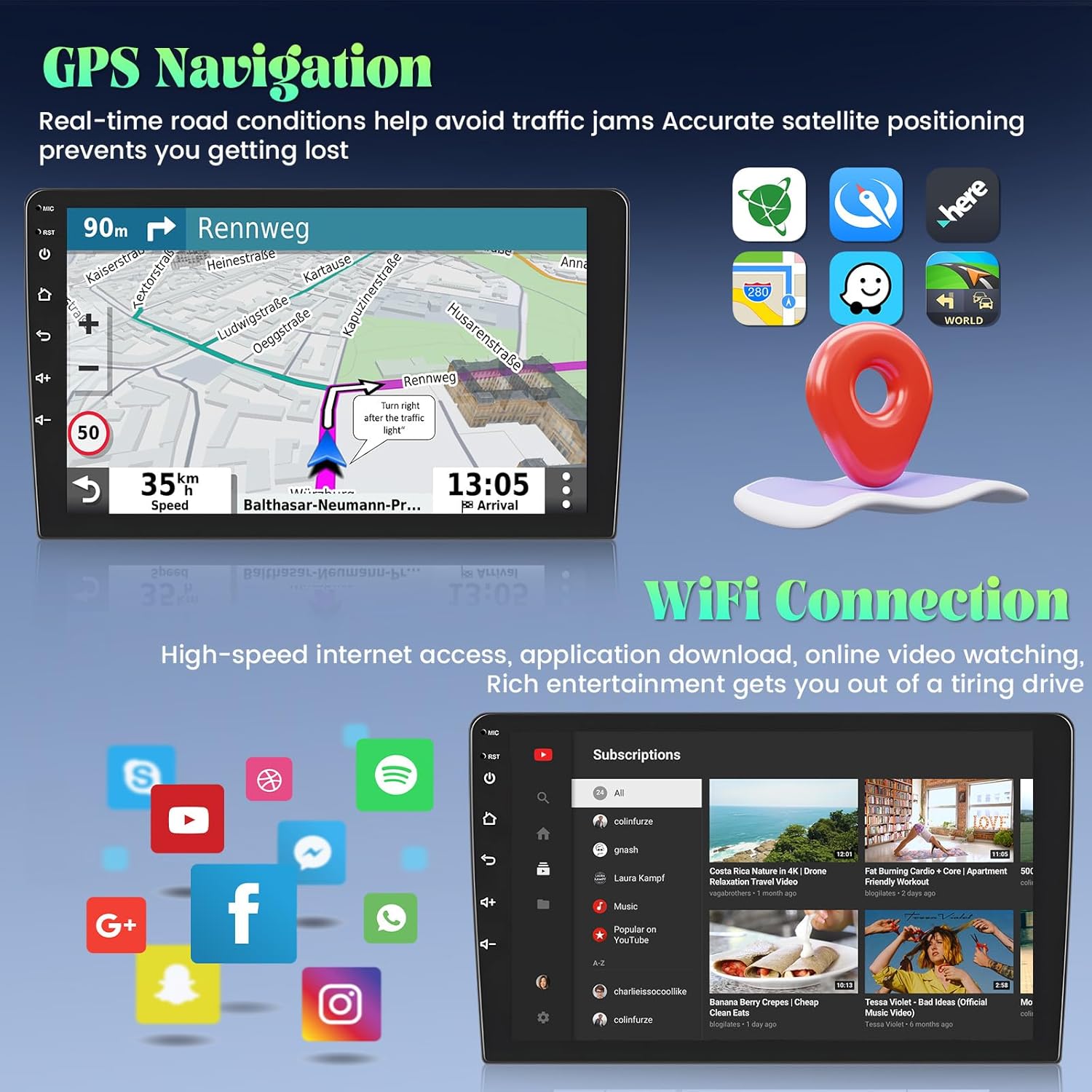
Image: GPS navigation interface on the car stereo.
3.5. Wi-Fi Connection
With a Wi-Fi connection, you can access online maps, stream videos and music, and install or uninstall various applications from the app store, such as YouTube, TikTok, or Spotify.
To connect to Wi-Fi:
- Go to the system settings.
- Select 'Wi-Fi' and turn it on.
- Choose your desired network and enter the password if required.
3.6. Bluetooth Connectivity
The built-in Bluetooth module allows for fast pairing with your smartphone. This enables hands-free calling and wireless music playback. To pair your device:
- Enable Bluetooth on your smartphone.
- On the car stereo, navigate to the Bluetooth settings.
- Search for available devices and select your phone.
- Confirm the pairing code on both devices.
3.7. FM/RDS Radio
The high-quality FM/RDS radio allows you to listen to local radio stations, providing real-time traffic updates, news, and weather forecasts. Use the radio application to scan for stations and save your favorites.
3.8. Digital Sound Processor (DSP)
The integrated DSP allows you to fine-tune audio settings to your preference. Access the DSP settings through the audio menu to adjust equalizer presets, balance, fader, and other sound modes for an optimized listening experience.
3.9. User Interface (UI) Themes
The car stereo is equipped with 26 different UI themes, allowing you to customize the visual appearance of the interface. Navigate to the display settings to browse and select your preferred theme.

Image: Examples of the 26 available UI themes.
3.10. Steering Wheel Control (SWC)
The unit supports original steering wheel control buttons, allowing for convenient operation without taking your hands off the wheel. The configuration method depends on whether your vehicle has a CANBUS decoder.
- Without CANBUS Decoder: Connect the plugs or the steering wheel control wires (Key1, Key2) in the power cable to the corresponding port or wire of your original car. Then, go to the 'SteeringWheelKey' manual match setting to activate the button functions.
- With CANBUS Decoder: Connect the CANBUS decoder before powering on the machine. Then, navigate to Settings > Factory setup (Password 000000) > Can Settings to ensure SWC works properly. First, select the brand of the CANBUS decoder, then select the matching model and year according to your actual vehicle situation.

Image: Steering Wheel Control setup instructions.
4. Maintenance
4.1. Screen Cleaning
To clean the touchscreen, use a soft, lint-free cloth. For stubborn smudges, slightly dampen the cloth with water or a screen-safe cleaning solution. Avoid using harsh chemicals, abrasive materials, or excessive moisture, as these can damage the screen.
4.2. Software Updates
Periodically check for software updates to ensure optimal performance and access to the latest features. Updates can typically be found within the system settings menu under 'About device' or 'System updates'. Ensure a stable Wi-Fi connection during any update process.
5. Troubleshooting
If you encounter issues with your Roinvou car stereo, refer to the following common troubleshooting steps:
- No Power: Check all power cable connections. Ensure the vehicle's ignition is on.
- No Sound: Verify speaker connections. Check volume levels and audio settings (including DSP). Ensure the mute function is not active.
- GPS Not Working: Ensure the GPS antenna is properly connected and positioned with a clear view of the sky. Check GPS settings within the unit.
- Bluetooth Connectivity Issues: Ensure Bluetooth is enabled on both the stereo and your phone. Delete previous pairings and attempt to re-pair. Ensure no other devices are interfering.
- Wi-Fi Connection Problems: Verify Wi-Fi is enabled and you are within range of a known network. Re-enter the password if necessary.
- Backup Camera Not Displaying: Check the camera's power and video connections. Ensure the reverse input cable is correctly connected to the stereo and the vehicle's reverse light circuit.
- Steering Wheel Controls Not Responding: Review the SWC setup instructions in Section 3.10. Ensure all wires are correctly connected and the settings are configured for your vehicle type (with or without CANBUS).
For persistent issues or problems not covered here, please contact Roinvou customer support.
6. Specifications
| Brand | Roinvou |
| Model | B0DK1919TS |
| Compatible Vehicle Type | Kia Sportage 2007-2013 |
| Screen Size | 9 Inches |
| Resolution | 1024 x 600 |
| Operating System | Android |
| Memory (RAM) | 2GB |
| Storage (ROM) | 64GB |
| Processor | 4-Core |
| Connectivity Technology | Bluetooth, USB, Wi-Fi |
| Special Features | Wireless CarPlay, Android Auto, Touchscreen, FM RDS Radio, Mirror Link, GPS Navigation, DSP, Wi-Fi, SWC, 26 Desktop Themes |
| Supported Satellite Navigation System | GPS |
| Included Components | Car Stereo, Dual Power Cable, RCA Harness, GPS Antenna, AHD Backup Camera, External Microphone, Rear Camera Input Cable, Dual USB Cable, Installation Tool & Accessories |
| Item Weight | 2.01 Kilograms |
7. Warranty and Support
7.1. Product Warranty
The Roinvou car stereo comes with a 1-year warranty from the date of purchase. This warranty covers manufacturing defects and malfunctions under normal use. Please retain your proof of purchase for warranty claims.
7.2. Customer Support
If you have any questions, require technical assistance, or need to report an issue, please contact Roinvou customer support. You can reach us through the following methods:
- Amazon Chat: If purchased via Amazon, you can contact the seller (Roinvou) directly through the Amazon platform's chat feature.
- Email: Send your inquiries to roinvouservices@163.com. All messages are typically replied to within 24 hours, excluding holidays.

Image: Contact information for Roinvou customer service.


