1. Product Overview
The CUQI 10.26 Inch Portable CarPlay and Android Auto Screen is a versatile in-car entertainment and navigation system designed to enhance your driving experience. It offers seamless wireless connectivity with Apple CarPlay and Android Auto, allowing you to access navigation, music, calls, and messages directly from its large, high-definition touchscreen. Equipped with a 720P reversing camera, Bluetooth, Airplay/Mirror Link, and voice control capabilities, this unit provides a comprehensive solution for modern vehicle connectivity.
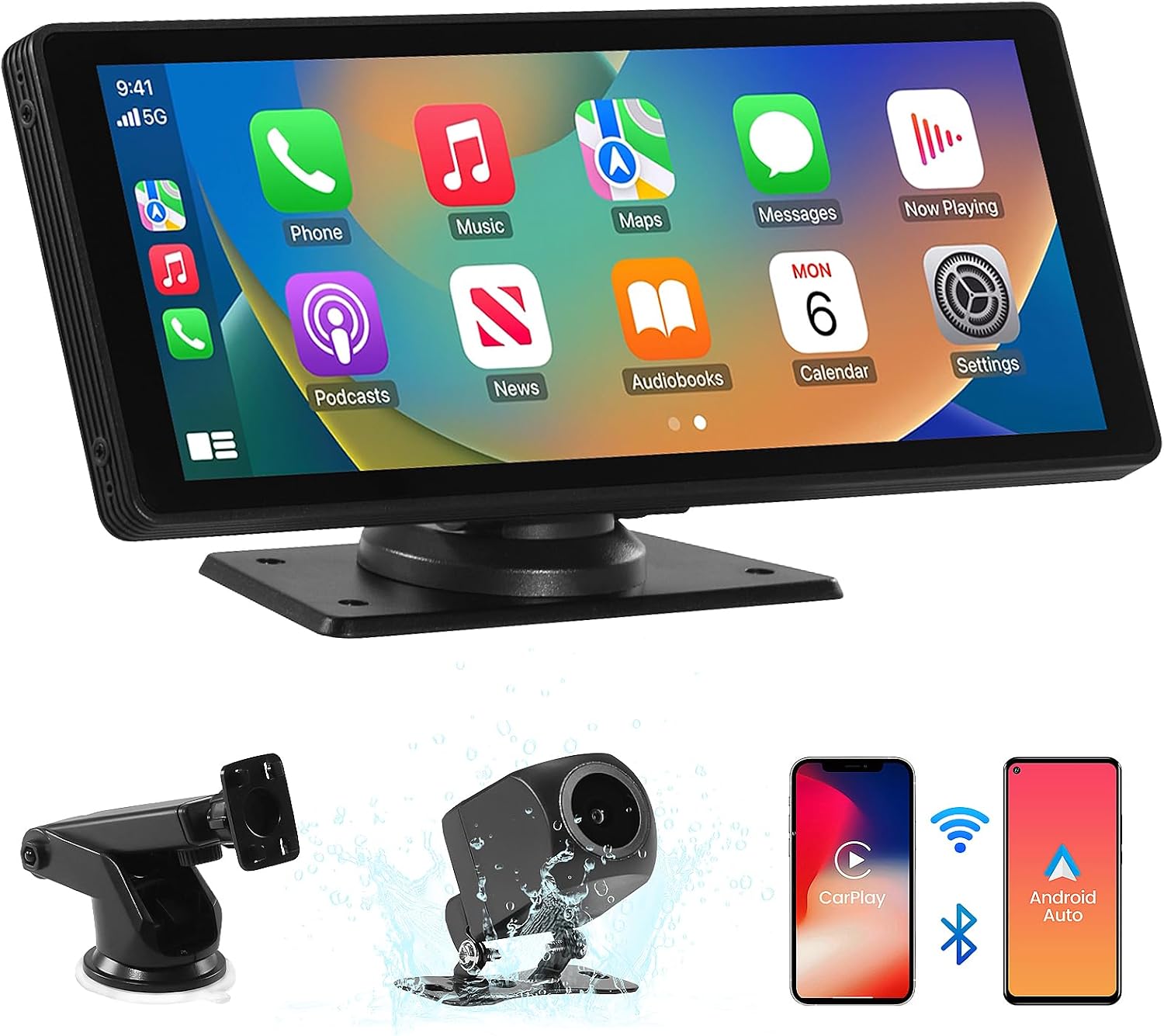
This image displays the main unit of the 10.26-inch portable car display, along with its suction cup mount, a 720P reversing camera, and icons representing wireless CarPlay and Android Auto connectivity.
2. Package Contents
Please check the box for the following items:
- 10.26-inch Portable CarPlay Screen
- Suction Cup Mount
- 720P Reversing Camera
- User Manual
- Power Cable (for 12-24V vehicles)
- AUX Cable
- Wiring Buckles (for cable management)

This image displays all components included in the package: the 10.26-inch Portable CarPlay Screen, Suction Cup Mount, Reversing Camera, User Manual, Power Cable, AUX Cable, and Wiring Buckles.
3. Product Features
- Wireless Apple CarPlay & Android Auto: Enjoy precise navigation, music, calls, and messages via Siri or Google Voice Assistant on the 10.26-inch screen, ensuring safety while driving.
- Android Cast & Airplay: Synchronize your mobile phone's screen to the HD display, allowing passengers to watch videos from platforms like YouTube and TikTok.
- 720P AHD Reversing Camera: Automatically switches to the rear view when reversing, making parking and maneuvering easier and safer. (Note: The reversing camera only supports reverse assistance function).
- Easy Installation: Designed for simple setup, eliminating the need for complex wiring or professional installation.
- Wide Compatibility: Suitable for all vehicles (cars, trucks, caravans, vans, trailers, RVs) with a 12V to 24V power supply.
- HD Touchscreen: Features a 10.26-inch HD IPS display with a 2.5D curved screen for clear visuals and responsive touch control.
- Adjustable Brightness: Two brightness modes (Daytime and Night) with adjustable levels for optimal visibility.
- Local Multimedia Playback: Play offline videos or music by inserting a USB flash drive or TF card.
- Multiple Audio Output Options: Connect to your car's audio system via Bluetooth, FM transmission, AUX, or use the built-in speaker.
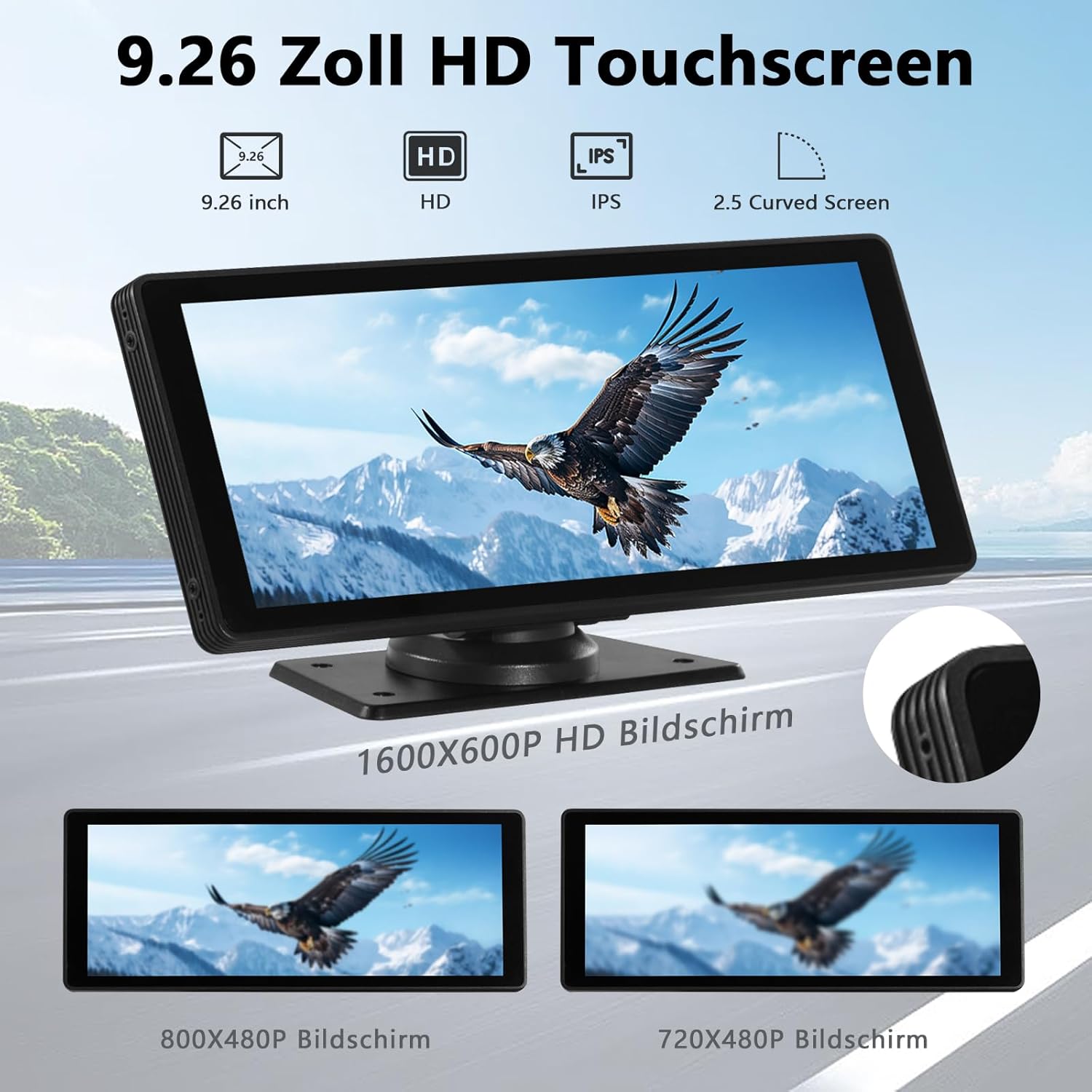
This image highlights the display technology of the unit, emphasizing its 9.26-inch HD touchscreen with IPS technology for wide viewing angles and a 2.5D curved screen design. It also shows a comparison of different resolutions.
4. Setup and Installation
The portable design of this unit ensures a straightforward installation process without the need for complex modifications to your vehicle's existing system.
- Mounting the Display: Attach the suction cup mount to a clean, smooth surface on your dashboard or windshield. Securely attach the 10.26-inch display to the mount.
- Power Connection: Connect the provided power cable to the display unit and plug the other end into your vehicle's 12V-24V power outlet (cigarette lighter socket).
- Reversing Camera Installation (Optional): If using the reversing camera, connect its video cable to the display unit. For automatic activation, connect the camera's red power cable to the positive terminal of your vehicle's reverse light. Mount the camera at the rear of your vehicle, ensuring a clear view.
- Cable Management: Use the included wiring buckles to neatly route and secure all cables, preventing obstruction and ensuring a tidy interior.

This image illustrates the ease of installation for the portable CarPlay screen, highlighting its advantages over traditional 2-DIN car radios and simple CarPlay/Android adapters.
5. Operating Instructions
5.1 Wireless Apple CarPlay Connection
- On the portable screen, open the CarPlay interface.
- On your iPhone (iPhone 5 or higher, iOS 13 or higher), activate Bluetooth and Wi-Fi.
- Connect your iPhone to the portable screen via Bluetooth.
- Confirm the pairing on both devices. The CarPlay interface will then display on the screen.

This image provides a visual, step-by-step guide on how to connect a mobile phone wirelessly to the CarPlay interface.
5.2 Wireless Android Auto Connection
- On the portable screen, open the Android Auto interface.
- On your Android phone (with 5G Wi-Fi support, Android 11 or higher), activate Bluetooth and Wi-Fi.
- Connect your Android phone to the portable screen via Bluetooth.
- Confirm the pairing on both devices. The Android Auto interface will then display on the screen.

This image provides a visual, step-by-step guide on how to connect a mobile phone wirelessly to the Android Auto interface.
5.3 Wireless Airplay / Mirror Link
- On the portable screen, open the Airplay interface.
- On your iPhone, turn on Wi-Fi.
- Connect your iPhone to the device's Wi-Fi network and enter the password if prompted.
- Activate screen mirroring on your iPhone and select 'Connect SmartScreen'.
- The iPhone screen will be mirrored successfully.

This image provides a visual, step-by-step guide on how to connect for wireless Airplay.
5.4 Wireless Android Cast
- On the portable screen, open the Android Cast interface.
- Scan the QR code displayed on the screen to download the necessary app on your Android phone.
- Connect your Android phone to the device via the app.
- The Android phone screen will be cast successfully.

This image provides a visual, step-by-step guide on how to connect for wireless Android Cast.
5.5 Audio Output Options
The unit offers several ways to output audio to your car's sound system:
- Built-in Speaker: The unit has its own speaker for basic audio output.
- AUX Connection: Connect the provided AUX cable from the unit to your car's AUX input for direct audio transmission.
- Bluetooth: Once your phone is connected via Bluetooth, audio can be streamed directly to the unit and then to your car's Bluetooth-enabled audio system.
- FM Transmission: Tune the unit to an unused FM frequency, then tune your car's radio to the same frequency to receive audio wirelessly.
For the best sound quality, it is recommended to connect to your original car radio via AUX or Bluetooth if available.
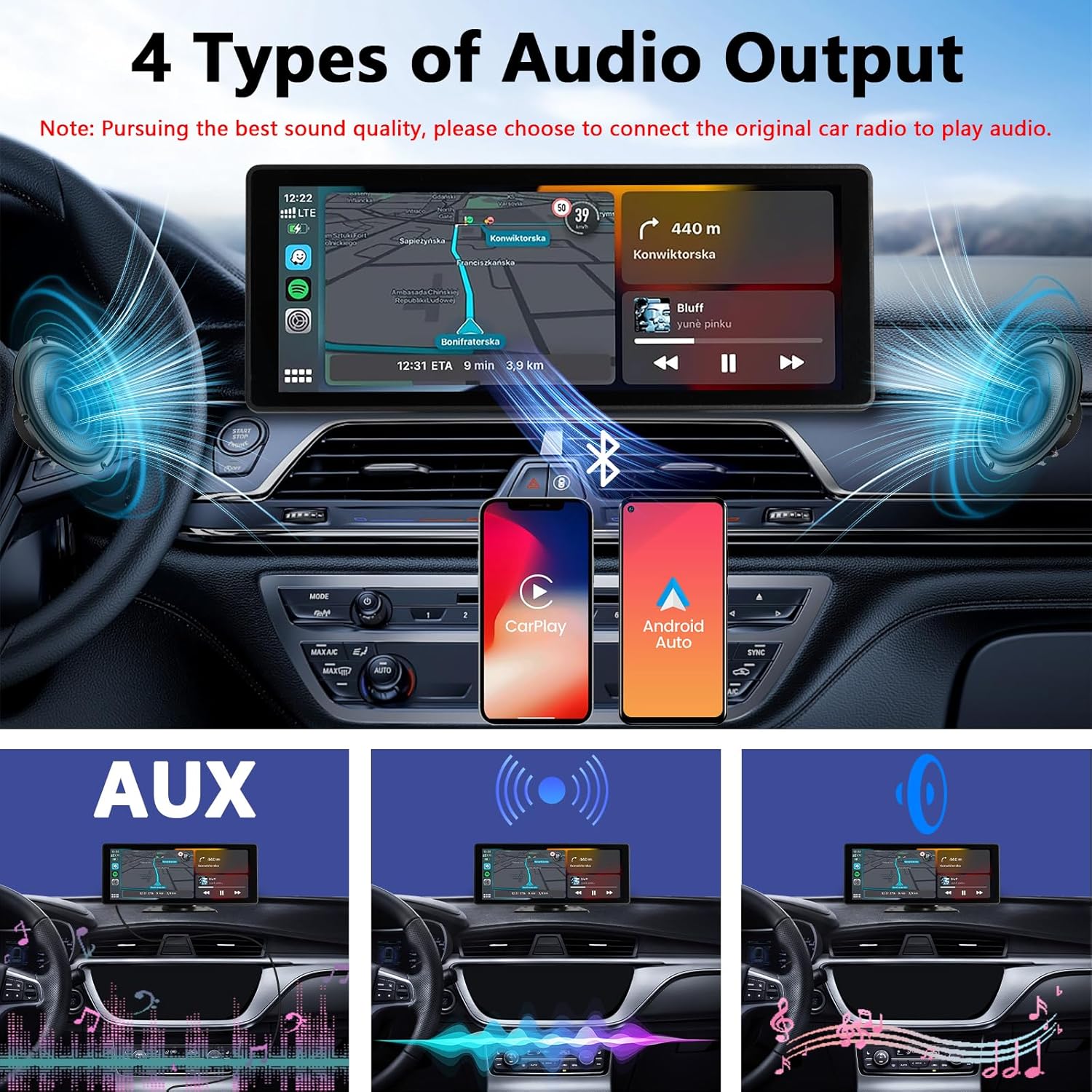
This image demonstrates the four available audio output options: connecting to the car's audio system via Bluetooth, FM transmission, or AUX cable, and using the unit's built-in speaker.
5.6 Brightness Adjustment
The screen brightness can be adjusted to suit different lighting conditions. Access the brightness settings on the display to switch between daytime and nighttime modes, or manually adjust the brightness level for optimal visibility.

This image illustrates the adjustable brightness feature, allowing users to switch between daytime and nighttime display modes for optimal visibility.
5.7 Local Multimedia Playback
You can play media files directly from a USB flash drive or TF (microSD) card. Insert the storage device into the designated port on the unit. The system will automatically detect the media and allow you to browse and play videos or music.

This image shows the rear of the portable display unit with a USB port and TF card slot, indicating its capability to play offline videos and music directly from a USB flash drive or TF memory card.
6. Reversing Camera Operation
Once the 720P AHD reversing camera is properly installed and connected, it will automatically display the rear view on the screen when you shift your vehicle into reverse. This feature provides a wide 170-degree view with parking guidelines, assisting you in safe parking and maneuvering. The camera also features night vision and is IP67 waterproof for durability.

This image details the 720P AHD reversing camera, highlighting its 170-degree wide-angle view, night vision capability, and IP67 waterproof rating. It also shows the camera's view on the screen with parking guidelines.
7. Troubleshooting
- No Power: Ensure the power cable is securely plugged into both the unit and the vehicle's power outlet. Check if the vehicle's power outlet is functioning.
- Bluetooth Connection Issues: Make sure Bluetooth is enabled on both the unit and your phone. Ensure your phone is discoverable. Try forgetting the device on your phone and re-pairing. Move closer to the unit to ensure a strong signal.
- Wireless CarPlay/Android Auto Not Connecting: Verify that Wi-Fi is enabled on your phone in addition to Bluetooth. Ensure your phone meets the minimum OS requirements (iOS 13+ for CarPlay, Android 11+ with 5G Wi-Fi for Android Auto). Restart both the unit and your phone.
- No Audio Output: Check the selected audio output mode (AUX, FM, Bluetooth, Built-in Speaker). Ensure the volume is turned up on both the unit and your car's audio system. If using FM transmission, try a different, clear FM frequency.
- Screen Not Responding: Try restarting the unit by unplugging and re-plugging the power cable. If the issue persists, contact customer support.
- Reversing Camera Not Displaying: Ensure the camera's video cable is securely connected to the unit. If automatic switching is desired, confirm the camera's power cable is correctly connected to the reverse light's positive terminal.
8. Specifications
| Feature | Specification |
|---|---|
| Brand | CUQI |
| Model Number | PCS-10.26 |
| Screen Size | 10.26 Inches |
| Display Type | HD Touchscreen, IPS, 2.5D Curved Screen |
| Connectivity | Bluetooth, USB Type A, 3.5mm Jack |
| Special Features | Wireless Apple CarPlay, Wireless Android Auto, Airplay, Android Cast, Reversing Camera Support |
| Compatible Devices | Smartphone |
| Reversing Camera | 720P AHD, 170-degree field of view, Night Vision, IP67 Waterproof |
| Power Supply | 12V-24V DC |
| Color | Black |
9. Warranty and Support
This product comes with a 1-year warranty from the date of purchase. We also offer lifetime system version upgrades to ensure your device remains up-to-date with the latest features and improvements.
For any technical assistance, troubleshooting, or warranty claims, please contact CUQI customer support. We aim to respond to all inquiries within 24 hours.
Please refer to the contact information provided on the product packaging or the official CUQI website for support details.


