
1. Introduction
This manual provides detailed instructions for the PROZOR Digital Audio Switcher Splitter (Model PRR066). This device allows you to connect up to three optical audio sources and output the audio to two optical audio receivers simultaneously. It supports various audio formats including LPCM 2.0, DTS, and Dolby-AC3, ensuring high-fidelity audio transmission.
The switcher features both manual and infrared (IR) remote control switching for convenience. Its compact design and durable aluminum alloy construction make it a reliable addition to your audio setup.
1.1 Package Contents
- PROZOR Digital Audio Switcher Splitter (PRR066)
- IR Remote Control
- USB-C Power Cable
- 1m Optical Cable
- User Manual (this document)

2. Product Overview
The PROZOR PRR066 is designed to simplify your audio connections by providing multiple inputs and simultaneous outputs for optical audio signals.
2.1 Device Layout

Front Panel:
- IR Receiver: For receiving signals from the remote control.
- POWER Indicator: Illuminates when the device is powered on.
- IN1/IN2/IN3 Indicators: Show which input is currently selected.
- SWITCH Button: Press to cycle through inputs; press and hold to power on/off.
Rear Panel:
- IN1/IN2/IN3: Optical audio input ports.
- OUT1/OUT2: Optical audio output ports.
- USB 5V (Type-C): Power input port.
3. Setup Instructions
Follow these steps to connect your PROZOR Digital Audio Switcher Splitter to your audio system.
3.1 Connection Diagram

3.2 Step-by-Step Connection
- Power Connection: Connect the provided USB-C power cable to the "USB 5V" port on the switcher and then to a 5V USB power adapter (not included) or a USB port on your TV/PC. The POWER indicator will illuminate.
- Input Devices: Connect your optical audio source devices (e.g., TV, DVD player, game console) to the "IN1", "IN2", and "IN3" optical input ports on the switcher using optical cables.
- Output Devices: Connect your optical audio receiving devices (e.g., soundbar, AV receiver, wireless headphone transmitter) to the "OUT1" and "OUT2" optical output ports on the switcher using optical cables.
- Power On: The device will power on automatically when connected to power. If it's off, press and hold the "SWITCH" button for approximately 5 seconds to power it on.
Ensure all optical cables are securely inserted. A click sound indicates a proper connection. Remove protective caps from optical cable ends before insertion.
4. Operating Instructions
The PROZOR Digital Audio Switcher Splitter offers two methods for selecting audio inputs: manual button control and IR remote control.
4.1 Manual Switching
- Press the "SWITCH" button on the front panel of the device to cycle through the available inputs (IN1, IN2, IN3).
- The corresponding input indicator (IN1, IN2, or IN3) will light up to show the currently selected source.
- To power off the device, press and hold the "SWITCH" button for approximately 5 seconds. Press it again briefly to power it back on.
4.2 Remote Control Switching
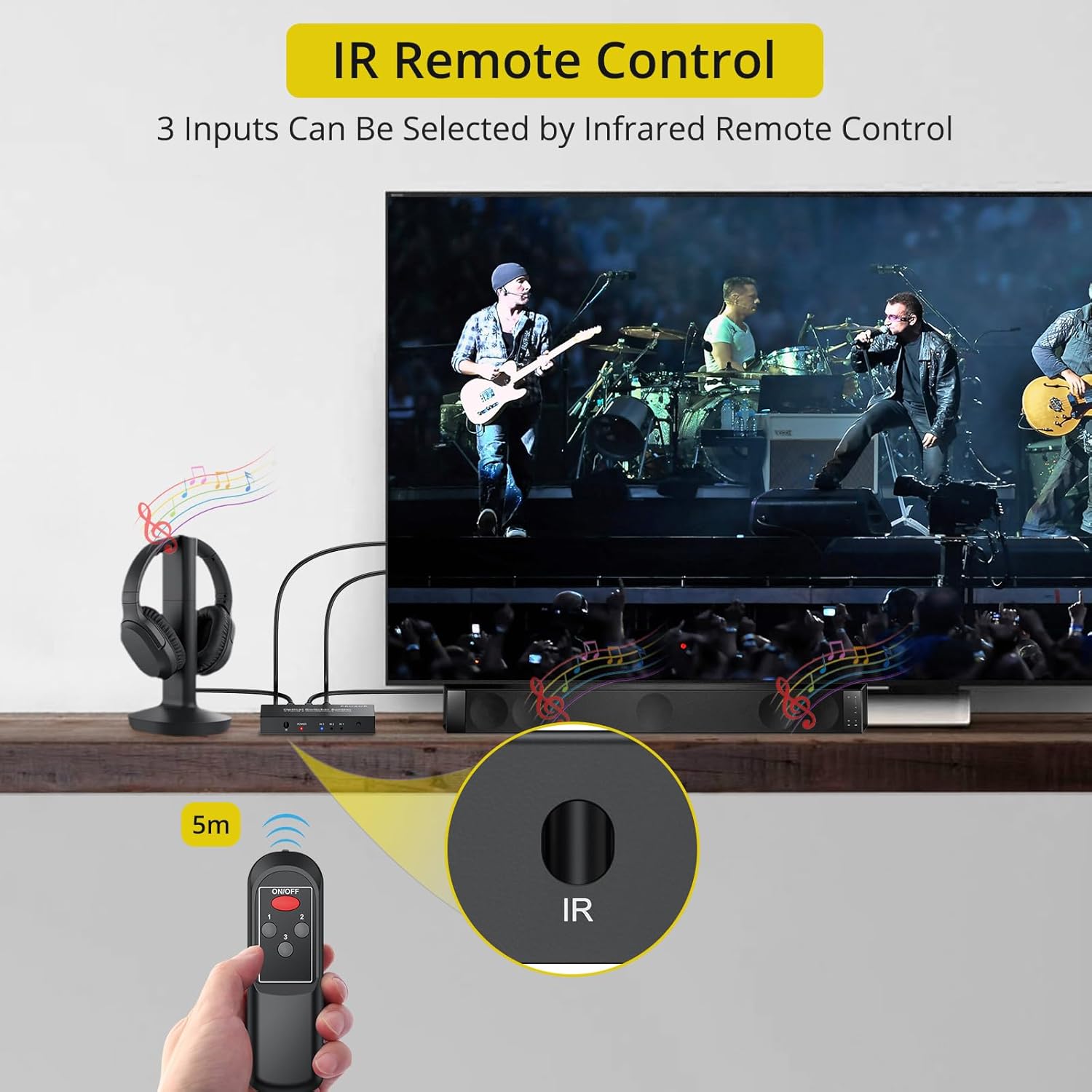
- Ensure the remote control has a working battery.
- Point the remote control towards the "IR Receiver" on the front panel of the switcher.
- Press the "ON/OFF" button to power the device on or off.
- Press the "1", "2", or "3" buttons to directly select the corresponding optical input (IN1, IN2, or IN3).
- The selected input indicator on the device will confirm your choice.
The remote control typically has an effective range of up to 5 meters (16.4 feet).
4.3 Audio Format Support
The device supports the following digital audio formats:
- LPCM 2.0
- DTS
- Dolby-AC3
Ensure your source devices are configured to output one of these supported formats for optimal performance.
5. Maintenance
Proper care and maintenance will ensure the longevity and optimal performance of your PROZOR Digital Audio Switcher Splitter.
- Cleaning: Use a soft, dry cloth to clean the device. Do not use liquid cleaners or aerosols.
- Storage: Store the device in a cool, dry place away from direct sunlight and extreme temperatures.
- Cable Care: Handle optical cables carefully. Avoid bending them sharply or placing heavy objects on them, as this can damage the fiber optic core.
- Power: Disconnect the power adapter if the device will not be used for an extended period.
6. Troubleshooting
If you encounter issues with your PROZOR Digital Audio Switcher Splitter, refer to the following common problems and solutions.
| Problem | Possible Solution |
|---|---|
| No audio output. |
|
| Remote control is not working. |
|
| Input indicators are not lighting up. |
|
7. Specifications
Detailed technical specifications for the PROZOR Digital Audio Switcher Splitter (PRR066).
| Feature | Detail |
|---|---|
| Model Number | PRR066 |
| Inputs | 3 x Optical (SPDIF/Toslink) |
| Outputs | 2 x Optical (SPDIF/Toslink) |
| Supported Audio Formats | LPCM 2.0, DTS, Dolby-AC3 |
| Max Transmission Distance | 25 meters (82 feet) with <0.2dB/m optical cable loss |
| Control Methods | Manual button, IR Remote Control |
| Power Supply | USB 5V (Type-C port) |
| Material | Aluminum Alloy |
| Product Dimensions (L x W x H) | 94mm x 47mm x 15mm (approx. 3.70 x 1.85 x 0.59 inches) |
| Item Weight | 8.4 ounces (approx. 238 grams) |


8. Warranty and Support
PROZOR products are designed for reliability and performance. For warranty information and technical support, please refer to the contact details provided with your purchase or visit the official PROZOR website.
If you experience any issues that cannot be resolved using the troubleshooting guide, please contact PROZOR customer service for assistance.