Introduction
This manual provides essential information for setting up, operating, maintaining, and troubleshooting your Microsoft Surface Pro 11. Please read this manual thoroughly before using your device to ensure optimal performance and longevity.
The Microsoft Surface Pro 11 is a high-performance Copilot+ PC Tablet featuring a 13-inch 120Hz 2.8K touchscreen, powered by a 10-Core Snapdragon X Plus processor with an AI NPU, 16GB RAM, and a 256GB SSD. It runs on Windows 11 and supports WiFi 7 connectivity.
Package Contents
Upon unboxing, verify that all items are present:
- 1 x Microsoft Surface Pro 11 Tablet
- 1 x Power Adapter
- Quick Start Guide (if applicable)
- Safety and Warranty Documents
Note: Keyboard and Surface Pen are sold separately and are not included in the standard package.
Setup Guide
1. Initial Power On and Setup
- Charge the Device: Connect the power adapter to the Surface Pro 11's USB-C port and plug it into a power outlet. Allow the device to charge for at least 30 minutes before first use, or until the battery indicator shows sufficient charge.
- Power On: Press and hold the power button located on the top edge of the tablet until the Microsoft logo appears on the screen.
- Windows Setup: Follow the on-screen prompts to complete the Windows 11 setup process. This includes selecting your region, language, connecting to a Wi-Fi network, and setting up your Microsoft account.
- Install Updates: After initial setup, it is recommended to check for and install any available Windows updates to ensure your system is secure and up-to-date. Go to Settings > Windows Update.
2. Connecting Peripherals
The Surface Pro 11 features two USB-C ports for connectivity.
- USB-C Devices: Connect compatible USB-C accessories such as external drives, monitors, or docking stations.
- Bluetooth Devices: To pair Bluetooth devices (e.g., keyboard, mouse, headphones), go to Settings > Bluetooth & devices, turn on Bluetooth, and select "Add device".
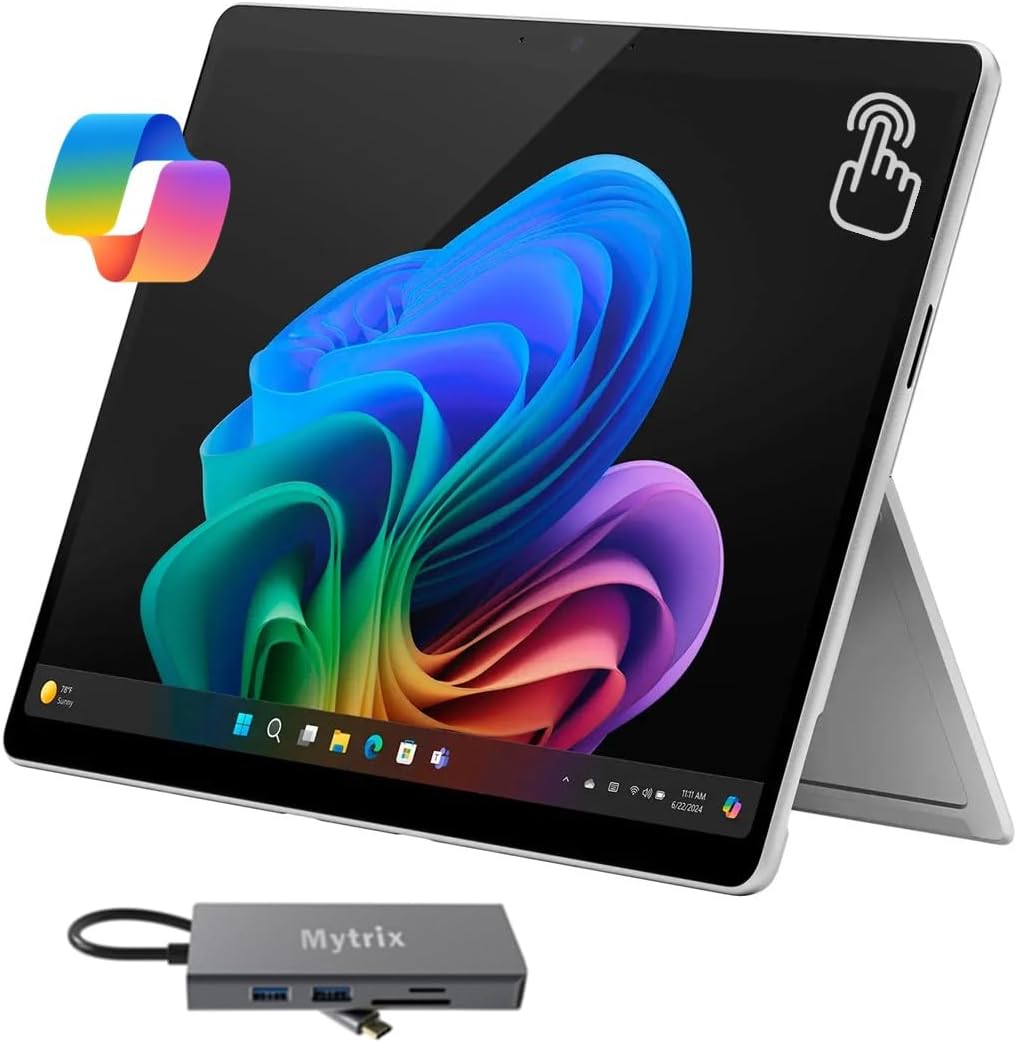
Figure 1: Microsoft Surface Pro 11 with an external docking station connected, showcasing its versatility.
Operating Your Surface Pro 11
Display and Touchscreen
The 13-inch PixelSense LCD touchscreen offers a resolution of 2880 x 1920 with a 3:2 aspect ratio and a refresh rate of up to 120Hz. It supports multi-touch gestures for intuitive navigation.

Figure 2: The stunning 13-inch LCD screen of the Surface Pro 11, highlighting its visual clarity.
Using Copilot+ PC Features
Your Surface Pro 11 is a Copilot+ PC, leveraging its AI NPU for enhanced performance and new experiences. This includes features like Recall and advanced AI capabilities within Windows applications.
- Recall: Access your past activities and content on your PC instantly. Use the search bar to find specific moments or information.
- AI-enhanced Applications: Benefit from AI-powered features in creative and productivity applications, such as image generation or text summarization.

Figure 3: The Recall feature on the Surface Pro 11, designed to help users quickly find past content.

Figure 4: The Copilot key, providing direct access to AI-powered experiences on the Surface Pro 11.
Camera Functionality
The Surface Pro 11 is equipped with an AI-enhanced Studio Camera for high-quality video calls and photography.

Figure 5: Illustration of the AI-enhanced Studio Camera on the Surface Pro 11, highlighting its front and rear camera capabilities.
Maintenance
Cleaning Your Device
- Screen: Use a soft, lint-free cloth slightly dampened with water or a screen cleaner specifically designed for electronics. Avoid harsh chemicals.
- Body: Wipe the exterior with a soft, dry cloth. Do not use abrasive materials.
Battery Care
- Avoid extreme temperatures, as they can degrade battery life.
- For long-term storage, charge the battery to around 50% and store in a cool, dry place.
Software Updates
Regularly check for and install Windows updates to ensure system stability, security, and access to the latest features. Go to Settings > Windows Update.
Troubleshooting
| Problem | Possible Cause / Solution |
|---|---|
| Device does not power on. | Ensure the device is charged. Connect the power adapter and wait a few minutes before attempting to power on again. If unresponsive, perform a force restart by holding the power button for 10-15 seconds. |
| Wi-Fi connectivity issues. | Check if Wi-Fi is enabled in Settings. Restart your router and the Surface Pro 11. Forget and reconnect to the Wi-Fi network. Ensure drivers are up-to-date. |
| Touchscreen is unresponsive. | Restart the device. Ensure the screen is clean and free of debris. If the issue persists, check for driver updates or consider a system restore. |
| Slow performance. | Close unnecessary applications. Check Task Manager for resource-intensive processes. Ensure sufficient free storage space. Run a disk cleanup and check for malware. |
For further assistance, refer to the Microsoft Support website or contact customer service.
Specifications
| Feature | Detail |
|---|---|
| Model Name | Surface Pro 11 |
| Item Model Number | ZHX |
| Display | 13-inch PixelSense LCD, 2880x1920 resolution, 120Hz refresh rate |
| Processor | Qualcomm Snapdragon X Plus (10-Core, up to 3.4 GHz) with AI NPU |
| RAM | 16 GB |
| Storage | 256 GB SSD |
| Graphics | Qualcomm Adreno GPU (Integrated) |
| Operating System | Windows 11 Home |
| Connectivity | Wi-Fi 7, Bluetooth |
| Ports | 2 x USB-C |
| Cameras | AI-enhanced Studio Camera (Front and Rear) |
| Dimensions (LxWxH) | 11.3 x 8.2 x 0.37 inches |
| Weight | 1.97 pounds (approximate) |
Warranty and Support
Your Microsoft Surface Pro 11 comes with a manufacturer's warranty. For specific details regarding warranty coverage and duration, please refer to the warranty card included in your product packaging or visit the official Microsoft support website.
For technical support, driver downloads, and frequently asked questions, please visit the Microsoft Surface Support page. You may also contact Microsoft customer service directly for personalized assistance.
Note: The product description mentions a 12-month warranty provided by the seller for professionally upgraded and customized units. Please verify your specific warranty terms with your point of purchase.


