
1. Important Safety Information
Please read all safety instructions carefully before using your Xiaomi TV S Mini LED 75" 2025. Keep this manual for future reference.
- Power Source: Connect the TV only to an AC power source as indicated on the label.
- Ventilation: Ensure adequate ventilation around the TV. Do not block ventilation openings.
- Water and Moisture: Do not expose the TV to rain or moisture. Do not place objects filled with liquids on the TV.
- Cleaning: Unplug the TV before cleaning. Use a soft, dry cloth. Avoid liquid cleaners.
- Servicing: Do not attempt to service this product yourself. Refer all servicing to qualified service personnel.
- Placement: Place the TV on a stable, level surface or mount it securely to a wall using a compatible VESA mount.
2. Package Contents
Verify that all items are present in the package:
- Xiaomi TV S Mini LED 75" 2025
- Remote Control
- Power Cable
- TV Stand Components (if included)
- User Manual (this document)
3. Setup Guide
3.1 Unpacking the TV
Carefully remove the TV from its packaging. It is recommended to have two people for this process due to the size and weight of the 75-inch model.
3.2 Installing the TV Stand (Optional)
If you are not wall-mounting the TV, attach the included stand components according to the separate stand installation guide. Ensure all screws are tightened securely.
3.3 Wall Mounting (Optional)
The Xiaomi TV S Mini LED 75" 2025 supports VESA wall mounts with a pattern of 400 x 300 mm. Use appropriate wall-mounting hardware and consult a professional for installation to prevent injury or damage.
3.4 Connecting Peripherals
Connect your devices to the TV's input ports. Refer to the back panel image for port locations.
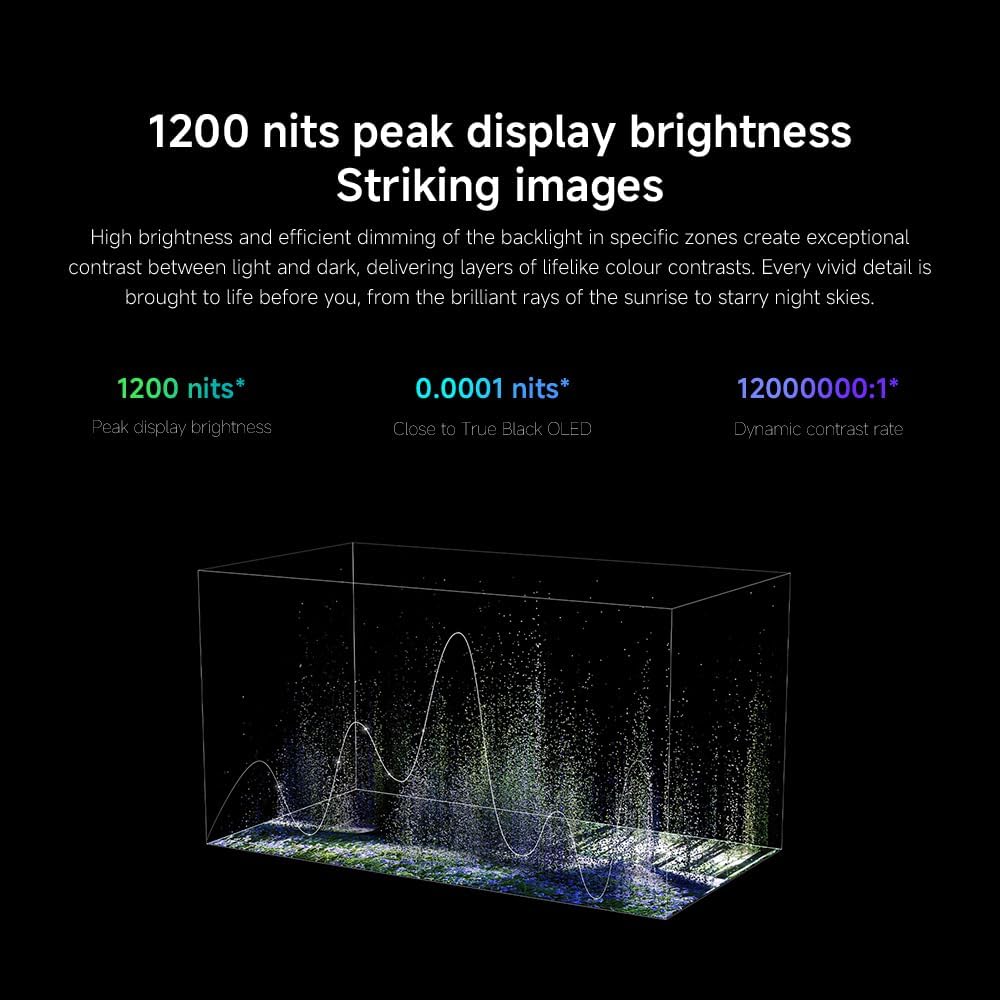
Image: Rear view of the TV displaying available connection ports.
- Power: Connect the power cable to the TV and then to a power outlet.
- HDMI: Connect Blu-ray players, game consoles, or other HDMI devices.
- USB: Connect USB storage devices for media playback.
- Ethernet: For a wired internet connection.
- Antenna/Cable: Connect your antenna or cable TV input.
3.5 Initial Power On and First-Time Setup
After connecting all cables, plug in the TV and press the power button on the remote control. Follow the on-screen instructions to complete the initial setup, including network connection, Google account login, and channel scanning.

4. Operating Instructions
4.1 Remote Control Overview
The included remote control provides access to all TV functions. Familiarize yourself with the button layout for easy navigation.
4.2 Basic Functions
- Power: Press to turn the TV on or off.
- Volume: Use the +/- buttons to adjust the sound level.
- Channel: Use the CH +/- buttons to change channels.
- Input: Select the desired input source (HDMI, AV, etc.).
- Home: Access the Google TV home screen.
4.3 Smart TV Features (Google TV)
Your Xiaomi TV runs on Google TV, offering a personalized entertainment experience.

Image: Google TV interface with app icons and content suggestions.
- Apps: Download and install applications from the Google Play Store.
- Voice Assistant: Use the built-in Google Assistant for voice commands.
- Content Recommendations: Google TV provides personalized recommendations based on your viewing habits.

Image: Using the Hey Google voice assistant to search for content.
4.4 Display Settings
Adjust picture settings to optimize your viewing experience.
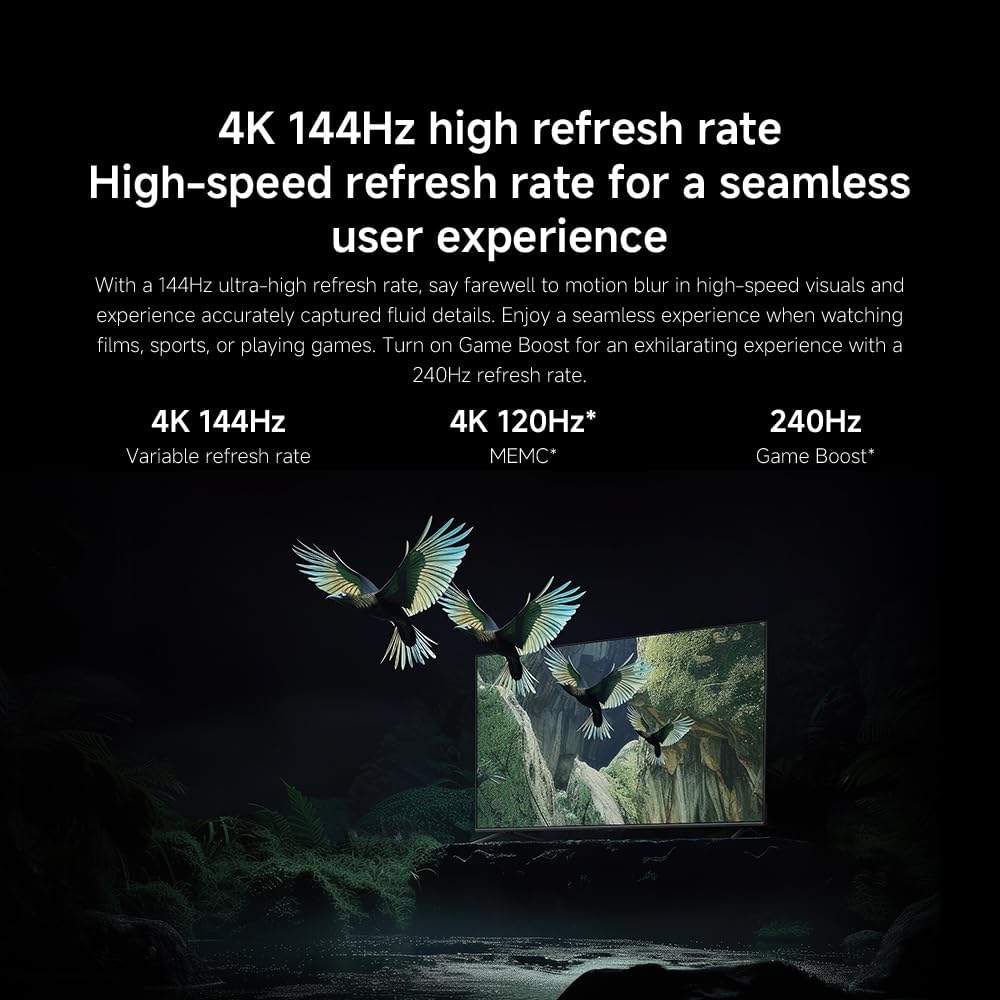
Image: Overview of the TV's advanced display technologies.
- Picture Modes: Select from various preset modes (e.g., Standard, Vivid, Movie, Game) or customize your own.
- Brightness/Contrast: Fine-tune these settings for optimal visual clarity. The TV features 1200 nits peak brightness for stunning visuals.
- Color: Adjust color saturation and tint. The QD-MiniLED display offers accurate color reproduction.
- Refresh Rate: The TV supports a 144Hz refresh rate for ultra-smooth motion.
- AI Engine: The powerful AI engine enhances image quality automatically.

Image: Visual representation of the 144Hz refresh rate for seamless motion.
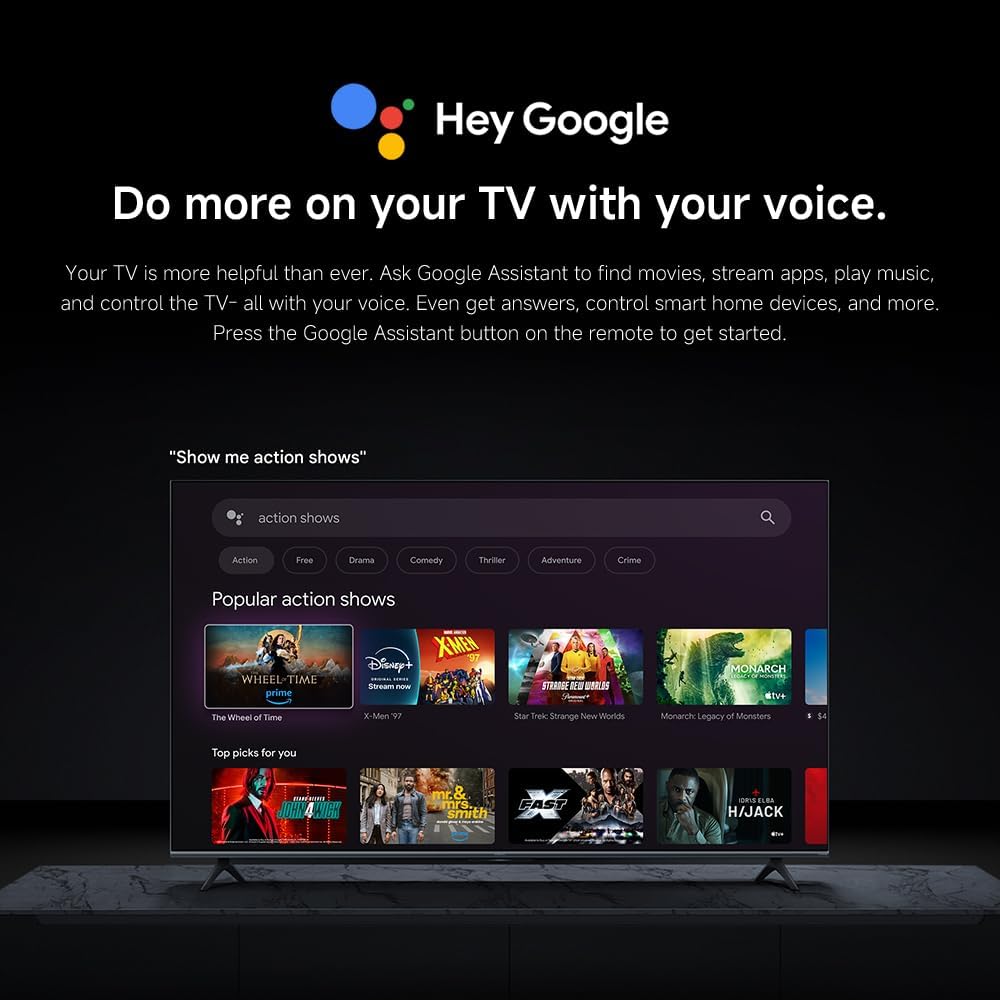
Image: The Quad cortex A73 processor, responsible for AI image enhancement and performance.
4.5 Audio Settings
Configure audio output and sound enhancements.

Image: Depiction of the TV's quality audio-visual experience.
- Sound Mode: Choose from preset sound modes (e.g., Standard, Movie, Music) or customize.
- Dolby Atmos: Enable Dolby Atmos for an immersive audio experience.
4.6 Connectivity
The TV offers various connectivity options.
- Bluetooth: Connect Bluetooth-enabled devices such as headphones or speakers.
- Wi-Fi: Connect to your home wireless network for internet access.
- Apple AirPlay: Stream content directly from your Apple devices.
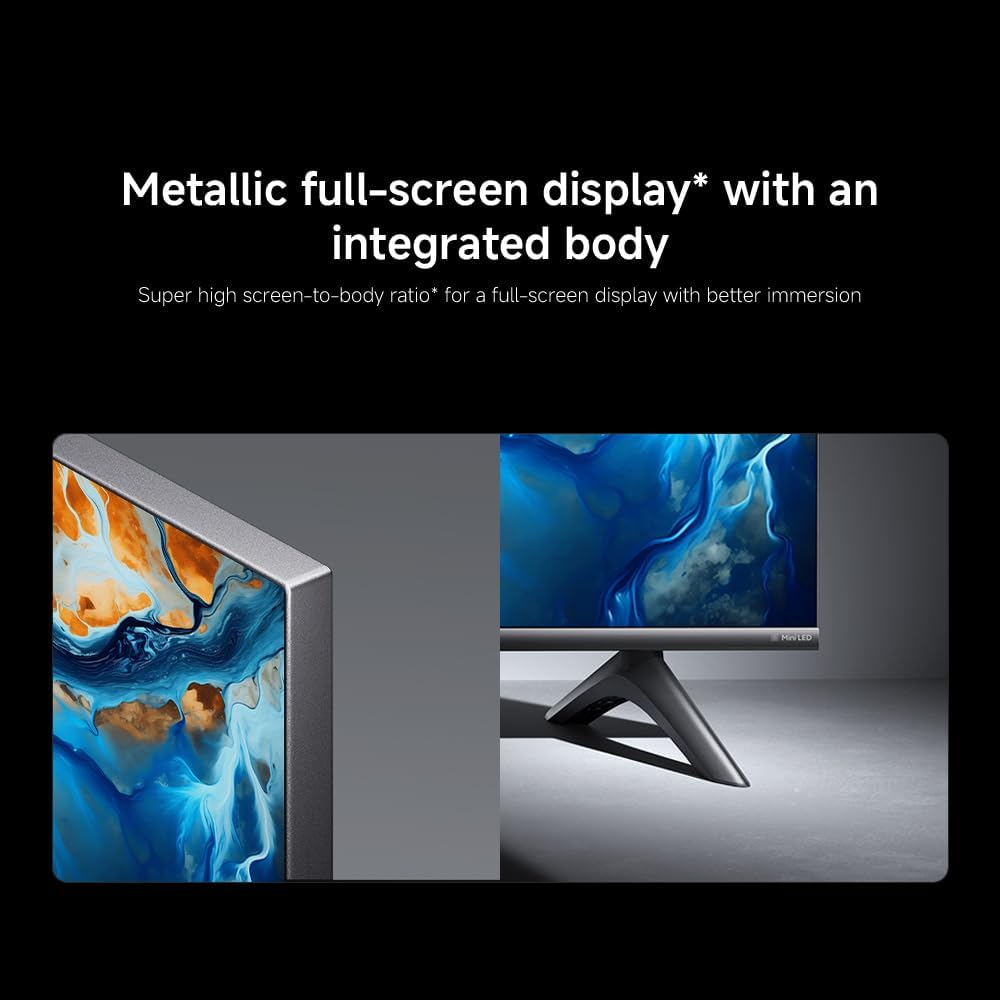
Image: Apple AirPlay functionality for streaming from Apple devices.
5. Maintenance
5.1 Cleaning the Screen
To clean the screen, first unplug the TV. Gently wipe the screen with a soft, lint-free cloth. For stubborn marks, slightly dampen the cloth with water or a specialized screen cleaner, then wipe dry immediately. Do not spray liquid directly onto the screen.
5.2 Software Updates
The TV may receive software updates periodically to improve performance and add new features. Ensure your TV is connected to the internet to receive these updates. You can check for updates manually in the TV's settings menu.
6. Troubleshooting
If you encounter issues with your TV, refer to the following common solutions:
| Problem | Possible Solution |
|---|---|
| No power | Check if the power cable is securely connected to the TV and the power outlet. Ensure the outlet is functional. |
| No picture, but sound is present | Verify the correct input source is selected. Check cable connections to external devices. |
| No sound, but picture is present | Check volume level and mute status. Ensure audio cables are connected correctly. |
| Remote control not working | Replace batteries. Ensure no obstructions between the remote and the TV. |
| Poor picture quality | Adjust picture settings (brightness, contrast, sharpness). Check antenna or cable connection. Ensure content source is high quality. |
| Smart TV features unresponsive | Check internet connection. Restart the TV by unplugging it for a few minutes and plugging it back in. |
If the issue persists after trying these steps, contact customer support.
7. Specifications
Key technical specifications for the Xiaomi TV S Mini LED 75" 2025:
| Feature | Specification |
|---|---|
| Brand | XIAOMI |
| Model Number | 59292 |
| Screen Size | 75 Inches |
| Display Technology | 4K UHD, LED, QD-MiniLED |
| Resolution | 4K (3840 x 2160) |
| Refresh Rate | 144 Hz |
| Peak Brightness | 1200 nits |
| Operating System | Google TV |
| Processor | Quad Cortex A73 |
| RAM | 3 GB |
| Storage | 32 GB |
| Audio Technology | Dolby Atmos |
| Connectivity | Bluetooth, Wi-Fi, Apple AirPlay |
| Product Dimensions (with stand) | 42.5D x 166.8W x 102.8H cm |
| Product Weight (with stand) | 31 kg |
| VESA Wall Mount | 400 x 300 mm |
| Included Components | TV, remote control, power cable |
8. Warranty and Support
Your Xiaomi TV S Mini LED 75" 2025 is covered by a manufacturer's warranty. Please refer to the warranty card included in your package for specific terms and conditions. For technical support, service inquiries, or to purchase accessories, please visit the official Xiaomi website or contact their authorized service centers.
Online Resources: For additional information, FAQs, and software downloads, visit the official Xiaomi support page.


