
PHILIPS DDL240X-1HBG-H
Philips Wi-Fi Smart Lock with Handle User Manual
Model: DDL240X-1HBG-H
1. Introduction
This manual provides comprehensive instructions for the installation, operation, and maintenance of your Philips Wi-Fi Smart Lock with Handle. Please read this manual thoroughly before installation and retain it for future reference. This smart lock offers multiple unlocking methods including fingerprint, PIN code, traditional key, and app control, enhancing your home security and convenience.
2. Product Overview
2.1. Components
The Philips Wi-Fi Smart Lock with Handle set includes the following main components:
- 1 x Door Lock (Exterior and Interior Assemblies)
- 1 x Handle Set (Exterior and Interior Handles)
- 1 x Wi-Fi Gateway
- 4 x AA Batteries
- Installation Hardware (Screws, Latch, Strike Plate, etc.)
- 1 x Door Position Sensor

Figure 1: Overview of Philips Wi-Fi Smart Lock with Handle components, including the smart lock unit, handle set, Wi-Fi gateway, and installation accessories.
3. Installation
3.1. Preparation and Door Dimensions
Before beginning installation, ensure your door meets the compatibility requirements. The lock is designed to fit most standard doors with a thickness of 1-3/8" to 2" (35mm to 50mm). Verify the existing bore holes and backset dimensions.
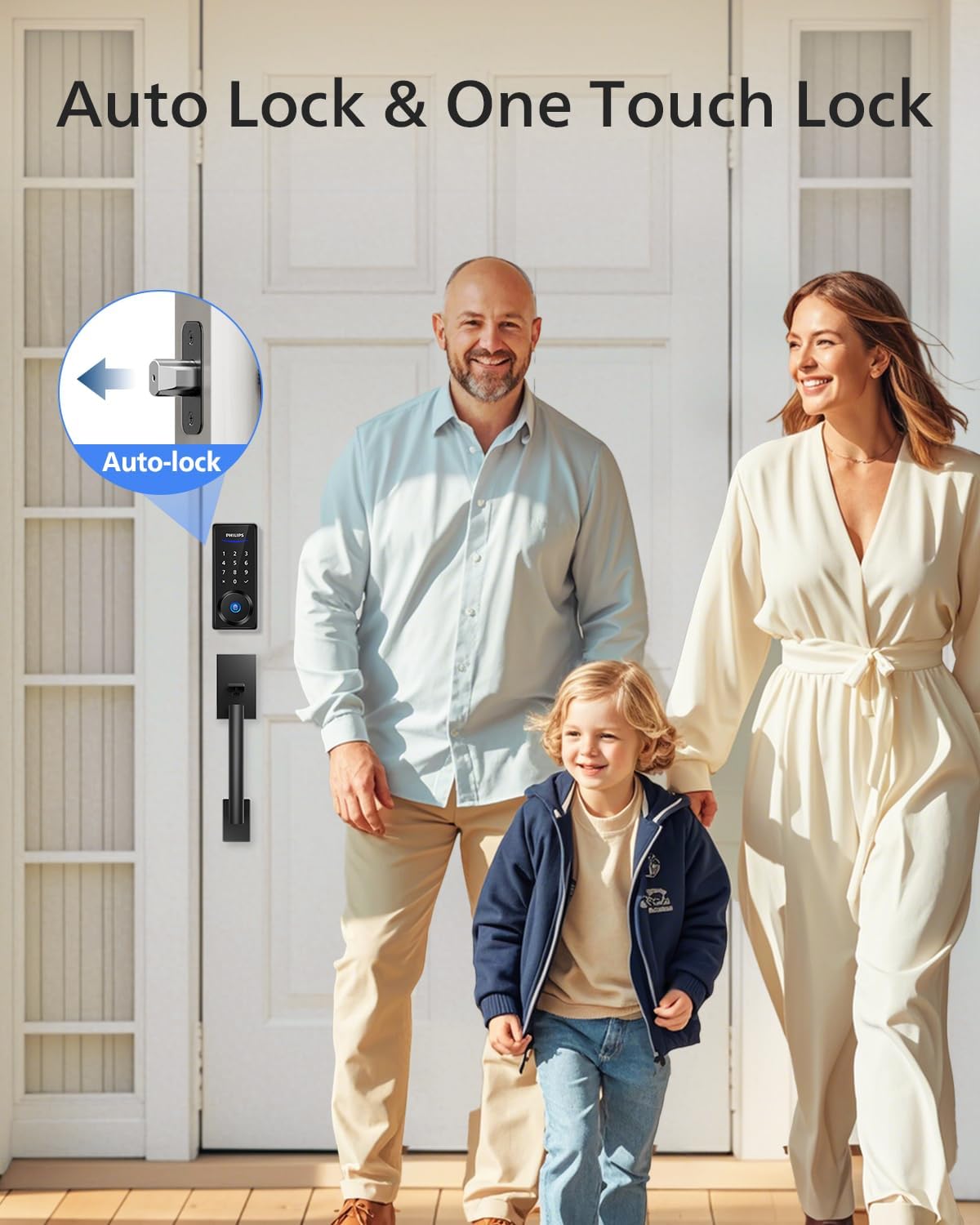
Figure 2: Diagram illustrating door thickness, bore hole, and backset measurements for compatibility. Ensure your door matches these specifications for proper installation.
If your door does not have a bottom hole for the handle set, or if the existing hole does not match the required measurements, you may need to drill a new one. Use the provided drilling template to mark the precise location for the bottom hole, ensuring proper alignment with other crossholes. A 3/8" (10mm) drill bit is recommended for this step.
Video 1: This video demonstrates how to prepare your door for the handle set installation, including checking dimensions and drilling a new bottom hole if necessary. (Source: IDLESPACE)
3.2. Handle Installation
Install the latch into the door edge, ensuring the latch bolt is slanted toward the door's closing direction. Secure it with the provided latch screws. Then, align the exterior handle set, ensuring the shaft and handle button are in the correct position before inserting it through the latch and bottom hole. Secure the bottom of the handle set with the washer and washer screw from the interior side.
Video 2: This video provides a step-by-step guide on installing the Philips handle set, including latch adjustment and securing the exterior handle. (Source: IDLESPACE)
3.3. Lock Installation
With the latch fully retracted, route the cable from the exterior lock assembly below the latch. Insert the cable connector into the socket on the interior assembly. Keep the thumb turn in the vertical position and install the interior assembly by sliding it up and down the side buttons. Attach the interior assembly to the mounting plate and fasten using the two screws. Install four AA batteries into the battery compartment. Press and hold the reset button for 5 seconds to initiate the handing process.

Figure 3: The Philips Smart Lock exterior and interior units, ready for installation.
Video 3: This video guides you through the installation of the Philips smart lock unit, including cable routing, assembly, and battery insertion. (Source: IDLESPACE)
3.4. Door Sensor Installation
The door position sensor helps monitor the door's open/closed status. For surface mount (recommended), determine the mounting location on the door frame, ensuring it's within 3.15 inches (8cm) of the lock. You can either screw the sensor into the door frame or stick it using the adhesive backing. For flush mount (optional), drill a 1/2" hole at least 1/2" deep in the marked position on the door frame, keeping the drill straight and steady, then insert the sensor.

Figure 4: The Philips Smart Lock installed on a door, with the door position sensor visible on the door frame.
Video 4: This video demonstrates the installation of the door sensor for the Philips smart lock, showing both surface and flush mount options. (Source: IDLESPACE)
4. Operating Instructions
4.1. Unlocking Methods
Your Philips Smart Lock offers multiple convenient ways to unlock your door:
- PIN Code: Wake up the keypad by pressing any key, then enter your 4-10 digit PIN code and press the checkmark.
- Fingerprint: Place your registered finger on the fingerprint sensor. The lock will unlock in approximately 0.3 seconds.
- Traditional Key: Use the physical key provided as a backup.
- Philips App: Open the Philips Home Access app on your smartphone. Select your lock and tap the unlock icon.
- Voice Assistant: If equipped with the Philips Wi-Fi Bridge (sold separately), you can use voice commands via Amazon Alexa or Google Assistant (e.g., "Alexa, unlock the front door").

Figure 5: Visual representation of the various unlocking methods available: remote control via app, PIN codes, fingerprints, and traditional keys.
Video 5: This video demonstrates how to unlock the door using various methods, including PIN code, fingerprint, and the mobile app. (Source: IDLESPACE)
4.2. Locking Methods
- Auto-Locking: The lock can be configured to automatically lock after a set period (30 to 180 seconds) once it has been unlocked and the door is shut.
- Manual Locking (Outside): Press and hold any key on the touchscreen for at least 2 seconds, or press the checkmark button once without entering any codes.
- Manual Locking (Inside): Rotate the thumb turn to the locked position. You can also press the privacy button for added security.
- Philips App: Open the Philips Home Access app and tap the lock icon.
- Voice Assistant: If equipped with the Philips Wi-Fi Bridge, use voice commands (e.g., "Alexa, lock the front door").
4.3. App Features
The Philips Home Access app provides extensive control and monitoring capabilities:
- User Management: Add, modify, or delete user PIN codes and fingerprints. Create temporary, permanent, recurring, or one-time PINs for guests or service providers.
- Real-time Notifications: Receive instant alerts on your smartphone for door activity, such as unlocking, locking, or attempted unauthorized access.
- Activity Records: View a detailed history of all lock interactions, including who unlocked the door and when.
- Door Status Check: Remotely check if your door is open or closed using the door position sensor.
- Settings: Adjust auto-lock timers, sound settings, lock language, and privacy modes.

Figure 6: The Philips Home Access app interface, showing options for managing users, viewing activity, and controlling the lock remotely.
Video 6: This video demonstrates how to add PIN codes and fingerprints using the Philips Home Access app. (Source: IDLESPACE)
4.4. Security Features
- Anti-Peeping PIN Code: Enter random digits before or after your actual PIN code to prevent others from guessing your code.
- Wrong Entry Limit: After 10 unsuccessful PIN or fingerprint entries, the lock will temporarily disable for 3 minutes to prevent brute-force attacks.
- Enhanced Encryption: The lock utilizes AES 128 encryption and local storage to protect your data from unauthorized access.
5. Maintenance
5.1. Battery Management
The Philips Smart Lock is powered by 4 AA alkaline batteries, providing over 10 months of reliable performance. The lock will provide low battery alarms through the app and on the device itself when the battery level is low. Replace all four batteries simultaneously when prompted to ensure optimal performance.

Figure 7: The Philips Smart Lock displaying a low battery alarm, indicating it's time to replace the batteries.
6. Troubleshooting
If you encounter issues with your Philips Wi-Fi Smart Lock, refer to the following common troubleshooting steps:
- Lock not responding: Check battery levels and replace if necessary. Ensure the lock is properly installed and all cables are connected.
- Fingerprint not recognized: Ensure your finger is clean and dry. Try scanning your finger at different angles. Re-enroll your fingerprint if issues persist.
- PIN code not working: Verify the PIN code is correct. Ensure the keypad is awake before entering the code.
- App connectivity issues: Ensure your Wi-Fi gateway is powered on and within range of the lock and your home Wi-Fi network. Restart the app or your smartphone.
- Latch feels loose: Adjust the strike tab on the strike plate if the latch feels loose. Refer to the installation section for details on adjusting the strike tab.
7. Specifications
| Feature | Specification |
|---|---|
| Brand | PHILIPS |
| Model Name | DDL240X-1HBG-H |
| Lock Type | Fingerprint Deadbolt Door Lock + Wi-Fi Bridge, Combination Lock, Keypad |
| Special Features | Fingerprint, Passcode Unlock, App Unlock, One-Touch Lock, Auto-Lock |
| Material | Aluminum, Metal |
| Color | Matte Black |
| Item Dimensions (L x W x H) | 13.2 x 9.7 x 4.5 inches |
| Item Weight | 7.52 pounds |
| Power Source | 4 x AA Alkaline Batteries (Included) |
| Connectivity Protocol | Wi-Fi |
| Controller Type | Google Assistant, Amazon Alexa |
| Control Method | App, Touch, Voice |
| Door Thickness Compatibility | 1-3/8" to 2" (35mm to 50mm) |
8. Warranty and Support
Philips offers reliable customer support for your smart lock. For any inquiries or assistance, please contact Philips customer service:
- Phone Support: Monday to Friday (8 AM–8 PM PST), Saturday (9 AM–5 PM PST)
- Email Service: 24/7 availability
Please refer to your product packaging or the official Philips website for specific warranty details and the most up-to-date contact information.
Related documentsDDL240X-1HBG-H


Ask a question about this manual
Ask about setup, troubleshooting, compatibility, parts, safety, or missing instructions. Manuals+ will review the question and use this page’s manual context to help answer it.