
Introduction
Thank you for choosing the Benibela 10.1-inch Smart Digital Photo Frame. This manual provides detailed instructions for setting up, operating, and maintaining your new digital photo frame. Please read this manual carefully before use to ensure optimal performance and longevity of your device.
Product Overview
The Benibela 10.1-inch Smart Digital Photo Frame features a vibrant IPS touch screen with 1280*800 pixel resolution, offering clear display of your photos and videos. It includes 32GB of built-in memory and supports Wi-Fi connectivity for easy sharing via the Vphoto app. Key functions include photo and video display, music playback, weather station, clock & calendar, auto-rotation, and sleep mode.
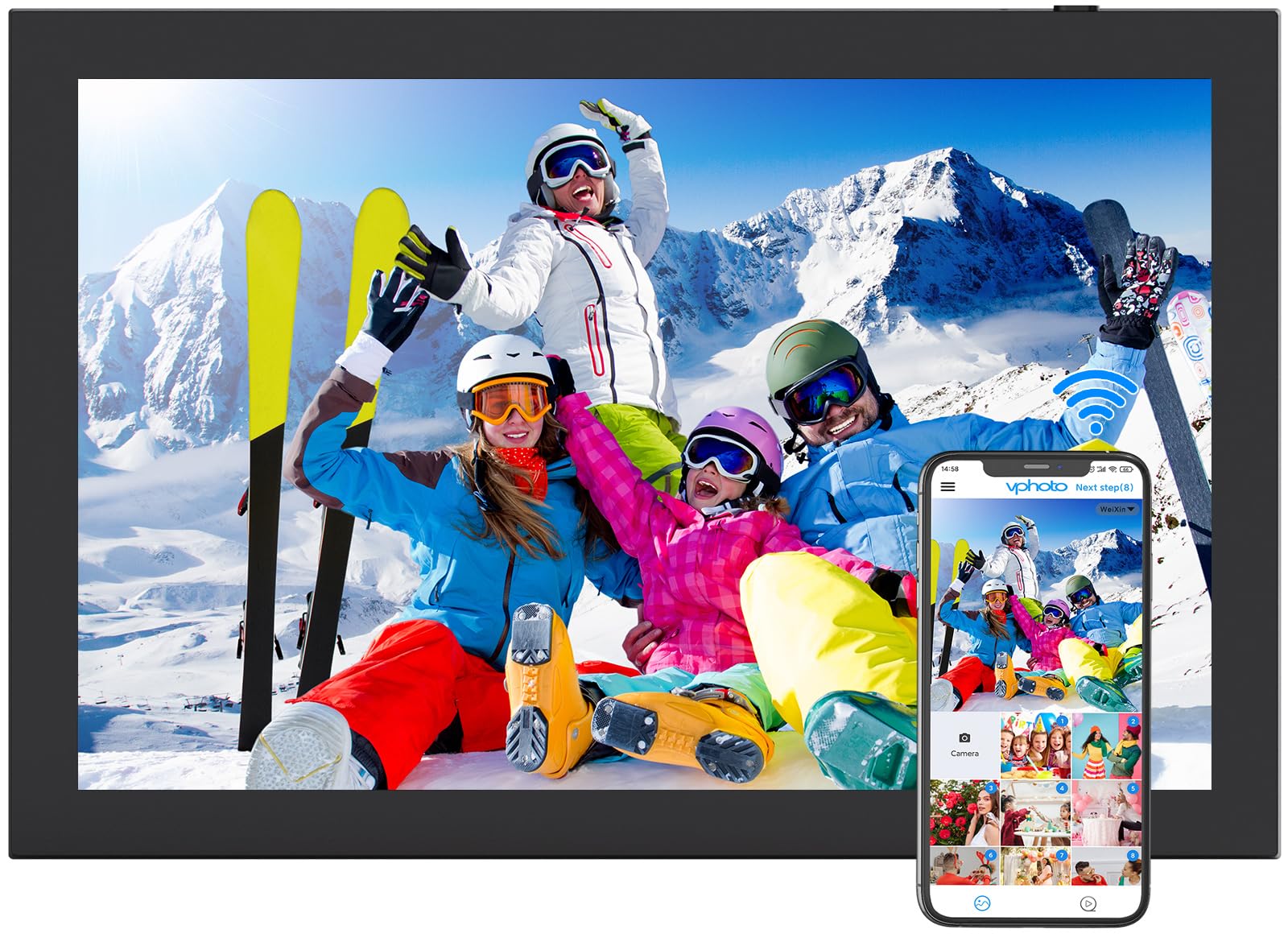
Figure 1: Benibela 10.1-inch Digital Photo Frame with feature icons.

Figure 2: Frame highlighting storage capacity and display specifications.
Setup Guide
1. Powering On
- Connect the provided DC power adapter to the frame's power port.
- Plug the adapter into a power outlet. The frame will automatically power on.
2. Initial Setup
- Follow the on-screen prompts to select your preferred language.
- Connect the frame to your Wi-Fi network by selecting your network name and entering the password.
3. Vphoto App Installation
The Vphoto app is essential for sharing photos and videos to your frame from your smartphone.
- Download the "Vphoto" app from the Apple App Store (for iOS devices) or Google Play Store (for Android devices).
- Install the app on your smartphone.

Figure 3: Sharing photos and videos via the Vphoto App.
4. Connecting the Frame to the App
- Open the Vphoto app and create an account.
- On your digital photo frame, navigate to the settings to find your unique Frame ID.
- In the Vphoto app, select "Add Device" and enter the Frame ID to connect your smartphone to the frame.
- You can invite family and friends to share photos and videos by providing them with your Frame ID and instructions to download the Vphoto app.

Figure 4: Steps for instant Wi-Fi sharing using the Vphoto App.
Operating Instructions
1. Uploading Content
You can upload photos and videos to your Benibela digital photo frame using several methods:
- Via Vphoto App: Use the Vphoto app on your smartphone to directly send photos and videos to the frame. The app allows for captions and slideshow control.
- Via Email: The frame supports uploading content via email. Refer to the frame's settings for the unique email address.
- Via Micro SD Card: Insert a Micro SD card into the designated slot on the frame to transfer media.
- Via USB Drive: Connect a USB drive to the frame's USB port to transfer media.

Figure 5: Rear view of the frame showing TF Card, USB, and Type-C ports.
2. Viewing Content
- Automatic Slideshow: The frame can automatically cycle through your uploaded photos and videos.
- Manual Swipe: On the touch screen, swipe left or right to manually change photos.
- Video Playback: The frame supports video playback with sound.

Figure 6: Video playback on the digital photo frame.
3. Touch Screen Functions
The intuitive touch screen allows for various interactions:
- Rotate: Adjust the orientation of photos.
- Scale In/Out & Zoom In: Pinch to zoom or use on-screen controls to adjust photo size.
- Settings: Access various frame settings directly from the screen.

Figure 7: Touch screen gestures for photo manipulation and settings.
4. Settings and Customization
Customize your frame's experience through the settings menu:
- Auto-Rotation: The frame supports automatic rotation between portrait and landscape modes, facilitated by its detachable stand.
- Play Order: Choose the order in which photos and videos are displayed.
- Brightness: Adjust screen brightness to suit your environment.
- Title Display: Enable or disable the display of photo titles.
- Sleep Mode: Schedule the frame to turn off and on automatically to save energy.
- Blessing Feature: Utilize the blessing feature for regular greetings and messages.
5. Cloud Storage
The Benibela frame offers unlimited cloud storage for photos and videos when connected online, allowing you to upload and download content without data usage. It also features 32GB of built-in memory, capable of storing up to 80,000 photos.
Maintenance
1. Cleaning the Screen
- Gently wipe the screen with a soft, dry, lint-free cloth.
- For stubborn smudges, slightly dampen the cloth with water or a screen-cleaning solution designed for electronics. Avoid harsh chemicals.
2. Software Updates
Ensure your frame's software is up to date for optimal performance and new features. Updates are typically delivered over Wi-Fi. Check the frame's settings for available updates.
Troubleshooting
- Frame not connecting to Wi-Fi: Ensure your Wi-Fi password is correct and the frame is within range of your router. Try restarting both the frame and your router.
- Photos not appearing: Verify that photos have been successfully uploaded via the Vphoto app, email, SD card, or USB. Check the frame's internal storage or cloud connection.
- Screen unresponsive: Try restarting the frame by unplugging and re-plugging the power adapter. If the issue persists, perform a factory reset (refer to settings, note this will erase all data).
- Frame not turning on: Ensure the power adapter is securely connected to both the frame and a working power outlet. Try a different outlet if necessary.
For further assistance, please refer to the support section or contact Benibela customer service.
Specifications
| Feature | Detail |
|---|---|
| Product Dimensions | 8.64 x 11.83 x 0.99 inches |
| Item Weight | 2.72 pounds |
| Brand | Benibela |
| Resolution | 1280*800 pixels |
| Compatible Devices | Smartphone |
| Screen Size | 10.1 Inches |
| Connectivity Technology | Wi-Fi |
| Internal Memory | 32GB |
Warranty and Support
Warranty Information
This product comes with a standard manufacturer's warranty. For specific details regarding warranty coverage, duration, and terms, please refer to the documentation included with your purchase or visit the official Benibela website.
Customer Support
If you encounter any issues or have questions not covered in this manual, please contact Benibela customer support. You can typically find contact information on the manufacturer's website or within the Vphoto app's help section.


