
Introduction
This manual provides essential information for the setup, operation, and maintenance of your AOC Smart TV Roku 43" Full HD, model 43S5045/78G. Please read these instructions carefully before using your television to ensure proper functionality and safety. Keep this manual for future reference.
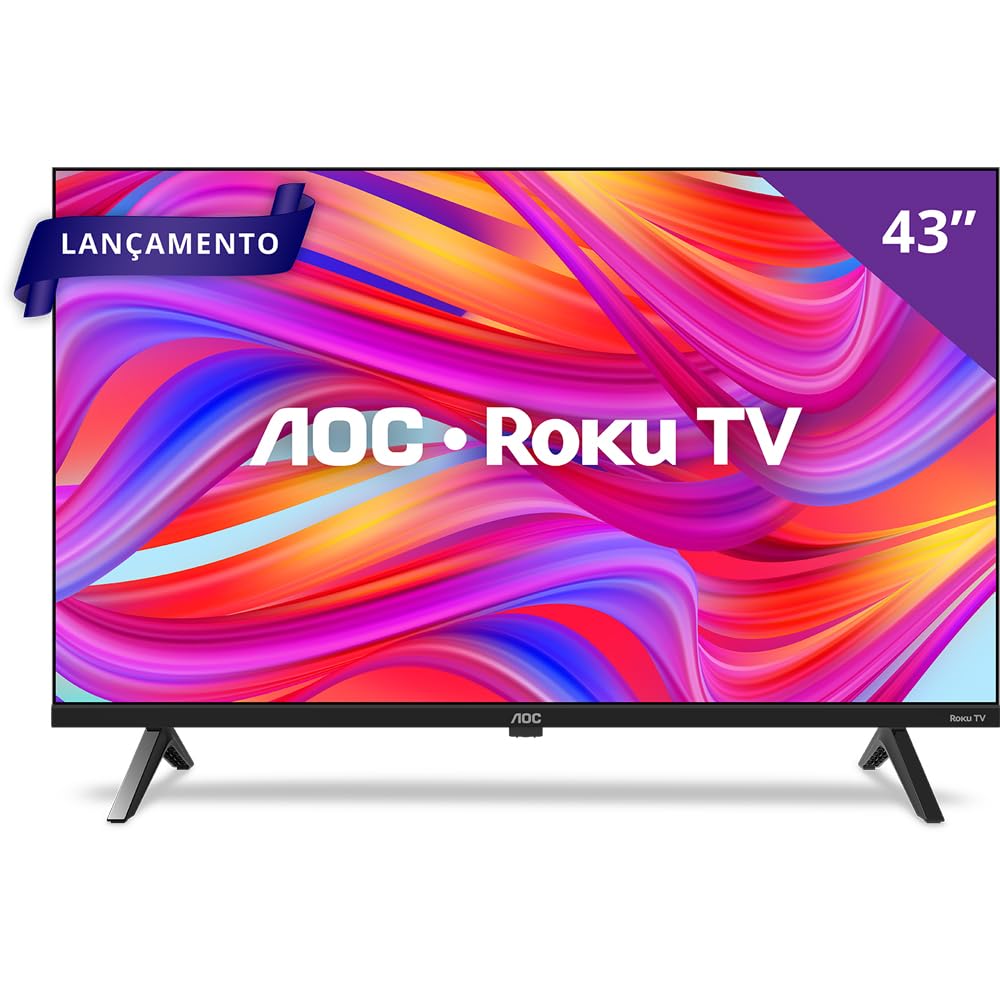
Front view of the AOC Roku TV displaying the main Roku interface with streaming application icons.
Product Features
- Full HD Display: Enjoy vibrant colors and sharp images on a 43-inch Full HD screen.
- Borderless Design: A modern, sleek design that integrates seamlessly into any environment.
- Roku TV Operating System: Access thousands of streaming applications, including Netflix, Prime Video, Disney+, and YouTube, through an intuitive and user-friendly interface.
- Dual-Band Wi-Fi: Ensures stable and fast wireless connectivity for uninterrupted streaming.
- Multiple Connectivity Options: Features 3 HDMI ports, 1 USB 2.0 port, 1 RF (Antenna) input, 1 SPDIF (Optical Audio) output, 1 Headphone output, and 1 Ethernet RJ-45 port.
- Smart Control: Control your TV using the Roku Mobile app (iOS and Android) or the included remote control.
- Voice Assistant Compatibility: Works with Alexa, Google Assistant, Apple HomeKit, and Apple AirPlay for convenient voice control.
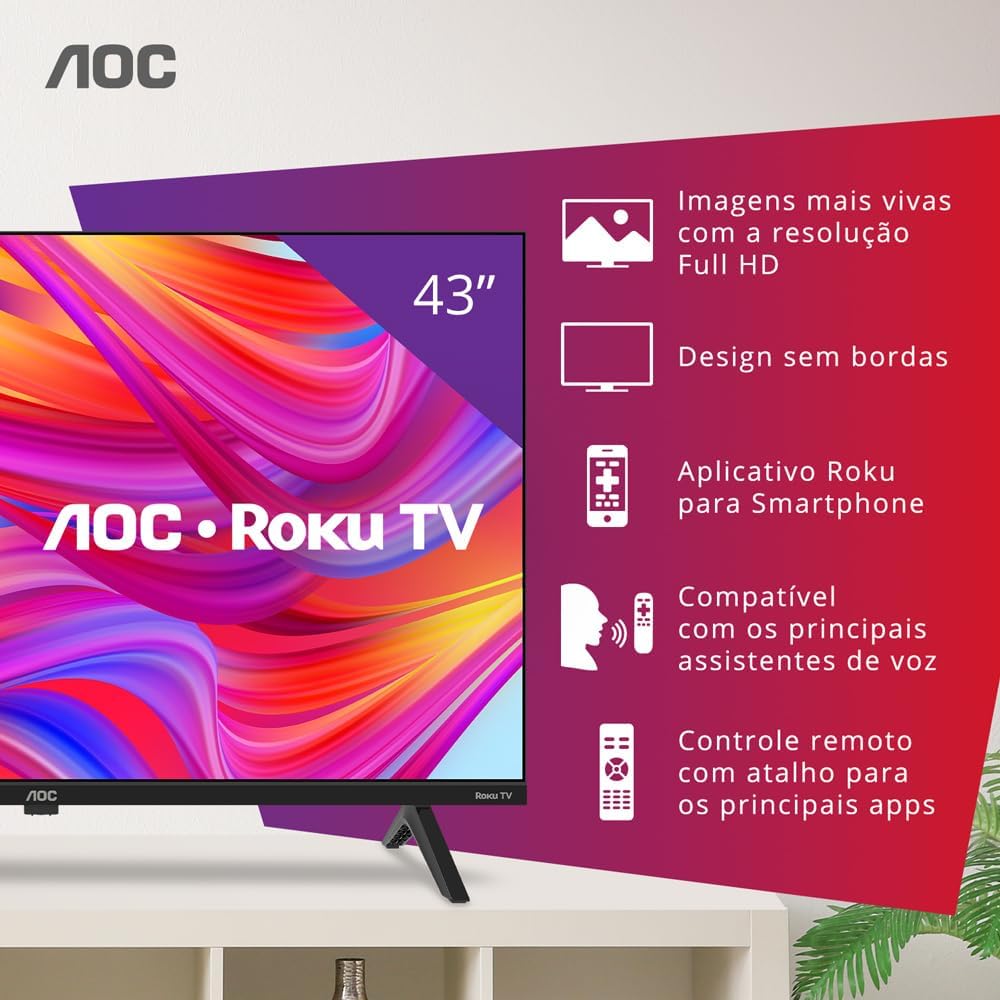
AOC Roku TV with graphical callouts illustrating key features such as Full HD resolution, borderless design, Roku app, voice assistant compatibility, and remote control shortcuts.
Package Contents
Verify that all the following items are included in your package:
- AOC Smart TV Roku 43" Full HD
- Remote Control
- 2 x AAA Batteries (for remote control)
- Table Stand
- Power Cable
- Quick Start Guide
- Legal and Safety Information Leaflet
Setup
1. Unpacking and Placement
Carefully remove the TV from its packaging. Place the TV on a stable, flat surface or mount it on a wall using a compatible VESA mount (200 x 200 mm). Ensure adequate ventilation around the TV.
2. Attaching the Table Stand
If using the table stand, align the stand with the designated slots on the bottom of the TV. Secure the stand using the screws provided in the package. Refer to the quick start guide for detailed illustrations.
3. Connecting Devices
Connect your external devices to the appropriate ports on the TV:
- HDMI: Use HDMI cables to connect devices such as Blu-ray players, game consoles, or cable/satellite boxes to the HDMI ports (3 available).
- USB: Insert USB drives for media playback into the USB 2.0 port (1 available).
- Antenna/Cable: Connect your antenna or cable TV feed to the RF input.
- Ethernet: For a wired internet connection, connect an Ethernet cable to the RJ-45 port.
- Audio Output: Use the SPDIF (Optical Audio) output for digital audio to a soundbar or receiver, or the Headphone output for private listening.

Side profile of the AOC Roku TV, highlighting the accessible HDMI and USB ports.
4. Power On and Initial Roku Setup
Connect the power cable to the TV and a power outlet. Press the power button on the remote control. Follow the on-screen instructions to complete the initial Roku setup, which includes selecting your language, connecting to a Wi-Fi network (Dual-Band supported), and activating your Roku account. An active internet connection is required for full Smart TV functionality.
Operating Instructions
1. Using the Remote Control
The included remote control allows you to navigate the Roku interface, adjust volume, change channels, and access dedicated streaming services directly. Insert the two AAA batteries into the remote control before use.

The included AOC Roku TV remote control, featuring dedicated buttons for popular streaming services.
2. Roku Mobile App
Download the free Roku Mobile App on your iOS or Android smartphone. This app functions as a full-featured remote, offers a virtual keyboard for easier text entry, enables private listening through headphones connected to your phone, and allows casting media from your device to the TV.
3. Voice Control
Your AOC Roku TV is compatible with major voice assistants. You can use devices enabled with Alexa, Google Assistant, Apple HomeKit, and Apple AirPlay to control your TV with voice commands. Ensure your TV and voice assistant devices are connected to the same network and properly configured.
4. Accessing Streaming Services
From the Roku home screen, select the icon for your desired streaming service. The Roku Channel Store offers thousands of free and paid channels, including Netflix, YouTube, Prime Video, Disney+, Star+, HBO Max, Apple TV, and Spotify.
Maintenance
1. Cleaning the TV
Before cleaning, unplug the TV from the power outlet. Use a soft, dry cloth to wipe the screen and cabinet. Do not use liquid cleaners or aerosol sprays directly on the TV, as they may damage the finish or electronic components.
2. Software Updates
Your Roku TV automatically checks for software updates when connected to the internet. Ensure your TV is connected to the internet to receive the latest features and performance improvements. You can manually check for updates in the Roku settings menu.
Troubleshooting
If you encounter issues with your TV, refer to the following common solutions:
- No Power: Ensure the power cable is securely connected to both the TV and a working power outlet. Try a different outlet.
- No Picture/Sound: Verify that the correct input source is selected. Check all cable connections (HDMI, antenna). Restart the TV by unplugging it for 30 seconds and plugging it back in.
- No Internet Connection: Check your Wi-Fi router and modem. Ensure the TV is within range of your Wi-Fi signal. If using an Ethernet cable, ensure it is securely connected. Restart your router and TV.
- Remote Control Not Working: Check the batteries and replace them if necessary. Ensure there are no obstructions between the remote and the TV's IR sensor.
- App Issues: If a specific app is not working, try restarting the app or uninstalling and reinstalling it from the Roku Channel Store.
Specifications
| Screen Size | 43 Inches |
| Display Technology | FULL HD, LED |
| Resolution | FULL HD |
| Refresh Rate | 60 Hz |
| Operating System | Roku OS |
| Connectivity | 3 HDMI, 1 USB 2.0, 1 RF (Antenna), 1 SPDIF (Optical Audio), 1 Headphone Out, 1 Ethernet RJ-45, Wi-Fi Dual Band |
| VESA Mounting Standard | 200 x 200 mm |
| Audio Output Power | 16 Watts (2.0 Channel, Dolby Audio) |
| Dimensions (D x W x H) | 8.7P x 95.6L x 55.6A cm (without stand) |
| Weight (without stand) | 6.3 Kilograms |
| Power Consumption | 4.95 Kilowatt (Efficiency A) |
| Voltage | 100-240 VAC 50-60 Hz |
Warranty and Support
Your AOC Smart TV Roku 43" Full HD, model 43S5045/78G, comes with a 1-year manufacturer's warranty. Please retain your proof of purchase for warranty claims. For technical support or service inquiries, refer to the contact information provided in the legal and safety information leaflet included with your product, or visit the official AOC support website.


