
Lemorele USB-C TX + HDMI RX
Contents
Lemorele Wireless USB-C Transmitter and HDMI Receiver Kit User Manual
Model: USB-C TX + HDMI RX
1. Introduction
The Lemorele Wireless USB-C Transmitter and HDMI Receiver Kit provides a seamless, plug-and-play solution for wirelessly extending video and audio from your USB-C enabled devices to any HDMI display. This kit eliminates the need for complex wiring and network configurations, offering a convenient way to share content in full 1080P HD quality over a range of up to 164 feet using 2.4G/5G wireless transmission protocols. It is ideal for various applications including business presentations, home entertainment, and educational settings.
2. Package Contents
Please verify that all items are present in your package:
- 1 x USB-C Transmitter (TX)
- 1 x HDMI Receiver (RX)
- 1 x USB-C Power Cable (approx. 39.37 inches)
- 1 x HDMI Extension Cable (approx. 5.9 inches)
- 1 x User Manual

Image: The Lemorele Wireless USB-C Transmitter and HDMI Receiver Kit, showing both the TX and RX units.
3. Product Overview
The kit consists of two main components:
- Transmitter (TX): A compact unit with a USB-C connector for connecting to your source device (laptop, phone, tablet). It features a button for initiating transmission and pairing.
- Receiver (RX): A stick-like unit with an HDMI connector for plugging into your display (TV, monitor, projector). It has a USB-C port for power input and a button for pairing. The RX unit also features a small display to indicate status.

Image: The TX and RX units displayed alongside various compatible devices such as laptops, mobile phones, tablets, and gaming handhelds, illustrating wide application and compatibility.
4. Setup Instructions
Follow these steps for initial setup and connection:
- Connect the Receiver (RX): Insert the HDMI end of the RX unit into an available HDMI port on your display (TV, monitor, or projector). Connect the provided USB-C power cable to the RX unit and plug the other end into a 5V/2A power source (e.g., a USB wall adapter, not included, or a powered USB port on your display). The RX unit requires external power for operation.
- Connect the Transmitter (TX): Plug the USB-C end of the TX unit into the USB-C port of your source device (laptop, smartphone, tablet). Ensure your device's USB-C port supports DisplayPort Alternate Mode (DP Alt Mode) for video output. The TX unit typically draws power from the source device, but can also be powered externally if needed.
- Automatic Connection: The TX and RX units are pre-paired from the factory. Once both are connected and powered, they should automatically establish a connection and display your device's screen on the monitor.
- Manual Pairing (If Needed): If the units do not connect automatically or if you are pairing a new TX unit to an existing RX unit:
- On the RX unit, press and hold the side button for approximately 5 seconds until a pairing countdown appears on the display.
- On the TX unit, press and hold the button for approximately 5 seconds until its indicator light begins to fast blink.
- Wait for the pairing process to complete. Once successful, the display will show '1' in the upper right corner, indicating a successful connection.
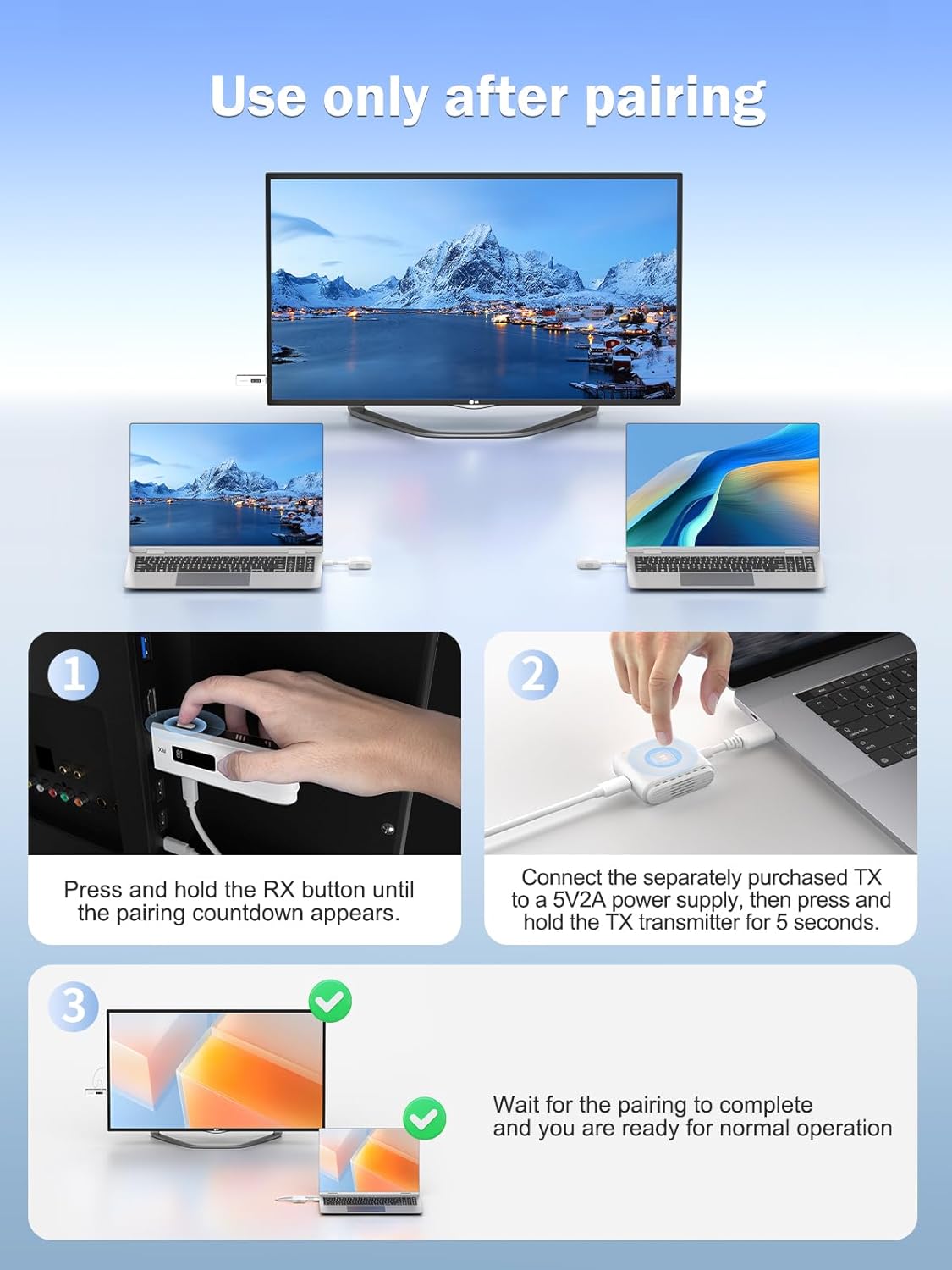
Image: Visual guide showing the simple installation steps: connecting the TX to a laptop and the RX to a TV, both requiring power.

Image: A visual guide demonstrating how to re-connect the TX and RX units by pressing and holding their respective buttons for 10 seconds (RX) and 5 seconds (TX).
Video: An official operating guide for the P300 Wireless HDMI Transmitter and Receiver, demonstrating setup, mirroring, extended mode, and pairing procedures.
5. Operating Instructions
Once connected, the kit offers versatile display options:
- Plug and Play: The system is designed for immediate use without software installation or network configuration. Simply connect the TX and RX units, and your screen will be mirrored.
- Mirror Mode: By default, the display connected to the RX unit will mirror the screen of your source device. This is suitable for presentations, sharing videos, or displaying content on a larger screen.
- Extended Mode: For Windows and macOS users, you can switch to extended display mode through your operating system's display settings. This allows you to use the external display as a separate workspace, extending your desktop.
- Multiple Transmitters: One HDMI Receiver (RX) can support up to 8 Transmitters (TX), whether USB-C or HDMI versions (additional transmitters sold separately). This allows multiple users to connect their devices to a single display and switch between sources with the touch of a button on their respective TX units.
- Wireless Transmission: The kit utilizes 2.4G/5G transmission protocols, offering a wireless range of up to 164 feet (50 meters) in open environments. Performance may vary based on environmental factors and obstacles.

Image: A family watching content mirrored from an iPhone to a large screen TV, demonstrating the iPhone mirroring transfer capability and support for extended mode.

Image: Illustration of the 164-foot wireless transmission distance in a meeting room setting, showing a laptop wirelessly connected to a large display.

Image: Depiction of multiple laptops (up to 8) connected to a single display, highlighting the system's ability to support switching between various transmitters.
6. Maintenance
To ensure the longevity and optimal performance of your Lemorele Wireless Kit, please observe the following maintenance guidelines:
- Keep the devices dry and away from moisture.
- Avoid exposing the units to extreme temperatures.
- Clean the devices with a soft, dry cloth. Do not use liquid cleaners or aerosols.
- Handle the connectors with care to prevent damage.
7. Troubleshooting
If you encounter issues, refer to the following common questions and solutions:
| Question | Answer |
|---|---|
| What devices are supported? | The transmitter supports source devices with USB-C ports that support DisplayPort Alternate Mode (DP Alt Mode), such as laptops, cameras, cable set-top boxes, Blu-ray players, Mac Mini, and desktop computers. The receiver supports displays with HDMI inputs, including HDTVs, projectors, and LED monitors. |
| How many watts of power can the Type-C female port of the transmitter provide to a computer? | The PD Fast Charger supports up to 60 watts of power for charging a compatible computer or smartphone. |
| What is the wireless transmission range? | Lab data shows a transmission distance of up to 50 meters (164 feet) in open environments. Actual distances may vary and are mainly affected by the network environment and physical obstacles like walls. |
| Do I need to make any settings? | The factory default pairing is successful, so it is plug and play. If a transmitter is purchased separately, it must be paired with the receiver using the manual pairing procedure described in the Setup section. |
| Does the receiver require a power supply? | Yes, the receiver must be powered by a 5V/2A power supply via its USB-C port. |
| Do I need a network? | No network is required; it is plug and play. |
8. Specifications
| Feature | Detail |
|---|---|
| Brand | Lemorele |
| Model Number | USB-C TX + HDMI RX |
| Color | White |
| Item Weight | 7.4 ounces |
| Product Dimensions (L x W x H) | 4.25 x 1.73 x 0.67 inches |
| Connector Type | HDMI (Receiver), USB-C (Transmitter) |
| Video Output Resolution | Up to 1080P@60Hz Ultra HD |
| Wireless Transmission Protocol | 2.4G/5G |
| Wireless Range | Up to 164 feet (50 meters) in open environments |
| Special Features | Chromecast (implied compatibility), Plug & Play |
| Compatible Devices | Television, Tablet, Smartphone, Projector, Laptop, PC, Monitor, Camera, TV Box, Speaker |
9. Warranty and Support
Lemorele offers a one-year product warranty for this Wireless USB-C Transmitter and HDMI Receiver Kit. For any inquiries, technical assistance, or support, please contact our customer service team. We provide 24/7 customer service to ensure your peace of mind.
You can typically find contact information on the product packaging, the official Lemorele website, or through your purchase platform.
Ask a question about this manual
Ask about setup, troubleshooting, compatibility, parts, safety, or missing instructions. Manuals+ will review the question and use this page’s manual context to help answer it.