
CUBOT KKESBLK
Cubot KingKong ES Smartphone User Manual
Model: KINGKONG ES (KKESBLK)
Introduction
Welcome to the user manual for your new Cubot KingKong ES Smartphone. This guide provides essential information on setting up, operating, maintaining, and troubleshooting your device. Please read this manual carefully to ensure optimal performance and longevity of your smartphone.
The Cubot KingKong ES is designed for durability and performance, featuring a robust build, a vibrant 6.56-inch HD+ 90Hz display, a powerful octa-core processor, and a long-lasting 5100mAh battery. It runs on Android 14, offering a secure and intuitive user experience.
Setup
1. Unboxing and Initial Inspection
Carefully remove all components from the packaging. Verify that all items are present and undamaged. The package typically includes the Cubot KingKong ES smartphone, a USB Type-C cable, and a power adapter.
2. SIM Card and MicroSD Card Installation
Locate the SIM card tray on the side of the device. Use the provided SIM ejector tool to open the tray. Insert your Nano-SIM card(s) and/or a MicroSD card into the designated slots. Ensure the cards are correctly oriented as indicated on the tray. Gently push the tray back into the phone until it clicks into place.

Image: Side view of the Cubot KingKong ES, highlighting the SIM card tray location.
3. Initial Charging
Before first use, it is recommended to fully charge the device. Connect the USB Type-C cable to the phone's charging port and the other end to the power adapter. Plug the adapter into a wall outlet. The charging indicator will appear on the screen. A full charge typically takes a few hours.

Image: Illustration of the Cubot KingKong ES charging, emphasizing its 5100mAh battery capacity.
4. Powering On and First-Time Setup
Press and hold the Power button (located on the side) until the Cubot logo appears. Follow the on-screen instructions to complete the initial setup, including selecting your language, connecting to Wi-Fi, setting up your Google account, and configuring security options.
Operating
1. Basic Navigation
The Cubot KingKong ES operates on Android 14. Use touch gestures such as tap, swipe, pinch-to-zoom, and long-press to navigate the interface. The physical buttons include Power (for on/off and screen lock) and Volume Up/Down.

Image: Front and back views of the Cubot KingKong ES, showing its rugged design and display.
2. Display Features
The 6.56-inch HD+ display offers a resolution of 720 x 1612 pixels and a 90Hz refresh rate for smoother visuals. Adjust brightness and display settings in the 'Settings' menu under 'Display'.

Image: Visual representation of the 6.56-inch HD+ display with 90Hz refresh rate.
3. Camera Usage
The Cubot KingKong ES features a 48MP main camera and a 16MP front camera. Open the 'Camera' application to capture photos and videos. Various modes, including standard photo, video, and potentially underwater mode (due to water resistance), are available. Tap the screen to focus and press the shutter button to capture.

Image: Overview of the smartphone's camera capabilities, including the 48MP main and 16MP front cameras, and a mention of underwater functionality.
4. Battery Management
The device is equipped with a 5100mAh high-capacity battery. To optimize battery life, manage background app usage, reduce screen brightness, and disable unnecessary connectivity features (Wi-Fi, Bluetooth, GPS) when not in use. The battery supports extended standby, music playback, video playback, and call times.
5. Connectivity
The KingKong ES supports various connectivity options including Wi-Fi, Bluetooth, and mobile data (4G/LTE). It also features a USB Type-C port for charging and data transfer. Mobile hotspot capability allows you to share your phone's internet connection with other devices.
6. Android 14 Operating System
Experience a simpler, smarter, and faster operating system with Android 14. This version offers enhanced privacy controls, improved notification management, and a more personalized user interface. Explore the pre-installed Google applications and download more from the Google Play Store.
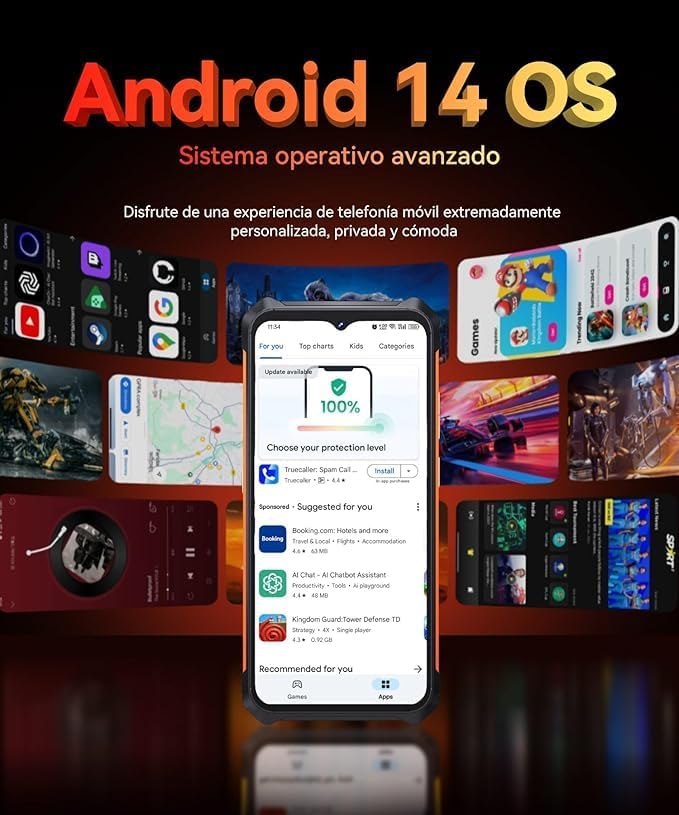
Image: Depiction of the Android 14 operating system interface on the Cubot KingKong ES.
Maintenance
1. Cleaning Your Device
To clean your smartphone, use a soft, lint-free cloth. For stubborn smudges, slightly dampen the cloth with water or a screen cleaner. Avoid using harsh chemicals, abrasive materials, or excessive moisture, especially near ports.
2. Water Resistance
The Cubot KingKong ES is designed to be water-resistant. However, this is not a permanent condition and resistance might decrease as a result of normal wear. Do not intentionally submerge the device in water, especially saltwater, or expose it to high-pressure water jets. Ensure all ports and covers are securely closed before exposure to liquids.
3. Software Updates
Regularly check for and install software updates to ensure your device has the latest features, security patches, and performance improvements. You can usually find this option in 'Settings' > 'System' > 'System update'.
Troubleshooting
If you encounter issues with your Cubot KingKong ES, try the following common troubleshooting steps:
- Device not powering on: Ensure the battery is charged. Connect the charger and wait a few minutes before attempting to power on again.
- Apps crashing or freezing: Close the problematic app and reopen it. If the issue persists, restart the phone. Clear the app's cache or data in 'Settings' > 'Apps'.
- Poor network connectivity: Check if Airplane Mode is off. Restart the phone. Verify your SIM card is properly inserted. Contact your carrier if the issue persists.
- Slow performance: Close unnecessary background apps. Clear cache and temporary files. Consider uninstalling unused apps.
- Screen not responding: Restart the device by holding the Power button for an extended period (usually 10-15 seconds).
For more complex issues, refer to the official Cubot support website or contact customer service.
Specifications
| Feature | Specification |
|---|---|
| Brand | CUBOT |
| Model Name | KINGKONG ES |
| Item Model Number | KKESBLK |
| Operating System | Android 14 |
| Screen Size | 6.56 Inches |
| Resolution | 720 x 1612 |
| Refresh Rate | 90 Hz |
| Installed RAM Size | 6 GB (expandable to 16 GB virtual) |
| Storage Capacity | 128 GB |
| CPU Speed | 1.6 GHz |
| Effective Still Resolution | 48 Megapixels (Main Camera) |
| Battery Capacity | 5100 mAh (Lithium Polymer) |
| Charging Port | USB Type C |
| Special Features | Mobile Hotspot, Rugged Body, Expandable Memory, Water Resistant |
| Color | Black |
| Language | Multilingual |
Warranty and Support
Cubot provides a commitment to spare parts availability for 5 years from the date of purchase. For warranty claims, technical support, or further assistance, please refer to the official Cubot website or contact your point of purchase. Keep your proof of purchase for warranty validation.
Related documentsKKESBLK


Ask a question about this manual
Ask about setup, troubleshooting, compatibility, parts, safety, or missing instructions. Manuals+ will review the question and use this page’s manual context to help answer it.