
Introduction
Welcome to the DEERTiME E9 Android 14 Tablet user manual. This guide provides essential information for setting up, operating, maintaining, and troubleshooting your new tablet. Please read this manual carefully to ensure optimal performance and longevity of your device.
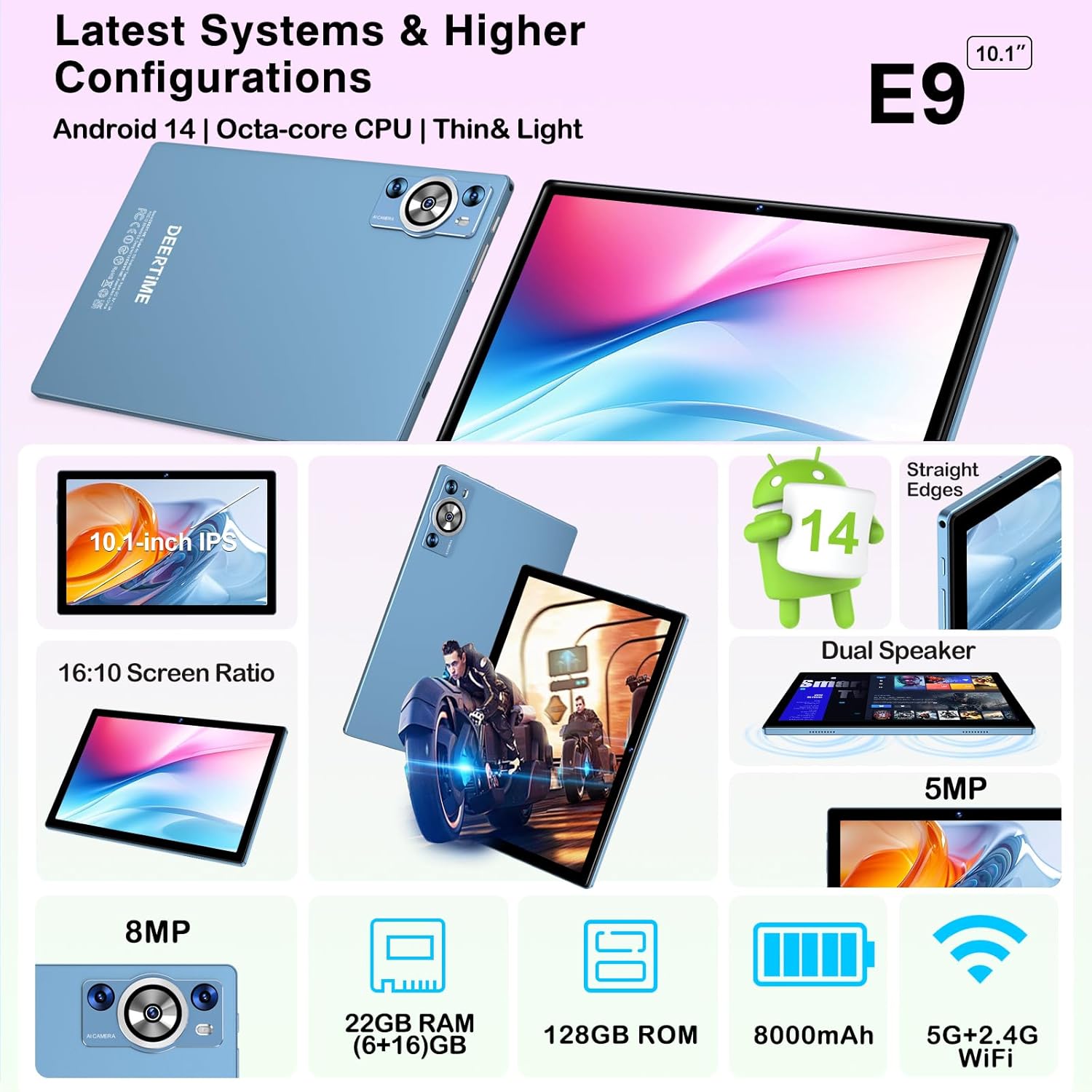
Image: The DEERTiME E9 Android 14 Tablet, showcasing its sleek design and vibrant display.
The DEERTiME E9 tablet runs on the latest Android 14 operating system, offering an enhanced user experience with improved security and efficiency. It features a 10.1-inch IPS display, 22GB RAM, 128GB ROM (expandable up to 2TB), 5G WiFi, Bluetooth 5.0, and an 8000mAh battery.
What's in the Box?
Upon unboxing your DEERTiME E9 tablet, please verify that all the following items are included:

Image: An illustration showing the DEERTiME E9 tablet and its included accessories.
- DEERTiME E9 Android 14 Tablet
- Bluetooth Keyboard (QWERTY)
- Wireless Mouse
- Type-C Charging Cable
- 5V/2A Power Adapter
- Protective Case
- Screen Protector
- USB to Type-C Adapter
- User Manual
Setup
1. Initial Charging
Before first use, fully charge your tablet. Connect the provided Type-C charging cable to the tablet's charging port and the 5V/2A power adapter to a wall outlet. The battery indicator on the screen will show charging progress. A full charge typically takes several hours.

Image: Illustration of the tablet charging and its ultra-long battery life capabilities.
2. Powering On/Off
- To Power On: Press and hold the power button (usually located on the side) until the DEERTiME logo appears on the screen.
- To Power Off: Press and hold the power button, then select "Power Off" from the options that appear on the screen.
- To Restart: Press and hold the power button, then select "Restart" from the options.
3. Initial Setup Wizard
Upon first power-on, the tablet will guide you through an initial setup process. Follow the on-screen instructions to:
- Select your language.
- Connect to a Wi-Fi network.
- Sign in with your Google account or create a new one.
- Set up screen lock (PIN, pattern, password, or facial recognition).
4. Connecting to Wi-Fi
To connect to a Wi-Fi network:
- Go to Settings > Network & internet > Wi-Fi.
- Toggle Wi-Fi On.
- Select your desired network from the list.
- Enter the password if prompted, then tap Connect.

Image: The tablet displaying its 5G WiFi and Bluetooth 5.0 capabilities, essential for wireless connectivity.
5. Connecting Bluetooth Peripherals (Keyboard & Mouse)
Your DEERTiME E9 tablet supports Bluetooth 5.0 for connecting accessories like the included keyboard and mouse.
- Ensure the Bluetooth keyboard/mouse is powered on and in pairing mode (refer to the accessory's specific instructions).
- On your tablet, go to Settings > Connected devices > Bluetooth.
- Toggle Bluetooth On.
- Tap Pair new device.
- Select the keyboard/mouse from the list of available devices and follow any on-screen prompts to complete pairing.
Operating Instructions
1. Android 14 Interface
The DEERTiME E9 tablet runs on Android 14, offering a user-friendly interface. Key features include:
- Personalized Widgets: Customize your home screen with widgets for quick access to information.
- Enhanced Privacy & Security: Manage app permissions and utilize facial recognition for secure unlocking.
- Multitasking: Use split-screen mode to run multiple applications simultaneously.
- Parental Controls: Set screen time limits and manage content access for children.

Image: The tablet interface highlighting Android 14 features, GMS certification, and memory specifications.
2. Storage Management
Your tablet comes with 128GB of internal storage and 22GB of RAM (6GB + 16GB virtual RAM). You can expand the storage up to 2TB using a microSD card (not included).
- To insert a microSD card: Locate the card slot on the side of the tablet, gently open the tray, and insert the microSD card with the gold contacts facing down. Close the tray securely.
- To manage storage: Go to Settings > Storage to view usage and free up space.
3. Camera Usage
The tablet features a 5MP front camera and an 8MP rear camera.
- Open the Camera app.
- Tap the camera icon to switch between front and rear cameras.
- Tap the shutter button to take a photo or the video icon to record a video.

Image: Visual representation of the tablet's 8MP rear and 5MP front cameras, suitable for capturing moments and video calls.
4. Media Consumption
Enjoy your favorite content on the 10.1-inch FHD IPS display with Widevine L1 support for high-definition streaming.
- Widevine L1: Stream 1080p FHD videos from platforms like Netflix, Hulu, and Amazon Prime Video.
- Audio: The tablet features dual speakers for clear sound and a 3.5mm headphone jack for private listening.
- Screen Casting: Mirror your tablet's screen to a compatible TV for a larger viewing experience.

Image: The tablet displaying content, emphasizing its Widevine L1 DRM support for high-definition streaming.

Image: Close-up of the tablet showing the Type-C charging interface and the 3.5mm headphone jack, along with dual speakers.
5. Facial Recognition
Set up facial recognition for quick and secure unlocking of your tablet.
- Go to Settings > Security & privacy > Face unlock.
- Follow the on-screen instructions to register your face.
- Ensure you are in a well-lit environment during setup.

Image: Visual representation of the tablet's facial recognition feature for instant unlocking.
Maintenance
1. Battery Care
- Avoid extreme temperatures, as they can degrade battery life.
- Do not let the battery completely drain frequently.
- Use only the provided charger or a certified compatible charger.
2. Cleaning Your Tablet
- Use a soft, lint-free cloth to clean the screen and body.
- For stubborn smudges, lightly dampen the cloth with water or a screen cleaner.
- Avoid using harsh chemicals or abrasive materials.
3. Software Updates
Regularly check for and install software updates to ensure your tablet has the latest features, security patches, and performance improvements.
- Go to Settings > System > System update.
- Follow the on-screen instructions to check for and install updates.
Troubleshooting
Common Issues and Solutions:
- Tablet not turning on: Ensure the battery is charged. Connect the charger and wait a few minutes before attempting to power on again.
- Screen unresponsive: Try restarting the tablet by holding the power button for about 10-15 seconds until it powers off, then power it on normally.
- Wi-Fi connection issues:
- Ensure Wi-Fi is enabled in settings.
- Restart your Wi-Fi router.
- Forget the network in tablet settings and reconnect.
- Apps crashing or freezing:
- Close and reopen the app.
- Clear the app's cache (Settings > Apps > [App Name] > Storage & cache > Clear cache).
- Ensure the app is updated to the latest version.
- Slow performance:
- Close unused background apps.
- Clear cache and temporary files.
- Consider a factory reset as a last resort (back up your data first).
Specifications
| Feature | Detail |
|---|---|
| Brand | DEERTiME |
| Model Name | E9 |
| Operating System | Android 14 |
| Screen Size | 10.1 Inches |
| Display Type | IPS, LED or LCD |
| Screen Resolution | 1920 x 1200 pixels (1080p Full HD) |
| Aspect Ratio | 16:10 |
| Processor Speed | 2 GHz |
| Processor Description | Octa-core processor (Unisoc) |
| Installed RAM Size | 22 GB |
| Memory Storage Capacity | 128 GB |
| Maximum Supported Flash Memory Size | 1 TB (microSD) |
| Rear Camera Photo Sensor Resolution | 8 Megapixels |
| Front Camera Photo Sensor Resolution | 5 Megapixels |
| Battery Energy Content | 50 Watt-hours (8000mAh) |
| Wireless Technology | Wi-Fi (802.11a/b/g/n/ac), Bluetooth 5.0 |
| Connectivity Technology | AUX, USB (Type-C) |
| Biometric Security Feature | Yes (Facial Recognition) |
| Compatible Devices | Keyboard, Mouse |
Warranty and Support
Warranty Information
The DEERTiME E9 tablet comes with a manufacturer's warranty. Please refer to the warranty card included in your product packaging for specific terms, conditions, and duration. Keep your proof of purchase for warranty claims.
Customer Support
If you encounter any issues not covered in this manual or require further assistance, please contact DEERTiME customer support. You can usually find contact information on the manufacturer's official website or through the retailer where you purchased the product.
When contacting support, please have your tablet's model number (E9) and purchase details ready.