
1. Introduction
The thinkcar ThinkScan 689 is a professional-grade OBD2 diagnostic tool designed for comprehensive vehicle system analysis and maintenance. It offers advanced functionalities including full system diagnosis, over 34 maintenance services, advanced ECU coding, bi-directional control, and broad compatibility with various vehicle protocols. This manual provides detailed instructions on how to set up, operate, and maintain your ThinkScan 689 device.

Image: The ThinkScan 689 device, its protective carrying case, and a view of its user interface.
2. Setup
2.1 Unboxing and Initial Inspection
Carefully unbox your ThinkScan 689 device and all included accessories. Verify that all components are present and undamaged. The package should include the ThinkScan 689 main unit, OBDII diagnostic cable, power adapter, and user manual.
2.2 Connecting to the Vehicle
- Locate the vehicle's OBDII port, typically found under the dashboard on the driver's side.
- Connect the OBDII diagnostic cable to the ThinkScan 689 unit.
- Plug the other end of the OBDII cable into the vehicle's OBDII port. The device will power on automatically.
2.3 Initial Software Setup and Updates
Upon first use, the device may prompt you to configure language, time zone, and Wi-Fi settings. Connect to a stable Wi-Fi network to download the latest software updates and vehicle diagnostic packages. Regular updates ensure optimal performance and compatibility with the newest vehicle models.

Image: The ThinkScan 689 as a professional diagnostic tool, highlighting its key features and user interface.
3. Operating Instructions
3.1 Full System Diagnosis
The ThinkScan 689 can access all available electronic control modules (ECUs) in your vehicle, including Engine, Transmission, ABS, Airbag, ESP, TPMS, Immobilizer, Gateway, Steering, Radio, Air Conditioning, and more. This allows for comprehensive fault detection and data analysis.
- From the main menu, select 'Diagnosis'.
- The device will automatically identify the vehicle via VIN or prompt for manual selection.
- Choose 'Full System Scan' to initiate a complete diagnostic check of all accessible modules.
- Review the diagnostic report, which includes ECU information, Diagnostic Trouble Codes (DTCs), live data streams, and freeze frame data.

Image: Visual representation of the ThinkScan 689 conducting a full system diagnosis, scanning all vehicle modules.
3.2 34+ Maintenance Functions
The ThinkScan 689 provides access to over 34 common maintenance and reset functions, enabling you to perform routine service tasks without specialized dealer tools. These functions include, but are not limited to:
- Oil Reset: Reset the oil life reminder after an oil change.
- EPB (Electronic Parking Brake) Reset: Deactivate and activate the brake control system, assist with brake fluid control, open and close brake pads, and set brakes after disc or pad replacement.
- SAS (Steering Angle Sensor) Calibration: Calibrate the steering angle sensor after replacement or alignment.
- BMS (Battery Management System) Reset: Register the new battery to the ECU after replacement.
- Throttle Adaptation: Initialize the throttle actuators to the default state.
- ABS Bleeding: Perform bi-directional tests to check the operating conditions of the Anti-lock Braking System (ABS).
- DPF Regeneration: Clear particulate matter from the DPF filter to stabilize filter performance.
- TPMS Reset: Reset tire pressure monitoring system sensors.
Note: The availability of specific service functions varies by vehicle make, model, and year. Always verify compatibility by providing your VIN to thinkcar support if unsure.

Image: Overview of the 34+ maintenance services offered by the ThinkScan 689, including common resets and adaptations.
3.3 Advanced ECU Coding & Hidden Flash Function
ECU Coding allows you to re-flash control modules, match components, and customize vehicle settings. The ThinkScan 689 supports ECU coding for specific brands like Audi, VW, and Skoda.
The Hidden Flash Function enables you to unlock hidden features and optimize vehicle performance for brands such as BMW, VW, AUDI, SKODA, TOYOTA, LEXUS, SCION, MAZDA, FORD, and LINCOLN. This can include customizing lighting, comfort settings, and other vehicle behaviors.

Image: Illustration of advanced ECU coding features, detailing how it can optimize vehicle performance and unlock hidden functions.
3.4 Bi-directional Control (Actuation Test)
Bi-directional control allows the ThinkScan 689 to send commands to vehicle ECUs to perform specific actuation tests. This helps in quickly identifying faulty components without disassembling parts of the vehicle. Examples of actuation tests include:
- Turning the radiator fan on/off.
- Modulating the throttle.
- Opening/closing windows.
- Operating mirrors.
- Injector buzzer test.
- Turning interior/exterior lights on/off.
- Testing door lock actuators.

Image: Examples of bi-directional control tests, demonstrating the ability to activate various vehicle components.
3.5 Superior Compatibility
The ThinkScan 689 is compatible with most OBDII compliant vehicles worldwide (12V cars, SUVs, light trucks, hybrids, roadsters) from 1996 onwards for US vehicles, 2000 for EU vehicles, and 2008 for Asian vehicles. It supports advanced protocols such as CAN FD and DoIP, ensuring communication with modern vehicle architectures. Additionally, it features AutoAuth for FCA SGW (Security Gateway) equipped vehicles, allowing secure diagnosis (note: FCA AutoAuth may require a separate fee paid directly to AutoAuth).

Image: Visual representation of the ThinkScan 689's broad compatibility with various car brands and communication protocols.
4. Maintenance
4.1 Software Updates
The ThinkScan 689 offers lifetime free software updates. Regularly connect your device to a Wi-Fi network and check for updates to ensure you have the latest vehicle coverage, bug fixes, and new features. Navigate to the 'Update' section on the device's main menu to initiate the update process.
4.2 Cleaning and Storage
To maintain the device's longevity, clean the screen and casing with a soft, damp cloth. Avoid using abrasive cleaners or solvents. Store the device in its protective carrying case in a cool, dry place away from direct sunlight and extreme temperatures when not in use.
5. Troubleshooting
This section addresses common issues you might encounter with your ThinkScan 689.
| Problem | Possible Cause | Solution |
|---|---|---|
| Device does not power on. | Loose OBDII connection; vehicle's OBDII port not supplying power. | Ensure the OBDII cable is securely connected to both the device and the vehicle. Check vehicle's fuse for the OBDII port. |
| Unable to connect to vehicle ECU. | Incorrect vehicle selection; vehicle not OBDII compliant; faulty OBDII port/cable. | Verify vehicle information. Ensure vehicle is OBDII compliant. Try on another vehicle or check the OBDII port with a known working device. |
| Software update failure. | Unstable Wi-Fi connection; insufficient storage space. | Ensure a strong and stable Wi-Fi connection. Check available storage on the device and clear unnecessary files if needed. |
| Specific function not working. | Function not supported by vehicle; software not updated. | Verify vehicle compatibility for the specific function. Ensure software is up to date. |
If you encounter issues not listed here or if the suggested solutions do not resolve the problem, please contact thinkcar customer support for assistance.
6. Specifications
The following table outlines the key technical specifications of the ThinkScan 689:
| Feature | Specification |
|---|---|
| Brand | thinkcar |
| Model | ThinkScan 689 |
| Operating System | Android 10.0 |
| CPU | 4-core 2.0GHz |
| RAM | 4 GB |
| ROM | 64 GB |
| Display | 8-inch HD Touch Screen (1280*800 resolution) |
| Battery Capacity | 4150mAh |
| Item Weight | 1.55 Kilograms |
| Package Dimensions | 27.4 x 18.8 x 11.6 cm |
| Supported Protocols | OBDII, CAN FD, DoIP, FCA SGW |
| Updates | Lifetime Free Updates |
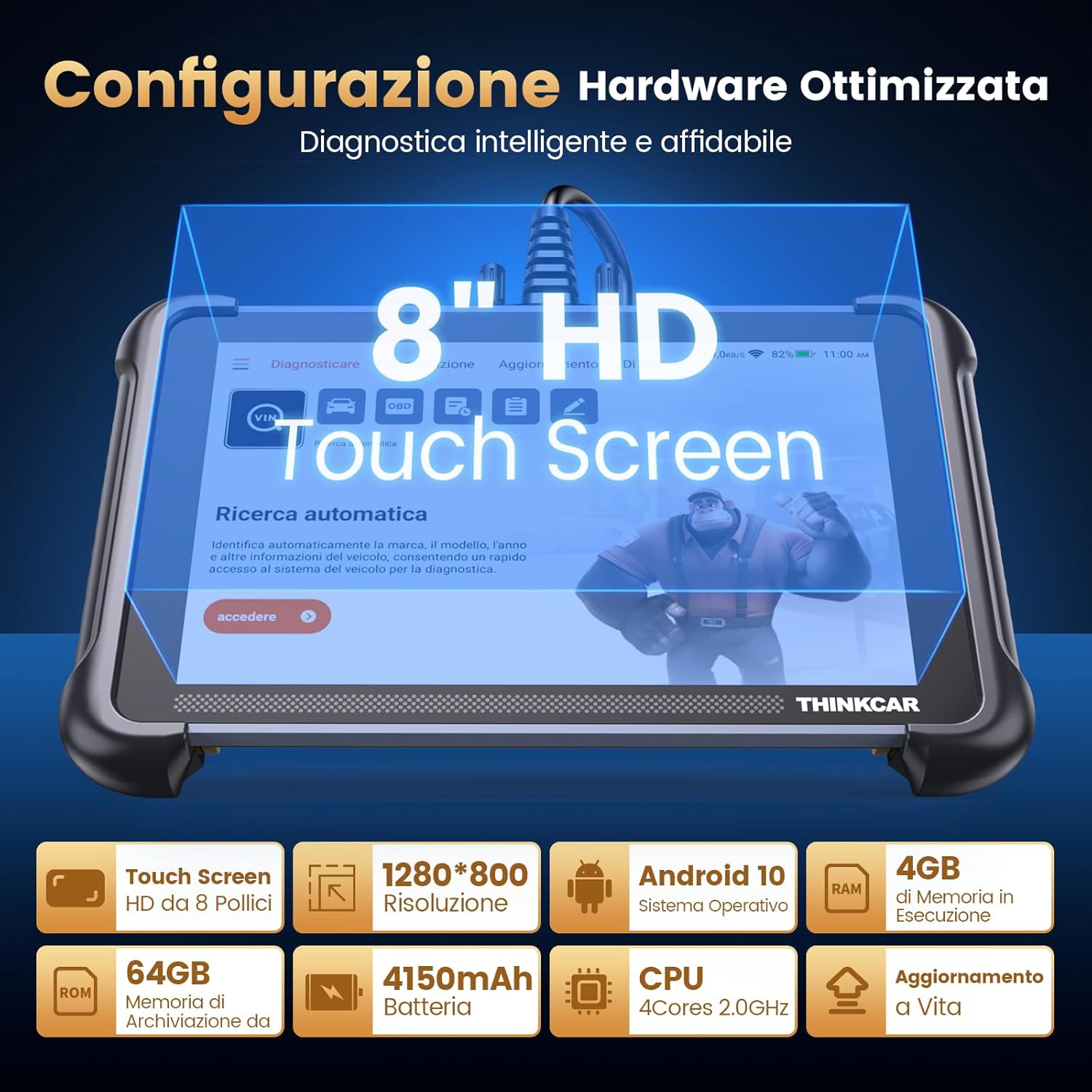
Image: Detailed view of the ThinkScan 689's hardware configuration and key specifications.
7. Warranty and Support
The ThinkScan 689 comes with lifetime free software updates, ensuring your device remains current with the latest vehicle data and functionalities. For technical support, warranty claims, or any operational questions, please refer to the contact information provided with your product packaging or visit the official thinkcar website. Always provide your product model (ThinkScan 689) and VIN (Vehicle Identification Number) when seeking support for vehicle-specific issues.


