1. Introduction
This manual provides detailed instructions for the installation, operation, and maintenance of your VEVOR Biometric Time Clock, Model F18. This device is designed to streamline attendance management for small businesses by offering multiple verification methods and efficient report generation.
The VEVOR F18 time clock integrates face recognition, fingerprint scanning, RFID card swiping, and PIN entry for accurate employee time tracking. It is a standalone system that does not require network connectivity or complex software installation, making it an ideal solution for various indoor environments.

Figure 1.1: VEVOR Biometric Time Clock (Model F18) with its primary features visible.
2. Product Overview
The VEVOR F18 Biometric Time Clock is a compact and versatile device. It features a 2.4-inch HD color screen for clear display of time, date, and user information. The unit includes a numeric keypad for PIN entry, an optical fingerprint sensor, an infrared dual-camera system for facial recognition, and an integrated RFID card reader.

Figure 2.1: Overview of the VEVOR Biometric Time Clock's verification methods and key features.
2.1 Key Features
- Four-Mode Verification: Supports fingerprint, password, RFID card, and facial recognition.
- High Capacity: Stores 300 facial entries, 1,000 fingerprints, 1,000 passwords, 1,000 RFID cards, and 100,000 attendance records.
- Instant Attendance Reports: Exports detailed attendance logs via USB drive in Excel format.
- User-Friendly Setup: Simplified 5-step initial setup process.
- Advanced Recognition: Infrared dual cameras for accurate facial recognition in various conditions; optical fingerprint technology with <1 second response time.
- Multi-language Support: Supports English, German, French, Spanish, and Italian.

Figure 2.2: Data storage capacities of the VEVOR Biometric Time Clock.
3. Setup
3.1 Unpacking and Initial Inspection
Carefully unpack the time clock and all accessories. Verify that all components are present and undamaged. The package should include the time clock unit, power adapter, USB drive, and RFID cards.
3.2 Installation
The VEVOR F18 time clock is designed for wall-mounted installation. Choose a suitable location near a power outlet, ensuring it is easily accessible for employees and away from direct sunlight or strong light sources that could interfere with facial recognition.
- Mark the desired mounting points on the wall using the provided template (if applicable) or by holding the device against the wall.
- Drill holes at the marked points and insert wall anchors.
- Secure the time clock to the wall using appropriate screws.
- Connect the power adapter to the device and plug it into a power outlet.

Figure 3.1: Example of the time clock mounted on a wall in an office setting.
3.3 Initial Configuration
The device features a user-friendly 5-step initial setup process. Access the main menu by pressing the MENU button and navigate using the arrow keys and OK button.

Figure 3.2: Simplified setup process for the time clock.
- Shift Configuration: Set up work shifts, including start and end times, and break durations.
- Department Setup: Create and manage different departments within your organization.
- Employee Registration: Register each employee by entering their ID and enrolling their chosen verification methods (face, fingerprint, RFID card, PIN).
- Attendance Rules: Define specific attendance rules, such as overtime policies, late arrival/early departure tolerances, and lunch break deductions.
- System Settings: Adjust date, time, language, and other general system parameters.
4. Operating Instructions
4.1 Employee Punching In/Out
Employees can punch in or out using one of the four configured verification methods:
- Fingerprint Recognition: Place a registered finger firmly on the optical fingerprint sensor. The device will confirm successful recognition.
- Facial Recognition: Stand approximately 1-2 feet in front of the device, aligning your face with the on-screen guide. The infrared dual cameras will recognize your face.
- RFID Card Swipe: Hold a registered RFID card near the card reader area on the device.
- PIN Entry: Enter your registered PIN using the numeric keypad and press OK.

Figure 4.1: Details on the advanced recognition technologies for quick and accurate punching.
4.2 Generating Attendance Reports
The VEVOR F18 time clock allows for easy export of attendance data via the included USB drive. No special software is required on your computer.
- Insert the provided USB drive into the USB port on the side of the time clock.
- Navigate to the Report or Data Export option in the device's menu.
- Select the desired date range for the report.
- Confirm the export. The device will generate an Excel-compatible file on the USB drive.
- Safely remove the USB drive and insert it into your computer to access the attendance report. The report will include details such as actual work time, total hours, overtime, and lunch breaks.

Figure 4.2: Process for generating and exporting attendance reports via USB.
5. Maintenance
5.1 Cleaning
To ensure optimal performance and longevity of your time clock, regular cleaning is recommended:
- Wipe the screen and outer casing with a soft, dry, lint-free cloth.
- For stubborn smudges, slightly dampen the cloth with water or a mild, non-abrasive cleaner. Avoid spraying liquids directly onto the device.
- Keep the fingerprint sensor and camera lenses clean and free of dust or debris to ensure accurate recognition.
5.2 Battery Replacement
The device includes a CR2032 battery, primarily for maintaining internal clock settings during power outages. If the date and time frequently reset, the battery may need replacement. Consult a qualified technician for battery replacement to avoid damaging the internal components.
6. Troubleshooting
This section addresses common issues you might encounter with your VEVOR Biometric Time Clock.
- Recognition Failure (Fingerprint/Face):
Ensure the sensor/camera lens is clean. For fingerprint, ensure the finger is dry and placed firmly. For face, ensure adequate lighting and that the user is positioned correctly in front of the camera. Re-enroll the user's biometric data if issues persist. - Incorrect Time/Date:
Access the system settings in the menu to correct the time and date. If the issue recurs frequently, the internal CR2032 battery may need replacement by a technician. - USB Data Export Issues:
Ensure the USB drive is formatted to FAT32. Verify that the USB drive is inserted correctly and that there is sufficient space. Try using a different USB drive if problems persist. - Device Not Responding:
Check the power connection. If the device is unresponsive, try disconnecting and reconnecting the power adapter. If the issue persists, contact customer support. - Language Settings:
The device supports 5 languages (English, German, French, Spanish, Italian). Navigate to the system settings to change the display language if needed.
7. Specifications
Below are the technical specifications for the VEVOR Biometric Time Clock, Model F18.
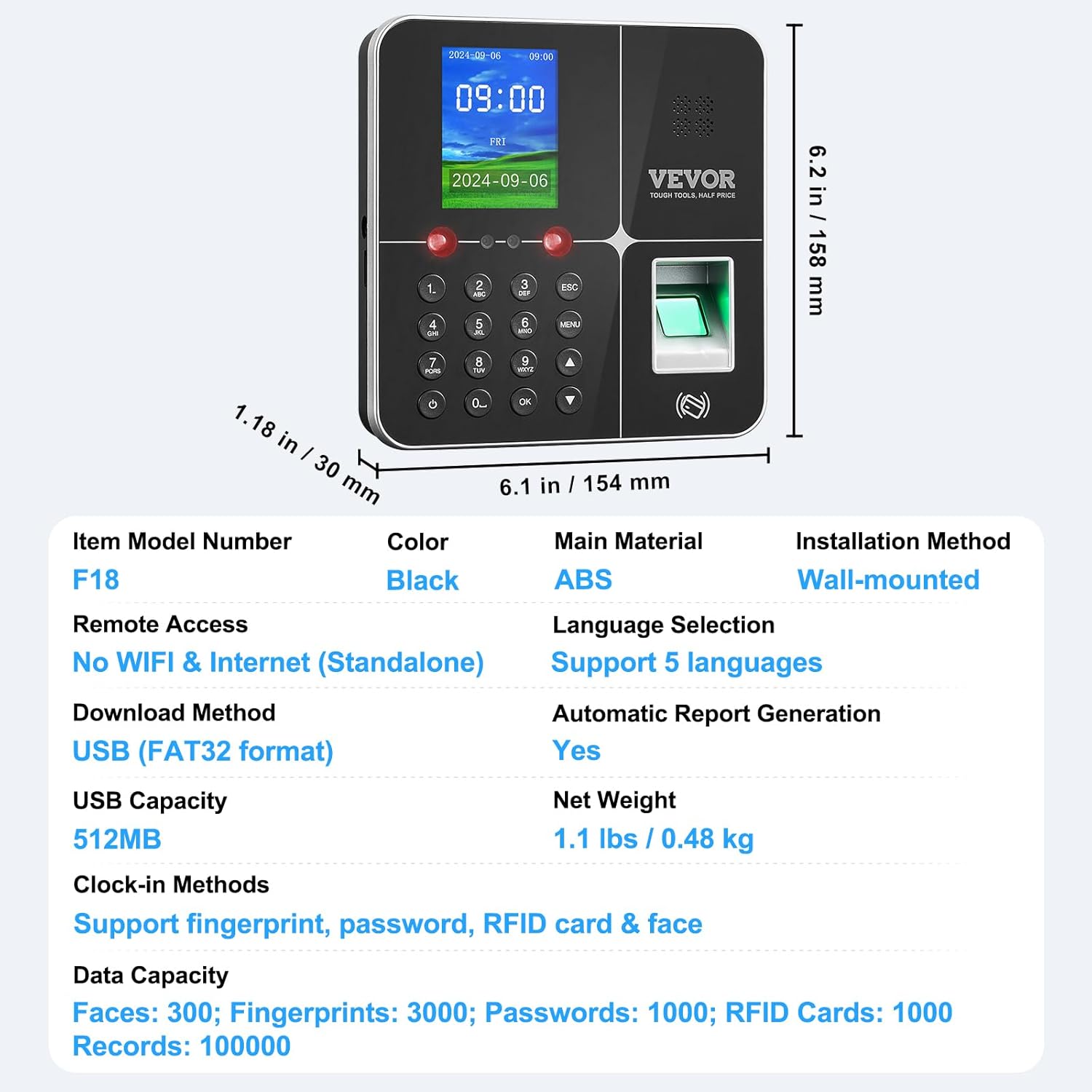
Figure 7.1: Physical dimensions and key specifications of the time clock.
| Feature | Specification |
|---|---|
| Item Model Number | F18 |
| Color | Black |
| Main Material | ABS Plastic |
| Installation Method | Wall-mounted |
| Remote Access | No WiFi & Internet (Standalone) |
| Download Method | USB (FAT32 format) |
| Language Selection | Support 5 languages (English, German, French, Spanish, Italian) |
| USB Capacity | 512MB |
| Net Weight | 1.1 lbs / 0.48 kg |
| Clock-in Methods | Fingerprint, Password, RFID Card, Face |
| Automatic Report Generation | Yes |
| Data Capacity (Faces) | 300 |
| Data Capacity (Fingerprints) | 3000 |
| Data Capacity (Passwords) | 1000 |
| Data Capacity (RFID Cards) | 1000 |
| Data Capacity (Records) | 100,000 |
| Product Dimensions | 6.1"W x 6.2"H (154mm x 158mm) |
| Power Source | Battery Powered (CR2032 included for clock backup) |
| Display Type | Digital |
| Special Feature | Large Display |
8. Warranty and Support
8.1 Warranty Information
For detailed warranty information regarding your VEVOR Biometric Time Clock, please refer to the warranty card included with your product or visit the official VEVOR website. Warranty terms and conditions may vary by region and retailer.
8.2 Customer Support
If you require further assistance, have questions about your product, or encounter issues not covered in this manual, please contact VEVOR customer support through their official website or the contact information provided with your purchase. Please have your model number (F18) and purchase details ready when contacting support.
9. Official Product Videos
No official product videos from the seller were found to be relevant for embedding in this instruction manual.


