Introduction
This manual provides comprehensive instructions for the assembly, operation, and maintenance of your Opmind 5-in-1 STEM AI Robot Building Set, Model 8057. This educational kit allows users to construct five different models, including various robots and engineering vehicles, and control them via a remote or a dedicated mobile application. Please read these instructions carefully before use to ensure proper function and safety.
Safety Information
For external use only. This product contains small parts and is recommended for ages 6 and up. Adult supervision is advised during assembly and play, especially for younger children, to prevent choking hazards. Keep all packaging materials away from children. Do not attempt to modify the product or its components, as this may lead to malfunction or injury.
Package Contents
Please verify that all components are present before beginning assembly:
- 478 Building Pieces
- Main Control Unit (with digital eyes)
- Remote Control
- USB Charging Cable
- Instruction Manuals (2 books for various models)
Setup and Assembly
The Opmind 5-in-1 STEM AI Robot Building Set allows for the construction of five distinct models. Follow the detailed step-by-step instructions provided in the included instruction manuals for each specific model.
1. Building Your Model
Refer to the dedicated instruction books for your chosen model. Each book provides clear diagrams and steps to guide you through the assembly process. Organize your building pieces using the convenient partitioning tray to streamline construction.

Image: A child and adult working together to assemble the robot, with building pieces neatly organized in a tray.

Image: A close-up view of the building pieces sorted into a partitioned storage tray, aiding in organized assembly.
2. Available Models
This kit allows you to build five distinct designs:
- Robot I
- Snail
- Bulldozer
- Sweeper Truck
- Robot II

Image: An illustration showcasing the five different models that can be constructed from the building set, including two robots, a snail, a bulldozer, and a sweeper truck.
3. Charging the Robot
The main control unit is powered by an included Lithium Ion battery. Before first use, and whenever the battery is low, charge the robot using the provided USB charging cable.
- Locate the charging port on the main control unit.
- Connect the USB charging cable to the port.
- Plug the other end of the USB cable into a standard USB power adapter (not included) or a computer USB port.
- The charging indicator will illuminate. Charging is complete when the indicator changes color or turns off (refer to specific indicator behavior in the model's instruction manual).

Image: A robot model is shown connected to a USB charging cable, illustrating the direct charging process.
Operation
Your Opmind AI Robot can be controlled using either the included remote control or a dedicated mobile application.
1. Remote Control Operation
The remote control provides basic directional movement and function control. Ensure the robot is powered on and within range of the remote control. Refer to your model's instruction manual for specific button functions.
2. Mobile Application Control and Programming
For advanced features and programming capabilities, download the official Opmind control application to your smartphone or tablet.
- Download the App: Scan the QR code in your instruction manual or search for 'Opmind Robot' in your device's app store.
- Connect: Ensure your robot is powered on. Open the app and follow the on-screen instructions to connect to your robot via Bluetooth.
- Control Modes: The app offers various interactive modes:
- Driving Mode: Control the robot's movement (forward, backward, left, right, 360° rotation) using virtual joysticks.
- Gyro Mode / Gravity Sensor Mode: Control the robot by tilting your mobile device.
- Path Mode: Draw a path on your screen, and the robot will follow it.
- AI Programming Mode: Use a block-based coding interface to program custom sequences of movements and actions.
- Pet Traction: Specific interactive features for certain models.

Image: A smartphone displaying the Opmind app interface with options for Driving Mode, Gyro Mode, Path Mode, and Programming Mode, demonstrating the various control methods.

Image: Multiple robot models are shown navigating a maze-like path on a desk, with a smartphone in the foreground displaying the various app control and programming modes.
3. Interactive Expressions
The robot's digital eyes can display various emotions and interactions, such as curiosity, excitement, and calmness. This feature enhances engagement during play.
- Mute Sound: If you prefer quieter playtime, the robot's sound can be muted with a single click via the remote control or app, allowing you to enjoy visual interactions without audio.
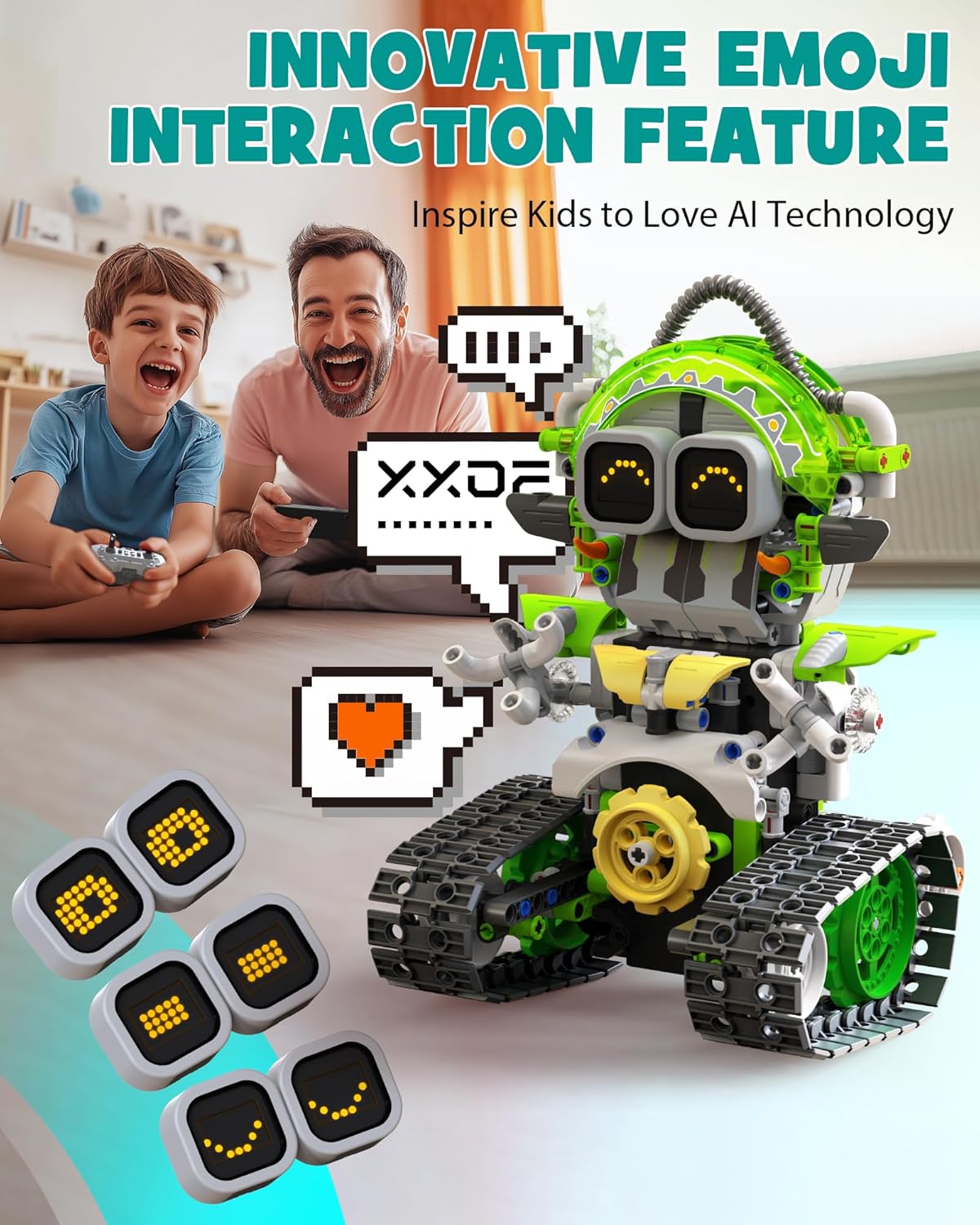
Image: A robot model with digital eyes displaying various emoji-like expressions, indicating its interactive capabilities.

Image: A robot model with its digital eyes showing different expressions, accompanied by a remote control, highlighting the multi-expression feature.
Maintenance
1. Cleaning
To clean your robot, gently wipe the surfaces with a dry, soft cloth. Do not use water, solvents, or harsh chemicals, as these can damage the electronic components or plastic parts.
2. Storage
When not in use, store the robot and all its components in a cool, dry place, away from direct sunlight and extreme temperatures. It is recommended to disassemble the robot into its original building pieces and store them in the partitioned tray or original packaging to prevent loss and damage.
Troubleshooting
If you encounter any issues with your Opmind AI Robot, please refer to the following common problems and solutions:
- Pieces are difficult to fit: Some small parts may require firm but gentle pressure to connect. Ensure proper alignment as shown in the instruction manual. If a piece seems excessively tight, double-check that you are using the correct part for that step.
- Robot not responding to remote/app:
- Ensure the robot is fully charged.
- Verify the robot is powered on.
- For app control, ensure Bluetooth is enabled on your device and the app is correctly paired with the robot.
- For remote control, check if the remote's batteries are functional and correctly inserted.
- Ensure there are no obstructions between the remote/device and the robot.
- Missing pieces: While rare, if you find a critical piece missing, please contact Opmind customer support for assistance.
- Robot moves erratically: Check for any loose connections in the assembled model. Ensure the tracks or wheels are free from obstructions.
Specifications
| Feature | Detail |
|---|---|
| Product Dimensions | 9.4 x 2.7 x 12.9 inches |
| Item Weight | 2.64 pounds |
| Model Number | 8057 |
| Manufacturer Recommended Age | 6 years and up |
| Batteries | 1 Lithium Ion battery required (included) |
| Number of Pieces | 478 |
Warranty and Support
Opmind products are designed for quality and durability. For specific warranty details, please refer to the documentation included with your purchase or visit the official Opmind website. If you require technical support, have questions about assembly, or need assistance with any product issues, please contact Opmind customer service through the contact information provided on the product packaging or the official brand store on Amazon.
You can visit the Opmind Store for more information: Opmind Store


