1. Introduction
This manual provides essential information for the safe and efficient operation of your Furvveerr 80W CO2 Laser Engraver, Model KH-7050. Please read this manual thoroughly before operating the machine to ensure proper usage and to prevent damage or injury.
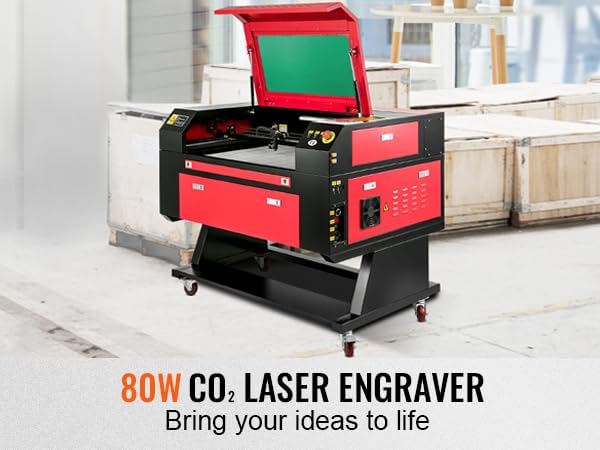
Image 1.1: Overview of the Furvveerr 80W CO2 Laser Engraver.
2. Safety Information
WARNING: This is a Class 4 laser product (IEC 60825-1:2014) with a power output of 5mW. Direct exposure to the laser beam can cause severe eye and skin damage. Always follow safety precautions.
- Always wear appropriate laser safety glasses when operating the machine.
- Ensure the work area is well-ventilated to remove fumes and smoke generated during engraving/cutting.
- Never leave the machine unattended during operation.
- Keep a fire extinguisher nearby. The machine features a fireproof viewing window made from special fire-resistant polyester (melting point 432°-488°, ignition temperature over 1000°), but caution is still required.
- Do not engrave or cut materials that produce toxic fumes or are highly flammable without proper ventilation and safety measures.
- Ensure all covers and safety interlocks are properly engaged before operation.
- Disconnect power before performing any maintenance or cleaning.
3. Product Overview and Features
The Furvveerr 80W CO2 Laser Engraver is designed for precision engraving and cutting across a wide range of materials. Key features include:
- 80W CO2 Laser Tube: High-performance Yongli H2 tube with a lifespan of up to 8000 hours, delivering efficient and precise laser beams.
- Spacious Working Area: A 28 x 20 inch (700 x 500 mm) honeycomb bed provides ample space for various projects.
- 2-Way Pass-Through: Front and back pass-through doors allow for processing larger materials.
- Digital Control Panel: Intuitive interface for adjusting parameters, pausing, and terminating processes. Compatible with LightBurn, AutoCAD, and other third-party graphic software.
- Intelligent Laser Head: Ensures high cutting precision and smooth incisions. Features a red-dot pointer for accurate work path indication.
- Air Assist: Integrated air assist system helps to clear debris and reduce burning during cutting.
- Fireproof Viewing Window: Enhanced safety with a specialized fire-resistant polyester window.

Image 3.1: The 700mm x 500mm honeycomb working platform.

Image 3.2: High-performance Yongli H2 laser tube.
4. Setup
4.1 Unpacking and Inspection
- Carefully remove the laser engraver and all components from the packaging.
- Inspect the machine for any signs of damage during transit. Report any damage to the supplier immediately.
- Ensure all included components are present according to the packing list.
4.2 Included Components
The following items are typically included with your Furvveerr 80W CO2 Laser Engraver:
- Maintenance tool kit
- Smoke exhaust pipe
- Software USB stick
- Power line
- Data line (USB/Network)
- Grounding wire
- Water pump (for cooling)
- Air pump (for air assist)
- Exhaust fan

Image 4.1: Machine dimensions and included accessories.
4.3 Initial Assembly and Connections
- Positioning: Place the machine on a stable, level surface in a well-ventilated area.
- Grounding: Connect the grounding wire to a proper earth ground. This is critical for safety.
- Cooling System: Connect the water pump to the laser tube's water inlet and outlet. Ensure the water pump is submerged in a bucket of distilled water (not included) to provide adequate cooling for the laser tube.
- Air Assist: Connect the air pump to the air assist nozzle on the laser head.
- Exhaust System: Connect the smoke exhaust pipe to the exhaust fan, and direct the fan's output to an outdoor vent or a suitable filtration system.
- Power Connection: Connect the power line to the machine and then to a grounded 110V AC power outlet. Do not power on yet.
- Data Connection: Connect the machine to your computer using a USB cable or network cable, or prepare a USB disk for file transfer.
4.4 Software Installation
The laser engraver is compatible with various software, including LightBurn and AutoCAD. Install the necessary drivers and software from the provided USB stick or download the latest versions from the manufacturer's website.
- Insert the software USB stick into your computer.
- Follow the on-screen instructions to install the drivers and control software (e.g., Ruida controller software, LightBurn).
- Ensure your operating system (Windows, Mac OS, Linux) is compatible with the chosen software.
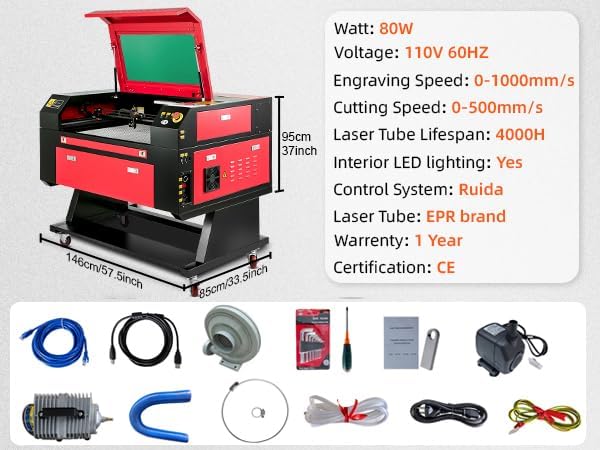
Image 4.2: Digital control panel and compatible software.
5. Operating Instructions
5.1 Powering On and Initial Checks
- Ensure all connections (power, water, air, exhaust) are secure.
- Turn on the water pump to ensure water circulation for laser tube cooling. Verify water flow.
- Turn on the main power switch on the laser engraver.
- The digital control panel will power on.
5.2 Material Preparation and Placement
- Select the material you wish to engrave or cut. Ensure it is clean and flat.
- Place the material securely on the honeycomb bed. Use clamps if necessary to prevent movement.
- Close the machine lid.
5.3 Focusing the Laser
Accurate focusing is crucial for optimal engraving and cutting results. Refer to your specific software's instructions for auto-focus or manual focus procedures. The red-dot pointer assists in visualizing the laser's position.

Image 5.1: Illustration of thin laser focus for precision.
5.4 Software Operation and Job Execution
- Open your chosen design software (e.g., LightBurn).
- Import or create your design.
- Set the appropriate laser parameters (power, speed, passes) based on your material and desired outcome. Refer to the "Cutting Depth VS Power" table below for guidance.
- Send the job to the laser engraver via USB, network, or USB disk.
- On the digital control panel, confirm the job and press "Start/Pause" to begin.
- Monitor the process through the fireproof viewing window.
5.5 Material Compatibility and Settings Guide
The following table provides general guidelines for cutting depth based on material and laser power. These are starting points; actual settings may vary based on material density, quality, and desired finish. Always perform test cuts on scrap material.
| Material/Power | 50W | 60W | 80W | 100W | 130W | 150W |
|---|---|---|---|---|---|---|
| Wood | 3.5mm | 5.5mm | 8.5mm | 10.5mm | 11.5mm | 13.5mm |
| Plywood | 2.5mm | 4.5mm | 8.5mm | 10.5mm | 11.5mm | 13.5mm |
| Leather | 1.5mm | 2.5mm | 3.5mm | 4.5mm | 5.5mm | 6.5mm |
| Acrylic | 3.5mm | 9.0mm | 13mm | 17mm | 20mm | 23mm |
| PVC | 1.5mm | 2.5mm | 3.5mm | 4.5mm | 5.5mm | 6.5mm |
| Plexiglass | 1.5mm | 7.5mm | 7.5mm | 9.5mm | 11.5mm | 14.5mm |
| Plastic | 0.5mm | 2.5mm | 2.5mm | 3.5mm | 4.5mm | 5.5mm |
| Rubber | 1.5mm | 2.5mm | 2.5mm | 3.5mm | 4.5mm | 5.5mm |
| Cloth | 1.5mm | 2.5mm | 2.5mm | 3.5mm | 4.5mm | 6.5mm |
| Bamboo | 1.0mm | 2.5mm | 2.5mm | 3.5mm | 4.5mm | 5.5mm |
| Paper | 0.5~5mm | |||||
Note: For some materials, such as glass, crystal, ceramic, marble, and stone, only engraving is applicable, not cutting.

Image 5.2: Detailed material compatibility and cutting depth guide.
6. Maintenance
Regular maintenance ensures the longevity and optimal performance of your laser engraver.
6.1 Laser Tube Care
- The Yongli H2 laser tube has a lifespan of up to 8000 hours. Consistent use at lower power settings can extend its life.
- Ensure the water cooling system is always functioning correctly to prevent overheating of the laser tube. Use distilled water to prevent mineral buildup.
- Periodically check water lines for kinks or leaks.
6.2 Cleaning
- Optics: Regularly clean the laser lens and mirrors with specialized optical cleaning solutions and wipes to maintain laser beam quality.
- Working Area: Clean the honeycomb bed and interior of the machine to remove debris and residue.
- Exhaust System: Inspect and clean the exhaust fan and ducting to ensure efficient smoke and fume extraction.
- General: Wipe down the exterior of the machine with a damp cloth.
CAUTION: Always disconnect power before performing any cleaning or maintenance inside the machine.
6.3 Air Pump and Water Pump
- Check the air pump filter periodically and clean or replace as needed.
- Ensure the water pump is free from blockages and operating efficiently. Replace water in the cooling reservoir regularly.
7. Troubleshooting
This section addresses common issues you might encounter. For more complex problems, contact customer support.
- No Laser Output:
- Check if the laser tube is properly connected and receiving power.
- Verify the water cooling system is running and water is flowing.
- Ensure all safety interlocks (lid closed, emergency stop released) are engaged.
- Check laser power settings in your software.
- Poor Engraving/Cutting Quality:
- Verify the laser is properly focused on the material surface.
- Clean the laser lens and mirrors.
- Adjust power and speed settings for the specific material.
- Ensure the material is flat and securely placed.
- Machine Not Responding to Software:
- Check USB or network cable connections.
- Ensure drivers are correctly installed.
- Restart both the machine and your computer.
- Verify software settings match the machine's connection type.
- Excessive Smoke/Fumes:
- Ensure the exhaust fan is operating at full capacity.
- Check for blockages in the exhaust pipe.
- Verify proper ventilation in the work area.
- Consider reducing laser power or increasing speed.
8. Specifications
| Feature | Specification |
|---|---|
| Brand | Furvveerr |
| Model Number | KH-7050 |
| Laser Type | CO2 Laser |
| Laser Power | 80W |
| Working Area | 700 x 500 mm (28" x 20") |
| Engraving Speed | 0-1000 mm/s (0-39.4 ips) |
| Cutting Speed | 0-500 mm/s (0-19.7 ips) |
| Max Cutting Thickness | Up to 15 mm (0.59 in) in one pass (material dependent) |
| Laser Tube Lifespan | Up to 8000 hours |
| Control System | Ruida |
| Software Compatibility | LightBurn, AutoCAD, CorelDraw, LaserDRW |
| Operating System Compatibility | Windows, Mac OS, Linux |
| Connectivity | USB Disk, USB Cable, Network Cable |
| Power Source | AC |
| Voltage | 110 Volts |
| Wattage | 80 watts |
| Product Dimensions (L x W x H) | 146 cm x 85 cm x 95 cm (57.5" x 33.5" x 37") |
| Item Weight | 364 Pounds |
| Included Components | Maintenance tool, smoke exhaust pipe, software USB stick, power line, data line, grounding wire, water pump, air pump, exhaust fan |
| Laser Class | Class 4 (IEC 60825-1:2014) |
| Certification | CE |
9. Warranty and Support
9.1 Warranty Information
This Furvveerr 80W CO2 Laser Engraver, Model KH-7050, comes with a 1-Year Warranty from the date of purchase. This warranty covers manufacturing defects and malfunctions under normal use. Please retain your proof of purchase for warranty claims. Consumable parts, such as the laser tube (beyond its rated lifespan), lenses, and mirrors, may have different warranty terms or be excluded.
9.2 Customer Support
For technical assistance, troubleshooting, or warranty inquiries, please contact Furvveerr customer support. Refer to the contact information provided with your product packaging or visit the official Furvveerr website for support resources.
When contacting support, please have your model number (KH-7050) and purchase date ready.
10. Applications
The Furvveerr 80W CO2 Laser Engraver is suitable for a wide array of applications in various industries, including advertising, crafts, gifts, shoes, toys, electronics, and furniture. It can be used to create intricate designs and precise cuts on numerous materials.

Image 10.1: Examples of projects created with the laser engraver.