
ProGrade Digital PG10
ProGrade Digital PG10 8TB Professional External SSD Drive USB 4.0 User Manual
Model: PG10 | Capacity: 8TB | Windows Version
Introduction
This manual provides comprehensive instructions for the setup, operation, and maintenance of your ProGrade Digital PG10 8TB Professional External SSD Drive. Please read this manual thoroughly before using the device to ensure optimal performance and data integrity.
The ProGrade Digital PG10 is a high-performance external solid-state drive designed for professionals requiring fast and reliable data transfer. It features a USB 4.0 interface, offering compatibility with Thunderbolt 4, Thunderbolt 3, and other USB Type-C ports. Key features include a power-sensing LED indicator, Refresh Pro readiness for health monitoring and firmware updates, and a patented magnetic base for secure mounting.
Package Contents
- ProGrade Digital PG10 8TB External SSD Drive
- USB 4.0 Certified Cable
- Rugged Carrying Case
- Metal Plate (for magnetic mounting)
Product Overview
The ProGrade Digital PG10 SSD is engineered for demanding professional workflows. Its robust design and advanced features ensure efficient data handling.

Image: ProGrade Digital PG10 External SSD. This image shows the top-down view of the gray rectangular SSD with the ProGrade Digital logo and an arrow design. An orange LED indicator is visible on the front edge.
Key Features:
- USB 4.0 Interface: Provides high-speed data transfer and broad compatibility with Thunderbolt 4, Thunderbolt 3, and USB Type-C ports.
- Power-Sensing LED Indicator: Informs the user if the host device is supplying the recommended 15W of power for optimal performance.
- Refresh Pro Ready: Enables proactive monitoring of drive health, performance restoration, and firmware updates.
- Magnetic Base: Patented design for secure mounting to workstations using the included metal plate.
- Writable Label Area: Compatible with industry-standard Avery labels for easy content identification.
- Professional Build Quality: Features a dual heat sink internal structure for efficient cooling and prevention of thermal throttling.
Setup
1. Connecting the SSD
- Locate the USB 4.0 certified cable included in the package.
- Connect one end of the USB 4.0 cable to the USB-C port on the ProGrade Digital PG10 SSD.
- Connect the other end of the USB 4.0 cable to a compatible USB 4.0, Thunderbolt 4, Thunderbolt 3, or USB Type-C port on your Windows computer.
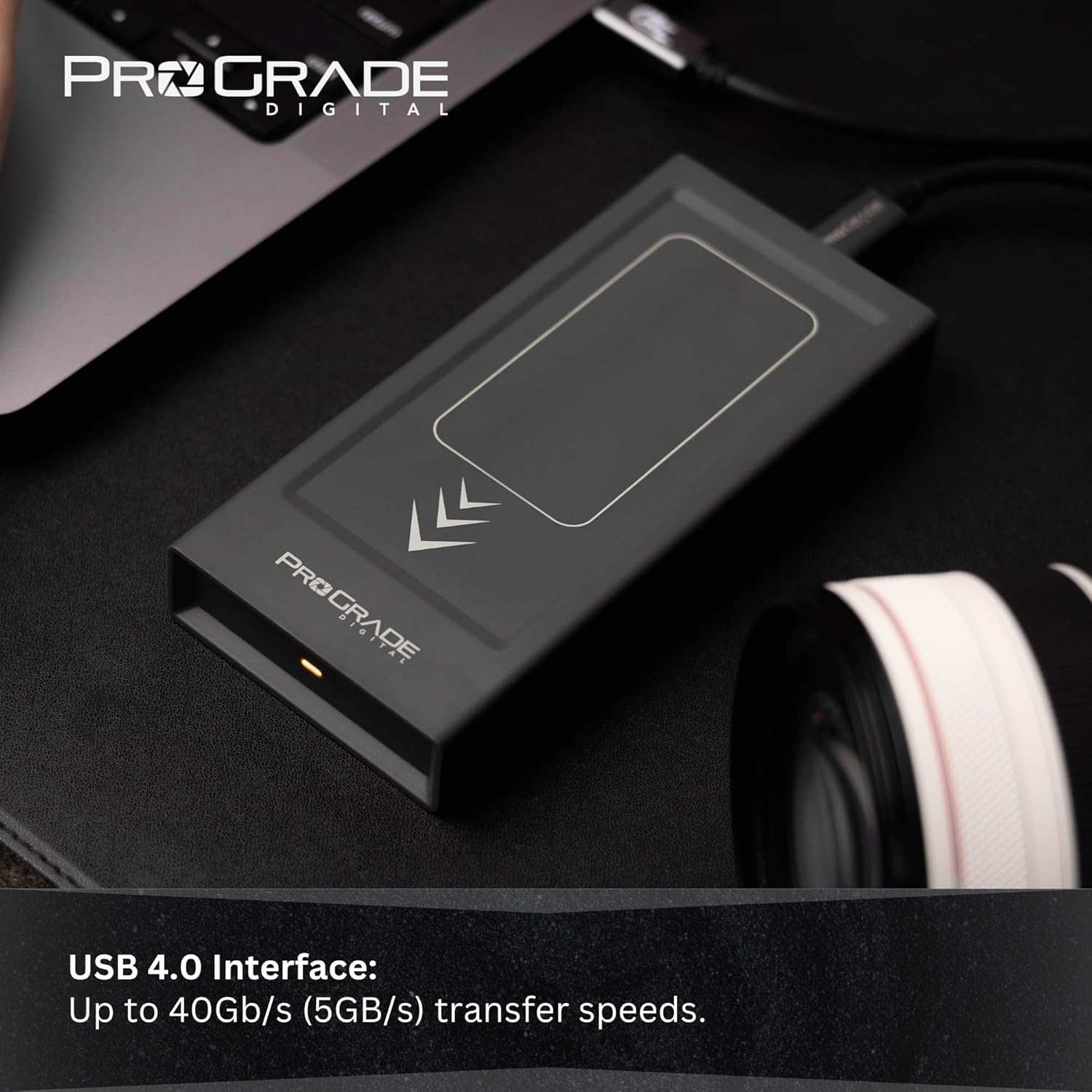
Image: A hand connecting the ProGrade Digital PG10 SSD to a laptop via a USB-C cable. The SSD is shown on a desk next to a camera lens.
2. Power Verification
Once connected, observe the power-sensing LED indicator on the front of the SSD. A steady light indicates that the device is receiving the recommended 15 watts of power, ensuring full performance. If the LED is not lit or is blinking, verify the connection or try a different USB port on your computer that can supply adequate power.
3. Initial Recognition (Windows Only)
For Windows operating systems, the drive should be automatically recognized. You may need to initialize and format the drive if it's not immediately visible in 'This PC' or 'File Explorer'.
- Right-click on the Start button and select 'Disk Management'.
- Locate the ProGrade Digital PG10 SSD (it may appear as 'Unallocated Space').
- Right-click on the unallocated space and select 'New Simple Volume'.
- Follow the on-screen wizard to assign a drive letter and format the drive (NTFS is recommended for Windows).
Operating the SSD
Data Transfer
To transfer files, simply drag and drop them to and from the PG10 SSD in File Explorer. The USB 4.0 interface supports read and write speeds up to 2500MB/s, with sustained write speeds of 2000MB/s for the 8TB model, enabling rapid transfer of large media files.

Image: The ProGrade Digital PG10 SSD connected to a laptop, demonstrating its readiness for data transfer. The SSD is positioned on a dark desk surface.
Secure Mounting
The PG10 SSD features a patented magnetic base. For secure attachment to a workstation or other surfaces, use the included metal plate. Adhere the metal plate to your desired surface, and the SSD will magnetically attach, preventing accidental disconnections or movement during use.
Identifying Drive Contents
Utilize the writable label area on the SSD for easy identification of its contents. This area is compatible with industry-standard Avery labels, allowing you to categorize and organize your drives efficiently.

Image: A hand pointing to the writable label area on the ProGrade Digital PG10 SSD, highlighting its utility for organization.
Maintenance
Firmware Updates and Health Monitoring (Refresh Pro)
The ProGrade Digital PG10 SSD is Refresh Pro ready. This feature allows you to:
- Proactively monitor the health and lifespan of your SSD.
- Restore lost performance over time.
- Update the SSD's firmware to ensure optimal compatibility and performance.
Visit the official ProGrade Digital website for information on downloading and using the Refresh Pro software.
Physical Care
- Keep the SSD clean and free from dust. Use a soft, dry cloth for cleaning.
- Store the SSD in its rugged carrying case when not in use to protect it from physical damage and environmental factors.
- Avoid exposing the SSD to extreme temperatures or direct sunlight.

Image: The ProGrade Digital PG10 SSD being placed into its rugged carrying case, emphasizing protection and portability.
Troubleshooting
| Problem | Possible Cause | Solution |
|---|---|---|
| SSD not recognized by computer |
|
|
| Slow transfer speeds |
|
|
| Power-sensing LED not lit |
|
|
If you continue to experience issues, please refer to the Support section for further assistance.
Specifications
| Feature | Detail |
|---|---|
| Model Number | PG10 |
| Digital Storage Capacity | 8 TB |
| Interface | USB 4.0 (compatible with Thunderbolt 4, Thunderbolt 3, USB-C) |
| Read Speed | Up to 2500 MB/s |
| Write Speed | Up to 2500 MB/s |
| Sustained Write Speed (8TB) | 2000 MB/s |
| Power Requirement | 15W (indicated by power-sensing LED) |
| Operating System Compatibility | Windows (This version is Windows Only) |
| Dimensions (LxWxH) | 0.79 x 0.79 x 1.1 inches |
| Item Weight | 0.247 ounces |
| Special Features | LED Light, Portable, Magnetic Base, Refresh Pro Ready |
Warranty Information
ProGrade Digital products are designed and manufactured to the highest quality standards. For detailed warranty information, including terms, conditions, and registration, please visit the official ProGrade Digital website or contact customer support.
Note: The serial number on your device matches the serial number on the carrying case for security and warranty purposes. Please retain your proof of purchase.
Support
For technical assistance, product inquiries, or warranty claims, please contact ProGrade Digital customer support:
- Website: www.progradedigital.com (Check for support contact information, FAQs, and driver/firmware downloads)
- Email: Refer to the ProGrade Digital website for the most current support email address.
- Phone: Refer to the ProGrade Digital website for the most current support phone numbers.
When contacting support, please have your product model (PG10) and serial number ready.
Related documentsPG10

Ask a question about this manual
Ask about setup, troubleshooting, compatibility, parts, safety, or missing instructions. Manuals+ will review the question and use this page’s manual context to help answer it.